Label Print
The Label Print function enables the user to identify items that need shelf labels. Scanned bar codes, entered part numbers, or line and part numbers, or SKU numbers, with valid label types (0, 2, 4, and 5) are added to a label file which prints via the PartsWatch application.
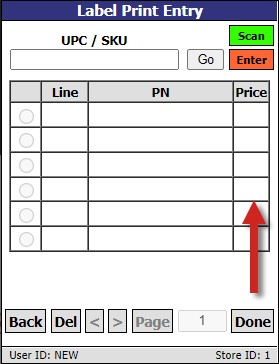
Select the 'Label Print' option on the 'Main Menu' screen. The 'Label Print Entry' screen displays defaulted in the 'Scan' mode allowing scanning of part numbers that need labels printed. Tap 'Enter' to change to the 'Enter' mode version of the 'Label Print Entry' screen allowing manual entry of UPCs, SKUs, or Line Code and/or Part Numbers that need labels printed. When a part is scanned or entered to print its label, if the value of the 'DISPLAY LABEL QTY' of the part as found in the desktop application is '0', change the value to '1', and retain it so that the label will be printed in the standard nightly label print job. If the 'DISPLAY LABEL QTY' of a scanned part is '0', it will not be changed to '1' in the desktop application until the 'Done' button is tapped.
The 'DEFAULT LABEL TYPE' for a scanned part is still required to be added to the 'Label Print Entry' list. If it is missing on a scanned part, the prompt "This part does not have a default label type." will appear. A label type must be assigned in the PART PRICE ENTRY screen of the desktop application to the part to take advantage of this functionality.
Allows manual entry of the line code when in 'Enter' mode.
Allows manual entry of the pat number, universal product code, or stock keeping unit, when in 'Enter' mode, for a number other than the sequenced numbers presented.
Tap to add the part number, if valid, to the grid.
Scan parts or shelf labels, when enabled. (Screen defaults to 'Scan' mode when opened.) Items are added to the bottom of the list in the grid as they are scanned.
Manually enter a part number, when enabled, and when selected.
Selects a part number.
Indicates the added line code.
Indicates the added part number.
Displays part prices with one to three decimal places.
Tap to return to the previous screen. Displays the prompt, "You will lose all of your entries if you do not post to Label File. Are you sure?" Tap 'Cancel' to return to the 'Label Print Entry' screen. Tap 'OK' to exit and discard changes.
Tap to delete a selected part number.
Tap to move back or ahead in the listings when multiple pages exist.
Indicates the page number of the current page. Enter a new page number and tap the button to jump to that page.
Saves the entries. Displays a prompt stating, "Post To Label File?" Tap 'OK' and parts are transferred and added to the file being generated and maintained within the PartsWatch application for price labels. Tap 'Cancel' to return to the 'Label Print Entry' screen.