Region Setup
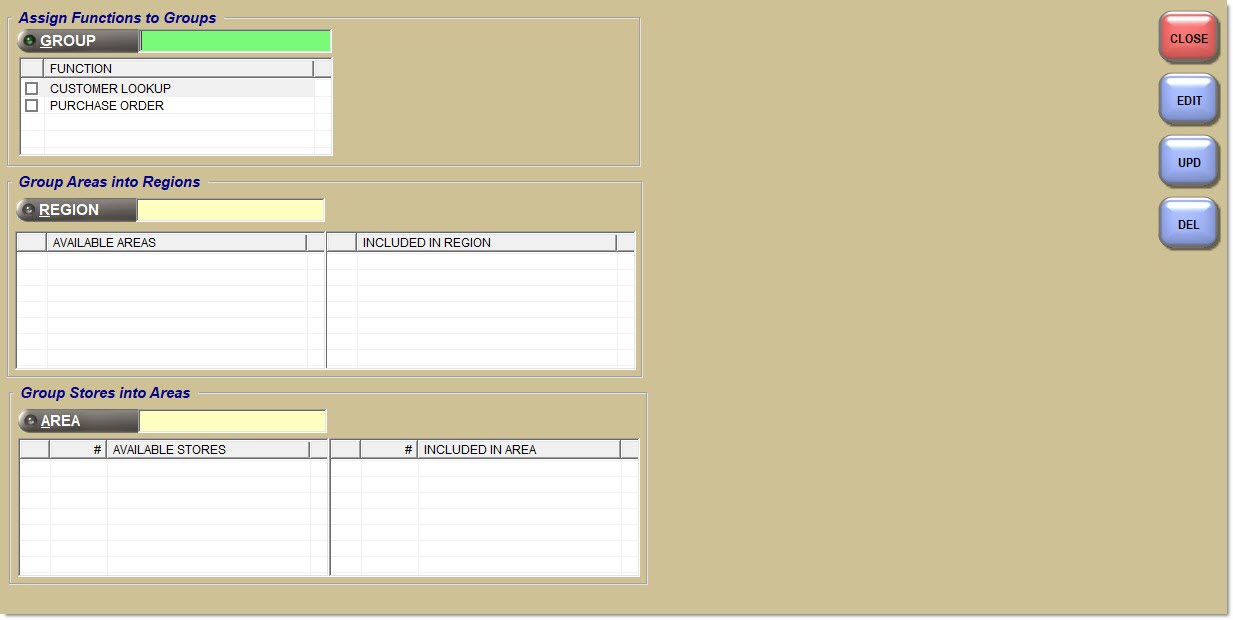
The Regions Setup Utility screen is used in multi-store environments to group stores together to conduct data searches, running reports and updating tables.
Menu Path: Controls, System, Region Setup, Region Setup screen
PartsWatch follows the following hierarchy:
From smallest to largest:
-
Single Store
-
Areas
-
Regions
-
All Stores
The Regions Setup Utility screen is divided into two sections:
-
'Areas'
-
'Regions'
To use 'Areas' and 'Regions' for multi-store functions:
-
Use Location for single store lookup.
-
Enter an 'Area' or click 'Area' to lookup available 'Areas'.
-
Enter a 'Region' or click 'Region' to lookup available 'Regions'.
-
Use Location '0' and leave the 'Area'/'Region' fields blank, for all stores.
Assign Functions to Group
The 'Assign Functions to Groups' section of the Regions Setup Utility screen enables the setting up more than one store grouping. For example, Store 1 may be grouped with Stores 2, 3, and 4 for customer lookups. However, Store 1 may also be grouped with Stores 3, 4, and 5 for commission reporting. More than one universal regions grouping may be set up to accommodate these needs. The 'Group' field is used to identify the different universal groupings.
To set up a group, enter up to 30 alphanumeric characters to identify a universal store grouping setup in the 'Group' field. When the Group is entered, the prompt, "Universal Group not found. Would you like to add it? Y/N", displays.
The 'Group' represents all stores that exist within the database. 'Areas' and 'Regions' are used to narrow the stores used for a selected function.
The 'Function' grid is used to select the available functions for which an established 'Area' and/or 'Area' and 'Regions' can be used. Check the applicable function(s). To use the same setup for all available functions, click 'All'. To deselect all available functions, click 'None'.
The available functions that display in this list are hard-coded in the program. A function cannot be selected for more than one universal Group setup. If an attempt is made to select a function that has already been selected under another universal 'Group', a prompt displays stating the name of the previously selected 'Group' and asks if the current selection should be used instead.
Procedure to Set Up a Group
To set up a 'Group', follow the steps below:
-
From the Menu, select Controls, System, Region Setup. The Regions Setup Utility screen displays.
-
Enter a description of up to 30 alphanumeric characters to identify a universal store grouping setup in the 'Group' field. When the group is new, a prompt displays stating, "Universal Group not found. Would you like to add it?"
-
Click 'Upd'. The newly created universal 'Group' information is saved.
Procedure to Select a Function
To select a 'Function', follow the steps below:
-
From the Menu, select Controls, System, Region Setup. The Regions Setup Utility screen displays.
-
Click on the checkbox next to each desired function. The displayed setup is used for that function.
-
Click 'All' to use the same setup for all available functions, if appropriate.
-
Click 'None' to deselect all available functions, if appropriate.
-
Click 'Upd'. The information is saved.
Group Stores in an Area
An 'Area' is a collection of stores. 'Areas' must be set up before the 'Regions' are selected.
The list is alphabetized using the 'State's' two alpha character abbreviation, and then by the 'Store Name' field.
Procedure to Set Up an Area
To set up an 'Area', follow the steps below:
-
From the Menu, select Controls, System, Region Setup. The Regions Setup Utility screen displays.
-
Enter a description of up to 30 alphanumeric characters for each 'Area' in the 'Area' field.
-
When the description is new, a prompt displays stating, "Area not found. Would you like to add it?" When added, the 'Available Stores' grid populates with a list of stores from the 'Store Name' field in the Store General Setup screen.
-
Double-click each store from the list to select. The store moves from the 'Available Stores' list to the 'Included in Area' list.
-
Click 'Upd' when all stores have been selected. The newly created area information is saved and displays in the 'Available Areas' list located in the 'Regions' section.
Procedure to Edit an Existing Area
To edit an existing 'Area', follow the steps below:
-
From the Menu, select Controls, System, Region Setup. The Regions Setup Utility screen displays.
-
Enter a name in the 'Area' field or click 'Area'. If the 'Area' button is clicked, a lookup window displays with a list of available areas.
-
Double-click a selection. The selected store displays. All remaining stores display in the 'Available Stores' grid and all stores that make up the region display in the 'Included in Area' list.
-
Click 'Edit' to make changes.
-
Click 'Upd'. The changes are saved.
Procedure to Remove Store from an Area
To remove a store from an 'Area', follow the steps below:
-
From the Menu, select Controls, System, Region Setup. The Regions Setup Utility screen displays.
-
Click 'Edit'.
-
Double-click a store in the 'Included in Area' list. The selection moves from the 'Included in Area' list to the 'Available Stores' list.
-
Click 'Upd'. The changes are saved.
Group Areas into Regions
A 'Region' is a collection of 'Areas'. 'Areas' must be set up in order to set up 'Regions'. However, 'Regions' are optional and provide a way to broaden the search area.
Procedure to Set Up a Region
To set up a 'Region', follow the steps below:
-
From the Menu, select Controls, System, Region Setup. The Regions Setup Utility screen displays.
-
Enter a description of up to 30 alphanumeric characters in the 'Region' field. When the description is new, a prompt displays stating, "Region not found. Would you like to add it?" When added, the 'Available Areas' grid populates with a list of areas that have been set up.
-
Double-click each area from the list to select. The region moves from the 'Available Areas' list to the 'Included in Region' list.
-
Click 'Upd' when all areas are selected. The newly created region information is saved.
Procedure to Edit an Existing Region
To edit an existing 'Region', follow the steps below:
-
From the Menu, select Controls, System, Region Setup. The Regions Setup Utility screen displays.
-
Enter a name in the 'Region' field or click the 'Region' button. If the 'Region' button is clicked, a lookup window displays with a list of available regions.
-
Double-click a selection. The selected store displays. All remaining areas display in the 'Available Areas' grid and all areas that make up the region display in the 'Included in Region' list.
-
Click 'Edit' to make changes.
-
Click 'Upd'. The changes are saved.
Procedure to Remove Store from a Region
To remove a store from a 'Region', follow the steps below:
-
From the Menu, select Controls, System, Region Setup. The Regions Setup Utility screen displays.
-
Click 'Edit'.
-
Double-click an area in the 'Included in Region' list. The selection moves from the 'Included in Region' list to the 'Available Areas' list.
-
Click 'Upd'. The changes are saved.