System Information
The System Information screen contains basic information about your company, as well as how to contact PWS Support to request contact information changes or for inquiries. The screen is also an alternative method to connect to a PW database using a mobile device.
Aside from the 'Manage Devices' window, fields are not editable. Information is updated by PWS Customer Support. If any information is incorrect, contact your Support Representative.
Menu Path: Controls, System, System Info, System Information screen
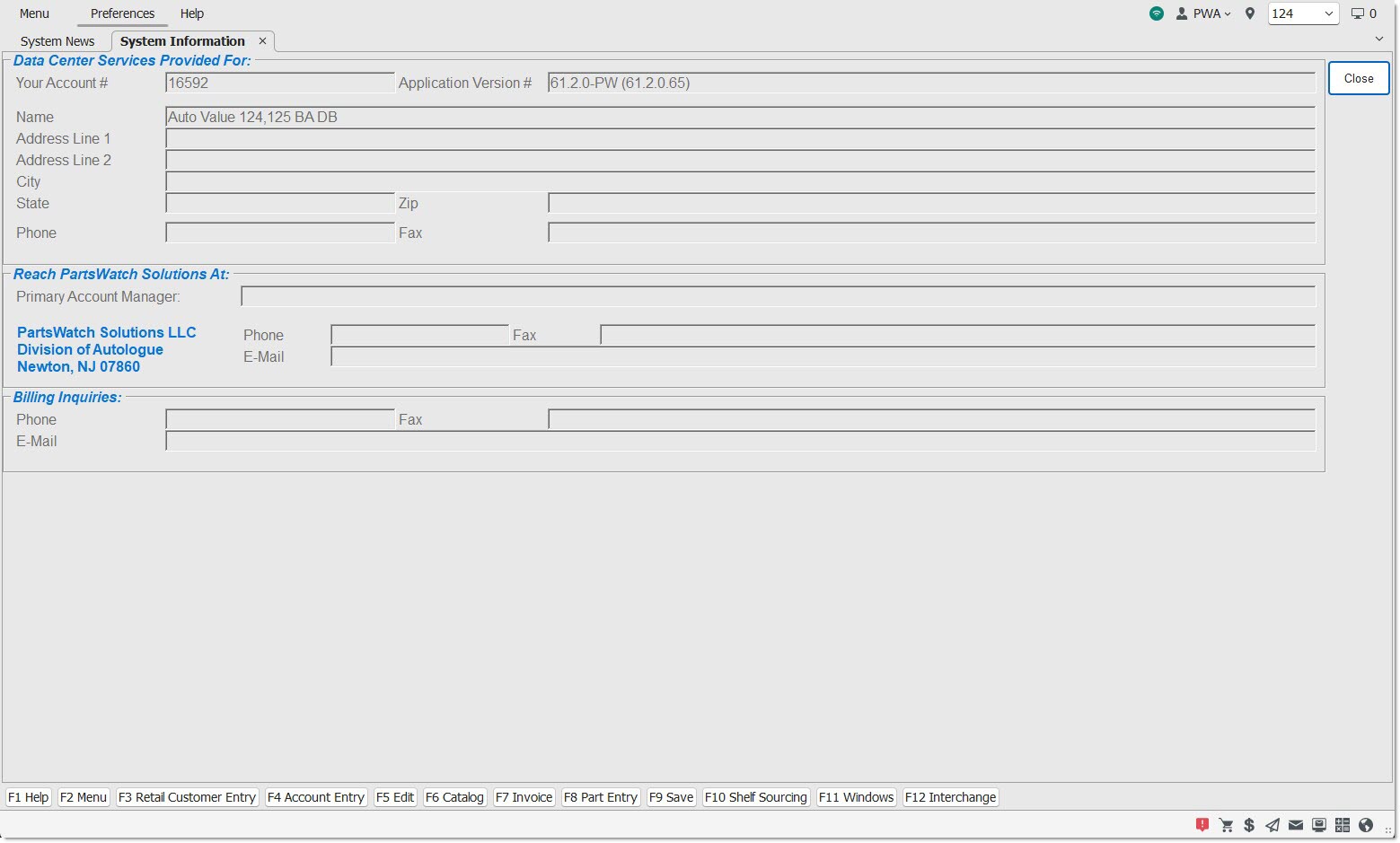
Data Center Services Provided For:
Provides information about the company, PWS account number, and the application version # of the application software.
Your Account #
Identifies the logged-in employee's Account Number assigned by PWS and may be needed when calling for assistance.
Application Version #
Identifies the version of application software that is currently running.
Name
Identifies the name of the company as it appears on all correspondence from PWS.
Address Line 1
Displays the first line of the billing address.
Address Line 2
Displays the second line of the billing address and can be used for additional information needed for the company's billing address.
City / State / Zip
Displays the city, state, and zip code of the business.
Phone
Displays the phone number for PWS to use to contact the logged-in employee.
Fax
Displays the fax number for PWS to use to send documents to the logged-in employee.
Reach PartsWatch At:
Provides PartsWatch contact information should the logged-in employee have questions about the software.
Primary Account Manager
Identifies the PWS Support Representative who is primarily responsible for the account. Ask for this person when calling PWS for assistance.
Phone / e-Mail / Fax
Displays the Primary Account Manager's phone, email, and fax contact information.
Billing Inquiries
Provides contact information for questions about the bill.
Displays phone, email, and fax contact information for billing questions.
PW Mobile
Provides an alternative method to connect to a PartsWatch database to perform certain functions using a mobile device.
Scan to Configure PartsWatch Mobile
Used to connect to the PartsWatch database using a mobile device. Displays a QR Code. The QR Code contains the values of both the System ID and Service Hostname for the PartsWatch database that are needed to access the application.
Align the QR Code on the mobile device and, when in focus, tap the Camera icon in the top right corner of the PWMobile application's 'Config' screen on the mobile device. A picture is automatically taken. The mobile device is automatically connected to the PartsWatch database without having to manually enter both values on the PW Mobile application's 'Config' screen. Note: The mobile device needs to be authorized by someone using the PartsWatch application before the PW Mobile application can access any information from that PartsWatch database.
Manage Devices
Click the 'Manage Devices' button to display the 'Manage Devices' window used to authorize and revoke authorization of any mobile device connected to a PartsWatch database.

Auth Code
Indicates a mobile device's authorization code used to search or filter the list of mobile devices that display in the grid.
Active
Makes the 'Auth Status' active, when checked.
Revoke
Makes the 'Auth Status' revoke, when checked.
Displays the mobile devices that are connected to the PartsWatch database, regardless if they are authorized to access information in the PartsWatch database. The grid is empty when no mobile devices are connected to this specific PartsWatch database.
Auth Code
Indicates a unique code value for a mobile device in a PartsWatch application database.
Auth Status
Indicates the authorization status of a mobile device.
Options are:
-
'Active' - Authorizes the mobile device to access the PWMobile application. Once the mobile device is authorized, tap the 'Go To Login' button on the 'Config' screen to navigate to the 'Login' screen.
-
'Revoke' - Cancels the mobile device ability to access the PWMobile application.
Device Name
Indicates the name of the mobile device. Note: This is not the Device ID.
Device Type
Indicates the type of the mobile device.
Last Use
Indicates the date/time when the mobile device last connected to or accessed a PartsWatch database.
Note
Indicates a user-entered note from the PWMobile application on the Config screen.
Reset
Resets the 'Auth Status' of a mobile device in the grid back to its original value (unless 'Upd' has been clicked).
Del
Deletes a selected mobile device. A prompt displays to verify the deletion. Once a mobile device is deleted, the mobile device must be reconnected to the PartsWatch database and be authorized again before the PartsWatch application can access information in the PartsWatch database.
Upd
Allows the 'Auth Status' of a selected mobile device to be changed from 'Active' to 'Revoke' or from 'Revoke' to 'Active' in the PartsWatch database, when clicked.