Customer Pricing Sheet
The CUSTOMER PRICING SHEET screen is used to view pricing based on PRICE PLAN SETUP for certain lines for one or more accounts, and to provide a pricing sheet for customers who want to see their pricing for a line or lines that they normally buy from the store. The CONSIGNED PRICE SHEET is output from the same screen and used to output consignment pricing for an account with consigned inventory.
Menu Path: Customers, Account Maintenance, Acct Pricing, Customer Pricing Sheet, CUSTOMER PRICING SHEET screen
Quick Reporting Options
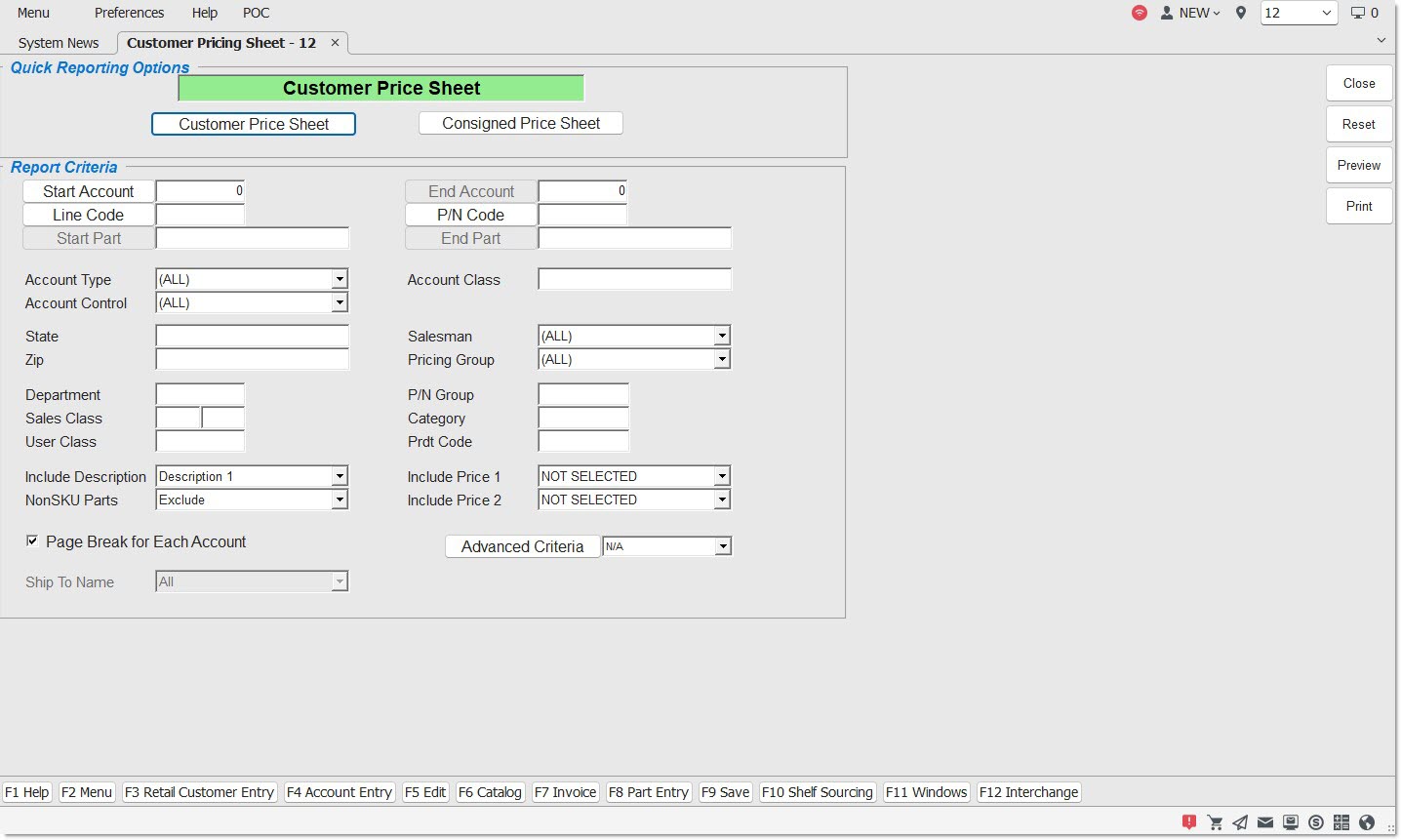
The CUSTOMER PRICING SHEET screen is used to output two separate 'Quick Reporting Options':
- 'CUSTOMER PRICE SHEET' – Outputs a list of customer Sell prices calculated using the PRICE PLAN SETUP rules.
- 'CONSIGNED PRICE SHEET' – Used to output consignment pricing for an account with consigned inventory.
Report Criteria
Select the criteria to narrow the 'CUSTOMER PRICE SHEET' report to the lowest level data needed. Even though all accounts and/or all lines and part numbers can be reported, it is recommended that the report criteria be filtered to the least number of accounts and/or lines possible in order to reduce the time needed to calculate and output the report.
START ACCOUNT / END ACCOUNT
Enter an 'ACCOUNT NUMBER' or an account number range in the 'START / END ACCOUNT' number fields for the 'CUSTOMER PRICE SHEET' report, or a single account only for the 'CONSIGNED PRICE SHEET' report. Click the 'START / END ACCOUNT' button to display the 'FIND ACCOUNT' window to search for a specific account for either report.
LINE CODE
Enter a 'LINE CODE' or click the 'LINE CODE' button to display the 'BROWSE LINE CODES' window to select a line code.
P/N CODE
With a 'LINE CODE' selected, enter the 'P/N CODE' to narrow the parts reported for the line. Click the 'P/N CODE' button to search for a specific P/N code. Without a 'LINE CODE' selected, selecting a 'P/N CODE' will report all parts with that 'P/N CODE' across all lines.
START PART/ END PART
Enter a part number range to narrow the report for those parts only or leave blank to indicate all parts. Click the 'START / END PART' button to display the 'FIND PART' window to search for a part.
The following filters are available for the 'CUSTOMER PRICE SHEET' report only:
- 'ACCOUNT TYPE'
- 'ACCOUNT CONTROL'
- 'STATE'
- 'ZIP'
- 'ACCOUNT CLASS'
- 'SALESMAN'
- 'PRICING GROUP'
THe following filters are available for bot the 'CUSTOMER PRICE SHEET' and the 'CONSIGNED PRICE SHEET' report unless otherwise stated:
- 'DEPARTMENT'
- 'SALES CLASS'
- 'USER CLASS'
- 'P/N GROUP'
- 'CATEGORY'
- 'PRDT CODE'
Select 'DESCRIPTION 1' or 'DESCRIPTION 2'.
Available for the 'CUSTOMER PRICE SHEET' report only. Select whether to report stocked parts, non-SKU parts or both:
- 'INCLUDE' – Reports parts from both the part table and the non-SKU table. (The report output does not identify whether parts are from the part table or from the non-SKU table.)
- 'EXCLUDE' – Reports parts from the part table only. (Default)
- 'ONLY' – Reports parts from the non-SKU table only.
INCLUDE PRICE 1
Available for the 'CUSTOMER PRICE SHEET' report only. Select an additional price level from the field's drop-down list to include with the report.
INCLUDE PRICE 2
Available for the 'CUSTOMER PRICE SHEET' report only. Select an additional price level from the field's drop-down list to include with the report.
PAGE BREAK FOR EACH ACCOUNT
Available for the 'CUSTOMER PRICE SHEET' report only. If checked, a page break is provided between each account reported. If unchecked, then each account is reported directly following the previous account.
GROUP BY SHIP TO
Available for the 'CONSIGNED PRICE SHEET' report only. If different consignments are set up for an accounts by Ship To address, when checked, consignment pricing is reported separately for each Ship To name and address with a page break between each. When unchecked, all parts on the consignments are reported together.
SHIP TO NAME
Available for the 'CONSIGNED PRICE SHEET' report only. If different consignments are set up for accounts by Ship To address, select the Ship To Name to from the field's drop-down list to report pricing for parts on that consignment only.
ADVANCED CRITERIA
Used to filter the report by ADVANCED CRITERIA functionality. Defaults to 'N/A' so that 'ADVANCED CRITERIA' is not used to filter the report output.
Customer Pricing Sheet Report
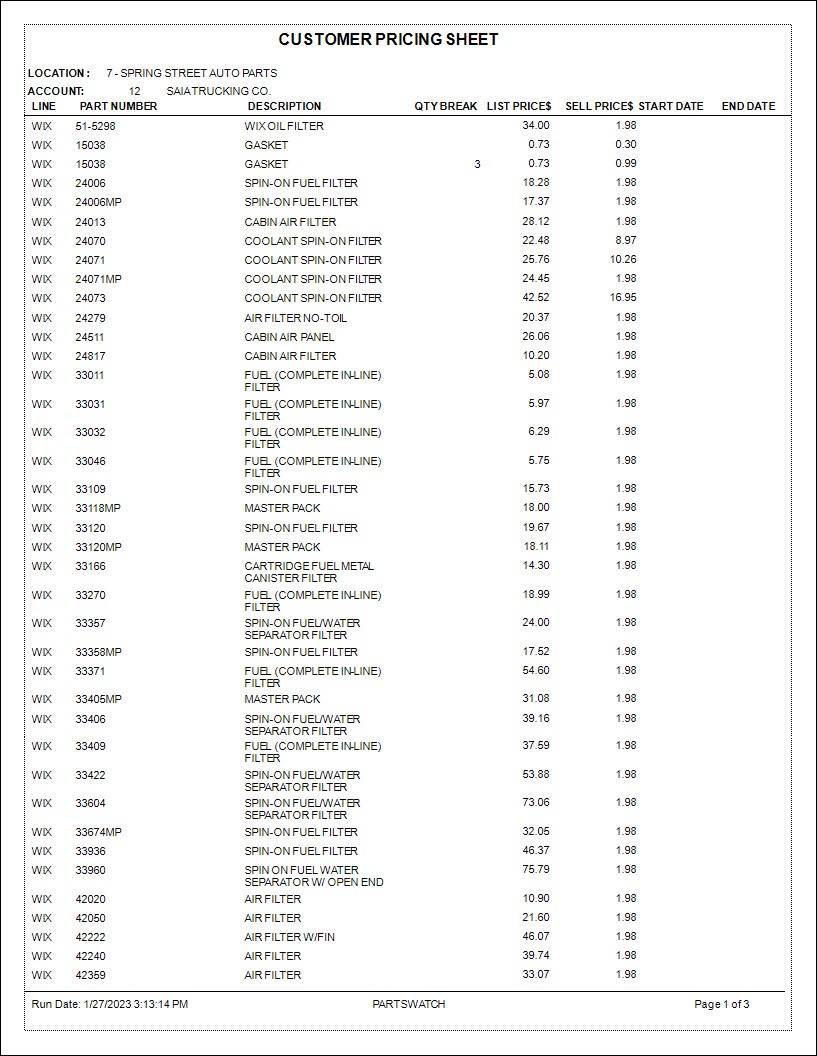
The following is an example of the 'CUSTOMER PRICING SHEET' report output:
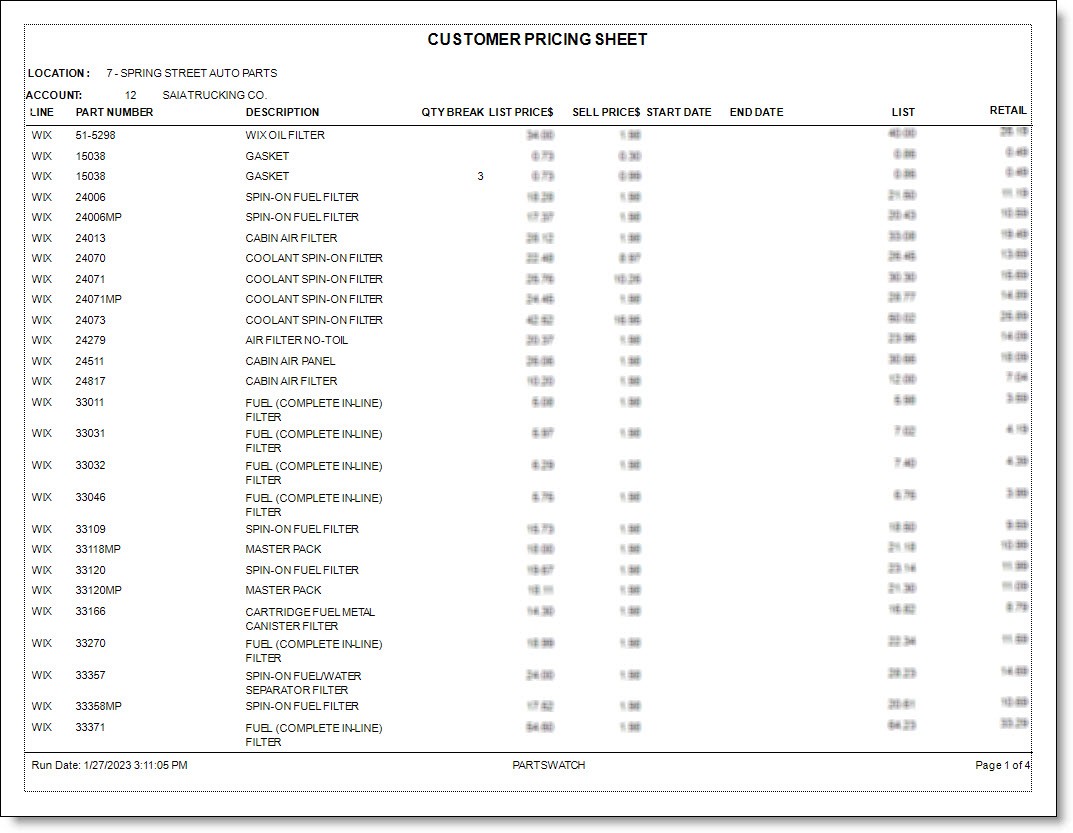
The following is an example of the 'CUSTOMER PRICING SHEET' report output including 'RETAIL' and 'CORE SELL':
Customer Pricing Sheet - Consignment
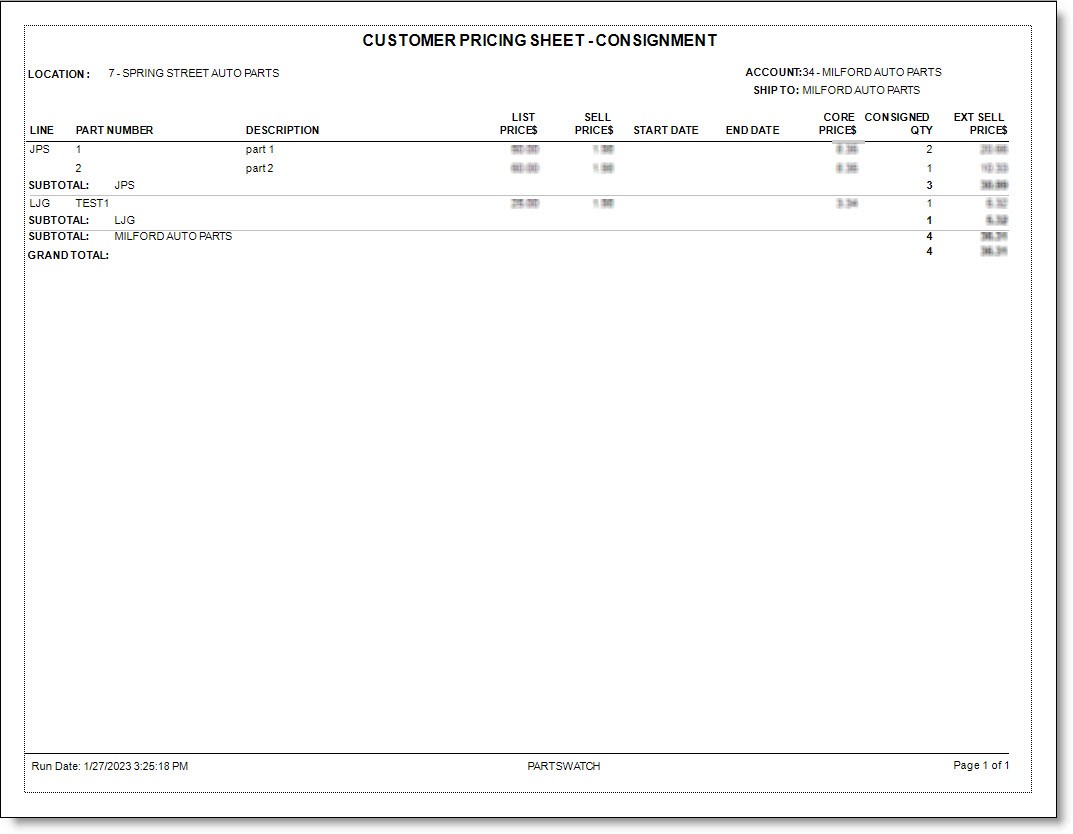
The following is an example of the 'CUSTOMER PRICING SHEET - CONSIGNMENT' report output:
Report Export
Click the 'PRINT' or 'PREVIEW' button to output the report, or click the 'PREVIEW' button with the selected 'Report Criteria' for one of the 'Quick Reporting Options' and click the small export icon in the upper left of the preview screen to export the report as a .pdf file.
