Account Mass Update
The ACCOUNT MASS UPDATE UTILITY is a powerful feature used to quickly and easily add, edit, and clear customer attributes across a selected range of accounts per store, thus eliminating the time-consuming job of entering the same information account-by-account.
Menu Path: Customers, Acct Mass Update, ACCOUNT MASS UPDATE UTILITY screen, 'UPDATE MODE'
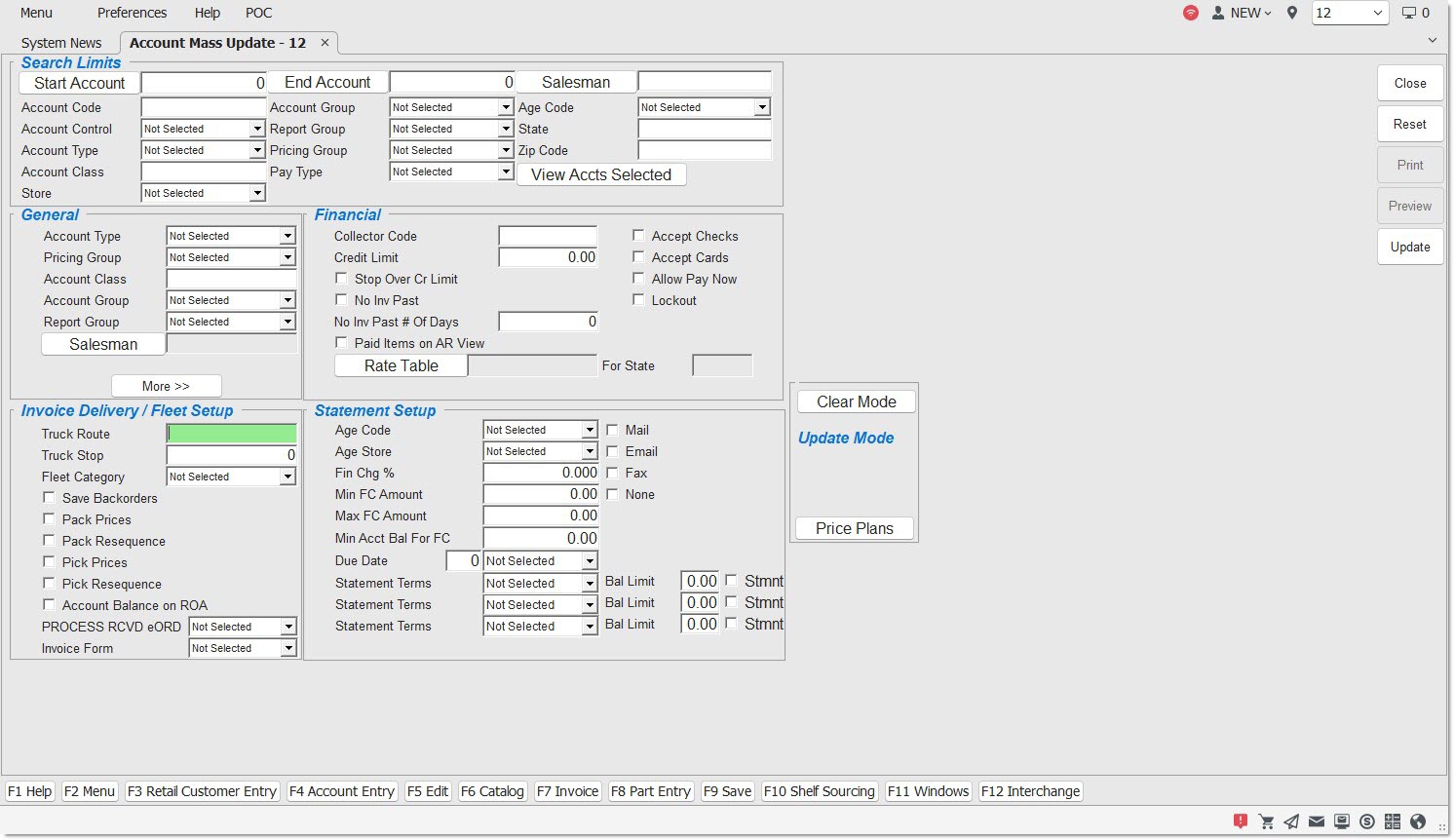
Search Limits
Optionally select the accounts that will be affected by the update or clear process by:
- 'START ACCOUNT'/'END ACCOUNT' range
- 'SALESMAN'
- 'ACCOUNT CODE'
- 'ACCOUNT CONTROL'
- 'PAY TYPE'
- 'AGE CODE'
- Account Filters: 'ACCOUNT CLASS' and 'REPORT GROUP'
- 'ACCOUNT TYPE'
- Pricing Setups: 'ACCOUNT GROUP' and 'PRICING GROUP'
- Multi-Store: 'STORE'
- Location: 'STATE' and 'ZIP'
Use caution and narrow the accounts affected before changing or clearing the attributes for the selected accounts.
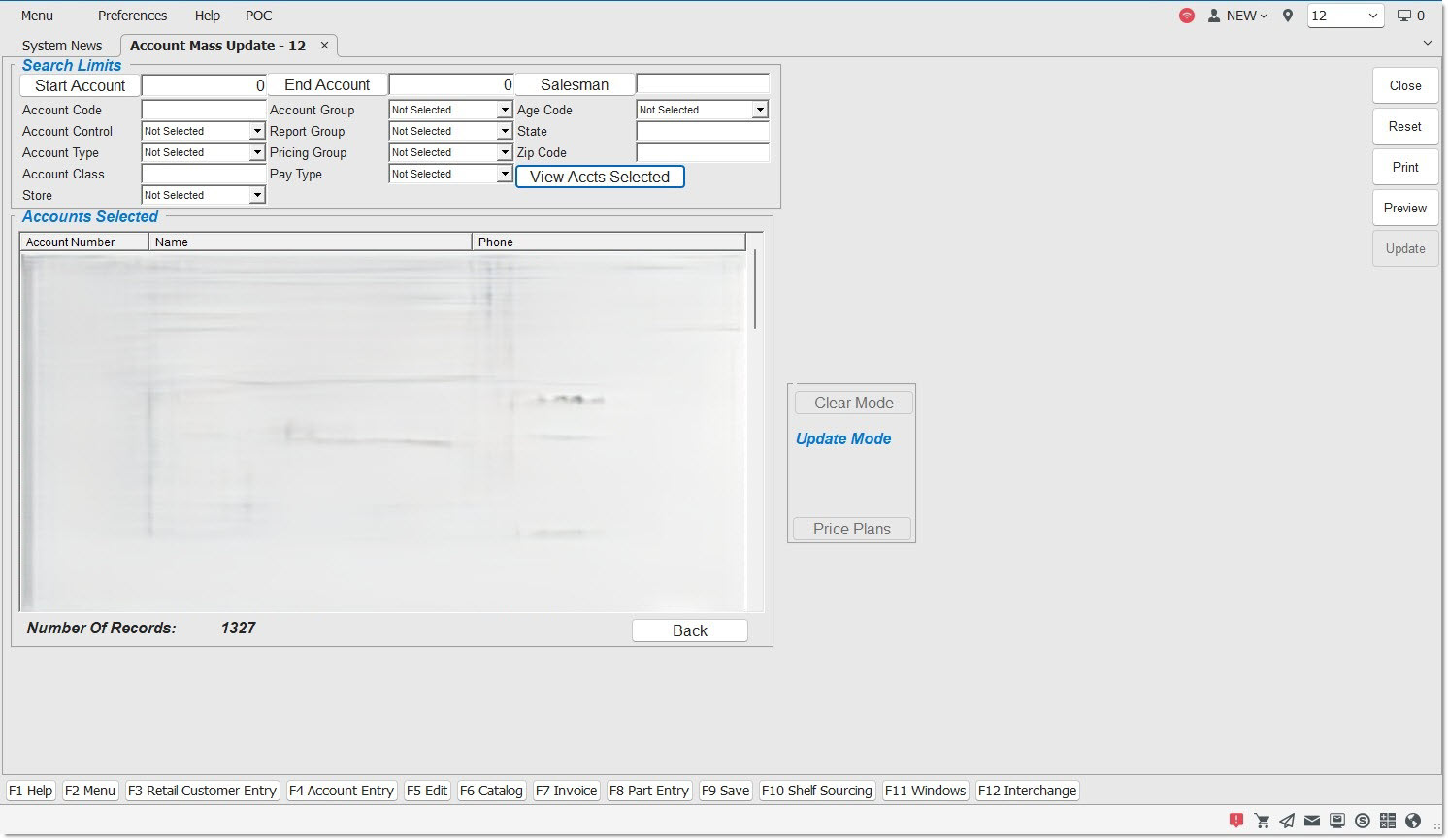
Click the 'VIEW ACCTS SELECTED' button and all the accounts that are to be mass-updated are displayed in the 'Accounts Selected' grid for review.
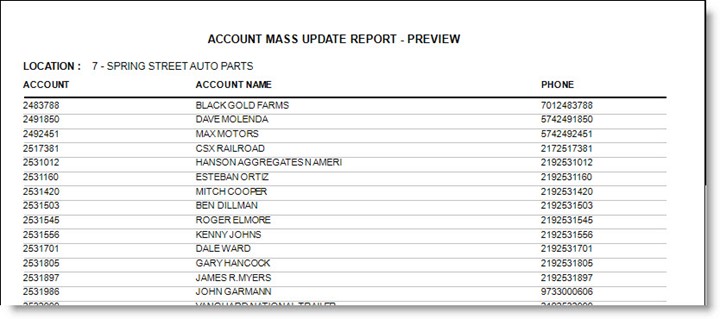
Optionally click the 'PREVIEW' button to view, or the 'PRINT' button to print the list of accounts before updating.
The list can also be printed after the update if needed.
Click the 'BACK' button to close the list.
Setup Fields
The setup fields are divided into categories to make them easier to find and edit, and even though not all attributes are available, most are.
- 'General': Includes setups for multiple purposes. Click the 'MORE . . .' button to display additional general setups.
- 'Financial': Includes A/R and payment setups
- 'Invoice Delivery/Fleet Setup'
- 'Statement Setup'
Click the 'PRICE PLANS' button to the right of the 'Statement Setup' section to display the Customer Pricing Plans setups.
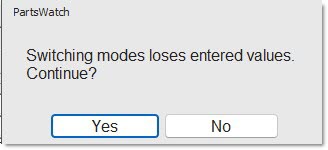
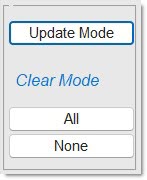
The screen defaults to 'UPDATE MODE' when opened. If 'Search Limits' and/or setup fields are selected and the 'CLEAR MODE' button is clicked, the system prompts that entered values will be lost. Answer 'Yes' and the 'Search Limits' remain however, the setup fields are reset. Answer 'No' to continue in the 'UPDATE MODE'. The same prompt opens when changing from 'CLEAR MODE' to 'UPDATE MODE'.
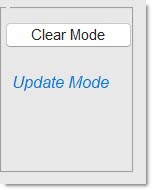
With 'UPDATE' displayed, unless affecting all accounts, select the 'Search Limits' that will define the accounts that will be updated and set the attributes in each category that will be changed.
For example, to assign all main accounts that must pay cash to a certain pricing plan, first, select 'CASH' from the 'PAY TYPE' 'Search Limits' filter, then select the pricing plan from the 'PRICING GROUP' field under the 'General' setup section.
To make sure that the right accounts will be updated, click the 'VIEW ACCTS SELECTED' button in the 'Search Limits' section to display a list of every account that meets the 'Search Limits' criteria.
If the correct accounts display, click the 'UPD' button and the system will prompt you to continue. Answer 'YES' and the update process will start.
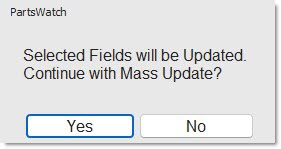
The update will be run in the background and the system will prompt when finished.
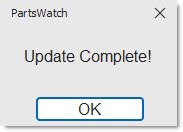
Once the 'UPD' completes, the 'PRINT' and 'PREVIEW' buttons are available to optionally output the list of accounts affected. The setups that have been changed are not displayed or reported.
Click the 'CLEAR MODE' button and 'UPDATE' changes to 'CLEAR MODE'.
The setup fields change to red and gray and cannot be edited. Instead, small checkboxes display to the left of each setup and if checked, the value in that field will be cleared when the 'UPD' button is clicked.
Check the left side checkbox for Yes/No setups to clear the field if it is currently checked. No changes will be made if the setup is currently unchecked.
The Yes/No field setting is not enabled in the 'CLEAR MODE'. Check it in the 'UPDATE MODE' to check it for the selected account if it is currently unchecked.
'ALL' and 'NONE' buttons are available to check or uncheck all fields.
For example, to clear the finance charge for all employees and to make sure that none of them are stopped from buying because they are over their credit limit, select 'EMPLOYEE' from the 'ACCOUNT TYPE' filter in the 'Search Limits' section, then check the 'STOP OVER CR LIMIT' and 'FIN CHG %' fields to clear them.
The same functionality defined for the 'UPDATE MODE' is available in the 'CLEAR MODE'.
Menu Path: Customers, Acct Mass Update, ACCOUNT MASS UPDATE UTILITY screen, 'CLEAR MODE'