Campaign List Tab
The Promotions Setup screen is used to set up promotional pricing at point-of-sale.
Menu Path: Customer, Accounts, Account Pricing, Promotions Setup, Promotions Setup screen
.png) Promotional Overview - 6 minutesPromotional Overview - 6 minutes
Promotional Overview - 6 minutesPromotional Overview - 6 minutes
Promotions Configuration - 6 minutesPromotions Configuration - 6 minutes
Campaign Setup - 4 minutesCampaign Setup - 4 minutes
Adding Promotions - 6 minutesAdding Promotions - 6 minutes
Promotions Basic Setup - 5 minutesPromotions Basic Setup - 5 minutes
Promotions Advanced Settings - 5 minutesPromotions Advanced Settings - 5 minutes
BOGO Pkg Setup - 4 minutesBOGO Pkg Setup - 4 minutes
Qty Break Single Item - 6 minutesQty Break Single Item - 6 minutes
Tender Coupon - 5 minutesTender Coupon - 5 minutes
Promotions Proration Pricing - 4 minutesPromotions Proration Pricing - 4 minutes
Invoicing Promotions 1 of 2 - 6 minutesInvoicing Promotions 1 of 2 - 6 minutes
Invoicing Promotions 2 of 2 - 5 minutesInvoicing Promotions 2 of 2 - 5 minutes
Invoicing Promotional Coupons - 6 minutesInvoicing Promotional Coupons - 6 minutes
Reporting Promotions - 6 minutesReporting Promotions - 6 minutes
The 'Campaign List' tab is used to add, edit, and delete campaigns.
-
A single campaign or multiple can be created to designate different events.
-
A campaign can be designated for the entire enterprise or for specific stores.
-
A campaign has one or more promotions.

Displays all existing campaigns.
Campaign Code
Displays the campaign identifier.
Description
Displays a description added to the campaign.
Start Date
Displays the date the campaign begins.
End Date
Displays the date the campaign ends.
Account Types
Displays the account types, 'Retail Main', 'Commercial', or 'Both', that are eligible for the promotion.
Locations
Displays the location number for single store campaigns or multiple location numbers for multi-store campaigns.
Add
Click the add button to open the 'Add Campaigns' window opens, allowing the creation of a campaign.
Edit
Highlight a row in the grid and click the 'Edit' button, to open a pop-up that allows the editing of existing campaign.
Delete
Highlights a row in the grid and click the 'Delete' button to delete the campaign.
The application will prompt to make sure the campaign deletion is desired.
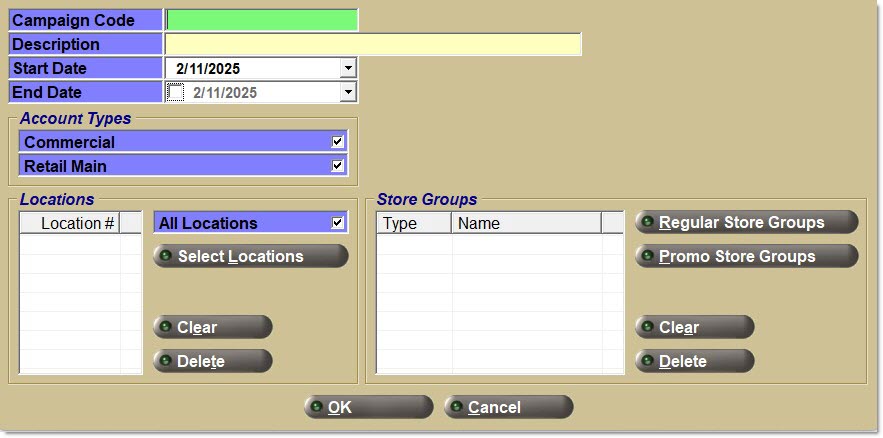
Add Campaigns Window
The 'Add Campaigns' window allows entry of a campaign into the grid on the 'Campaign List' tab of the Promotions Setup screen. Accessed by clicking the 'Add' button underneath the grid.