Supplier Part Alias
The SUPPLIER PART ALIAS screen is used to transmit different line and part numbers to vendor suppliers for the same line and part number maintained in the store. The store's parts can be mapped to different numbers that the vendor/supplier uses.
For example, a store is able to set up a generic line called "OIL" and a generic part number called "OIL" that is printed on a customer invoice, but the generic line and part number are converted to the appropriate vendor supplier line and part number when ordered from that supplier.
Menu Path: Inventory, Part Maintenance, Supplier Part Alias, SUPPLIER PART ALIAS screen
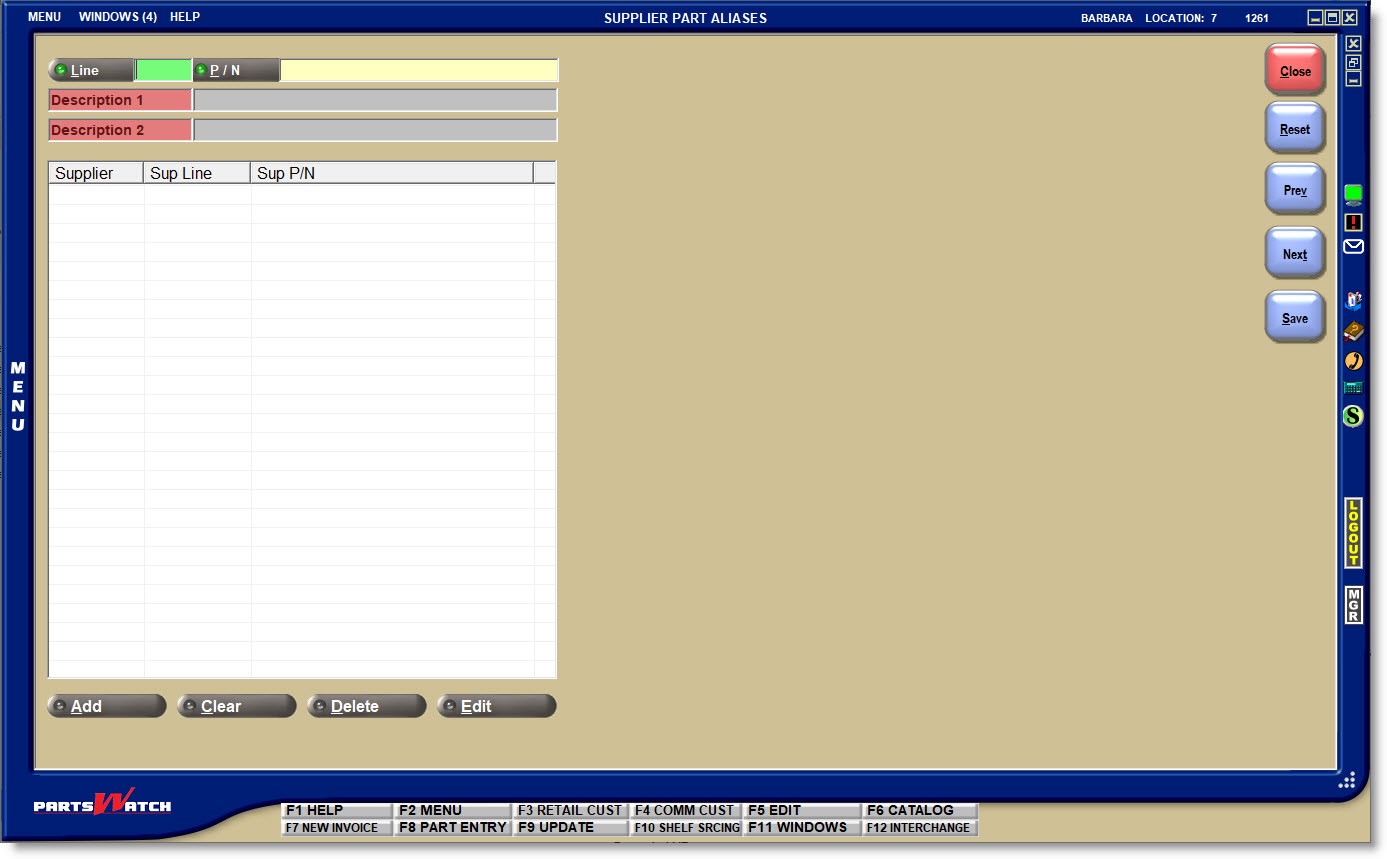
Enter an existing Line Code or click the 'Line' button to open the 'BROWSE LINE CODES' window to select a Line Code, and enter an existing part number in the 'P/N' field or click the 'P/N' button to open the 'FIND PART' window to select a part number and the part's 'Description 1' and/or 'Description 2' display.
Add an Alias
Click the 'ADD' button to add a part alias and the 'Supplier Part Alias' window opens.
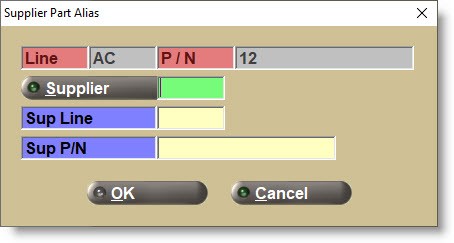
- Enter an existing Supplier or click the 'Supplier' button to open the 'Browse Suppliers' window to select a supplier.
- Enter the line code used by the supplier in the 'Sup Line' field and the part number used by the Supplier in the 'Sup P/N' field and click the 'OK' button or press the 'Enter' key.
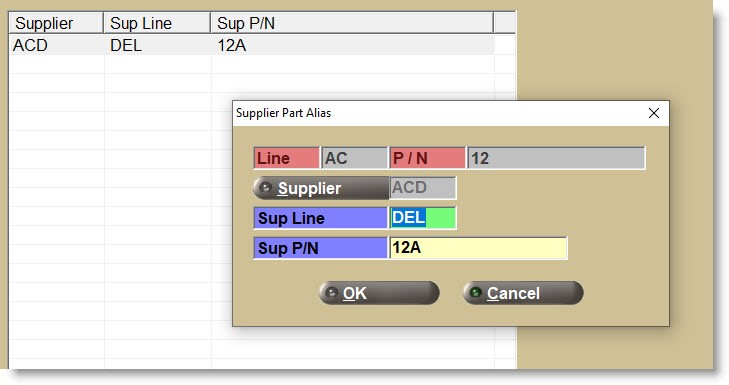
- The alias line code and part number are displayed in the grid.
Enter additional supplier aliases as needed.
Edit an Alias
With the supplier row highlighted in the grid, click the 'Edit' button below the grid to open the 'Supplier Part Alias' window to edit the 'Sup Line' and/or 'Sup P/N' as needed.
Delete an Alias
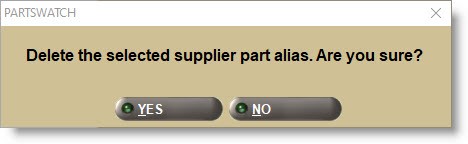
With the supplier row highlighted in the grid, click the 'Delete' button at the bottom of the grid and the system will prompt to make sure the alias should be deleted.
Answer 'Yes' to delete the alias or 'No' to abort the deletion.
Delete All Aliases
Click the 'Clear' button at the bottom of the grid and all aliases will be deleted from the grid.
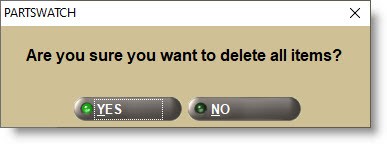
Answer 'Yes' to delete all aliases or 'No' to abort the deletion.
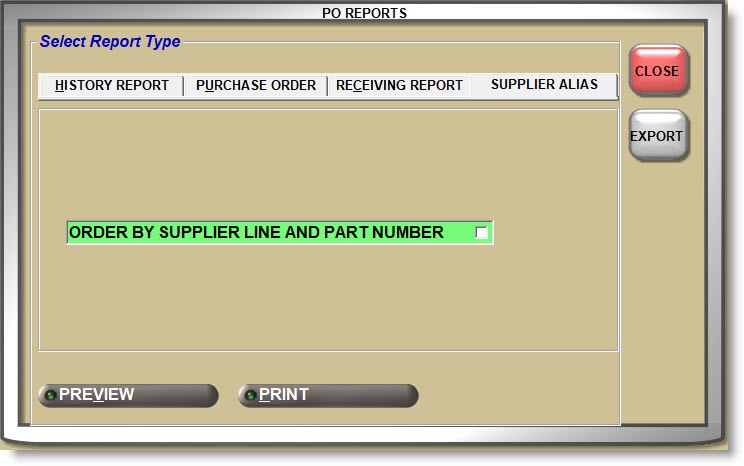
The 'SUPPLIER ALIAS' tab on the 'PO REPORTS' window allows purchase orders to be sent with the store's or the supplier's line codes and part numbers. Click the tab to display the control.
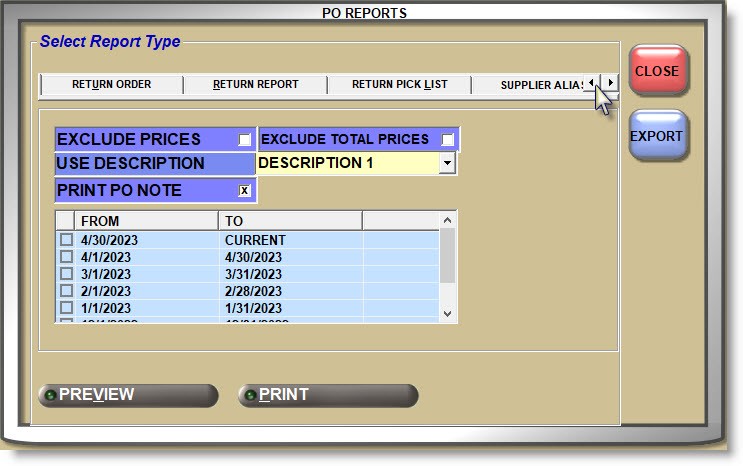
For return orders, click the small arrow to display the 'SUPPLIER ALIAS' tab.
ORDER BY SUPPLIER LINE AND PART NUMBER
Determines whether or not the supplier's aliases are sent with the order.
- Unchecked - (default) The parts on the report's output will be sorted by the store's Line and Part Numbers.
- Checked - The parts on the report's output will be sorted by the supplier's Line and Part Numbers.
For any parts on the order that do not have a supplier Line and Part Number, a blank value displays for the supplier Line and Part Number, however, the store's Line and Part Number are still reported. These parts are displayed at the top of the sorted list of supplier parts.
Within the parts that have a blank supplier Line and Part Number, those parts are sorted by the store's Line and Part Numbers.
The PO Report output is titled 'PURCHASE ORDER REPORT – SUPPLIER ALIAS' and reports the 'SUP CODE', 'SUP LINE', and 'SUP PART NUMBER'. In the example below, the parts on the 1st and 3rd row do not have an alias.