Signature Capture
Topaz Signature Capture Setup Guide - 35 pages
Signature Capture Process
-
With a signature pad set up and enabled, each time the 'On Acct' or 'Invoice' button is clicked to finalize an invoice, the system checks for the following:
-
The 'eDelivery' flag is unchecked.
-
The invoice body has at least one sale item.
-
The invoice is on account / charge*.
-
-
*Note: Signature capture is initiated for commercial customers only. Cash sales / retail cash customers are not prompted for an invoice signature.
-
If all of the above requirements are true, then the signature capture process is initiated.
-
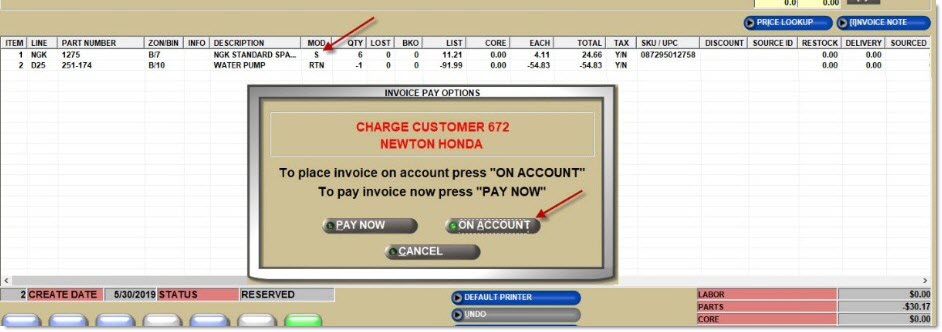
The following example shows the 'eDelivery' flag unchecked for a charge commercial customer and, even though the invoice total is a credit, a sale item qualifies the invoice for a signature capture.
-
If the user clicks 'On Account' from the 'Invoice Pay Options' pop-up, then the pop-up closes and the signature capture process begins.
-
Should the terminal be set up with a signature capture device and the device is missing or malfunctioning, the system prompts that the device is not available. 'Ok' outputs the invoice without attempting to capture the customer's signature.

Topaz Signature Pad
-
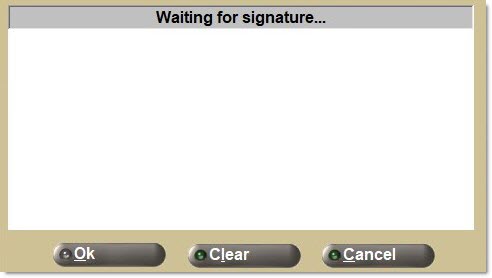
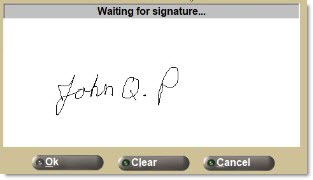
When invoice finalization is initialized and the ticket qualifies for signature capture, a pop-up opens on the Invoice Point of Sale screen showing the device screen and displaying "Waiting for signature…" in a gray background with the options of 'Ok', 'Clear', and 'Cancel' as the Topaz signature pad is initialized and preparing for signature capture. The 'Ok' button is disabled.
-
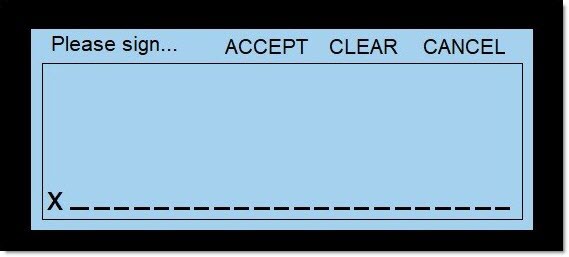
The Topaz signature pad informs the customer to sign with the selection of 'Accept', 'Clear', and 'Cancel'.
-
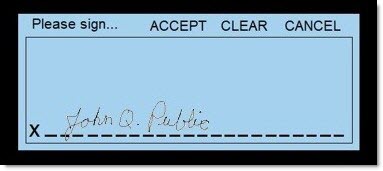
The signature will display on the PartsWatch pop-up as the customer is signing on the signature device.
-
After signing, if the signature on the signature pad is unacceptable, tap the 'Clear' button on the signature pad or click the 'Clear' button on the PartsWatch pop-up to erase the signature, reset the signature pad, and allow the customer to sign again.
-
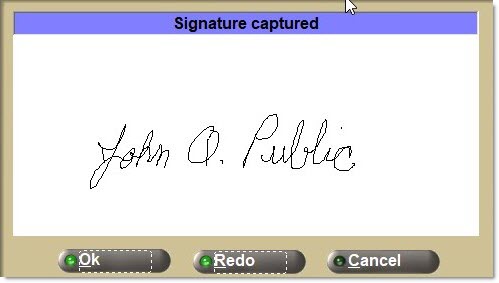
After signing, if the signature is acceptable, the customer can tap the 'Accept' button on the signature pad. The caption at the top of the PartsWatch pop-up will change from a grey to a blue background and the text will change to "Signature captured".
-
The 'Clear' button is then relabeled 'Redo' on the PartsWatch pop-up. Click the 'Redo' button and the signature pad will reset and re-prompt for a new signature.
-
-
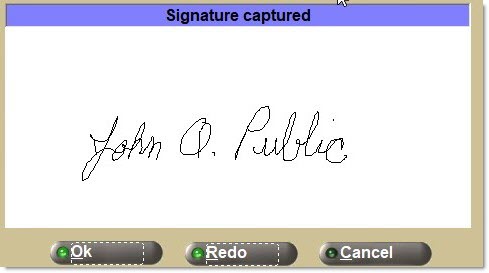
When the 'Accept' button is tapped on the signature device, if the signature is satisfactory, click the 'Ok' button on the PartsWatch pop-up to:
-
Accept and save the captured signature.
-
Finalize and print the invoice following existing Point-of-Sale functionality.
-
Reset the signature pad.
-
Close the pop-up, and return the cursor to the 'Customer Lookup' field for the next invoice.
-
-
In order to print the invoice without capturing the customer's signature:
-
Click the 'Cancel' button on the PartsWatch pop-up to close the pop-up, clear the signature device and finalize and print the invoice without first capturing a signature.
-
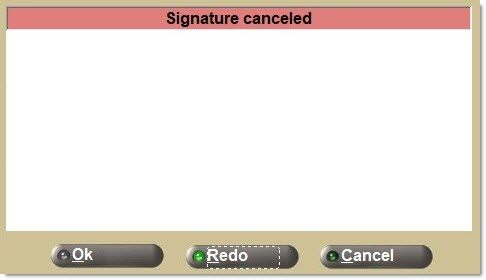
Tap the 'Cancel' button on the signature pad to clear the device and change the PartsWatch prompt from a grey to a red background, to change the text from "Waiting for signature…" to "Signature canceled" and to disable the 'Ok' button on the pop-up. Either:
-
Click the 'Clear' button to again enable the signature device and allow the customer to sign.
-
Click the 'Cancel' button to finalize and print the invoice without a customer signature.
-
-
ChargeItPro Signature Pad
Note: ChargeItPro supports signature capture with the use of the PAX S300 PIN pad device.
-
When the invoice print is initialized and the ticket qualifies for signature capture, a pop-up opens showing the device screen.
-
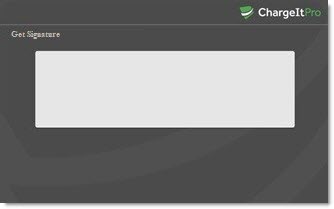
ChargeItPro prompts the customer at the PIN pad to sign, and opens a pop-up displaying the 'Get Signature' window on the PartsWatch screen.
-
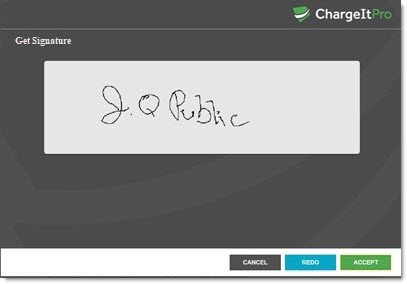
When done, the customer signature shows in the 'Get Signature' window for the PartsWatch user to 'Cancel', 'Redo', or 'Accept'.
-
The signature capture process can be canceled at any time by clicking the 'Cancel' button on the PartsWatch pop-up or by tapping the 'Cancel' hot spot on the PIN pad. If 'Cancel' is clicked or tapped, the invoice is finalized and printed without a customer signature.
-
Clicking 'Accept' with a captured signature will:
-
Accept and save the captured signature.
-
Finalize and print the invoice following existing Point-of-Sale functionality.
-
Reset the signature pad.
-
Close the pop-up and return the cursor to the 'Customer Lookup' field for the next invoice.
-