Application Help
The PartsWatch Application Help file is a proprietary online documentation file provided for information, training, and basic as well as advanced instruction, in order to understand and fully profit from the capabilities of the PartsWatch software application.
Each screen function is described, defined and explained, including screen features, field use and any other elements within the process. All Help menus, icons and related information provide hyperlinks that open additional information in order to find exactly the Help needed.
Since PartsWatch Help is an online HTML file, it is available from PartsWatch or from a browser on a PC, smart phone or tablet.
Regardless of how it is opened, the Application Help can be accessed by clicking on the 'HELP' menu in the top-left corner of the application border, clicking the 'F1 HELP' button in the 'F' accelerator key section in the bottom of the border, or by pressing the F1 button on your keyboard.


About
Searching Help
Search capabilities are available throughout the application Help.
Home Page Search
On the home page, position the cursor in the 'Search..." box and type the topic, definition or information and press the Enter key. The application searches for all matches to that information across the entire help file.

On a topic page, first click the magnifying glass button in the top-right corner of the screen.

A search bar appears. Click inside the search bar and type in the topic, definition, or information and press the Enter key.

The results screen displays showing all relevant matches sorted by the topics they fall under and the content present in the topic. The menu path for each topic displays beneath each result.

Click a result to navigate to that page.
If too many results are returned, narrow the search by putting "quotation marks" around the entire phrase being searched for.
For example, searching for the PART ASSOCIATION SETUP screen by entering the screen name returns all results with the words "Part", "Association", and "Setup".

However, enter "Part Association Setup" instead, and the results show only the topics and content with all three words in order.

Topic Page Search
Click the small magnifying glass icon above any topic page to open a search field.


The search results display for selection.

Refer to the Home Page Search information for further search details.
Content Search
It is also possible to search for specific words within a topic. Press the Ctrl + F keys on the keyboard to display a small search box at the top of the browser.
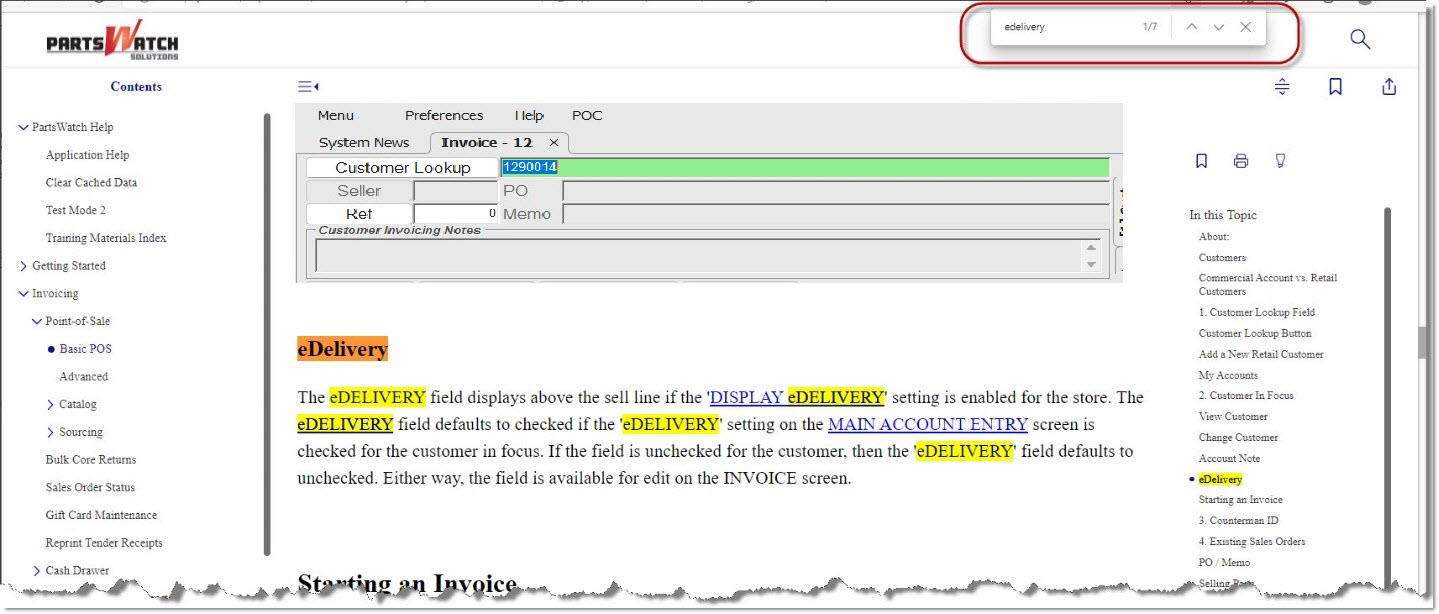
Any words typed in this box will be found on the page. The cursor position will be highlighted in orange and each additional instance in yellow.
Use the small up and down arrows to jump to the next or previous reference. The small ‘x’ closes the search box.

Remove Highlights
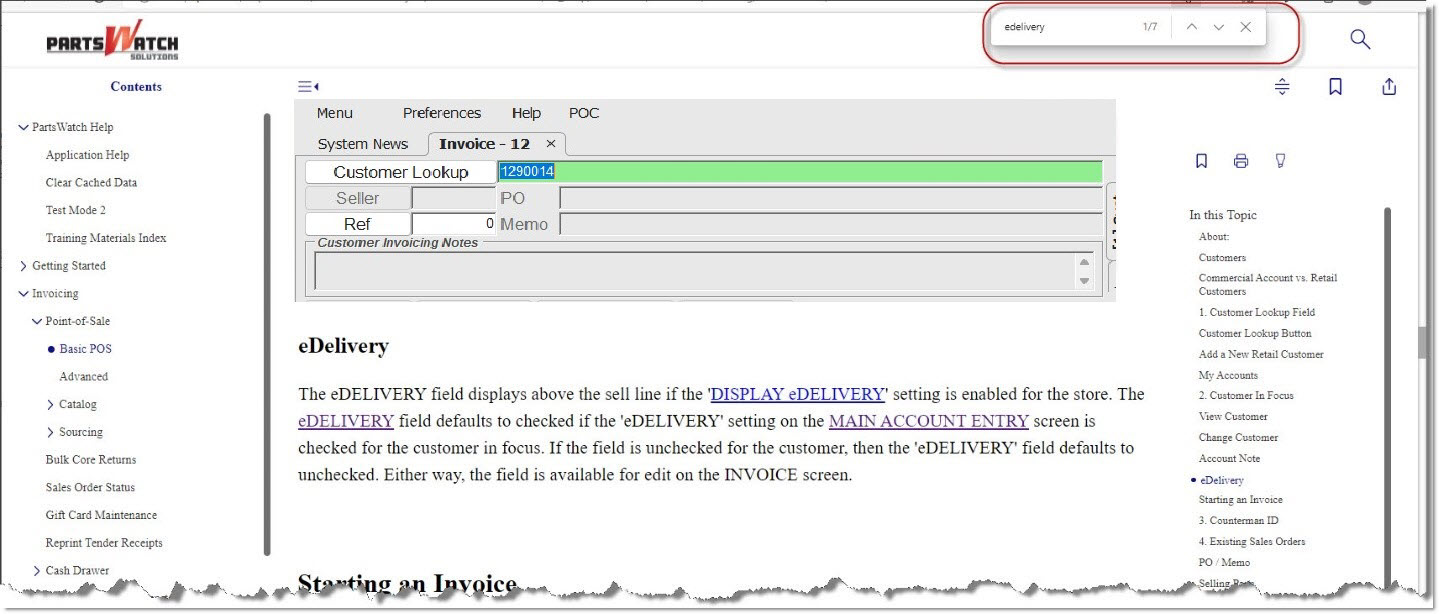
When results are highlighted from a search, clicking the small ‘Remove Highlight’ button clears all highlighting from the search.

Navigating Shortcuts
PartsWatch Help provides shortcuts that are useful in navigating and controlling the way Help is viewed.
Home Screen Logo
Click the PartsWatch logo in the upper left corner to return to the home page of the Application Help.

The home page is a table of contents of each PartsWatch module, laid out in image tiles for easy navigation. Click one to open the help topic for that module.

The "contents panel" or "main menu" is a list of all help topics and is used to navigate through the entire application help.

Menus that have a right arrow '>' lead to additional topics.
Click a main menus without a right arrow to open that topic in browser.
Expanded menus can be collapsed with the down arrow 'v'.
A circle next to a topic identifies the page in focus.
Use the horizontal scroll bar next to the menu list to show additional menu items below the page length.
Hide/Show Contents Panel Button
Small content arrows above the content panel are used to hide / show the menu list:


Click to hide the menu:

Click to show the menu:

In This Topic Panel
Some topics can be very extensive. The 'In This Topic' panel shows all of the important headings within the topic for easy navigation. Click on any of the sub-topics to navigate directly to that place on the page. A blue dot shows the current sub-topic.

Favorites
The small favorites icon above the 'In This Topic' right-side panel is used to mark pages for quick reference.

Click the icon to select the page.

The favorites icon in the upper-right corner of the screen is used to toggle the 'In This Topic' panel with a list of topics marked as "favorites".
If the favorites list is displayed, click a topic in the list to navigate to that page without searching, or going through the 'Contents' panel.

Deselect the ‘favorites’ icon on any page no longer needed and it will no longer appear in the list.
Click the Print icon to open a print window, with the default printer selected.

The entire topic will print.
Go To Top Button

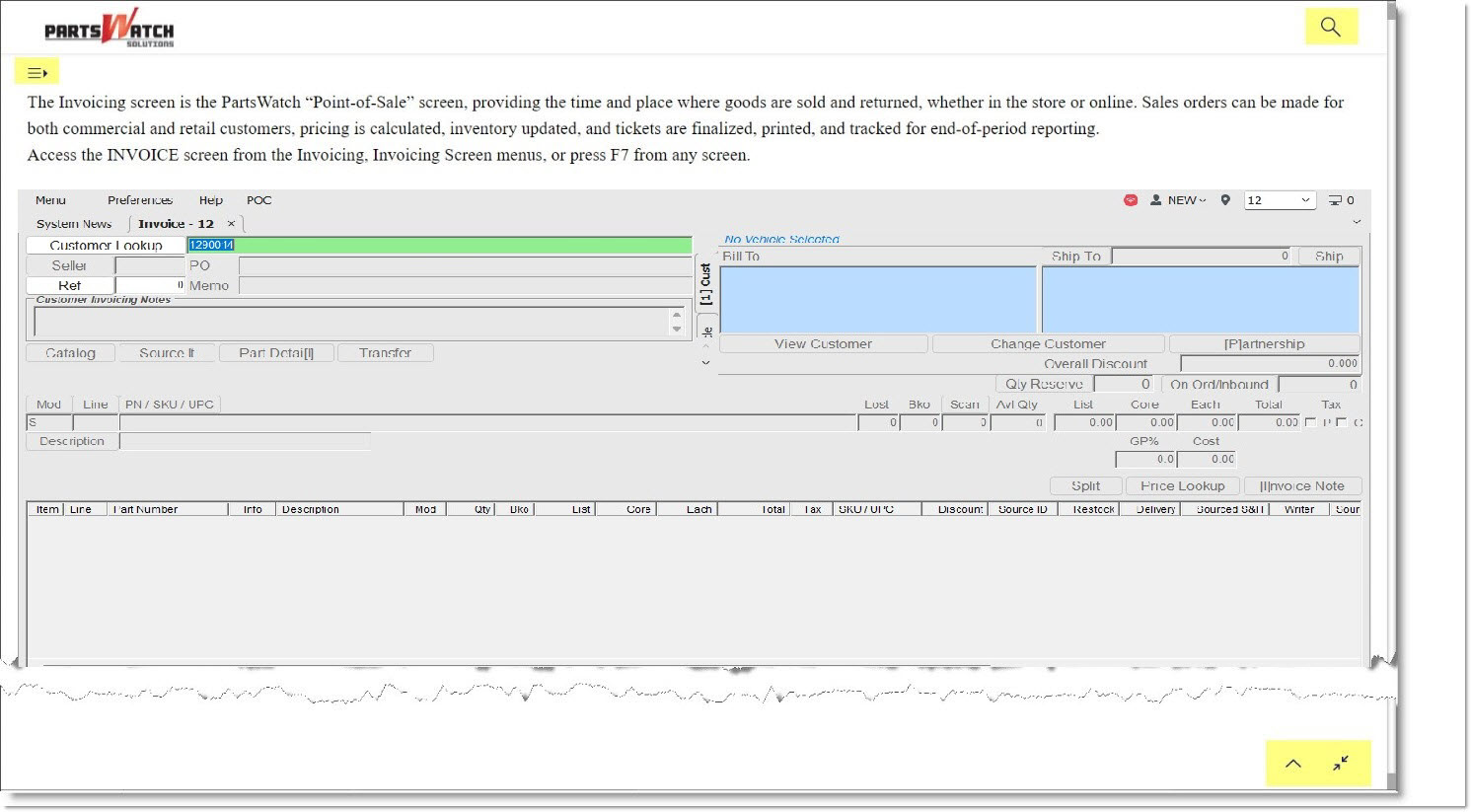
Some topic pages are very long, so click the small up arrow in the bottom-right corner under the panel to jump to the top of the page instead of scrolling up.

Full Screen Button
Click the Full Screen icon in the bottom right corner under the panel to hide both the right and left side panels so that the topic information reaches across the entire screen.

Click on the icon again to return to the normal view.

The left side ‘Contents' panel, Search, and ‘Go to Top’ features are still available in full screen mode.
In-Help Hyperlinks
All hyperlinks are displayed in the standard blue font color and underlined for easy recognition. Hyperlinks always open additional information related to the topic in view.
There are five different types of links within the topic pages.
Related Subjects
Normally, clicking a link for a screen names opens the help for that screen. For example, click the POST ENTRIES link to open the help for the Post Entries screen. Use the browser's "native" back button to return to the starting point when done.
Word links normally link to another section within the page. For example, click this Searching Help link to go to that section in this topic page. Use the browser back button to return to the starting point.

Documents
PDF documents with additional or related information can be opened in the browser without leaving the help file.
For example, click the Training Materials Index link and a document opens listing all available training videos and documents.
Videos
Product videos are embedded within the related topics on the pages and are identified with a small red arrow icon.
.png) Home Page - 3 minutesHome Page - 3 minutes
Home Page - 3 minutesHome Page - 3 minutes
Click the link to open a video to watch on the page or to expand for full screen. For example:

Image Maps
Image maps are interactive graphics with hyperlinks to text about the graphic on the same page.
Click a field on a graphic image and the screen will go to the help information about that field.
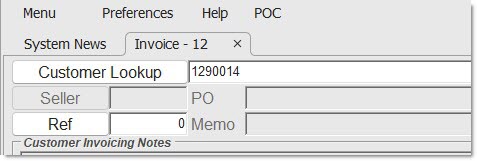
Like all links, any time the mouse changes the cursor to a pointer, the image is clickable. If the cursor changes to a bar on a graphic, it is not clickable.

More / Less Buttons
Help has been created with the main points displayed on the pages and additional information relating to the topic has been hidden unless needed.
Additional information is under the red More/Less buttons.


Click the button to display additional text.

Expand / Collapse All
In order to expand all text hidden under the More / Less buttons, click the Expand All icon and all hidden text will be displayed.

Click the icon again to close (collapse) all instances of hidden text.
