Test Mode 2
Menu Path: HELP, Test Mode 2
In order to find out if Mode 2 is working or to find out whether or not a process works in Mode 2, click the HELP icon in the upper left border and select ‘Test Mode 2’ from the menu.
PartsWatch will be disconnected from the database and the terminal will be put in Mode 2.
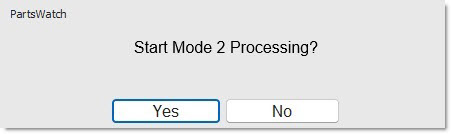
- If available, the system will prompt, ‘START MODE 2 PROCESSING?’ Answer ‘Yes’ and the 'M2' icon displays above the terminal icon to indicate Mode 2 is working. This is also a way to work off line if internet service is intermittent or to try a process to see if it is available in Mode 2.
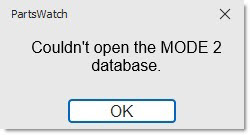
- If Mode 2 is not available, the system will prompt, "Couldn't open the MODE2 database." One or more additional pop-ups may display as PartsWatch attempts to access cached data.
- If Mode 2 is not enabled, the system will prompt, “Mode 2 is not valid for the currently connected application database. Mode2 will not be available from this terminal.”
When done, uncheck ‘Test Mode 2’ on the Help menu and Mode 2 will prompt to close and PartsWatch will re-connect to the data center. The 'M2' icon will no longer display and the terminal icon will return to green to indicate connection is re-established.