Inventory Redistribution Setup
The Inventory Redistribution Setup screen is used to set up redistribution criteria and filters to enable the ability to redistribute stock among stores.
Based on entered criteria, such as specifying a line code, determining what constitutes overstock and understock, the program calculates the most understocked locations and how much to take from one location to give to another location, keeping within the min and max or other specified criteria. Once the setup criteria have been established and the system runs the calculations to determine the stock moves, the Inventory Redistribution Review screen displays to allow the reviewing of selected results of the criteria that were run and allowing suggested quantities to be edited before generating the purchase orders. Note: A run is saved and can be used to kick off orders presently or a later time.
KITs and BOMS are not available for inventory redistribution, but component parts of a KIT or BOM is.
Menu Path: Purchasing, Inventory Distribution, Inventory Redistribution Setup, Inventory Redistribution Setup screen
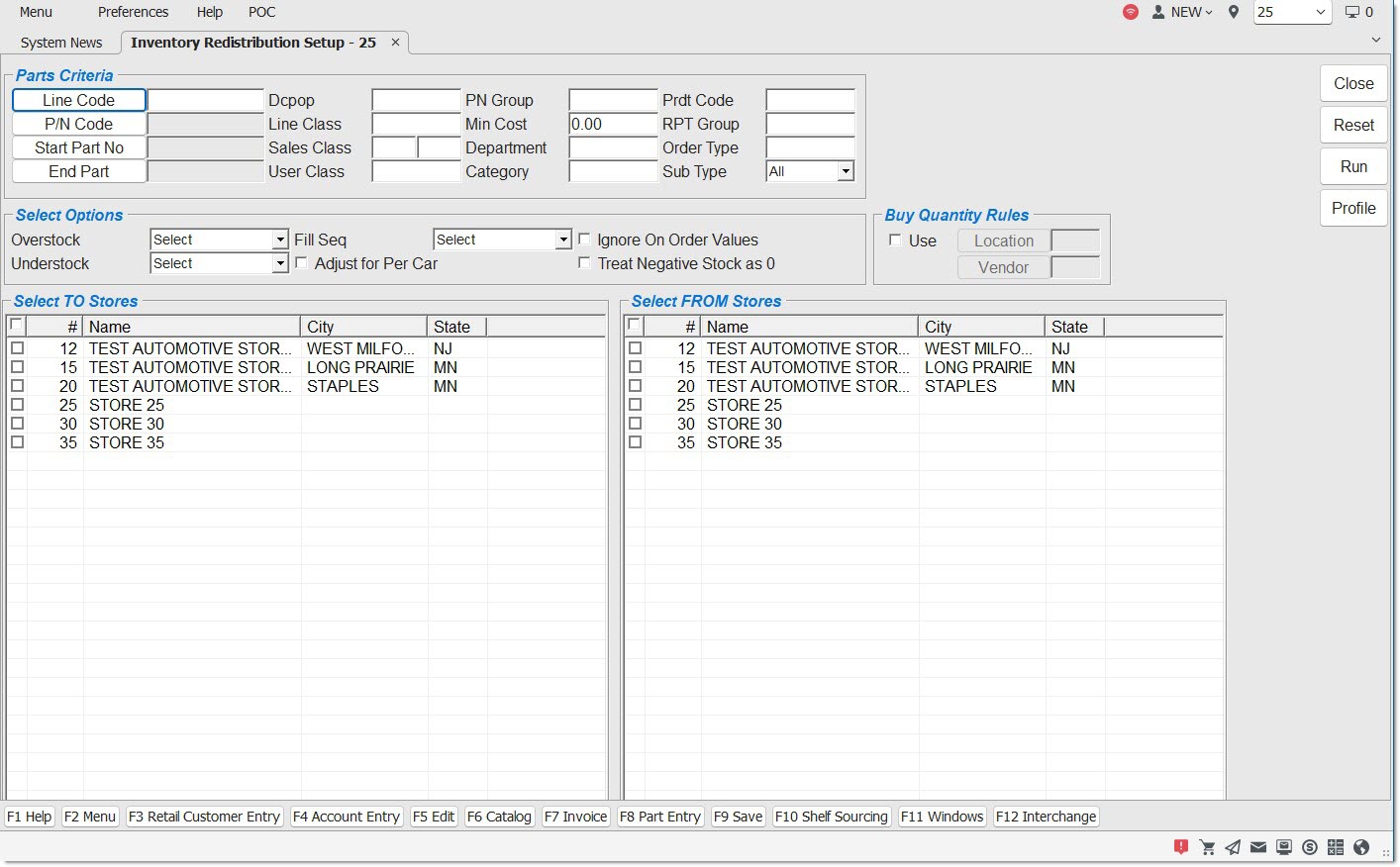
Parts Criteria
Filters are applied in every store. If a part does not match the filter in a particular store, that part in that store is excluded from the redistribution, even though the same part in other stores may match and be included.
Line Code
Specifies the 'Line Code' to run. Click the button to display the 'Browse Line Codes' window to select a line code.
P/N Code
Specifies the part number code to run. Click the button to display the 'P/N Code Selection' window to select a P/N Code.
Start Part
Specifies the beginning line code to set a range for redistribution. Click the 'Start Part' button to display the 'Browse Line Codes' window to search for a specific line.
End Part
Specifies the ending line code to set a range for redistribution. Click the START PART button to display the 'Browse Line Codes' window to search for a specific line.
DCPOP
Specifies a Distribution Center (DC) Popularity (POP) Code.
Line Class
Specifies a 'Line Class' Code.
Sales Class
Specifies a 'Sales Class' Code.
User Class
Specifies a 'User Class' Code.
PN Group
Specifies a Part Number Group Code.
Min Cost
Specifies a value used to exclude parts with a cost (based on price field 8 ('Cur Cost')) below this value to avoid shuffling small low value parts from store to store.
Department
Specifies a 'Department' Code.
Category
Specifies a 'Category' Code.
Prdt Code
Specifies a Product Code.
Rpt Group
Specifies a Report Group Code.
Order Type
Specifies the 'Type' of order, such as 'Sourced'.
Sub Type
Specifies a specific warrantied part, such as a tire or battery.
Select Options
Determines what is an overstock item based on the stocking level.
Options are:
-
'Max' - A part with 'Qty Avl' greater than 'Max' is considered an overstock.
-
'Min' - A part with 'Qty Avl' greater than 'Min' is considered an overstock.
-
'Order Point' - A part with 'Qty Avl' greater than 'Order Point' is considered an overstock.
-
'Zero' - This selection allows for 100% of the stock available in 'From' stores are available to be redistributed to any needs in 'To' stores, regardless of whether the 'QOH' in the 'From' stores is below, at or above stocking levels.
Note: The only stock considered is 'Qty Avl'; Reserved quantity is not.
Determines what is an understock item based on the stocking level.
Options are:
-
'Max' - A part with 'Qty Avl' less than 'Max' is considered an understock.
-
'Min' - A part with 'Qty Avl' less than 'Min' is considered an understock.
-
'Order Point' - A part with 'Qty Avl' less than 'Order Point' is considered an understock.
Note: The only stock considered is 'Qty Avl'; Reserved quantity is not.
Fill Seq
Determines the sequence in which the understocked stores are filled.
Options are:
-
'Need Hi to Lo' - Fills the stores that have the highest understock first. Overages are applied to understocked stores in order of greatest under to least under, until the needed quantity is met in the understocked stores or the over stock amount is fully used.
-
'Need Lo to Hi' - Fills the stores that have the least understock first. Overages are applied to understocked stores in order of least under to greater under, until the needed quantity is met in the understocked stores or the over stock amount is fully used. This takes care of the "one and two" "unders" so fewer stores need to be filled by an outside supplier order.
Adjust for Per Car
Determines how much stock must be moved from "over" stores to bring parts in "under" stores that have less than the per car up to their 'Per Car' quantity and adjust the quantity being moved accordingly, when checked.
The 'Fill Seq' (Fill Sequence) can impact which store's per cars are satisfied first for a particular part. If the 'Fill Seq' is 'Need Hi to Lo', a store that needs a quantity of two of a part will be filled before filling two stores that each need a quantity of one of that part, and vice versa for 'Need Lo to Hi'.
Ignore On Order Values
Determines whether the system considers quantity already On Order when calculating 'Under' quantities.
The system attempts to fill the understock even though the part is already on order on another PO, when checked.
The system does not attempt to fill the understock, since it is already on order on another PO, when unchecked (default). Reduces "under" quantities by the 'ONORD' + 'BKORD' qty in the "under" store.
Treat Negative Stock as 0
Calculates the move quantities as if the 'Qty Avl' was zero, when checked and an understocked part has a negative 'Qty Avl'.
Increases the move quantities by the amount of negative 'Qty Avl' when unchecked and an understocked part has a negative 'Qty Avl'. (Default)
Buy Quantity Rules
When the screen first opens, the 'Use' checkbox is unchecked, and the 'Location' and 'Vendor' fields are disabled.
Use
Check the 'Use' field and the 'Location' and 'Vendor' buttons are enabled.
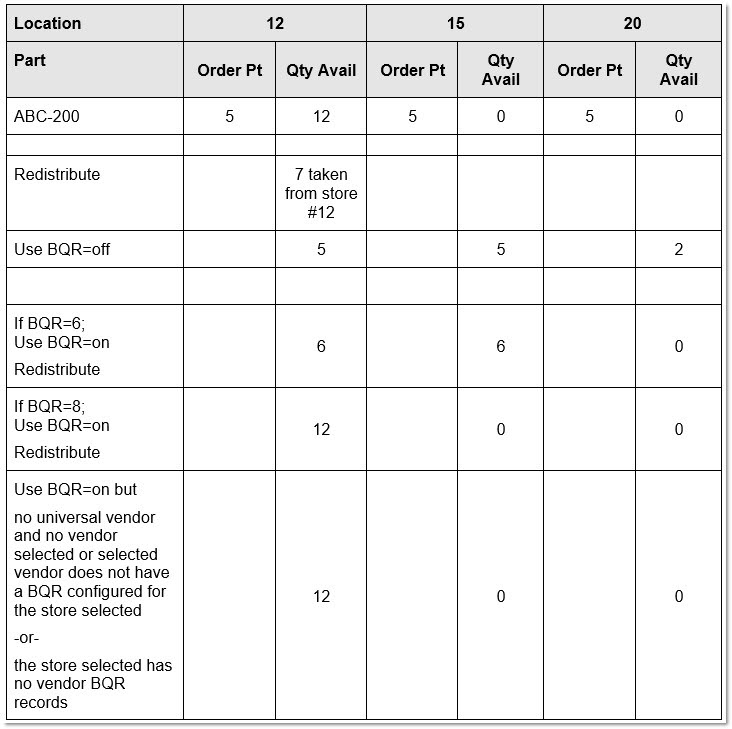
When the redistribution is run, and the Buy Quantity Rules have been configured:
-
The application uses the location and vendor specified to apply the Buy Quantity Rules as a part of the inventory redistribution calculation.
-
If the part in the specified location does not have any Buy Quantity Rules configured for any vendor, or the selected vendor does not have a BQR for the store selected, or the store selected has no BQR records, the application ignores the 'Use Buy Qty Rule' rule checkbox and runs the redistribution without it. The available quantities are distributed using the configured stocking level (e.g. Order Point).

Pictured below are some examples:
Location
Click the 'Location' button to select a single location from the 'Browse Locations' pop-up or manually enter a location. If no 'Location' is selected, the default is the current location, and the field remains blank.
Vendor
Click the 'Vendor' button to select a single location from the 'Browse Suppliers' pop-up or manually enter a vendor code. If no 'Vendor' is selected, the universal supplier for the selected 'Location' is the default.
Select To Stores
Used to specify which stores to process. 'Overstock' is only pulled from locations selected in the 'Select From Stores' section, and 'Understock' is only moved to locations selected at 'Select To Stores' section. The same location can be selected for To and From.
A transfer account must exist for each store being transferred to. If a To and From combination is selected that does not have an appropriate account, a pop-up displays stating "No Transfer Account Exists for Store 1 to Store 2". Select different stores or set up the needed transfer account in order to proceed.
[Checkbox]
Select all stores when checked in the header row. Select individual stores when checked on a specific row.
#
Indicates the store number to which inventory will be redistributed.
Name
Indicates the store name to which inventory will be redistributed.
City
Indicates the store's city.
State
Indicates the store's state.
Select From Stores
Used to specify which stores to process. 'Overstock' is only pulled from locations selected in the 'Select From Stores' section, and 'Understock' is only moved to locations selected at 'Select To Stores' section. The same location can be selected for 'To' and 'From'.
[Checkbox]
Select all stores when checked in the header row. Select individual stores when checked on a specific row.
#
Indicates the store number to which inventory will be redistributed.
Name
Indicates the store name from which inventory will be redistributed.
City
Indicates the store's city.
State
Indicates the store's state.
Procedure to Calculate Stock Moves
To view the resulting suggested stock moves, follow the steps below:
-
From the Menu, select Inventory, Inventory Distribution, Inventory Redistribution Setup. The Inventory Redistribution Setup screen displays.
-
Select the desired filters for invoking a redistribution in the 'Parts Criteria' section.
-
Select the desired options in the 'Select Options' section to establish overstock and understock criteria.
-
Select the stores in the 'Select To Stores' and 'Select From Stores' sections to use to process the redistribution.
-
Click 'Run'. The calculations for stock moves is kicked off and the Inventory Redistribution Review screen displays to review the selected results of the criteria that was run before generating the purchase orders.