Profiles Tab
When the 'Lowest Cost Profile' method is selected, and a 'Supplier' is entered, the lower portion of the screen displays a single tab called 'Profiles'. Note: A 'Supplier' must be selected, but once 'Lowest Cost Profile' 'Order Method' is selected, the 'Supplier' is ignored.
Menu Path: Purchasing, Order Create, Order Create screen, 'Profiles' tab
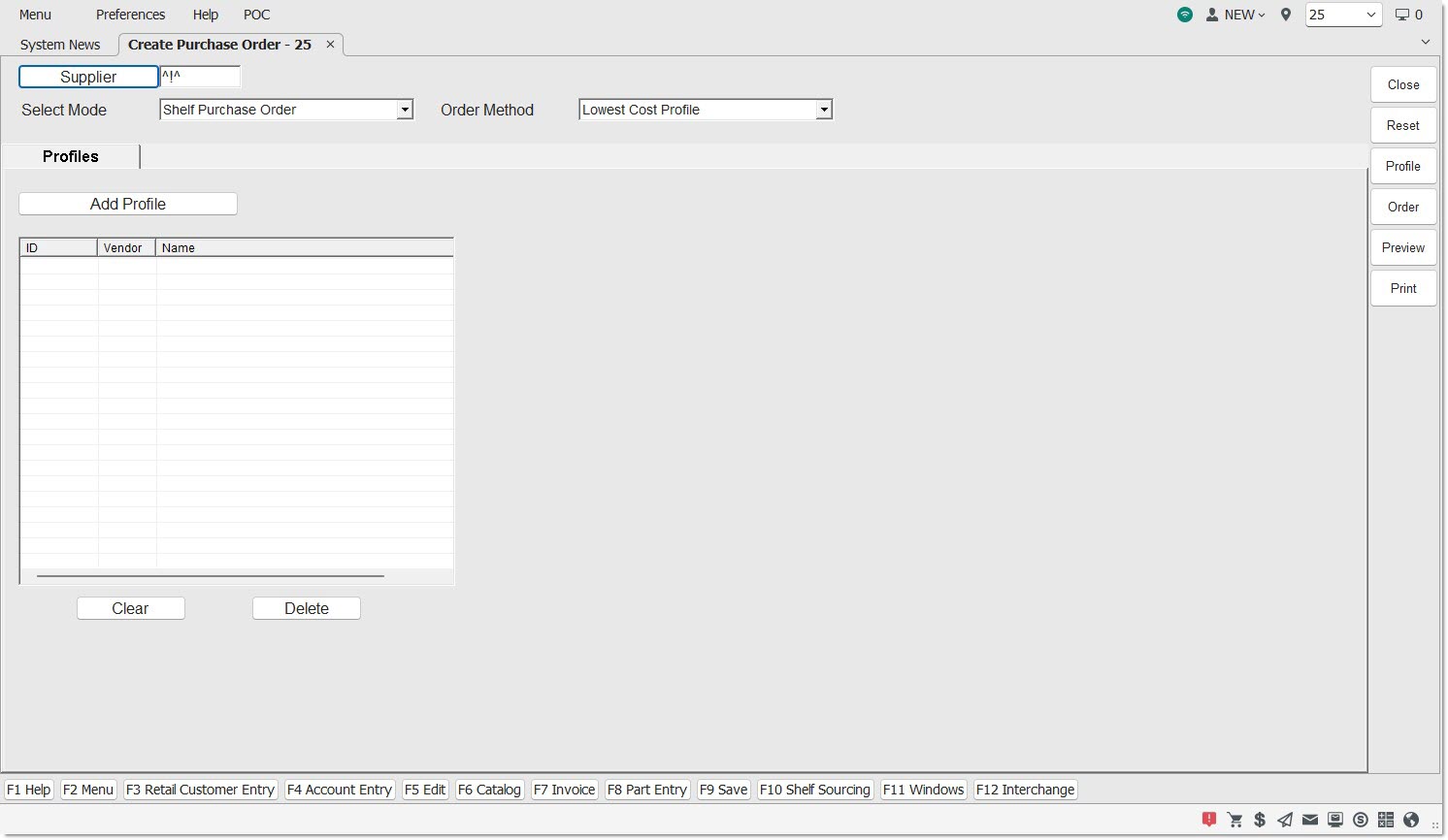
Add Profile
Displays the 'Save and Load Profiles' pop-up. The only actions allowed on the pop-up are 'Load', 'Delete', 'Properties', and 'Close'. The 'Save' and 'Save As' buttons are disabled.
When the 'Add Profile' button is clicked you can select desired profiles from the 'Save and Load Profiles' pop-up. You can do this by selecting the profile and clicking the 'Load' button or by double-clicking the desired profile.
Note: All selected profiles will be compared (in the background) and evaluated for which one has the lowest, non-zero cost overall, and then the system will create one purchase order with the lowest overall cost.
Any saved profile created using the following 'Order Methods' can be selected:
-
'Order to Max'
-
'Order to Min'
-
'Order Min to Max'
-
'Order Average Min Max'
-
'Order to Order Point'
-
'Forecast Order'
-
'Stock Forecast Mix Order'
-
'ASPM Order'
-
'Stock ASPM Mix Order'
-
'Day Sales Order'
-
'Replenishment Order'
-
'Negative Stock Only'
Any saved profile created using the following 'Order Methods' cannot be selected:
-
'Write-In Order'
-
'Scan-In Order'
-
'Customer Back Orders' only
The following rules apply when selecting profiles and validation is done at the time the profile is selected:
-
One profile must be selected at a time.
-
The profile must not have already been selected. Duplicates are not allowed.
-
You must have view access to the selected profile.
-
The 'Mode' of the order must be 'Shelf Purchase Order'. Other modes are not supported at this time.
-
Only purchase orders are supported; return orders are not.
-
Profiles can only be selected that do not have the 'Best Price' option selected on the 'Options' tab.
-
Note: Any profile using the 'Best Price' option is intending to order only a subset of parts instead of ordering all parts. The primary purpose of the 'Lowest Cost Profile' order method is to compare profiles with the same list of parts and determine the lowest total cost for all parts.
-
-
Any profile that would create a single-store or multi-store purchase order can be selected.
-
There is no limit to the number of profiles you can select.
-
Any profile selected can use any supplier. The supplier within the saved profile does not have to match the supplier entered in the top left of the Order Create screen. Note: The supplier entered is completely ignored when the order method is 'Lowest Cost Profile'.
-
Multiple profiles can be selected for the same supplier. Note: This is not recommended if the goal is to compare the total purchase order cost of different suppliers.
-
Any combination of different 'Order Method' profiles can be selected. Note: While this is not recommended when comparing different suppliers, this might be used to examine different order methods from the same supplier to see which is the lowest cost.
-
Profiles selected can have different criteria, options, sales history periods or stores. Note: It is advised to have the same criteria, options, sales history periods and stores with the only differences between the saved profiles being the supplier, and the part cost per supplier.
-
If a profile is selected from the 'Save and Load Profiles' pop-up that fails the validation, a message pop-up appears with an ‘OK’ button. Display one of the messages below:
-
If a duplicate profile is selected, the pop-up message is: “This profile has already been selected.”
-
If a profile is selected that uses an order method not supported, the pop-up message is: "Profile <PROFILEID> is not valid. Lowest Cost Profile ordering cannot use saved profiles with an order create method of <ORDERCREATEMETHOD>."
-
If a profile is selected that uses any mode other than 'Shelf Purchase Order', the pop-up message is: "Profile <PROFILEID> is not valid. Lowest Cost Profile ordering can only use Shelf Replenishment Purchase Order profiles."
-
To use the 'Lowest Cost Profile' order method, at least two profiles must be added to the profile grid in the 'Profiles' tab. Otherwise, when the 'Order' button is clicked and there are no profiles or only one profile in the grid, a message prompt appears with the following text: "Lowest Cost Profile orders require at least two selected profiles." The pop-up has an 'Ok' button. Click it or press the 'Enter' key to close the pop-up.
Grid
The contents of the grid identify which profiles will be used to compare the lowest total cost purchase orders.
ID
Indicates the numeric identifier assigned to the profile.
Vendor
Indicates the supplier to order from.
Name
Indicates the name assigned to the profile.
Clear
Clears the grid of all loaded profiles. You can also clear all rows by right-clicking on any populated row in the grid and selecting 'Clear All Profiles'. When either is selected, a decision pop-up appears with the text "Are you sure you want to remove all rows?"
Delete
Deletes the selected profile(s) from the grid. You can also right-click on the designated row and select 'Delete profile'. When either is selected, a decision pop-up appears with the text "Are you sure?"
Profile
Opens the 'Save and Load Profiles' pop-up with full functionality to allow the user to save the 'Lowest Cost Profile' as its own profile.
A 'Lowest Cost Profile' order can be saved in its own Profile to be used again repeatedly or with Timed Orders. When created, you will determine who can view/edit this saved profile.
Note: Therefore, it is possible that another user attempting to use the saved profile for the 'Lowest Cost Profile' order method may have view access to that profile, but may not have view access to one or more of the selected saved profiles being compared. If the user does not have view access to all selected profiles being compared, that user will be denied loading the saved profile for the 'Lowest Cost Profile' order method.
Order
Once all profiles are selected, and the 'Order' button is clicked:
-
After all orders are compared in the background, the application selects the purchase order with the lowest non-zero total overall order cost and creates this purchase order.
-
The resulting purchase order created may be finalized and transmitted.
-
If no purchase order is found that has a non-zero overall total cost, no purchase order will be created. A message prompt is displayed with the following message: "Your selections did not return any parts for an order. Please change your settings and try again." Click 'Ok' to clear the message.
Preview
Once all profiles are selected, and the ‘Preview’ button is clicked:
-
The application compares all of the purchase orders in the background. The multiple orders compared are not finalized or transmitted.
-
'Preview' displays the resulting order that would result if the 'Order' button was clicked.
-
Note: The Purchase Order Preview Report's header typically displays the name of the Profile that is displayed on the Order Create screen.
-
However, as the only exception to this rule, when the 'Order Method' selected is 'Lowest Cost Profile', the report header's 'Profile' value will instead contain the 'ID' and 'Name' of the 'Profile' that was chosen by the system, after comparing all saved profiles selected, which contains the lowest total cost. This enables you to optionally view the report first to determine which profile will be used when the order is created; before the 'Order' button is clicked.
-
Print
Once all profiles are selected, and the 'Print' button is clicked:
-
The application compares all of the purchase orders in the background. The multiple orders compared are not finalized or transmitted.
-
'Print' displays the resulting order that would result if the 'Order' button was clicked.
-
Note: The Purchase Order Preview Report's header typically displays the name of the Profile that is displayed on the Order Create screen.
-
However, as the only exception to this rule, when the 'Order Method' selected is 'Lowest Cost Profile', the report header's 'Profile' value will instead contain the 'ID' and 'Name' of the 'Profile' that was chosen by the system, after comparing all saved profiles selected, which contains the lowest total cost. This enables you to optionally view the report first to determine which profile will be used when the order is created; before the 'Order' button is clicked.
-