eTrans Job Queue Utility
The 'eTrans Job Queue Utility' window is used to view and edit the status of purchase order, return purchase order and manifest as return purchase order transmissions. The transmission of manifests as return POs are tracked until successfully transmitted.
Menu Path: Purchasing, eTrans Queue Utility, 'eTrans Job Queue Utility' window
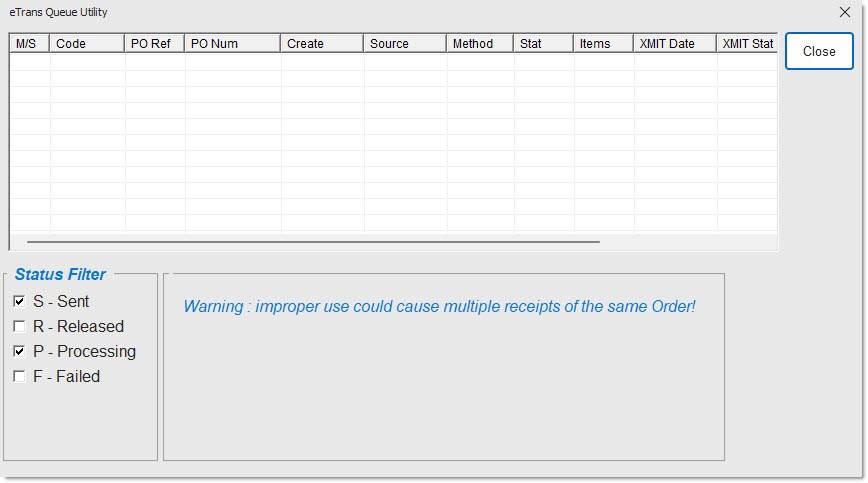
It is possible to edit the transmission status; however, caution must be taken to avoid multiple receipt of the same purchase order. Situations may require altering the status of a transmitted or about to be transmitted PO due to a transmission failure or the PO needs to be edited and re-transmitted. Use caution to not alter the PO's status to 'None' if the PO was already transmitted. This could result in the PO being transmitted again causing the order to be doubled.
Grid
Displays a list of purchase orders that have been transmitted or marked for transmission.
M/S
Indicates Manufacturer (M), Supplier (S), or Line (L).
Code
Displays the Manufacturer or Supplier code on the purchase order.
PO Ref
Displays the purchase order's reference number.
PO Num
Displays the purchase order number, return purchase order number or manifest number (Manifest as Return PO).
Create
Displays the date that the purchase order was created.
Source
Identifies the type of transmission.
For Purchase Orders, types are 'Shelf', 'Sourced', 'NID', 'AutoSrc', 'Call-In', 'Xfer', and 'Stk Adj PO'.
For Return Purchase Orders, types are 'Overstk', 'Stk Adj Rtn', 'Recall', 'PDC', 'Core', 'Warranty', 'Rtn Buyout', and 'Labor Claim'.
Method
Displays the transmission method used to transmit the purchase order. Return POs that originate as manifests display as 'Manifest'.
Stat
Displays the status of the purchase order's transmission.
Items
Displays the total amount being ordered.
XMIT Date
Displays the date that the purchase order was transmitted.
XMIT Stat
Displays the status of the purchase order transmission.
'S - Sent'
Indicates that the purchase order's transmission has been sent, when checked.
'R - Released'
Indicates that the purchase order's transmission has been released and is ready to be processed, when checked.
'P - Processing'
Indicates that the purchase order's transmission is currently in progress, when checked.
'F - Failed'
Indicates that the purchase order's transmission failed after 288 attempts, when checked.
When a PO is deleted, the failed transmit record displayed in the grid is also deleted.
PO Reference
Indicates the purchase order number.
Created Date
Indicates the date that the purchase order was created.
XMIT Date
Indicates the date that the purchase order was transmitted.
Status
Indicates the status of the purchase order transmission.
Status
Indicates the status of the purchase order transmission. Values are 'N - None', 'R - Released', and 'Re-Transmit'.
Note: 'Re-Transmit' is not available for the Status Filters of 'S - Sent', 'R - Released', and 'P - Processing'.
Set Now
Saves the information.
Cancel
Cancels the activity performed on the window.
Procedure to Edit the XMIT Status of a Purchase Order or Return Order
To edit the XMIT status of a purchase order or return purchase order, follow the steps below:
-
From the Menu, select Purchasing, eTrans Queue Utility. The 'eTrans Job Queue Utility' window displays.
-
Double-click on the PO in the grid to be edited. The 'PO', 'Created On', 'XMIT On', 'Status', 'M/S', 'Code', and 'PO Ref' fields populate with the existing information.
-
Change the status to 'None', 'Released', or 'Re-Transmit' in the 'Status' field.
-
Click 'Set Now' to save the data. Purchase Order or return purchase order can now be edited and/or re-transmitted, if necessary.
Procedure to Re-Transmit a Manifest as Return Order
To re-transmit a manifest as a Return PO XMIT, follow the steps below:
-
From the Menu, select Purchasing, Manifest Main. The Return Manifests screen displays.
-
Click 'eTrans Queue Utility'. The 'eTrans Job queue Utility' window displays.
-
Select the 'Failed' Status Filter. All failed transmissions display.
-
Select the failed manifest/PO from the list in the grid.
-
Select 'None' in the Set New Transmission status field.
-
Click 'Set Now'.
-
Click 'Close'. The Return Manifests screen redisplays.
-
Locate the Return Manifest in the 'Transmitting Return Manifest' grid that has the status of 'N - None'.
-
Right-click the row to display the Context Menu.
-
Click 'Edit PO'. The PO screen displays.
-
Re-transmit the Return Manifest using the normal Purchasing rules.