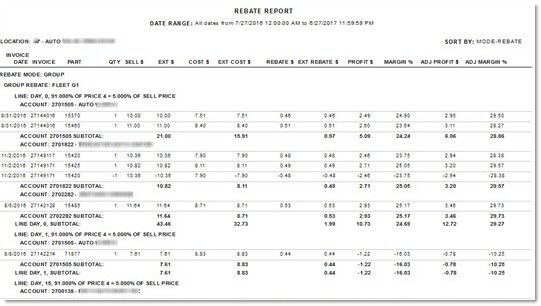
Rebate Report
The Rebate Report screen is used to report rebated sales and track rebates for customer sales that are set up in the Rebate Setup screen. The report may be requested for a single rebate mode, such as Account, Group, Master, or Enterprise or for all rebates modes. Only records for the selected mode display in the report.
Menu Path: Reports, Financial, Rebate Report, Rebate Report screen
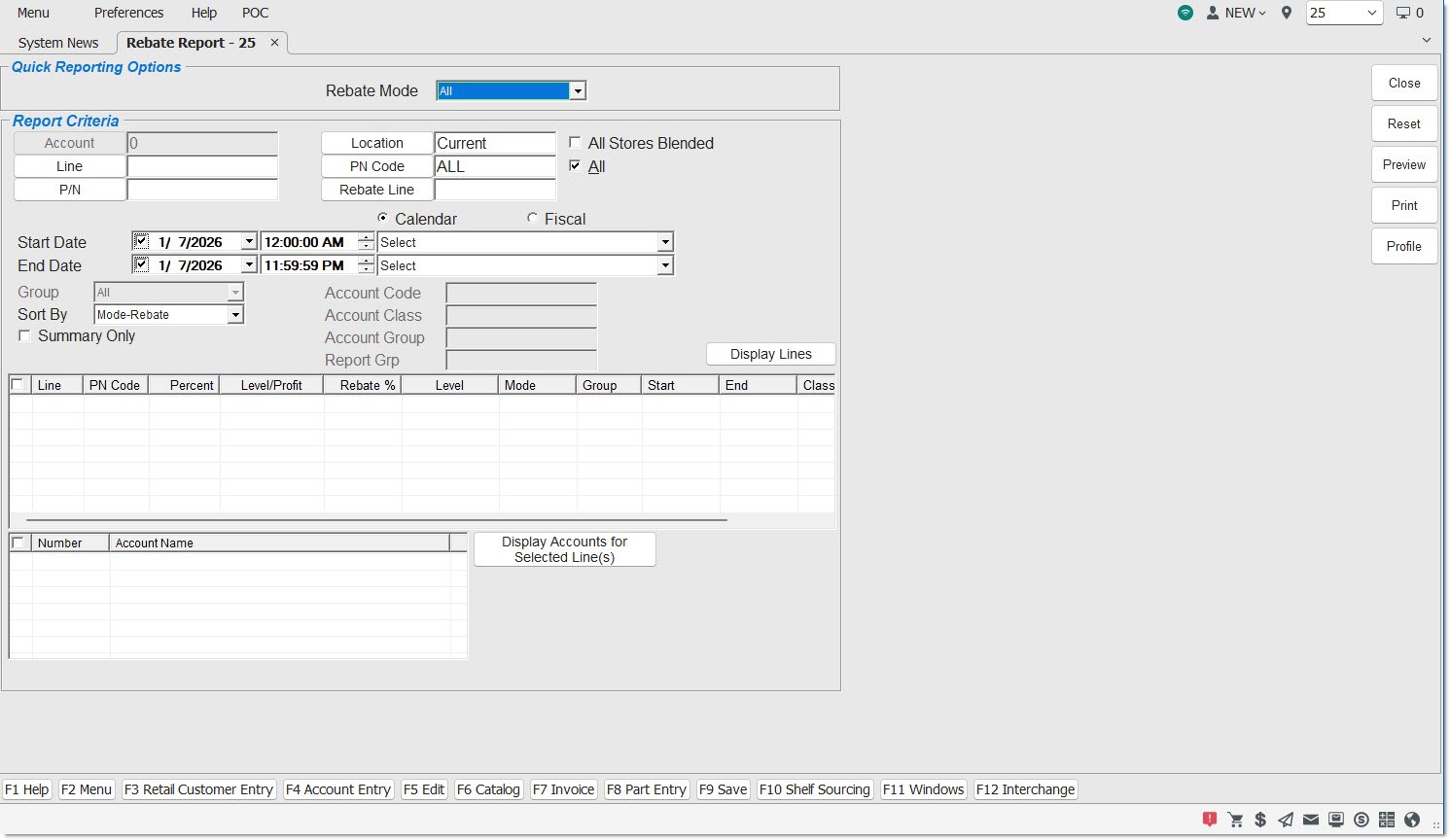
Quick Reporting Options
Rebate Mode
Specifies the rebate mode for reporting.
Modes are:
-
'(All)' - Reports all modes.
-
'Enterprise' - Reports rebates applied to all accounts in all stores.
-
'Master' - Reports rebates applied to all accounts in that store.
-
'Group' - Reports rebates applied to all accounts in that group.
-
'Account' - Reports rebates applied to all accounts. Default.
Indicates the type of group. Only enabled when 'Rebate Mode' is 'Group'.
Sort By
Indicates the way the report is sorted.
Available sort methods:
-
'Mode-Line' - Sort/subtotal by Mode and Line. There is no Account sorting or breaking.
-
'Mode-Rebate' - Subtotals break on each Mode, each Line and for each Account.
-
'Account' - Subtotal or break on each Account, each Mode, each Line within each Mode and then the next Account displays.
Report Criteria
Account
Filters by the customer account number. Click the button to display the 'Find Account' window to search for an account number.
Line
Filters by the line code. Click the 'Line Code' button to display the 'Browse Line Codes' window to search for line codes.
P/N
Filters by the part number.
Location
Filters the report by the selected store location being reported. Click the button to display the 'Browse Locations' window to search available store location.
All Stores Blended
Filters all locations, when checked. The word 'All' displays in the 'Location' field. The ability to change the 'Location' field is controlled by User Security permission.
PN Code
Filters by a predefined P/N Code per Line Code. Click the button to initiate a search for a specific P/N Code per Line Code.
All
Filters by all PN Codes, when checked. Default is checked. The word 'All' displays in the 'PN Code' field.
Rebate Line
Filters by the Line Code for a rebate. Displays the 'Browse Rebate Line Codes', when clicked.
Start Date
Specifies the start date and time to report data by a range of accounts. Click the small down arrow to display a calendar. Click the desired date to select. Use the small left and right arrows to display previous/next months. Transactions created or submitted within the date range display. Enter a check mark in the field to report sales for a certain period. Displays all transactions, when unchecked. Defaults to current date.
Automatically populates with the appropriate date when a 'Calendar' or 'Fiscal' option is selected.
When saving as a profile, using the relative date option is recommended rather than selecting dates from the pop-up calendar. If the profile is saved with a fixed date range, then whenever the report is run using the saved profile, the report's output always contains the same information for that fixed date range only. If the profile is a saved with a relative date range, the dates are adjusted based on when the report is run.
End Date
Indicates the end date and time to report data by a range of accounts. Click the small down arrow to display a calendar. Click the desired date to select. Use the small left and right arrows to display previous/next months. Transactions created or submitted within the date range display. Enter a check mark in the field to report transactions for a certain period. Displays all transactions, when unchecked. Defaults to current date.
Automatically populates with the appropriate date when a 'Calendar' or 'Fiscal' option is selected.
When saving as a profile, using the relative date option is recommended rather than selecting dates from the pop-up calendar. If the profile is saved with a fixed date range, then whenever the report is run using the saved profile, the report's output always contains the same information for that fixed date range only. If the profile is a saved with a relative date range, the dates are adjusted based on when the report is run.
Calendar
Uses Relative Calendar dates, when selected. Works in conjunction with the 'Start Date' and 'End Date' fields.
Fiscal
Uses Relative Fiscal dates, when selected. Works in conjunction with the 'Start Date' and 'End Date' fields.
Note: Fiscal Periods refer to the most recently completed (closed) instance.
Group
Indicates the type of group. Only enabled when Rebate Mode is Group.
Sort By
Indicates the way the report is sorted.
Available sort methods:
-
'Mode-Line' - Sort/subtotal by Mode and Line. There is no Account sorting or breaking.
-
'Mode-Rebate' - Subtotals break on each Mode, each Line and for each Account.
-
'Account' - Subtotal or break on each Account, each Mode, each Line within each Mode and then the next Account displays.
Summary Only
Provides only a summary of rebates, when checked.
Account Code
Filters accounts by Account Code.
Account Class
Filters accounts by Account Class.
Account Group
Filters accounts by Account Group.
Report Grp
Filters accounts by Report Group.
Display Lines
Populates the grid with all the lines that meet the 'Report Criteria'.
Rebate Grid
Displays the rebate setup for each mode selection.
[Checkbox]
Selects all lines when checked on the heading row. Selects individual lines when checked on a specific row.
PNCode
Displays the part number code.
Percent
Indicates Profit Margin Percent or a true Percent (of a price level) that is used by the program to verify eligibility.
Lvl/Profit
Indicates the price level or profit, as indicated on the Rebate Setup screen. 'Price Level' indicates that the manufacturer requires the user to sell at or below a percentage of a certain price level. 'Profit' indicates that the manufacturer requires the user to sell at or below a certain profit margin.
Rebate %
Indicates the rebate percentage amount that the customer will receive from the manufacturer.
Level
Indicates the Price Level used to calculate the rebate.
Start
Indicates the starting date for the range in which the rebate is valid.
End
Indicates the ending date for the range in which the rebate is valid.
Class
Indicates a Sales Class Code from the part record.
PN Group
Indicates the group number.
[Checkbox]
Selects all accounts when checked on the heading row. Selects individual accounts when checked on a specific row.
Number
Display the account number for the line(s) selected in the rebate grid.
Account Name
Displays the account name for the line(s) selected in the rebate grid.
Display Accounts For Selected Line(s)
Populates the grid to the left of the button with the account number and account name for the lines checked/selected in the rebate grid.
Check Prices
The Part Price Entry screen, may be used to spot-check prices and profit margins to ensure the parts will be eligible for a Rebate, or to determine why an expected part is not displaying on the 'Rebate Report'. The system always uses the first cost column to determine profit eligibility.
Rebate Report
Rebates may be reported for a single Line Code or a single Part Number and also for a Line and Part number. The report prints only rebates for the Line when no Parts are entered and only for the parts that match when no Line is entered. If a Line and Part number are entered, the report will only be for one item.
A part with a 'Sub Type' of 'Batt' that is returned is not tracked in the Rebate Report if it qualifies for a prorated warranty. If the returned part does not qualify for a prorated warranty, or if the warranty is a free replacement, the part is reported. When a user immediately returns a battery with a prorated warranty as defective, it appears on the report with a zero cost and a zero rebate value since it has a free replacement. When the 'Rtn Battery Cost' field in the Line Order Setup screen is set to 'Zero', the part cost and the rebate cost adjustment on the invoice return line item are set to zero when the battery is returned as a warranty. When the field is set to 'Cost', the part cost on the invoice return line item is set to the current part cost instead of the part cost at the time of the part sale and the rebate cost adjustment reflects the adjusted rebate based on the original sale.
When the report is sorted by "Mode Rebate', the sorting and subtotaling display by Rebate Mode, Line Code, PN Code, Account.
When the report is sorted by 'Mode Line', the sorting and subtotaling display by Line Code, PN Code.
When the report is sorted by 'Account', the sorting and subtotaling display by Account, Mode, Line Code, PN Code.
The PN Code sorting results display in chronological text order (1, 11, 111, 2, 22, 222) not numeric order (1, 2, 11, 22, 111, 222).
The following is an example of the 'Rebate Report':