Tax Report
The Tax Reports screen is used to generate the 'Sales Tax Report' and 'Fees Report'. The 'Sales Tax Report' reports sales, returns, and associated taxes collected and returned. Information is reported by cash and charge account transactions. All detail categories include summary information. The 'Fees Report' reports fees collected or returned and associated taxes on those fees.
Menu Path: Reports, Financial, Tax Report, Tax Reports screen
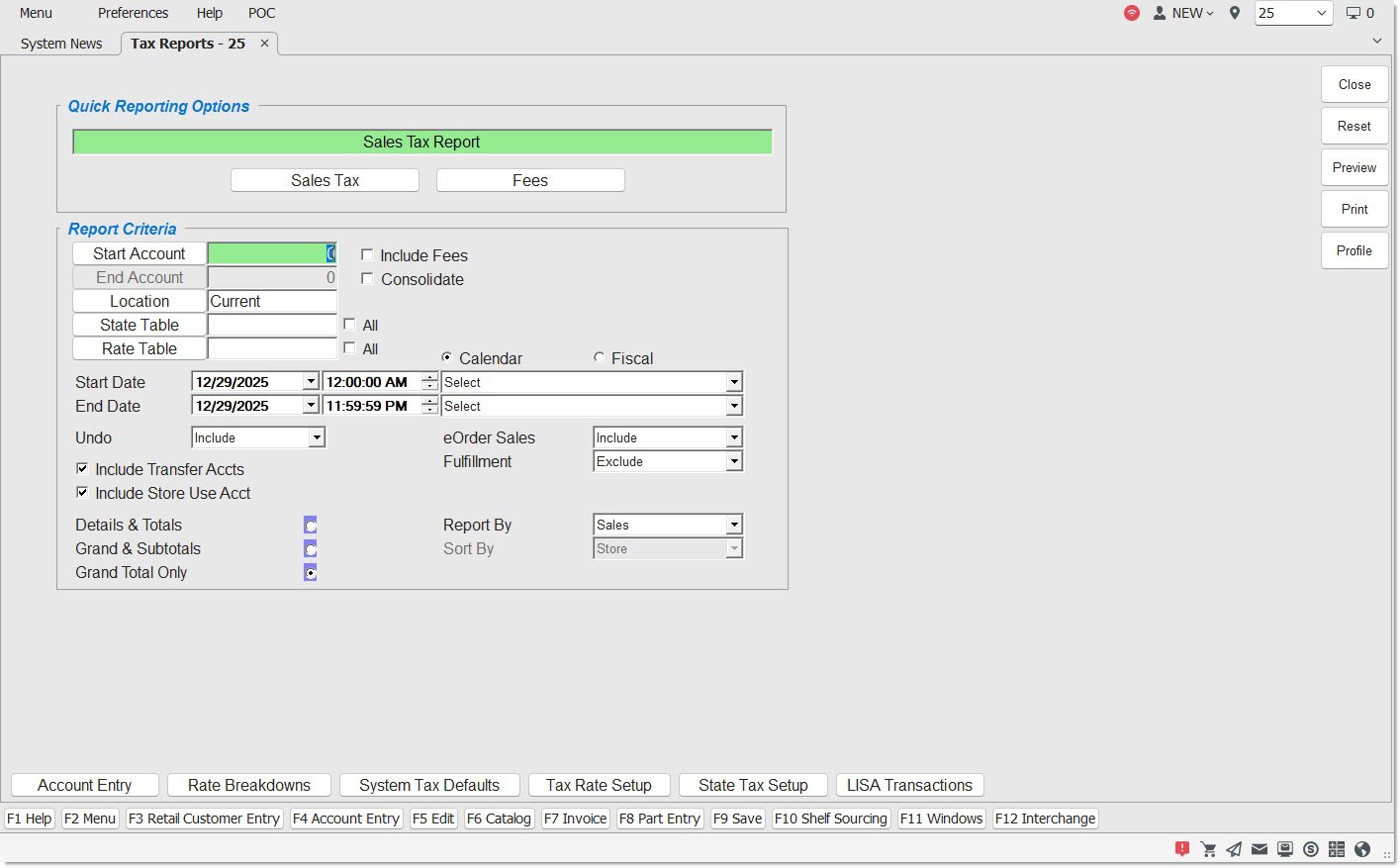
Quick Reporting Options
Sales Tax
Reports the full 'Sales Tax Report', which lists sales details for each Tax Type and breaks out taxes for each Tax Authority.
Fees
Reports the 'Fees Report'.
When the Tax Report is run with the 'Fees' option selected outside of Task Scheduler, a blank page prints (when there is no fees data) stating "This report is intentionally blank because the report criteria resulted in NO DATA FOUND when this report was run".
Report Criteria
Start Account / End Account
Specifies the 'Start Account' and the 'End Account' to report data for a range of accounts in the user's store only. Leave the 'Start Account' field blank to start with the first account and the 'End Account' field blank to end with the last account. Click the 'Start Account' or 'End Account' lookup button to display the 'Find Account' window to search for an account.
Location
Displays the store location of the reporting. Click the button to display the 'Browse Locations' window to search available store locations. Defaults to current location. Used in conjunction with the 'State Table' and 'Rate Table' fields.
State Table
Filters by a specific state's Tax Table. Click the button to display the 'Browse States' window to search for a specific state.
All
Filters by all State Tables, when checked. The word 'All' displays in the 'State Table' field.
Rate Table
Filters by a specific Rate Table for which sales, returns and taxes are reported for the selected store(s). Click the button to display the 'Browse Tax Rate Tables' to select a specific tax rate table. Only Rate Tables used by the logged in user's store can be reported unless User Security permits all stores.
All
Filters by all State Tables, when checked. The word 'All' displays in the 'Rate Table' field.
Include Fees
Reports the 'Sales Tax Report' followed by the 'Fees Report'. When 'Consolidated' is checked, the display name is 'Sales Tax Report - Consolidated' followed by the 'Fees Report - Consolidated'.
Reports the 'Sales Tax Report' only, when unchecked.
Option is unavailable for 'Fees Report'.
Consolidate
Reports the consolidated version of the 'Sales Tax Report' and 'Fees Report', which report totals only, when checked.
Start Date
Specifies the start date and time to report data by a range of accounts. Click the small down arrow to display a calendar. Click the desired date to select. Use the small left and right arrows to display previous/next months. Transactions created or submitted within the date range display. Enter a check mark in the field to report sales for a certain period. Displays all transactions, when unchecked. Defaults to current date.
Automatically populates with the appropriate date when a 'Calendar' or 'Fiscal' option is selected.
When saving as a profile, using the relative date option is recommended rather than selecting dates from the pop-up calendar. If the profile is saved with a fixed date range, then whenever the report is run using the saved profile, the report's output always contains the same information for that fixed date range only. If the profile is saved with a relative date range, the dates included are adjusted based on when the report is run.
End Date
Specifies the end date to report data by a range of accounts. Click the small down arrow to display a calendar. Click the desired date to select. Use the small left and right arrows to display previous/next months. Transactions created or submitted within the date range display. Enter a check mark in the field to report transactions for a certain period. Displays all transactions, when unchecked. Defaults to current date.
Automatically populates with the appropriate date when a 'Calendar' or 'Fiscal' option is selected.
When saving as a profile, using the relative date option is recommended rather than selecting dates from the pop-up calendar. If the profile is saved with a fixed date range, then whenever the report is run using the saved profile, the report's output always contains the same information for that fixed date range only. If the profile is saved with a relative date range, the dates included are adjusted based on when the report is run.
Calendar
Uses Relative Calendar dates, when selected. Works in conjunction with the 'Start Date' and 'End Date' fields.
Fiscal
Uses Relative Fiscal dates, when selected. Works in conjunction with the 'Start Date' and 'End Date' fields.
Note: Fiscal Periods refer to the most recently completed (closed) instance.
Undo
Determines whether 'Undo' invoices are reported.
Options are:
-
'Include' (Default)
-
'Exclude'
-
'Only'
Include Transfer Accts
Includes Transfer accounts in the report output, when checked.
Include Store Use Accts
Includes Store Use accounts in the report output, when checked.
Detail & Totals
Reports the sales/fees details with the associated taxes plus subtotals and totals. Order of display is 'Parts', 'Labor', 'Core', 'Freight', 'State Subtotals', 'Store Subtotals', and 'Grand Total'.
Grand & Subtotals
Reports the total lines, as follows: 'State Subtotals', 'Store Subtotals', and 'Grand Total' of all states and stores display.
Grand Total Only
Reports only the 'Grand Totals' for both sales and taxes for the selected location. No details or subtotals print. Does not include County, City, and Transit Authority Totals, which only display in the 'Details & Totals' report.
Internet Sales
Determines whether Internet sales are reported.
Options are:
-
'Include' - Reports Internet sales and store sales.
-
'Exclude' - Does not report Internet sales.
-
'Only' - Only reports Internet sales.
Fulfillment
Determines whether fulfillment orders are reported.
Options are:
-
'Include' - Reports fulfillment orders.
-
'Exclude' - Does not report fulfillment orders.
-
'Only' - Only reports fulfillment orders.
Report By
Determines whether the total sales or net sales output on the Tax Report and Fees Report.
Options are:
-
'Sales' - Sales Totals output on the Tax Report and Fees Report.
-
'Net Sales' - Net Sales Totals output on the Tax Report and Fees Report.
Calculations:
-
TAXABLE SALES - TAXABLE CREDITS = NET TAXABLE SALES
-
NON TAXABLE SALES - NON TAXABLE CREDITS = NET NON TAXABLE SALES
-
TAXABLE NET SALES + NON TAXABLE NET SALES = GRAND TOTAL NET SALES
Sort By
Sorts the report by 'Store' or 'State'. Enabled only when the 'All' associated with the 'Location' field is selected.
Sales Tax Report
The 'Sales Tax Report' details sales, returns and associated taxes on those sales transactions sold or returned at Point-of-Sale. Each transaction is categorized as a charge or cash transaction.
The following is an example of the 'Sales Tax Report' set to 'Net Sales'.
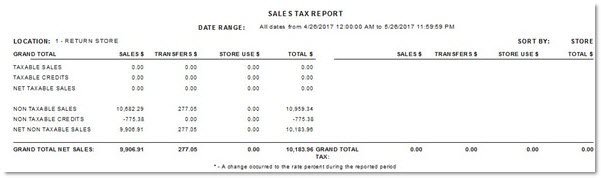
The sales are reported for all stores in the state. The data is grouped by Store, then State, and then Rate Table. The data for each Rate Table listed is grouped by Tax Type. Sales and Credits Tax Types display on the left side of the report and Taxes display on the right side. All taxable and non-taxable sales and credits details display on the left. Taxes collected are detailed for each Tax Authority in that Rate Table and display on the right. If an account had a partial tax exemption, so that the taxes for one Tax Authority were not collected/returned, but the taxes for the other Tax Authority were collected/returned, the amount of the sale is included in the taxable Sales/Credits, as appropriate. Each Tax Type section has a single line total for the net of Sales/Credits and Totals and for Tax Sales/Credits and Totals. Each Rate Table section has a single line total for the net of Sales/Credits and Totals and for Tax Sales/Credits and Totals. A Subtotal displays after the last Rate Table for a State and after the last State followed by a Grand Total.
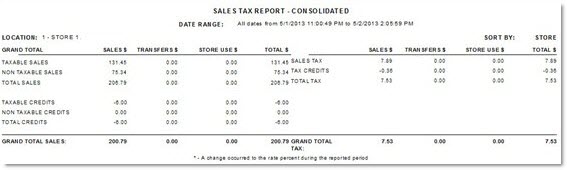
Sales Tax Report – Consolidated
The 'Sales Tax Report - Consolidated' reports a total for each Rate Type.
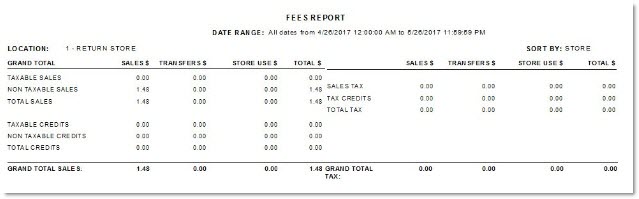
Fees Report
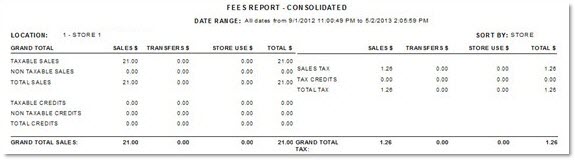
The 'Fees Report' details fees and associated taxes on those fees. To run only the FEES REPORT, click the FEES button. To run both the 'Sales Tax Report' and the 'Fees Report', with 'Sales Tax Report' shown as the 'Quick Reporting Option', check the 'Include Fees' checkbox.
Fees Report – Consolidated
The 'Fees Report' reports a total for each Fee Type; the amount for each fee does not display. The taxes on fees display the same whether or not 'Consolidated' is selected.