Transactions By Hour Report
The Transactions By Hour Report screen is used to view sales volumes by day and hour in order to identify staffing levels required during business hours. The report can report 15 hour days or 24 hour days and is sorted by days of the week, Monday through Sunday. The day of the week displays only when the day has at least one transaction to report.
Two reports can be run to report transactions by the hour. The 'Transaction Totals Report' displays the total number of sales transactions, eOrders, gross sales, and net sales within each time interval. The 'Transaction Averages Report' displays the average of sales transactions, eOrders, gross sales, and net sales within each time interval.
Menu Path: Reports, Financial, Trans By Hour, Transactions By Hour Reports screen
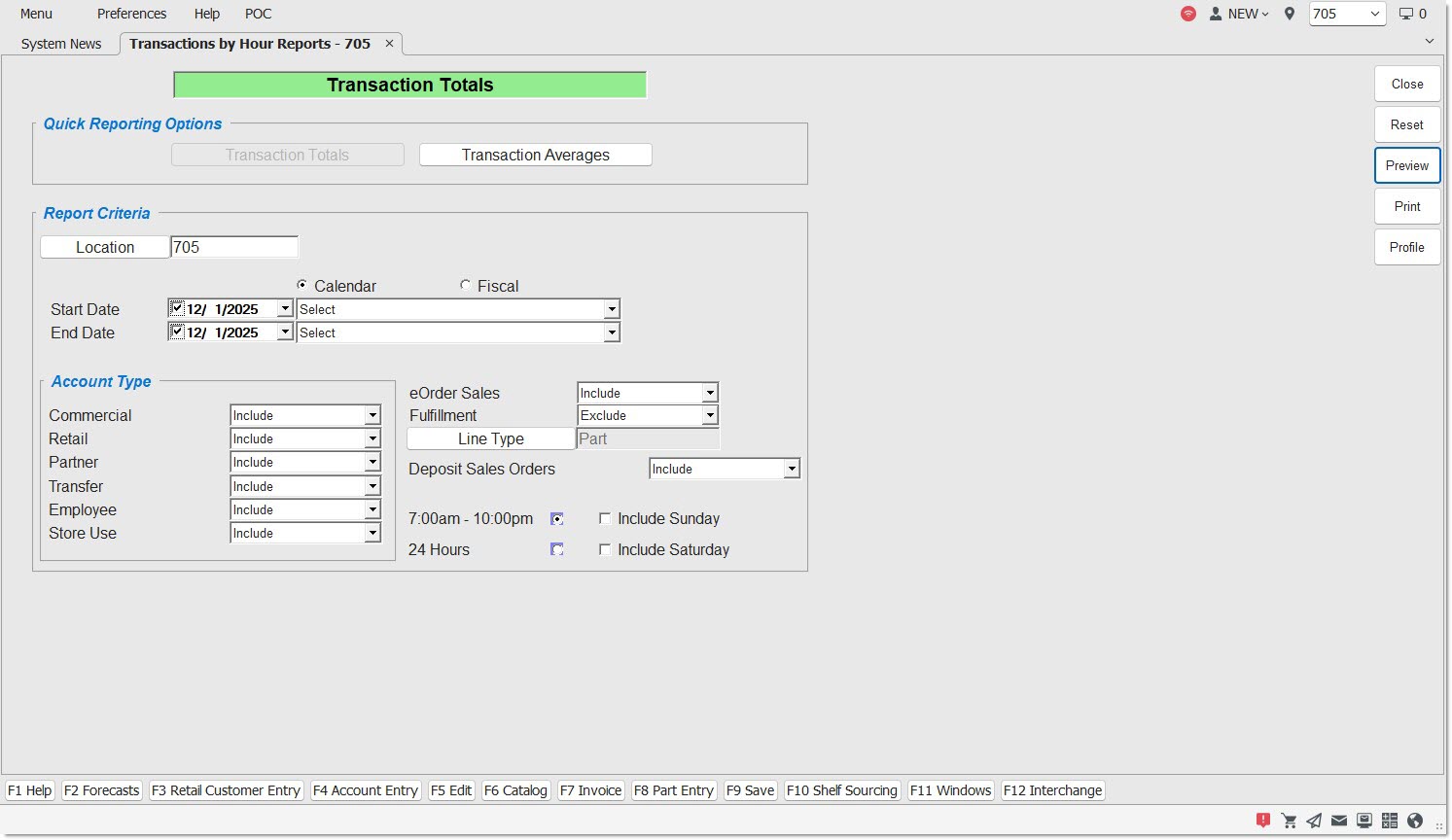
Quick Reporting Options
Transaction Totals
Displays the total number of sales transactions, eOrders, gross sales, and net sales within each time column of the report.
Transaction Averages
Displays the average of sales transactions, eOrders, gross sales, and net sales within each time column of the report.
Report Criteria
Location
Filters the report by the selected location. Click the button to display the 'Browse Locations' window to search available store locations. When multiple locations are selected, the word 'Multiple' displays in the field. Defaults to current location.
Start Date
Specifies the start date and time to report data by a range of accounts. Click the small down arrow to display a calendar. Click the desired date to select. Use the small left and right arrows to display previous/next months. Transactions created or submitted within the date range display. Enter a check mark in the field to report sales for a certain period. Displays all transactions, when unchecked. Defaults to current date.
Automatically populates with the appropriate date when a 'Calendar' or 'Fiscal' option is selected.
When saving as a profile, using the relative date option is recommended rather than selecting dates from the pop-up calendar. If the profile is saved with a fixed date range, then whenever the report is run using the saved profile, the report's output always contains the same information for that fixed date range only. If the profile is saved with a relative date range, the dates are adjusted based on when the report is run.
End Date
Specifies the end date and time to report data by a range of accounts. Click the small down arrow to display a calendar. Click the desired date to select. Use the small left and right arrows to display previous/next months. Transactions created or submitted within the date range display. Enter a check mark in the field to report transactions for a certain period. Displays all transactions, when unchecked. Defaults to current date.
Automatically populates with the appropriate date when a 'Calendar' or 'Fiscal' option is selected.
When saving as a profile, using the relative date option is recommended rather than selecting dates from the pop-up calendar. If the profile is saved with a fixed date range, then whenever the report is run using the saved profile, the report's output always contains the same information for that fixed date range only. If the profile is saved with a relative date range, the dates are adjusted based on when the report is run.
Calendar
Uses Relative Calendar dates, when selected. Works in conjunction with the 'Start Date' and 'End Date' fields.
Fiscal
Uses Relative Fiscal dates, when selected. Works in conjunction with the 'Start Date' and 'End Date' fields.
Note: Fiscal Periods refer to the most recently completed (closed) instance.
Internet Sales
Determines whether Internet sales are reported.
Options are:
-
'Include' - Reports Internet sales and store sales.
-
'Exclude' - Does not report Internet sales.
-
'Only' - Only reports Internet sales.
Fulfillment
Determines whether fulfillment orders are reported.
Options are:
-
'Include' - Reports fulfillment orders.
-
'Exclude' - Does not report fulfillment orders.
-
'Only' - Only reports fulfillment orders.
Field displays only when the B2C system appswitch is enabled.
Line Type
Filters by a line type, as set in the 'Type' field in the Line Code Entry screen.
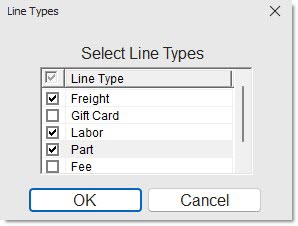
Click the button to display the 'Line Types' pop-up used to select specific line type(s).
Options are:
-
'Freight'
-
'Gift Cards'
-
'Labor'
-
'Parts'
Include any 'Line Type' by checking the box(es). Check the checkbox in the header to report all line types. Uncheck the checkbox in the header to deselect all line types.
-
When all are checked, 'All' displays in the 'Line Type' field.
-
When more than one but less than all types are checked, 'Multiple' displays in the 'Line Type' field.
-
When only a single line type is checked, that type displays in the 'Line Type' field.
Note: Reports both gift cards and merchandise cards when 'Gift Cards' is selected.
Deposit Sales Orders
Determines whether deposit tickets and/or finalized invoices are reported.
Options are:
-
'Include' - Reports 'Deposit' sales orders in addition to finalized invoices. (Default)
-
'Exclude' - Reports tickets in the finalized 'Invoice' status only.
-
'Only' - Reports tickets in the 'Deposit' status only.
7:00am – 10:00pm
Filters all transactions performed from 7:00 am – 10:00 pm.
24 Hours
Filters sales transactions for an entire 24 hour period.
Include Sunday
Includes sales transactions performed on Sunday, when checked.
Include Saturday
Includes sales transactions performed on Saturday, when checked.
Account Type
Commercial
Determines whether accounts with 'Account Type' of 'Commercial' are reported.
Options are:
-
'Include' (Default)
-
'Exclude'
-
'Only'
Retail
Determines whether accounts with 'Account Type' of 'Retail' are reported.
Options are:
-
'Include' (Default)
-
'Exclude'
-
'Only'
Partner
Determines whether accounts with 'Account Type' of 'Partner' are reported.
Options are:
-
'Include' (Default)
-
'Exclude'
-
'Only'
Transfer
Determines whether accounts with 'Account Type' of 'Transfer' are reported.
Options are:
-
'Include' (Default)
-
'Exclude'
-
'Only'
Employee
Determines whether accounts with 'Account Type' of 'Employee' are reported.
Options are:
-
'Include' (Default)
-
'Exclude'
-
'Only'
Store Use
Determines whether accounts with 'Account Type' of 'Store Use' are reported.
Options are:
-
'Include' (Default)
-
'Exclude'
-
'Only'
Transactions By Hour Report
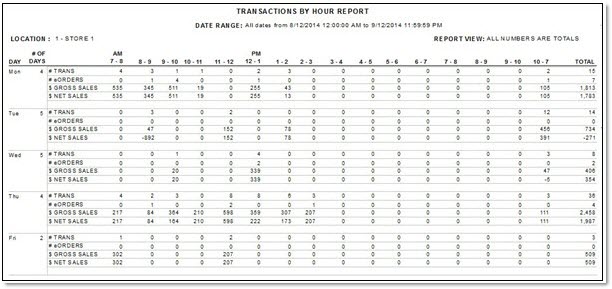
The following is an example of the single-store 'Transactions By Hour Report'. The multi-store version is a consolidated report that displays one store after the other.

Procedure to Preview and Print Transactions By Hour Report
To preview and print the 'Transactions By Hour Report', follow the steps below:
-
From the Menu, select Reports, Financial, Trans By Hour. The Transactions By Hour Report screen displays.
-
Select the appropriate 'Quick Reporting Options' to create the appropriate report.
-
Enter the appropriate 'Report Criteria' information to narrow the scope of the report, if needed.
-
Click 'Preview' to review the resulting report. A preview of the report displays.
-
Click 'Print' to print the report. The printout is sent to the default printer.