Scan Session Reports
The Scan Session Reports screen outputs a list of scanned parts that were scanned in using the RF Device Scan Session functionality. The Scan Session Reports screen also outputs a report that can be used to compare the parts scanned to a manifest or pack slip to identify possible differences.
Menu Path: Reports, Purchasing, Scan Sessions, Scan Session Report screen.
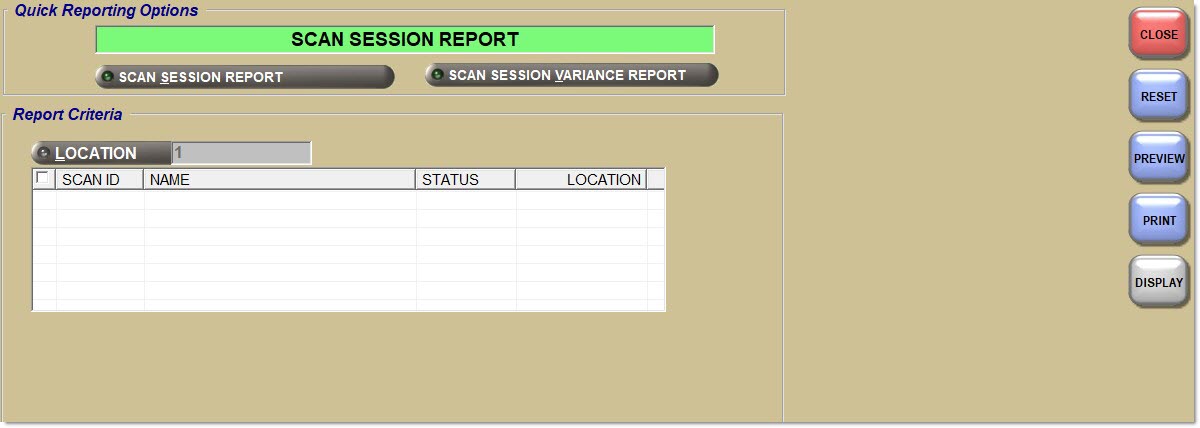
Quick Reporting Options
Scan Session Report
Outputs the 'Scan Session Report', which details information on all or the selected scan sessions that are active in the application.
Scan Session Variance
Outputs several reports based on the differences between the scan session and the manifest, packslip, or packslip container.
Report Criteria
Location
Displays the location of the current store by default. Select one, multiple or all stores in the system.
The report will include the selected locations, and exclude the locations that were not selected.
Sort By
Determines in what order the report will sort the data, from highest to lowest quantity differences.
Options are:
-
'Variance' (default)
-
'Line'
-
'Part Number'
Note: Available for the 'Scan Session Variance Report' only.
Show Variances Only
When checked, the report output displays only lines / part numbers that have a difference between a total aggregated scan quantity across the selected scan sessions and a total aggregated quantity on selected manifests, packslips, or packslip containers.
When unchecked, the report output displays all lines / part numbers on all selected scan sessions and selected manifests, packslips, or packslip containers.
Note: Available for the 'Scan Session Variance Report' only.
Grid
This grid displays when the 'Scan Session Report' or the 'Scan Session Variance Report' is selected from the 'Quick Reporting Options' section. The checkbox at the top of the grid checks all items in the grid when checked, and unchecks all items in the grid, when unchecked. Displays a list of all active scan sessions with a status of 'InProg', 'InCmp', or 'Cmp'.
Scan ID
Displays the scan ID from when the assortment of parts was first scanned to the application with an RF Device.
Name
Displays the given name of the session when the assortment of parts was first scanned to the application with an RF Device.
Status
Displays the status of the scan session as it is currently, either in progress ('InProg'), incomplete ('InCmp'), or complete ('Cmp').
Location
Displays the session location, the store that created the scan session when the assortment of parts was first scanned to the application with an RF Device.
Start Date
Used to filter the rows displayed in the grid.
Defaults the 'Date' filed to the current date, and the 'Time' field to 12:00 a.m.
Note: When the 'ASNs' tab is selected, this field uses the PO Receive Date to filter the rows of the grid.
End Date
Used to filter the rows displayed in the grid.
Defaults the 'Date' filed to the current date, and the 'Time' field to 11:59 p.m.
Note: When the 'ASNs' tab is selected, this field uses the PO Receive Date to filter the rows of the grid.
Vendor
Multi-select field that allows for filtering of the grid choices by vendor.
The default for the field is blank, to include all vendors.
Note: Line codes without the 'Use as Vendor' flag will not be available.
Grid
This grid displays when the 'Scan Session Variance Report' is selected from the 'Quick Reporting Options' section.
Check/Uncheck all checkbox at the top of the grid header to select and deselect all items in the grid.
Manifests tab
Displays a list of all active manifests with a type of 'Core', 'Warranty/Defective', 'Return Buyout', and 'Shrink'.
Type
Displays the type of manifest in the list, either 'Core', 'Warranty/Defective', 'Return Buyout', or 'Shrink'.
L/S
Displays the vendor type of L/S for the selected manifests.
Vendor
Displays the vendor for the selected manifest.
Manifest #
Displays the manifest number for the selected manifest.
Create date
Displays the date the selected manifest was created.
Packslips tab
Displays a list of all active packslips.
Pack slip
Displays the packslip number.
Location
Displays the store location the packslip was created.
Date
Displays the date the packslip was created.
Containers tab
Displays a list of all active packslips containers.
Pack slip
Displays the packslip number.
Date
Displays the date the packslip was created.
Container
Displays the container name for the selected packslip.
ASNS tab
Used to select the ASNs to output in the report and includes only vendors that send ASNs. The checkbox at the top of the grid checks all items in the grid when checked, and unchecks all items in the grid, when unchecked.
Note: Only posted ASNs will display with POs that have been posted.
Note: If an ASN has multiple POs, a separate row will display for the ASN for each received PO.
ASN #
Displays the ASN number for the ASNs in the grid.
ASN Create Date
Displays the date an ASN was created for the ASNs in the grid.
Vendor
Displays the vendor associated with the ASNs in the grid.
PO #
Displays the Purchase Order that the ASNs in the grid are attached to.
Note: If an ASN has multiple POs, a separate row will display for the ASN for each received PO.
PO Posted Date
Displays the date the Purchase Order attached to the ASNs in the grid were posted into the system.
Sort By
Determines in what order the report will sort the data, from highest to lowest quantity differences.
Options are:
-
'Variance' (default)
-
'Line'
-
'Part Number'
Show Variances Only
When checked, the report output displays only lines / part numbers that have a difference between a total aggregated scan quantity across the selected scan sessions and a total aggregated quantity on selected manifests, packslips, or packslip containers.
When unchecked, the report output displays all lines / part numbers on all selected scan sessions and selected manifests, packslips, or packslip containers.
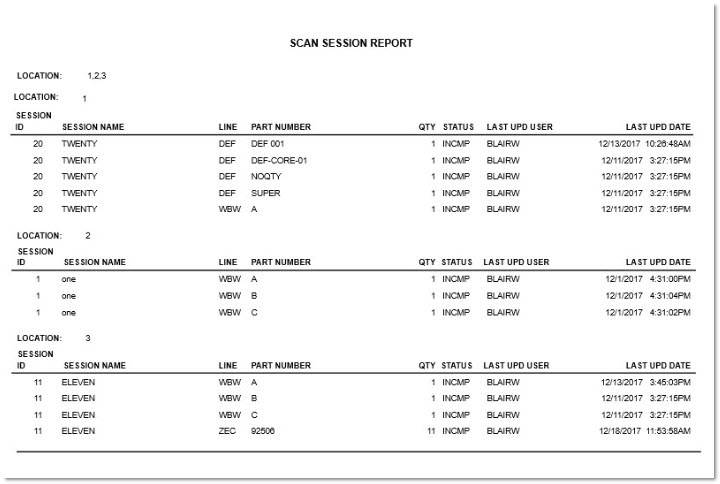
Scan Session Report
The following is an example of the 'Scan Session Report':

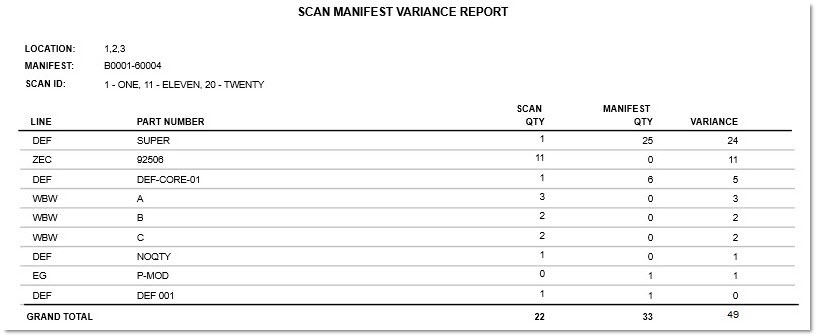
Scan Manifest Variance Report
The following is an example of the 'Scan Manifest Variance Report':
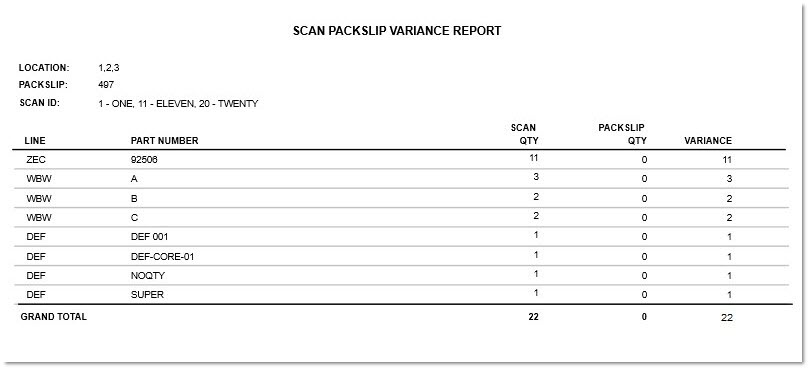
Scan Packslip Variance Report
The following is an example of the 'Scan Packslip Variance Report':
Scan Container Variance Report
The following is an example of the 'Scan Container Variance Report':

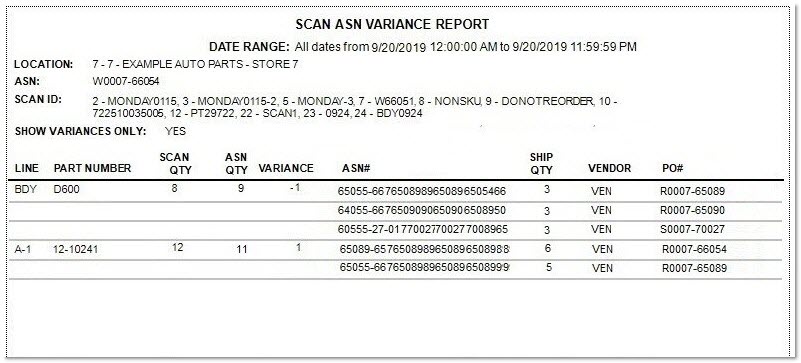
Scan ASN Variance Report
The following is an example of the 'Scan ASN Variance Report'. The report displays six rows of ASN numbers in the report header, and 4 rows of 'Scan IDs' in the report header, otherwise the rows will be left blank if unused.
Note: If the 'Show Variances Only' flag is checked, then only applicable parts with a variance will be reported. If the 'Show Variances Only' flag is unchecked, all applicable parts are reported.