e-Invoice Reports
An Advanced Shipping Notice (ASN) feed is a method in which ASN data, also known as e-Invoice data, is copied from an external database into the PartsWatch database. Items from an ASN are received in containers, also known as totes. Often, there is more than one container per ASN.
This feed of ASN data from the client-provided file to the PartsWatch ASN file is performed on a regular basis. The file is placed on an FTP site by the client and picked up and fed into PartsWatch. The e-Invoice Reports enable the user to print this captured data.
The e-Invoice Reports screen is used to preview and print the e-Invoice Summary Report' and 'e-Invoice Detail Report', both of which are generated from the feed of raw e-Invoice (ASN) data from the client's system to PartsWatch. This file includes both e-Invoices and e-Returns.
Menu Path: Reports, e-Invoice Reports, e-Invoice Reports screen
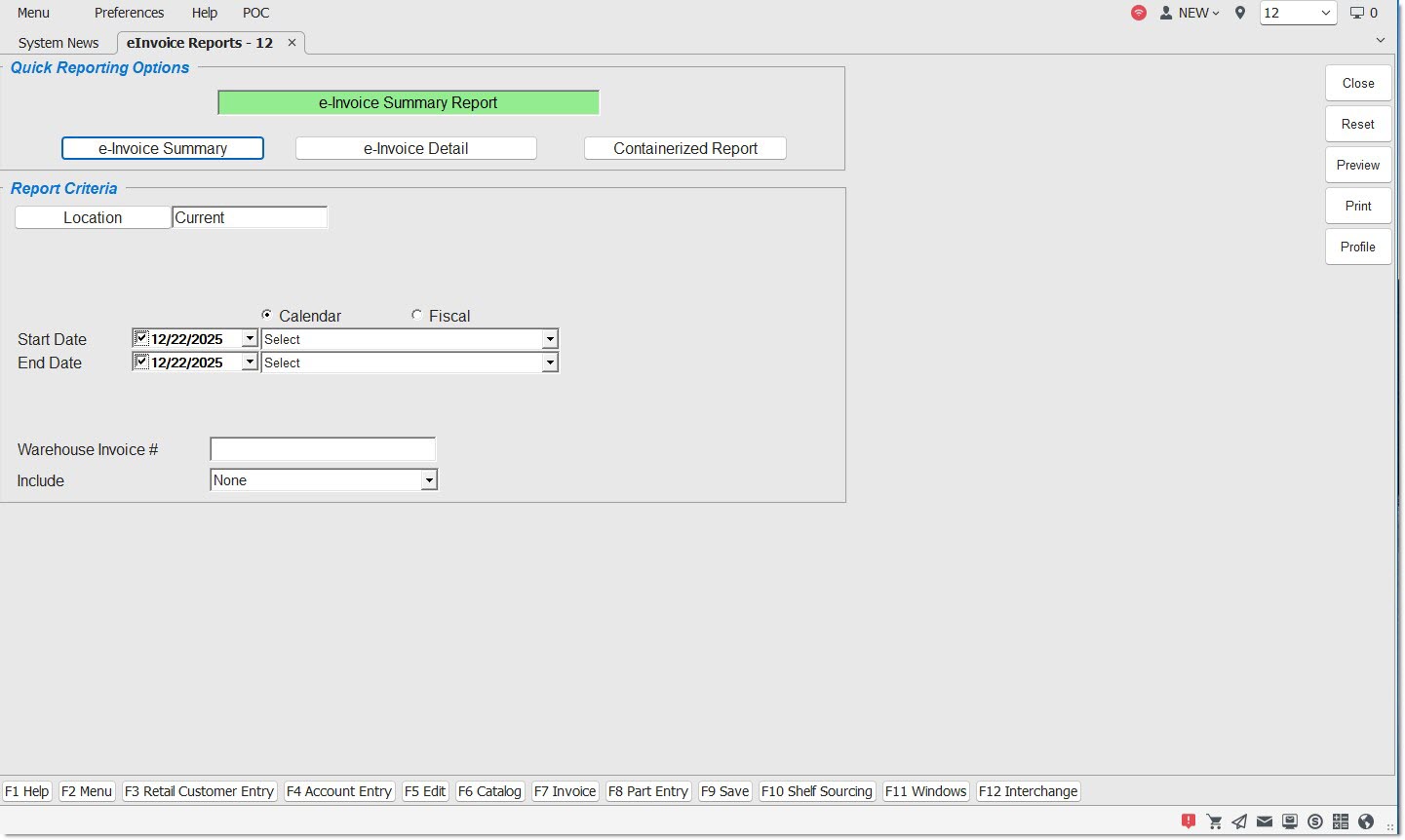
Quick Reporting Options
Displays the 'e-Invoice Summary Report' that reports a list of invoices with invoice header information only. Displays no part detail.
e-Invoice Detail
Displays 'e-Invoice Detail Report' that reports part detail and other information that would be on an invoice. The report resembles an invoice.
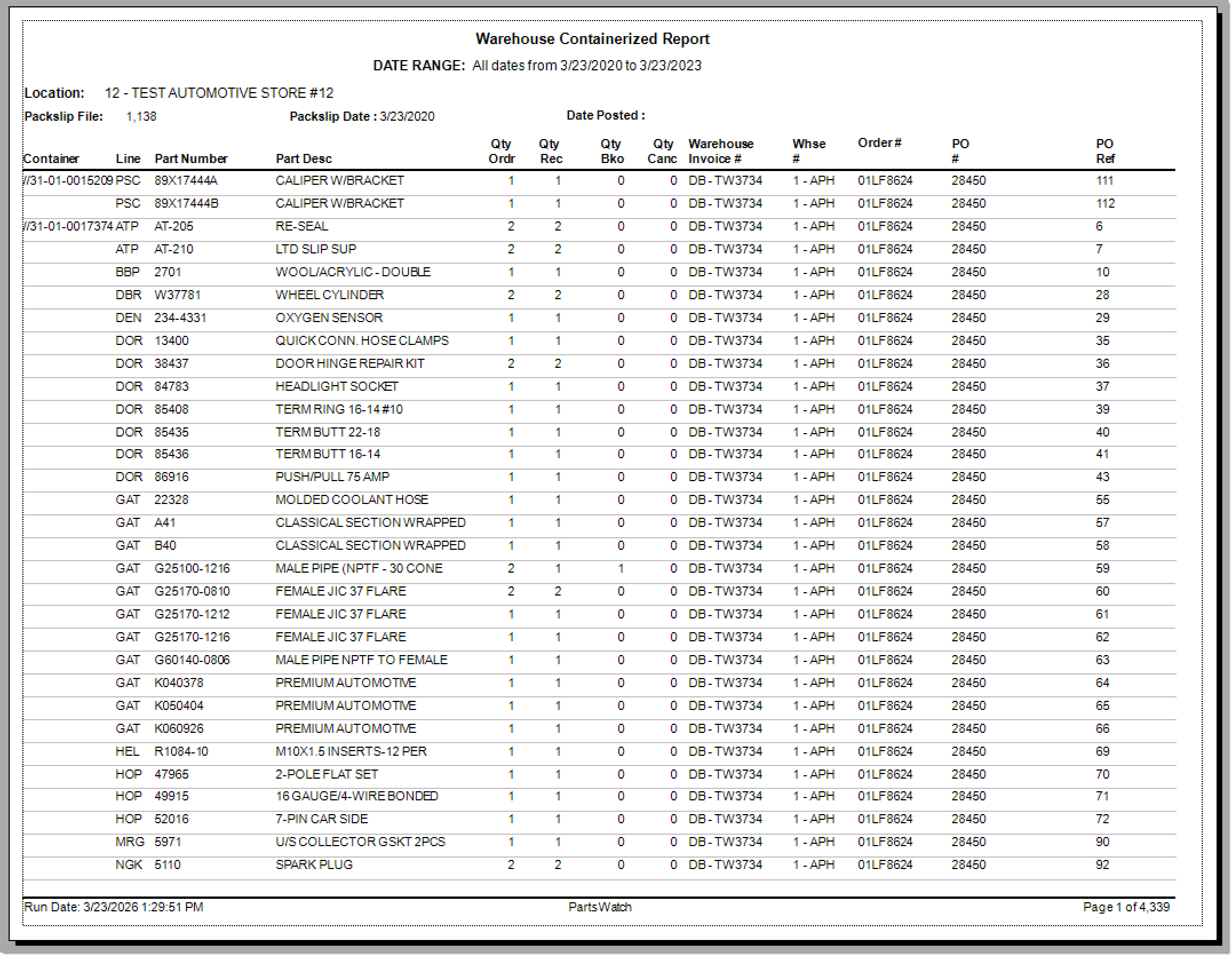
Displays the 'Containerized Report' that reports part information per container.
Report Criteria
Location
Filters by a specific store location. Click the button to display the 'Browse Locations' window to search for a specific location. Defaults to the store that the system is currently logged in to.
Line Code
Filters by a line code. Click the button to display the 'Browse Line Codes' window. Displays the word 'Multiple' when multiple line codes are selected. Available for the 'e-Invoice Detail Report' only.
Part Number
Filters by a part number to report within a specific line. Click the button to display the 'Find Part' window. Displays grayed out when no line code is entered. Available for the 'e-Invoice Detail Report' only.
Start Date
Indicates the start date and time for the search for reporting purposes. Click the small down arrow to display a calendar. Click the desired date to select. Use the small left and right arrows to display previous/next months. Transactions created or submitted within the date range display. Enter a check mark in the field to report sales for a certain period. Displays all transactions, when unchecked. Defaults to current date.
Automatically populates with the appropriate date when a 'Calendar' or 'Fiscal' option is selected.
When saving as a profile, using the relative date option is recommended rather than selecting dates from the pop-up calendar. If the profile is saved with a fixed date range, then whenever the report is run using the saved profile, the report’s output always contains the same information for that fixed date range only. If the profile is saved with a relative date range, the dates are adjusted based on when the report is run.
End Date
Indicates the end date and time for the search for reporting purposes. Click the small down arrow to display a calendar. Click the desired date to select. Use the small left and right arrows to display previous/next months. Transactions created or submitted within the date range display. Enter a check mark in the field to report transactions for a certain period. Displays all transactions, when unchecked. Defaults to current date.
Automatically populates with the appropriate date when a 'Calendar' or 'Fiscal' option is selected.
When saving as a profile, using the relative date option is recommended rather than selecting dates from the pop-up calendar. If the profile is saved with a fixed date range, then whenever the report is run using the saved profile, the report’s output always contains the same information for that fixed date range only. If the profile is saved with a relative date range, the dates are adjusted based on when the report is run.
Calendar
Uses Relative Calendar dates, when selected. Works in conjunction with the 'Start Date' and 'End Date' fields.
Fiscal
Uses Relative Fiscal dates, when selected. Works in conjunction with the 'Start Date' and 'End Date' fields.
Note: Fiscal Periods refer to the most recently completed (closed) instance.
Warehouse Invoice #
Filters by a warehouse invoice number. Value is 0 - 9999999.
Vendor
Filters by a specific vendor.
e-Invoice Summary Report
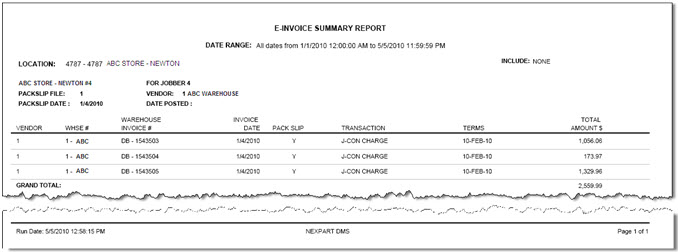
The 'e-Invoice Summary Report' displays a list of accounts.
The following is an example of an 'e-Invoice Summary Report, Include: None':
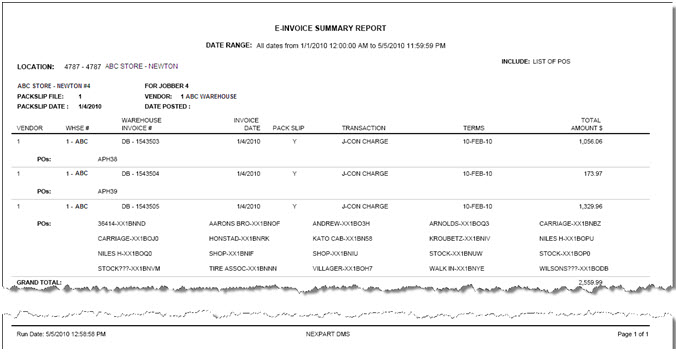
The following is an example of an 'e-Invoice Summary Report, Include: List of POS':
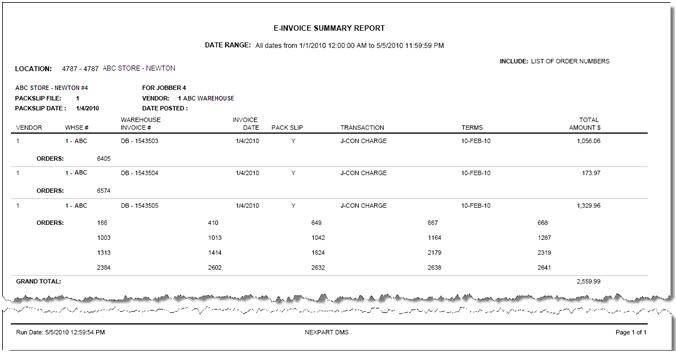
The following is an example of an 'e-Invoice Summary Report, Include: List of Order Numbers':
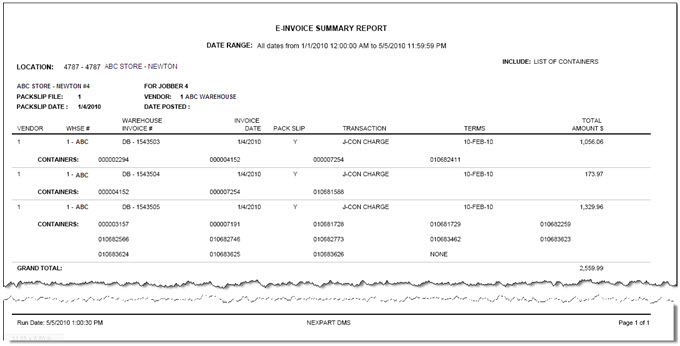
The following is an example of an 'e-Invoice Summary Report, Include: List of Containers':

e-Invoice Detail Report
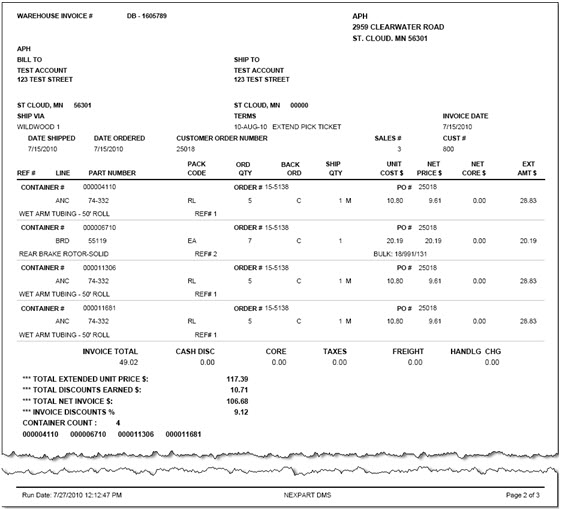
The 'e-Invoice Detail Report' reports part detail and other information that would be on an invoice. The report resembles an invoice.
The following is an example of an 'e-Invoice Detail Report (Debit)'.
Containerized Report