Cycle Count
The Cycle Count function enables the physical counting or scanning items in the inventory and logs them through the RF Device in order to capture the counted quantities in an PartsWatch database. Simultaneously, the on hand inventory at that point in time is noted so that, at a later point, a report can be printed listing any discrepancies between the physical count and system inventory. Cycle counts are stored and maintained for a user-determined time frame and then cleared.
Log in to the RF Device defines the permissions as determined by User Security Setup in PartsWatch and determines who can see the Quantity on Hand during the Cycle Count operation.
A successful scan beeps and an unsuccessful scan buzzes.
Upon logging on to the RF Device, the 'Main Menu' screen displays.
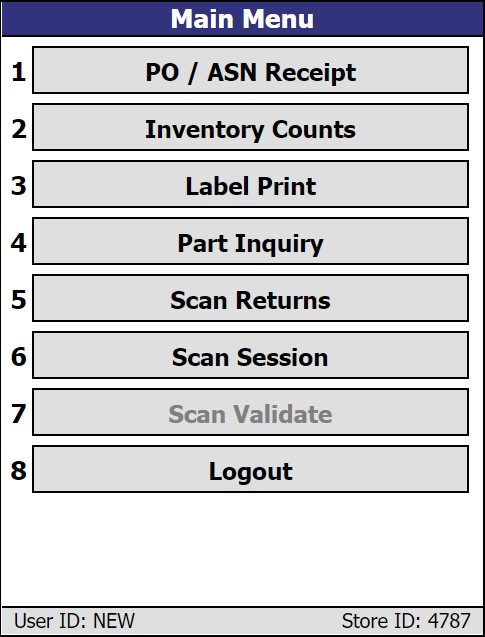
Tap the 'Inventory Counts' option on the 'Main Menu' screen to display the 'Inventory Counts Menu' screen.
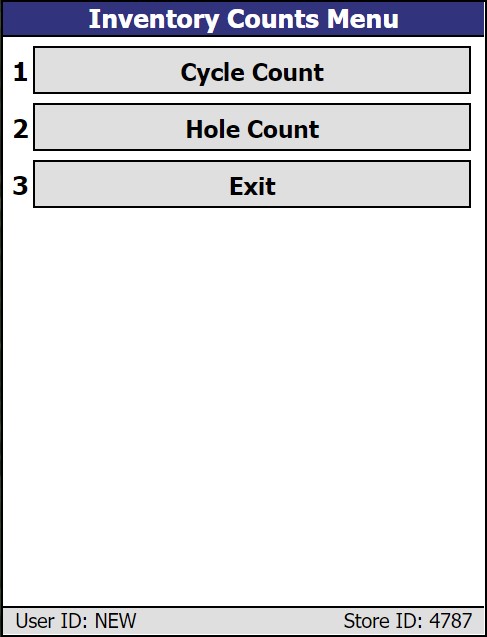
Tap the 'Cycle Count' option on the 'Inventory Counts Menu' screen to display the 'Cycle Count Menu' screen.
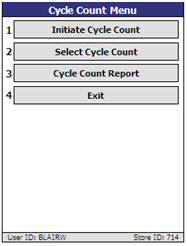
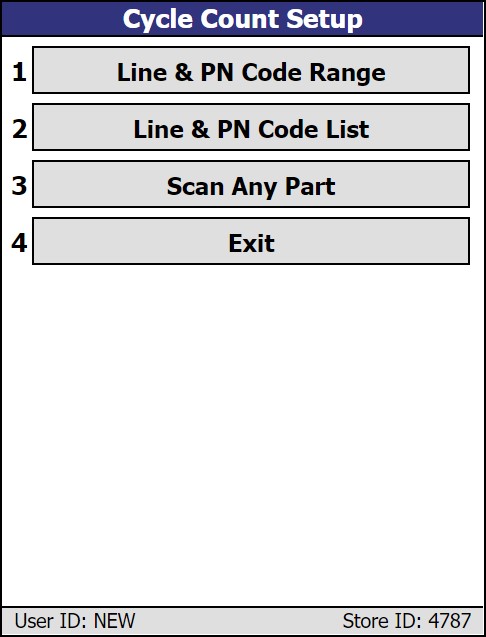
Displays the 'Cycle Count Setup' screen used to initiate the Cycle Count.
Options are:
- 'Line & PN Code Range' - Displays the 'Cycle Count Setup - By Line & PN Code Range' screen.
- 'Lines & PN Code List' - Displays the 'Cycle Count Setup - By Line & PN Code' screen.
- 'Scan Any Part' - Begin scanning in parts on the 'Cycle Count Entry' screen.
Displays the 'Select Cycle Count' screen used to recall a list of active cycle counts.
Displays the 'Cycle Count Report' screen used to print cycle counts with the status of 'FINAL' or 'COMPLETE'.
Tap to returns to the 'Main Menu' screen.
Initiate Cycle Count
Tap 'Initiate Cycle Count' on the 'Cycle Count Menu' to begin the cycle count.
By Line & PN Code Range
The 'Line & PN Code Range' option displays the 'Cycle Count Setup - By Line & PN Code Range' screen.
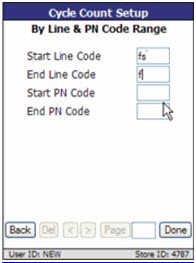
Indicates the beginning line code in the range to recall part numbers from the inventory file. Required.
Indicates the last line code in the range to recall part numbers from the inventory file. Required.
Indicates the beginning PN code in the range to recall part numbers from the inventory file. (Optional)
Indicates the beginning PN code in the range to recall part numbers from the inventory file. (Optional)
Tap to return to the 'Cycle Count Setup' menu.
Tap 'Done' and the system will:
- Verify with the database that entered codes are valid.
- Check to ensure another user is not doing a cycle count for the same line or PN code at the same time. If a conflict exists, a prompt displays stating, "These parameters conflict with cycle count xx." Tap 'OK' to close the prompt and return to the 'Cycle Count Setup' screen to modify the entries.
- Having no parameter conflicts, generates the the 'Cycle Count ID'. The number consists of a sequential number (001) that is generated by the PartsWatch application and is incremented for all cycle counts for that store from 001 to 999, at which point it recycles to 001. This, in combination with the three-character user ID (USR) and a six-character date (MMDDYY) in either the US or Canadian format (as indicated by the PDA Regional Settings), identifies the Cycle Counts.
- Proceed to the 'Cycle Count Entry' screen.
By Multiple Line & PN Code
The 'By Multiple Line & PN Code' option displays the 'Cycle Count Setup - By Line & PN Code' screen.
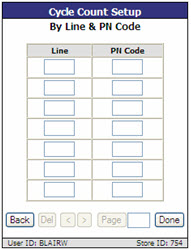
Indicates a line code. The same line code may be entered multiple times, each with a different PN code, in order to do a count for multiple PN codes within a line. Entry of an invalid line code displays an invalid line code message.
Indicates a PN code. Invalid without entry of a line code, but optional when a line code is entered. The message, "No Line Code Entered" displays when a PN code is entered without a line code. Entry of an invalid PN code displays an invalid PN code message.
Tap to return to the main 'Cycle Count Setup' menu.
Tap 'Done' and the system will:
- Verify with the database that entered lines and PN codes are valid.
- Check to ensure another user is not performing a cycle count for the same line or PN code at the same time. If a conflict exists, a prompt displays stating, "These parameters conflict with cycle count xx." Tap 'OK' to close the prompt and return to the 'Cycle Count Setup' screen to modify the entries.
- Having no parameter conflicts, generates the 'Cycle Count ID'. The number consists of a sequential number (001) that is generated by the PartsWatch application and is incremented for all cycle counts for that store from 001 to 999, at which point it recycles to 001. This, in combination with the three-character user ID (USR) and a six-character date (MMDDYY) in either the US or Canadian format (as indicated by the PDA Regional Settings), identifies the Cycle Counts.
- Proceed to the 'Cycle Count Entry' screen.
Scan Any Part
Tap the 'Scan Any Part' selection to begin scanning in parts on the 'Cycle Count Entry' screen.
Allows manual entry of part number, UPC, or SKU, when in 'Enter' mode, for a number other than the sequenced number presented.
Tap 'Go' to add the part number if valid, to the grid with its quantity.
Scan parts or shelf labels, when enabled. (Screen defaults to 'Scan' when opened.) Items are added to the bottom of the list in the grid as they are scanned.
Tap to turn the RF Device to 'Enter' mode, from 'Scan' mode. Allows for manual entry of parts.
Edit Min (the label of this button changes based upon User Security Settings)
The ability to modify stocking levels, 'Min', 'Max', and 'Order Point', is available for users with adequate permissions on the RF Device Scan App.
'EDIT'
- If the user account has edit privileges to stocking levels and the RF 'QAVL'/'QOH' quantity field, the button displays with a label of 'Edit Min'. Clicking the button will cycle through the modes, 'Edit Min', 'Edit Max', 'Edit OP', and 'Edit QAVL/Edit QOH' depending on system settings. Cycling through the modes also changes the corresponding column heading.
- If the user account does not have edit privileges to stocking levels but does have edit privileges to the RF 'QAVL'/'QOH' quantity field, the new button will not display.
- If the user account does have edit privileges to stocking levels but does not have edit privileges to the RF 'QAVL'/'QOH' quantity field, clicking the button will only cycle 'Edit Min', 'Edit Max', and 'Edit OP'.
- If the user account has edit privileges, clicking the button in the corresponding 'OP' cell for a part will display a message prompt with the following text: "Enter quantity." with an 'OK' and 'Cancel' button. Click 'OK' to modify the part's corresponding stocking level field with the quantity entered and close the message prompt. Click 'Cancel' to close the prompt without making any changes.
'VIEW-ONLY'
- If the user account has view-only privileges to stocking levels and the RF 'QAVL'/'QOH' quantity field, the button displays with a label of 'See Min'. Clicking the button will cycle through the modes, 'See Min', 'See Max', 'See OP', and 'See QAVL/Edit QOH' depending on system settings. Cycling through the modes also changes the corresponding column heading.
- If the user account does not have view privileges to stocking levels but does have view privileges to the RF 'QAVL'/'QOH' quantity field, the new button will not display.
- If the user account does have view privileges to stocking levels but does not have view privileges to the RF 'QAVL'/'QOH' quantity field, clicking the button will only cycle 'See Min', 'See Max', and 'See OP'.
'HIDDEN'
- If the user account has hidden security privileges for both stock quantity ('QAVL' or 'QOH') and stocking levels ('Min', 'Max', 'OP'), the new button is not displayed.
- The 'QAVL' or 'QOH' column is unavailable and no value is displayed in this column.
Indicates a line code. The same line code may be entered multiple times, each with a different PN code, in order to do a count for multiple PN codes within a line. Entry of an invalid line code displays an invalid line code message.
Indicates a PN code. Invalid without entry of a line code, but optional when a line code is entered. The message, "No Line Code Entered" displays when a PN code is entered without a line code. Entry of an invalid PN code displays an invalid PN code message.
Displays the quantity scanned in the cycle count session.
Indicates the quantity on hand or quantity available (quantity on hand – quantity reserved) for the selected part in the row.
Tap 'Label' with an item (or multiple) selected, and a prompt appears asking: "Print label. Are you sure?"
Tap 'OK' and the system will queue the part price label on the printer. Then, it will clear the selected checkbox and display another message prompt with the following text: "Label queued for print." with an 'OK' button. Tap 'OK' to close the message prompt and return to the corresponding Count Entry screen.
Tap 'Cancel' and the system closes the message prompt and return to the 'Cycle Count Entry' screen.
Tap 'Done' and the system:
- Verifies with the database that entered lines and PN codes are valid.
- Checks to ensure another user is not performing a cycle count for the same line or PN code at the same time. If a conflict exists, a prompt displays stating, "These parameters conflict with cycle count xx." Tap 'OK' to close the prompt and return to the 'Cycle Count Setup' screen to modify the entries.
- Having no parameter conflicts, generates the Cycle Count ID. The number consists of a sequential number (001) that is generated by the application and is incremented for all cycle counts for that store from 001 to 999, at which point it recycles to 001. This, in combination with the three-character user ID (USR) and a six-character date (MMDDYY) in either the US or Canadian format (as indicated by the PDA Regional Settings), identifies the Cycle Counts.
- Proceeds to the 'Cycle Count Entry' screen.
If parts are scanned or entered and the upper limit is exceeded, a message prompt is displays with the text: "Quantity entered is greater than the warning threshold of '1000'. Are you sure?" with an 'OK' and 'Cancel' button.
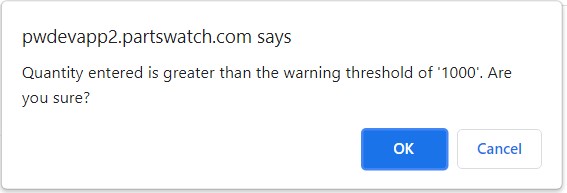
'OK' accepts the quantity and closes the pop-up.
'Cancel' abandons the changes and returns the user to the screen behind the message prompt.
Once the 'Cycle Count Setup' screen is completed, and 'Done' is tapped, the 'Cycle Count Entry' screen displays defaulted in the 'Scan' mode.
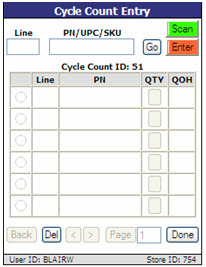
Tap 'Enter' to display the 'Enter' mode version of the 'Cycle Count Entry' screen instead.
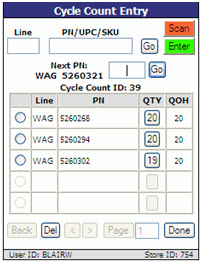
Hidden Switches

Manually enter the line code in 'Enter' mode.
Manually enter a of part number, UPC, or SKU, when in 'Enter' mode, for a number other than the sequenced number presented.
If a manually or scanned part number is not in the store's inventory file, the message, "Part not found in the store's inventory file. Add to cycle count anyway?" Tap 'OK' and the item is added to the cycle count with a quantity of 1. Note: The item is not added to the inventory file. Tap 'Cancel' and the item is not added to the cycle count.
For cycle counts by Line and PN Code, the message, "[Line] [Part] not in cycle count range", displays when a part does not meet the entered parameter criteria for the cycle count. The part is not added to the cycle count.
For cycle counts by Zone/Bin, the message, "[Line] [Part] not in cycle count range. Add to cycle count anyway?", displays when a part does not meet the entered parameter criteria for the cycle count. Tap 'OK' to add the item to the cycle count without any special status. Tap 'Cancel' to not add the item to the cycle count.
When an entered or scanned part is a duplicate of a previous entry for the same cycle count, the message, "Part number previously scanned/entered, make sure QTY is correct", displays. Review to ensure the quantity is correct.
When 'RFShowExtraPartInfo' is set to 'TRUE', a second row displays underneath the 'PN/UPC/SKU' field detailing more part information.
When set to 'FASLE', no second row displays.
Adds the part number, if valid, to the grid with its quantity.
Scan parts or shelf labels, when enabled. (Screen defaults to 'Scan' when opened.) Items are added to the bottom of the list in the grid as they are scanned.
Tap to turn the RF Device to 'Enter' mode, from 'Scan' mode. Allows for manual entry of parts.
Tap to display the next part number within the specified parameters that has not yet been worked. (Applicable to 'Enter' mode only.)
For example: If the file contains parts 1 - 6, and quantities for number 1, 3 and 5 are entered, then numbers 1, 3, and 5 are listed in the grid in that sequence and part number 2 shows as the 'Next PN'. If part number 2 is then entered, the part number display in the grid in the order of 1, 3, 5, 2. The 'Next PN' field displays 4 since 4 is the first number not yet worked.
Manually enter the quantity for the displayed 'Next PN' part.
Accepts the manual entry and displays the next part number when the quantity is entered and 'Go' is tapped. (Applicable to 'Enter' mode only.)
Indicates the system-generated cycle count ID number.
Check the checkbox next to a part or several parts to delete by tapping in the radio button and tapping 'Del'.
Indicates the entered line code.
Indicates the entered part number.
Indicates the entered part number quantity.
Indicates the quantity on hand for the part number. Available only if the 'QOH' option is permitted by User Security permissions. When the 'RF PART QOH' Security proc is enabled, a button displays to allow the 'QOH' to be edited from the RF device.
Indicates NIF (not-in-file) when a part that is not in the store's inventory file is added to the cycle count via the warning pop-up message.
When the 'RFShowBinInsteadOfLabel' is set to 'TRUE', the 'Label' button becomes a 'Bin' button, if the 'RFShowExtraPartInfoDefault' is set to 'Location', and becomes a 'SKU' button if the 'RFShowExtraPartInfoDefault' is set to 'Alias'.
This button will toggle between the text 'Bin' and 'SKU'. If the button label is 'Bin', when clicked the row beneath the 'Line' and 'PN' will toggle to display the Zone/Bin for that part. If 'SKU' is clicked, the information below the part will change to the CTC Product Number. Once toggled, the button label text will change based on the setting in the switch 'RFShowExtraPartInfoPnAliasType'.
Tap to delete a part number that was selected via the radio button from the cycle count.
Tap to move ahead or back in the listings when multiple pages exist.
Indicates the page number of the current page. Enter a new page number and tap the button to jump to that page.
Saves the cycle count for completion at a later date. Displays a message stating, "Is this count complete?" Tap 'OK' to mark the cycle count 'COMPLT' (Complete). A prompt then displays stating, "Finalize cycle count?" If completed, tap 'OK' to mark the cycle count as 'FINAL'. The 'Cycle Count Menu' screen displays.
If the cycle count is not complete, select 'Cancel'. The "Exit and save?" prompt displays. Tap 'OK' to save the count for further editing at a later date with a status of 'SAVED'. Tap 'Cancel' to return to the 'Cycle Count Entry' screen to continue editing.
Select Cycle Count
Tap the 'Select Cycle Count' option on the 'Cycle Count Menu' screen to recall a list of active cycle counts to edit, complete, or finalize.
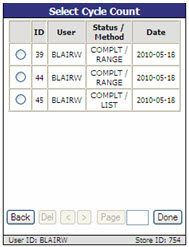
Tap in the radio button to select a cycle count.
Indicates the system-generated cycle count ID number.
Indicates the name of the user who initiated the cycle count.
Indicates the status of the cycle count and method.
Status options are:
- 'INPROG' - Indicates the cycle count is open and actively being worked on at the time the cycle count file was queried. These cycle counts cannot be printed.
- 'SAVED' - Indicates the cycle count has been saved. Can be reopened to edit and/or add additional items. These cycle counts cannot be printed. If reopened, the status changes back to 'INPROG'.
- 'COMPLT' - Indicates the cycle count has been marked complete. Can be reopened to edit and/or add additional items. These cycle counts are available for printing. If reopened, the status changes back to 'INPROG'.
- 'FINAL' - Indicates the cycle count has been marked final. No more additions or changes can be made. These cycle counts are available for printing.
- 'COMPLT-P' - Indicates the 'COMPLT' cycle count has been printed earlier. These cycle counts are available for reprinting.
- 'FINAL-P' - Indicates the 'FINAL' cycle count has been printed earlier. These cycle counts are available for reprinting.
Method options are:
- 'RANGE'
- 'LIST'
When a cycle count with the status of 'INPROG' is selected, a message displays stating, "This cycle count is in progress, continue anyway?" An 'INPROG' status usually indicates another user is working on the cycle count at this time, in which case the cycle count cannot be edited by another user. However, in the event of a power or connection issue, a cycle count could be in 'INPROG' status when in fact no one is working on it. In this case, tap 'OK' to display another prompt, "Edit cycle count?" Tap 'OK' to display the 'Cycle Count Entry' screen. Make the necessary entries/edits.
When a cycle count with the status of 'SAVED' is selected, a message displays stating, "Edit cycle count?" Tap 'OK' to display the 'Cycle Count Entry' screen. The status changes to 'INPROG'. Make the necessary entries/edits.
When a cycle count with the status if 'COMPLT' is selected, tap 'Done' on the 'Select Cycle Count' screen and then tap 'Cancel' at the 'Edit Cycle Count?' prompt.
Indicates the date the cycle count was created.
Tap to return to the previous screen.
Tap to delete the cycle count selected via the radio button.
Tap to move ahead or back in the listings when multiple pages exist.
Indicates the page number of the current page. Enter a new page number and tap the button to jump to that page.
Marks the cycle count as complete.
After selecting a cycle count that is in the 'COMPLT' status from the 'Select Cycle Count' screen, tap 'Done', and then tap 'Cancel' at the "Edit Cycle Count?" prompt.
Cycle Count Report
Tap 'Cycle Count Report' on the 'Cycle Count Menu' screen to print the 'Cycle Count Report'. The 'Cycle Count Report' screen displays a list of all cycle counts with the status of 'FINAL' and/or 'COMPLT'.
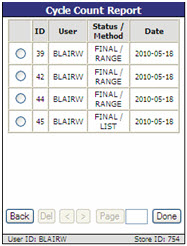
To print a report, follow the steps below:
-
Select the desired cycle count.
-
Tap 'Done'. The "Print full cycle count?" prompt displays.
-
Tap 'OK'. The full 'Cycle Count Report' prints. The "Print Exception report?" Prompt displays.
-
Tap 'OK' The message, "The report has been added to the print queue" displays.
-
Tap 'OK'. The Exception report prints. The 'Cycle Count Report' screen displays.