Finalize and Print
The 'Finalize and Print' option provides a user who is scanning parts picked using an RF Device the ability to finalize and print the invoice upon a completed scan of the pick ticket.
The 'Finalize and Print' screen appears when the 'Done' button is tapped on the 'Scanned Items Summary' screen for pick tickets that have been fully picked.
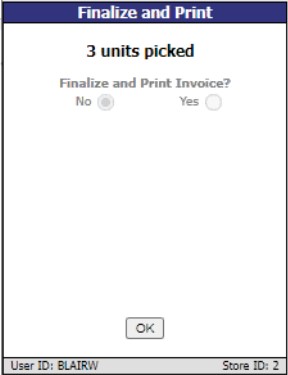
The screen displays the text "Finalize and Print Invoice?"
If the value of the 'RF SCAN PICK PRINT INVOICE' setting on the STORE INVOICE OPTIONS screen, 'EXTENDED' tab is:
- 'PROMPT', no radio button is pre-selected. A selection must be made and 'OK' tapped.
- 'ALWAYS', the 'Yes' radio button is pre-selected. The screen is informational only indicating that the invoice will be finalized and printed. No selection can be made. Tap 'OK' to proceed.
- 'NEVER', the 'No' radio button is pre-selected. No selection can be made. The screen is informational only indicating that the invoice will not be finalized or printed. Tap 'OK' to proceed.
Tap the 'OK' button with the 'Yes' radio button selected to finalize and print and:
- If the 'SCAN VALIDATION' setting on the STORE INVOICE OPTIONS screen, 'EXTENDED' tab is set to 'SESSION' or 'PERSISTENT', all scanned items on the sales order are scan validated, the sales order is queued to be finalized and printed by the BG Processor, the scan pick scan session is deleted, and the system returns to the 'Main Menu'.
- If the 'SCAN VALIDATION' setting is set to 'NONE', the sales order is queued to be finalized and printed by the BG Processor, the scan pick scan session is deleted, and the system returns to the 'Main Menu'. Items are not scan validated.
Tap the 'OK' button with the 'No' radio button selected and:
- If the 'SCAN VALIDATION' setting is set to 'SESSION' or 'PERSISTENT' , all scanned items on the sales order are scan validated, the open sales order remains in its current status and state, the scan pick scan session is deleted, and the system returns to the 'Main Menu'. The sales order is not finalized nor is the invoice printed.
- If the 'SCAN VALIDATION' setting is set to 'NONE', no items on the sales order are validated, the open sales order remains in its current status and state, the scan pick scan session is deleted, and the system returns to the 'Main Menu'. The sales order is not finalized nor is the invoice printed.
The screen displays the text "Print Scan Pick Report?"
Tap the 'No' radio button and no report will print.
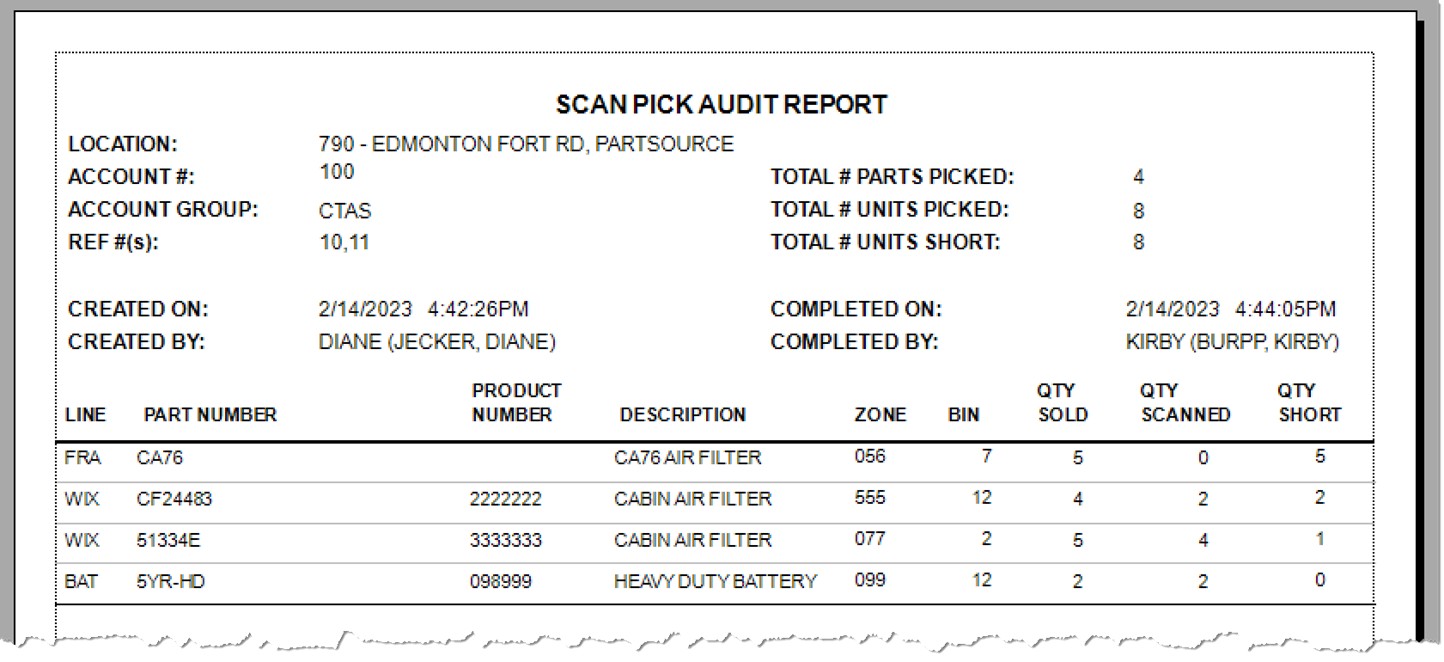
Tap the 'Yes' radio button and the Scan Pick Audit Report is sent to the Background Processor to print from the default report printer, not the pick printer.
Scan Pick Audit Report
This report identifies short picks to allow the material handler to update inventory levels upon further investigation.