Rate Breakdowns - System
The Rate Breakdowns - System screen is used to create new taxing authorities and new rate tax types for rate breakdowns in the Tax Rate Setup screen.
Menu Path: Controls, System, Tax Setup, Rate Breakdowns, Rate Breakdowns - System screen
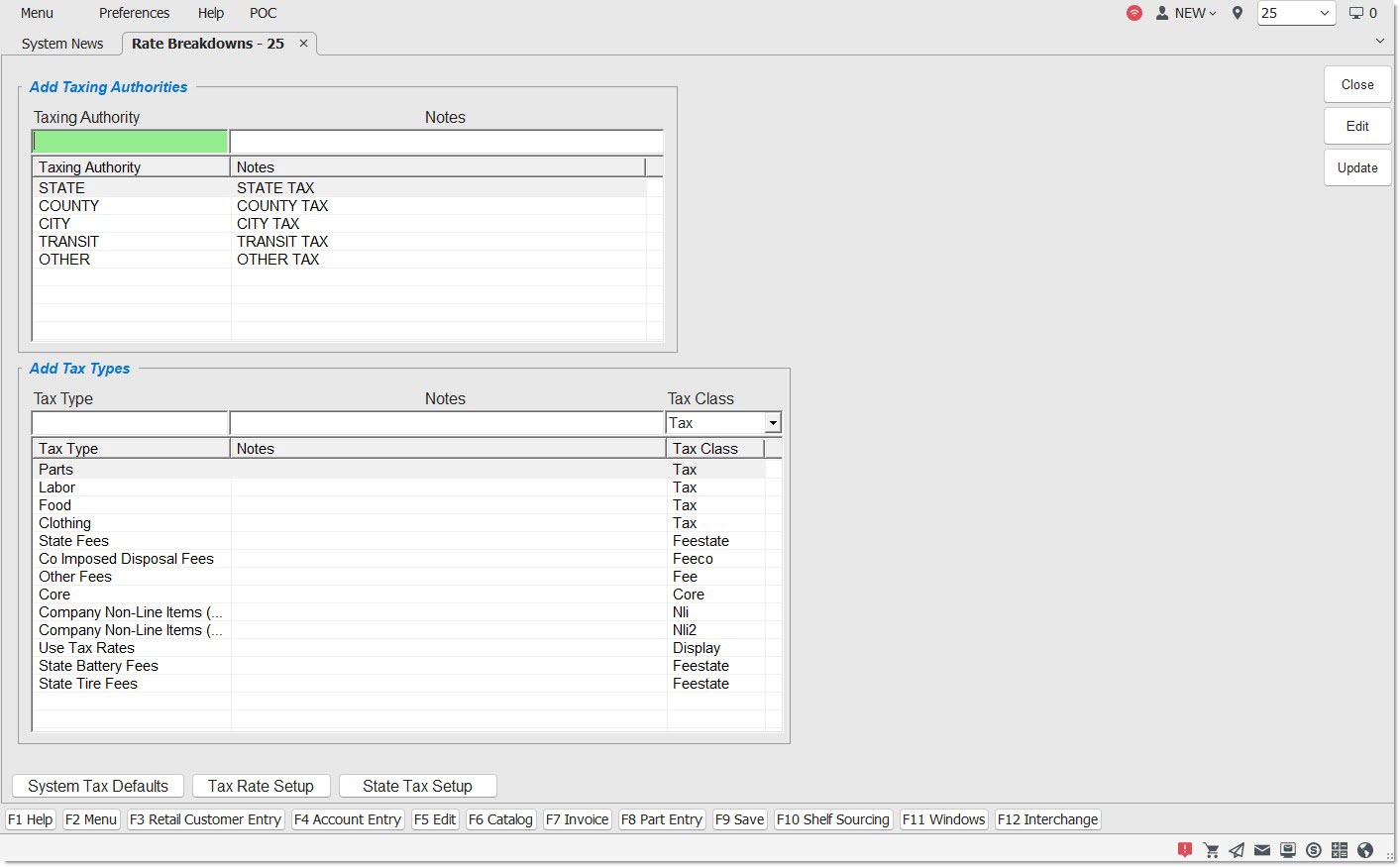
When entered, a tax authority displays on every rate table. For example, if a state starts collecting taxes for everyone in a state park, then a new taxing authority can be entered as State Park. State Park would appear in the 'Taxing Authorities' grid on every Tax Rate Setup table.
Tax Authority / Tax Rate Flow
A new tax type rate breakdown is entered in the Rate Breakdowns - System screen (Example: 'State'). Once added, the tax type rate breakdown cannot be deleted or changed.
The new rate breakdown is automatically added to both the Tax Rate Setup screen and the System Tax Defaults screen.
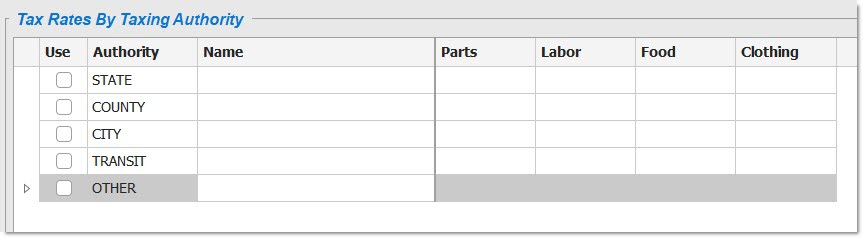
Tax Rate Setup Screen
The new tax type breakdown displays in the Tax Rate Setup screen and allows entry of different tax rates across the Taxing Authorities.
System Tax Defaults Screen
The breakdown is also added to the 'Tax Type' field in the System Tax Defaults screen. This field is used to select the Tax Breakdown rate type that the entered category code will use.
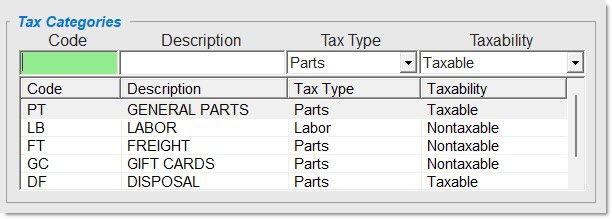
When a new category code is entered in the System Tax Defaults screen, the breakdown is selected from the 'Tax Type' drop-down list. The type of rate breakdown is by part since the category code is on the part level.
UPD
Click the 'Update' button to save the changes made to the screen. All changes on the screen are buffered until they are saved. An “Are you sure?” pop-up does not display for individual changes, such as editing a record or adding a new record.
If changes are made (edits or additions) and the screen is closed or the 'Edit' button is clicked before the 'Update' button, the application displays the “Save Changes?” prompt.
If the cell value is different from the default setting, the cell background is highlighted in orange.