Store Message
The Store Message functionality enables different stores to communicate throughout the PartsWatch application using an instant messaging-type communication.
Menu Path: Store Message, 'Store Message' window
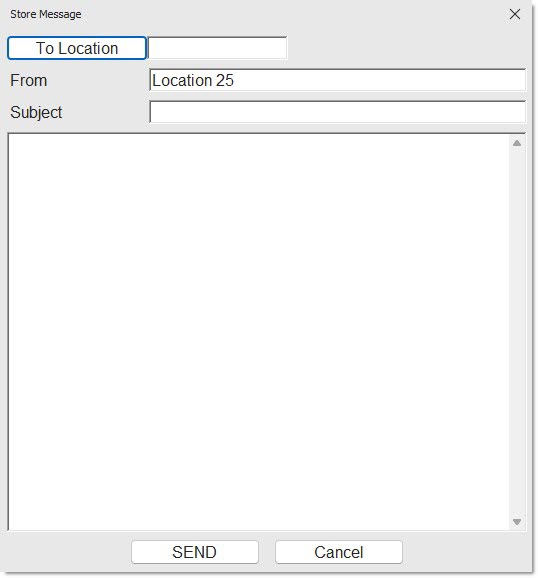
To Location
Identifies the store location to receive the message.
Enter the location of a store or click the button to display the 'Browse Locations' window to select a location.
From
Identifies the store sending the message. Defaults to 'Location' and the current location number.
Subject
Indicates the subject of the message.
[Message]
Displays the message being sent to the other store location.
Send
Sends the message to the specified location.
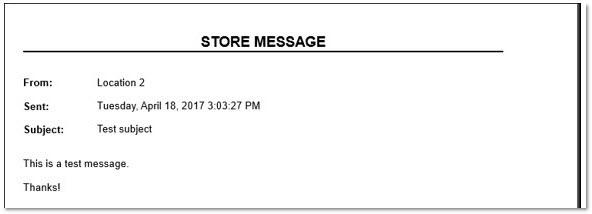
The message prints to the default printer of the terminal that is set to 'Process Background Invoices' for the location indicated in the 'To Location' field.
Cancel
Cancels the message without sending.
Store Message Example
The following is an example of a printed store message:
Procedure to Send a Store Message
To send a store message, follow the steps below:
-
From the Menu, select Store Message. The 'Store Message' window displays.
-
Enter the Store location to receive the message in the 'To Location' field.
-
Enter a subject in the 'Subject' field.
-
Enter the message in the message box.
-
Click 'Send' to transmit the message to the store location. The message prints to the default printer of the receiving store.