Store Number
The Store Number function is used to change the store data that PartsWatch displays via the 'Browse Locations' window. The Store Number numerically identifies a store location. The current Store Number that the system is working in displays on the upper-right border following the location symbol  on any screen. The Store Number remains in view on all windows.
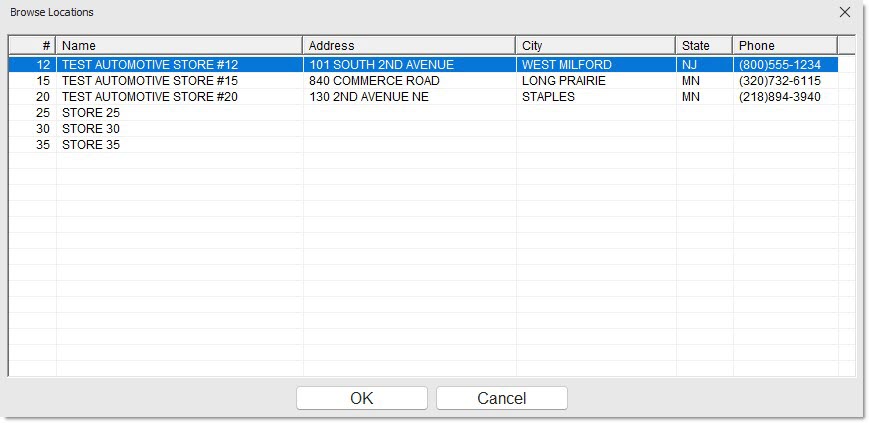
The information displayed in the 'Browse Locations' window grid includes the Store Number ('#'), Store 'Name', Store 'Address', 'City', 'State', and 'Phone' Number. If User Security allows more than one location, then one or more stores may display and allows for scrolling up and down by using the vertical scroll bars on the right side of the display grid.
Note: User Security may be set to force location, therefore, allowing the employee access to only one location, or Store Number. The 'Force Location' checkbox is located on the Employee Setup screen.
Procedure to Change Store Number
To change the 'Store Number' that is in focus, follow the steps below:
-
From the Menu, select Store Number. The 'Browse Locations' window displays.
-
Click on the desired Store Number row to highlight and then click 'Ok'. Or, double-click the desired row. The store Number is immediately changed. The window closes automatically.
-
Note: If the 'Browse Locations' window displays and a change should not be made, click 'Cancel' to close the window and no change occurs.
Multi-Store Function Information
.png) Multi-Store Functions - 3 minutesMulti-Store Functions - 3 minutes
Multi-Store Functions - 3 minutesMulti-Store Functions - 3 minutes