Interchange
The 'Interchange' window is used to locate comparable parts for a requested part.
When a part is highlighted in the Catalog lookup screen and the 'Interchange' button is clicked or the 'F12' key is pressed, when the 'Interchange' window opens, the highlighted part displays in the 'Part Number' field and all resulting primary interchange parts display in the grid.
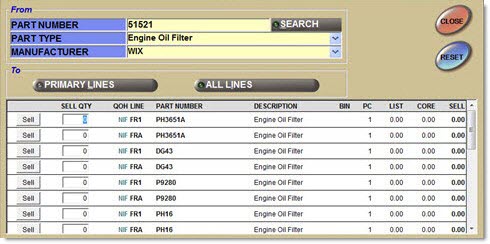
Access the 'Interchange' window by pressing the 'F12 Interchange' button, pressing the 'F12' key, or clicking the 'Interchange' button in the Catalog screen. The following is a populated example.
Part Number
Indicates the part number to be searched to locate an interchanged part.
Part Type
Indicates the part type, which reduces the number of items returned in the 'Manufacturer' field.
Manufacturer
Indicates the manufacturer of the interchange part.
Search
Initiates an interchange lookup for the entered part number and/or a part highlighted in the Interchange lookup results. Press 'Enter' after entering a part number to initiate an interchange search. Accelerator key is 'Alt' + 'S'.
Primary Lines
The 'Primary Lines' button is available after the 'All Lines' lookup to enable the system to go back to the original result set.
All Lines
Displays the ALL CATALOG LINES window that displays results from all lines in the Catalog database, when clicked. Select one or more lines to interchange to those lines.
Sell Qty
Displays the requested sell quantity.
The maximum sell quantity is 32767. When a number greater than 32767 is entered, the message "Invalid Sell Quantity. Cannot sell a value greater than 32767." displays.
The sell quantity cannot exceed 5 digits. If it does, the message "Invalid Sell Quantity." displays.
QOH
Displays the number of units of this part that are available for sale. NIF indicator displays in blue.
Line
Displays the store's line code per part returned in the interchange. Uses the Catalog line code for an interchange part with a NIF line or NIF part.
Part Number
Displays the unique part number that is available for sale.
Description
Displays the part description from the store's part file. When the part is not included in the store's file, the manufacturer's part description displays.
Bin
Displays the location of zone/aisle from the part record, if available.
PC
Displays the per car quantity.
List
Displays the manufacturer's suggested retail price for the part number. Displays for price comparison only.
Core
Displays the base core price that is charged for this part number's core, if the part entered is a core part.
Right-Click Command Menu
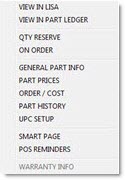
Right-click on a row in the 'Interchange' window grid to display the following menu:
View In LISA
Displays the LISA Transactions Report screen.
View in Part Ledger
Displays the Part Ledger Report screen.
Qty Reserve
Displays the 'On Reserve' window that displays parts on reserve.
On Order
Displays a window that displays on order and in bound quantities.
General Part Info
Displays the Part Entry screen.
Part Prices
Displays the Part Price Entry screen.
Order/Cost
Displays the Order - Cost screen.
Part History
Displays the Part History screen.
UPC Setup
Displays the UPC Setup screen.
Smart Page
Displays a window with diagram and other details about the part when Smart Page information is available. A pop-up displays stating "No Smart Page data was found for this part" when no Smart Page data is available. Option displays only when the WHI Catalog is enabled for the store.
POS Reminders
Displays the 'POS Reminders' pop-up when reminders are set up for a part.

The message, "There are no POS Reminders for this part", displays when the part has no reminders.
Warranty Info
Displays a window that displays the fields from the Warranty Setup screen, for the warranty code that is set up for this part in the Part Entry screen. Also displays the 'Vendor Do Not Return' flag from the part file.
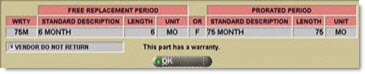
Menu option is unavailable when the part has no warranty information.
Promo Price
Displays the 'Promo Price' pop-up that displays the sale date discount price, as set up in the Price Plan Setup screen. The pop-up is for informational purposes only so the user can inform the customer of the savings. The 'Display Promo Pop-up' field in the Enterprise General Setup screen controls the ability to display the pop-up.
Show Fees
Displays the 'Fee' pop-up listing a breakout of fees, when clicked. Pop-up displays 'Fee Code' (from fees table), 'Description' (fee description from fee table, 'Note' (Fee Notes from fee table), and 'Amount' (fee amount for current item).
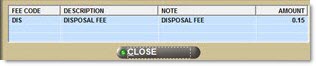
Menu option does not display when a part has no fees.