Scan-In Order/Return
Buy
Select Mode: Shelf Purchase Order / Stock Adjustment Order
Order Method: Scan-In Order
Return
Select Mode: Overstock Return / Stock Adjustment Return / Recall Return / PDC Return / Buyout Manifest Return / Core Manifest Return / Warranty Manifest Return
Order Method: Scan-In Return
With Scan-In ordering, rather than importing files using Write-In ordering, Scan Sessions are imported. The sessions are created with an RF Gun or similar scanner or manually from the SCAN SESSION screen.
.png) RF Gun Scan Session Video - 7 minutesRF Gun Scan Session Video - 7 minutes
RF Gun Scan Session Video - 7 minutesRF Gun Scan Session Video - 7 minutes
The 'Scan Session' tab displays when 'Scan-In Order' or 'Scan-In Return' is selected from the 'Order Method' drop-down.
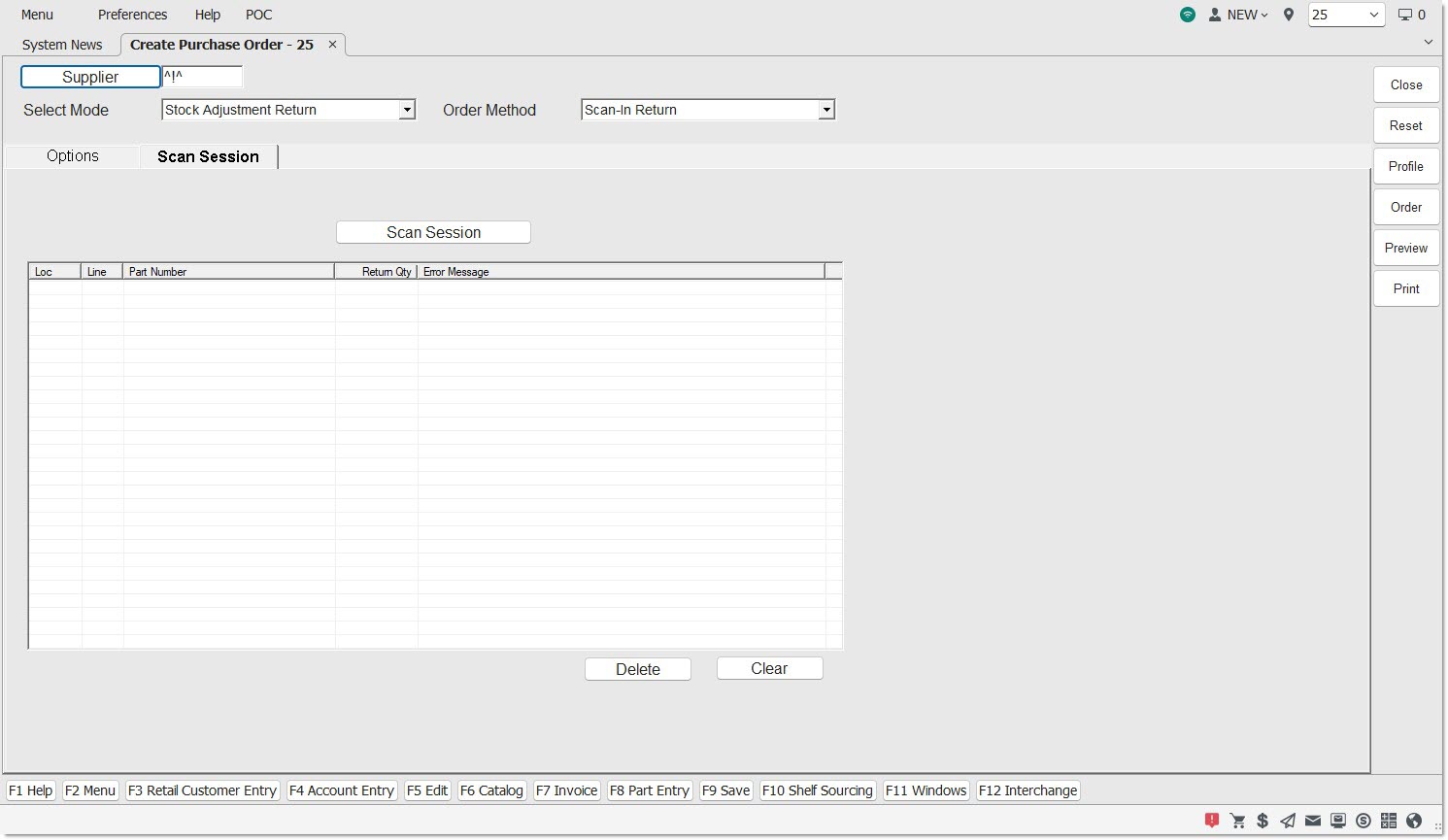
Click the 'Options' tab to enable/disable the predefined conditions that further refine and filter the parts that will be considered for the order.
Available Default/Override (left-side) filters are:
- 'Fill Policy'
- 'Delivery Days'
- 'PO Part Cost Level'
- 'Use Buy Qty Rule'
- 'Min Cost Threshold'
- 'Min Units Threshold'
- 'Min Packs Threshold'
- 'Min Weight Threshold'
- 'Min Volume Threshold'
- 'Cost Exchange Rate'
- 'Include Core in Min Cost'
- 'Create Order Below Min'
Additional (right-side) filters are:
With the 'Scan Session' tab displayed:
Click the 'Scan Session' button and the 'BROWSE SCAN SESSIONS' pop-up opens with all completed scan sessions.
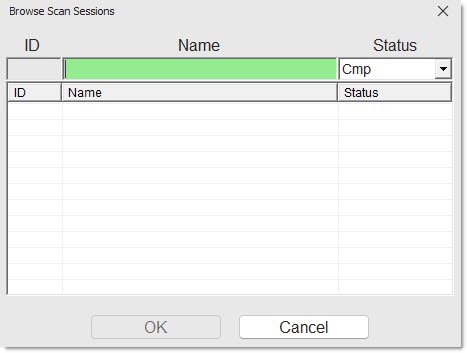
If multiple sessions are listed, enter a session 'NAME' or select a 'STATUS' to assist in locating the right session:
- 'CMP' - Completed sessions only
- 'INCMP' - Incomplete sessions only
- 'INPRG' - In-progress sessions only
Double-click a session or highlight a session and click the 'OK' button to populate the Scan Session grid with parts and quantities from the scan session.
Clicking the 'Preview' or 'Print' button to output a report of the parts to be ordered, or click the 'Order' button to create the order.
All parts and order quantities from the scan session are included in the order. Depending on the value of the 'Retain Scanned Parts' option, the scan session is deleted or available for another order.