Order Post Variances
The ORDER POST VARIANCES screen is used to record an "over" or "short" order receipt variance for a part after receiving the order into stock.
Menu Path: Purchasing, Order Post Variances, ORDER POST VARIANCES screen
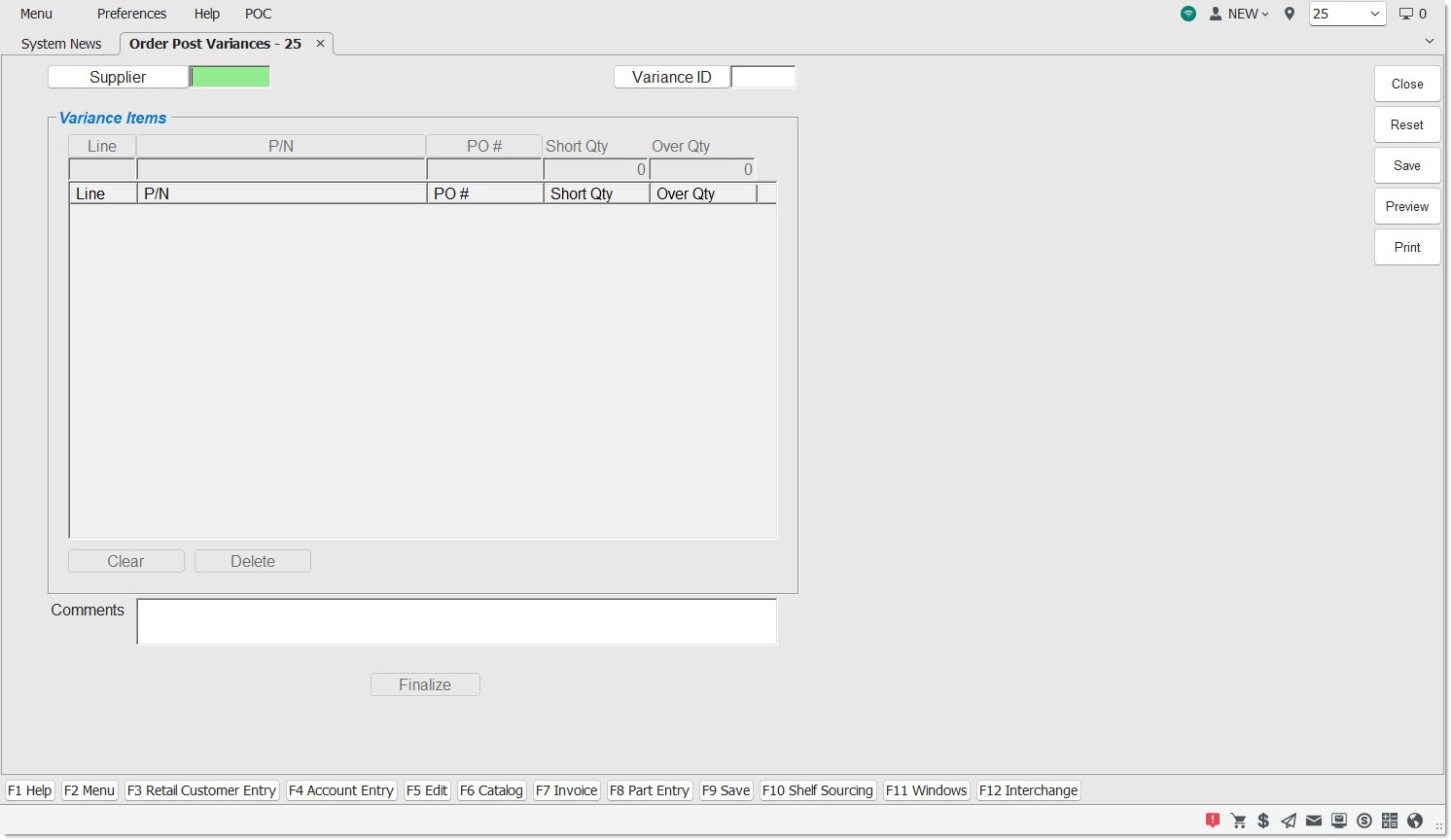
Order Post Variances Setups
Supplier
Enter a supplier value or click the 'Supplier' button to browse for a supplier value. Once a valid supplier value has been selected, the 'Line', 'P/N', 'PO #', 'Short Qty', and 'Over Qty' fields become available.
Variance ID
Enter a 'Variance ID' that was previously entered.
Click the 'Variance ID' button and the application displays the 'BROWSE ORDER POST VARIANCES' pop-up, to search for a 'Variance ID'.
Line
Enter a line code or click the 'Line' button to search for a line code in the 'BROWSE LINE CODES' window.
P/N
Enter a line code or click the 'P/N' button to search for a line code in the 'FIND PART' window.
PO #
Search for or enter a Purchase Order # for the discrepancy. The 'PO #' entered must exist as a purchase order in the store that has received parts at least once. Click the 'PO #' button to open the 'Browse Purchase Orders' window.
Short Qty
Enter a numeric value of zero or greater. This number represents only the amount short, not the amount actually received.
A value cannot be entered in the 'Short Qty' text box and the 'Over Qty' text box at the same time.
Over Qty
Enter a numeric value of zero or greater. This number represents only the amount over, not the amount actually received.
A value cannot be entered in the 'Short Qty' text box and the 'Over Qty' text box at the same time.
Comments
Enter up to 255 characters of free-form text about the 'Variance ID' instance for future reference.
Order Post Variances Grid
Displays the information that was entered in the action lines, one row at a time. Press the 'Enter' key to add the row to the grid. If a non-zero quantity is entered in 'Short Qty', the application displays a 0 value in the 'Over Qty' column. If a non-zero quantity is entered in 'Over Qty', the application displays a 0 value in the 'Short Qty' column.
Clear
Click the 'Clear' button to clear all rows from the grid. The application will prompt asking if you are sure.
Delete
Click the 'Delete' button to delete a single row from the grid. The application will prompt asking if you are sure.
Save
Saves the information, copies all rows in the grid to the database and clears the grid.
Note: Discrepancies cannot be viewed, edited, or deleted once they are saved in the database.
Preview
Opens a preview-only copy of the 'Order Receipt Variances Report'.
Print
Prints a copy of the 'Order Receipt Variances Report' to the printer that has been set up to print reports.
Browse Purchase Orders Window
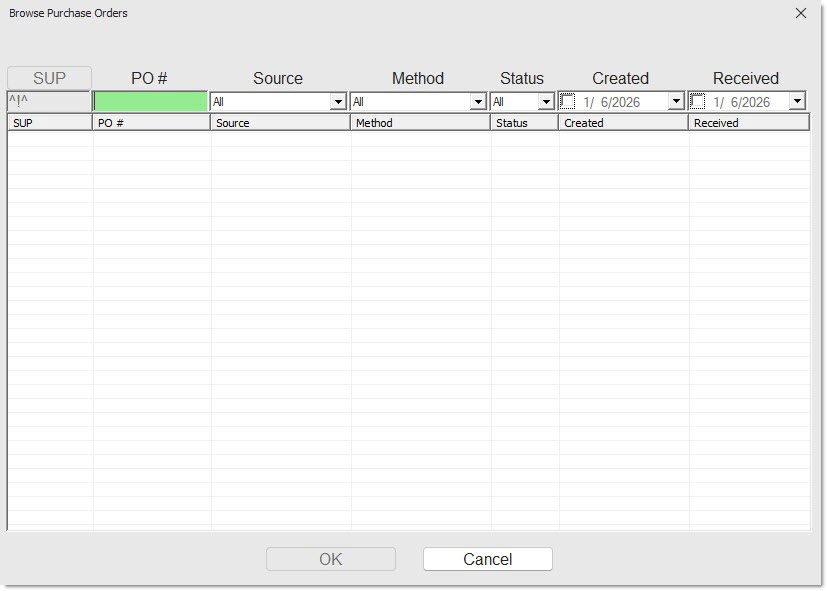
The 'Browse Purchase Orders' window displays the 1,000 most recent purchase orders for the supplier entered by the 'Received' date. The window only displays orders that have a status of 'FIN', 'ORD', 'ASN', or 'OBK'.

SUP
The 'SUP' button is disabled, as the 'Browse Purchase Orders' window opens with the supplier entered in the 'Supplier' field on the ORDER RECEIPT VARIANCES screen in focus.
PO #
Enter a PO number to search for a specific purchase order.
Source
Drop-down menu that allows for searching for a specific purchase order via the source.
Method
Drop-down menu that allows for searching for a specific purchase order via the method used to order.
Status
Drop-down menu that allows for searching for a specific purchase order via the status of that purchase order.
Created
Select the date a specific purchase order was created in order to search for it.
Received
Select the date a specific purchase order was received in order to search for it.
Grid - Sort the Purchase Orders by clicking on the column headers. The Purchase Orders will sort by any column header that is clicked.
Ok
Click the 'Ok' button to bring the selected purchase order's data to the ORDER RECEIPT VARIANCES screen.
Cancel
Click the 'Cancel' button to return to the ORDER RECEIPT VARIANCES screen with no changes, and no purchase order selected.
Browse Order Post Variances Pop-up
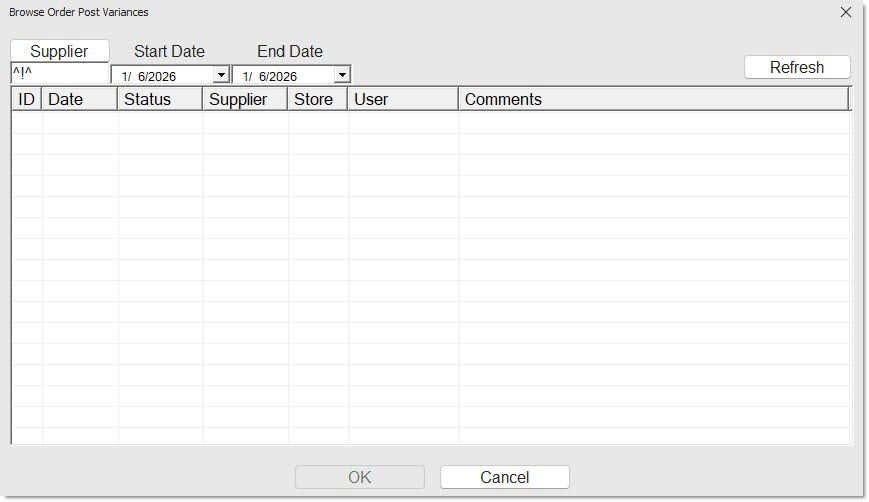
The 'BROWSE ORDER POST VARIANCES' pop-up displays a list of previously entered 'Variance IDs', allowing the user to select one 'Variance ID' from the list.
Supplier
Enter or search for a 'Supplier' to filter the list of 'Variance IDs' for that supplier code.
If a 'Supplier' was already entered on the screen, the pop-up will auto-populate the 'Supplier' field.
Start Date
Use this search filter to filter the 'Variance IDs' after a certain date.
End Date
Use this search filter to filter the 'Variance IDs' before a certain date.
Refresh
Click the 'Refresh' button to reset the pop-up to a "just opened" state, removing all filters.
Grid
ID
Displays the 'Variance ID' number used to uniquely identify one 'Variance ID' instance.
Date
Displays the date when the 'Variance ID' was created.
Status
Displays a value of 'Open' when the 'Variance ID' is first created, and a value of 'Finalized' after the 'Variance ID' is finalized.
Supplier
Displays the supplier code identifying the supplier that the purchase order was sent to that sent the store a short or overage.
Store
Displays the store number in which the 'Variance ID' was created.
User
Displays the login of the user who created the 'Variance ID'.
Comments
Displays the user-entered text for the 'Variance ID' from the 'Comments' field on the ORDER RECEIPT VARIANCES screen.
Ok
Select a 'Variance ID' and click the 'Ok' button. The pop-up closes and the contents of the selected 'Variance ID' are displayed on the screen.
Note: If the 'Variance ID' status is 'Open', additional parts can be added, existing parts can be removed, and the 'Comments' text can be edited. If the status is 'Finalized', additional parts cannot be added, existing parts cannot be removed, and the 'Comments' text cannot be edited.
Cancel
Click the 'Cancel' button to close the pop-up and return to the ORDER RECEIPT VARIANCES screen.
Order Post Variances Report
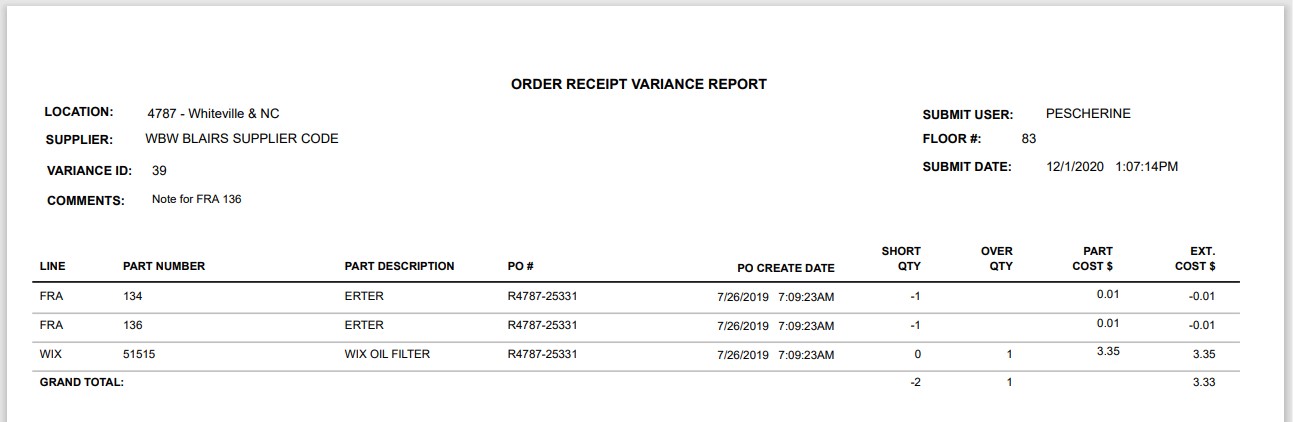
The 'Order Post Variances Report' is used to show the quantity of the variances for each part on an order. The header displays the 'LOCATION' and 'SUPPLIER CODE' that are associated with the order, the 'VARIANCE ID' of the specific instance, and the 'SUBMIT DATE', the date the 'Variance ID' was finalized.
LINE
Displays the Line the Variance Part is associated with.
PART NUMBER
Displays the Part Number of the Variance Part.
PART DESCRIPTION
Displays the user-entered description of the Variance Part.
PO #
Displays the Purchase Order number that is associated with the Variance instance.
SHORT QTY
Displays the number of units that were not included in the purchase order for the Variance Part. Displays blank if zero.
Note: If a non-zero value exists, then the value for 'OVER QTY' must be blank because a part can either be over or short but not both.
OVER QTY
Displays the number of extra units that were included in the purchase order for the variance part. Displays blank if zero.
Note: If a non-zero value exists, then the value for 'SHORT QTY' must be blank because a part can either be over or short but not both.
Part Cost $
Reports the part's cost. The system uses the Current or Average Cost based upon the 'REPORT PRICING DEFAULT' found in the 'Report Options' section frame on the SYSTEM GENERAL SETUP screen.
EXT COST $
Reports the part's extended cost.
('PART COST' * 'SHORT QTY' or 'OVER QTY')