Advanced Criteria
All inventory reports with the 'ADVANCED CRITERIA' button use the Advanced Criteria functionality. The field defaults to 'N/A' so that Advanced Criteria are not used to filter the report output.
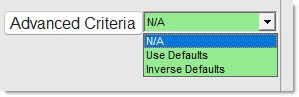
Optionally, click the 'ADVANCED CRITERIA' field and select the following from the drop-down list:
- 'N/A' - Not used.
- 'USE DEFAULTS' - Applies the default setup criteria from the INVENTORY REPORT DEFAULTS screen to filter the report output.
- 'INVERSE DEFAULTS' - Reverses the default setup criteria from the INVENTORY REPORT DEFAULTS setup screen to filter the report output.
For example, if the defaults are set to find records where 'MIN > 0 OR' / 'MAX > 0 OR' then only parts that DO NOT have a 'MIN' or 'MAX' greater than zero are reported.
Click the 'ADVANCED CRITERIA' button to open the 'INVENTORY REPORT OVERRIDES' window to set up custom criteria to filter the report output instead of using the default criteria and click:
- 'OK' and the 'ADVANCED CRITERIA' field displays 'USE OVERRIDES' and the custom criteria is used to filter the report output.
The 'ADVANCED CRITERIA' drop-down list then includes:
-
'N/A'
-
'USE DEFAULTS'
-
'INVERSE DEFAULTS' - Reverses the default setup criteria from the INVENTORY REPORT DEFAULTS setup screen to filter the report output.
For example, if the defaults are set to find records where 'MIN > 0 OR' / 'MAX > 0 OR' then only parts that DO NOT have a 'MIN' or 'MAX' greater than zero are reported. -
'USE OVERRIDES' - Uses the custom overrides just set up on the 'INVENTORY REPORT OVERRIDES' window.
-
'INVERSE OVERRIDES' - Reverses the custom overrides just set up on the 'INVENTORY REPORT OVERRIDES' window.
For example, if the defaults are set to find records where 'MIN > 0 OR' / 'MAX > 0 OR' then only parts that DO NOT have a 'MIN' or 'MAX' greater than zero are reported.
- 'RESET' to clear the window for new criteria.
- 'RELOAD DEFAULTS' to use the default criteria.
- 'CLEAR' to abort using customer filter setups.
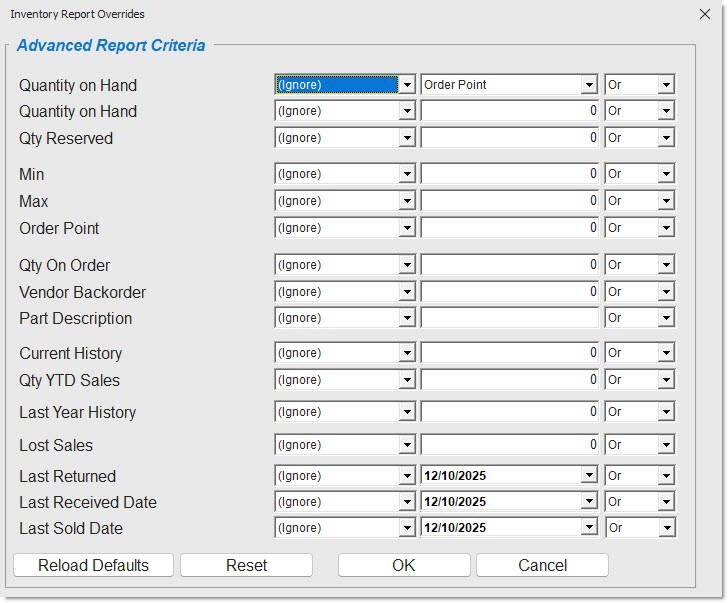
The 'INVENTORY REPORT OVERRIDES' window allows the same criteria to be set up as the INVENTORY REPORT DEFAULTS screen.
Selections
QUANTITY ON HAND
The topmost 'QUANTITY ON HAND' override is a drop-down, rather than a textbox.
The values are:
- 'MIN'
- 'MAX'
- 'ORDER POINT'
The new option allows a part's quantity on hand to be compared against any of the three stocking levels (min, max, or, order point) for the same part, rather than an entered quantity).
The following selections can be used to override inventory report defaults.
QUANTITY ON HAND
QTY RESERVED
MIN
MAX
ORDER POINT
QTY ON ORDER
VENDOR BACKORDER
CURRENT HISTORY
QTY YTD SALES
LAST YEAR HISTORY
LOST SALES
Set the fields to desired criteria which will be used for reporting purposes on the inventory reports:
Values are:
- 'IGNORE' - Does not test the value of the field. (Default)
- '= EQUAL' - Finds records where record value is equal to value entered.
- '< LESS THAN' - Finds records where record value is less than value entered.
- '> GREATER THAN' - Finds records where record value is greater than value entered.
- '< > NOT EQUAL' - Finds records where record value is not equal to value entered.
- '< = LESS or EQ' - Finds records where record value is less than or equal to value entered.
- '> = GR or EQ' - Finds records where record value is greater than or equal to value entered.
LAST RETURNED
LAST RECEIVED DATE
LAST SOLD DATE
All of the values above are available, with the addition of 'RELATIVE DATE'. A 'NULL' date (no date) is considered a 'LESS THAN' (older than) date when using the 'LAST RETURNED', 'LAST RECEIVED DATE', and 'LAST SOLD DATE' filter.
When 'RELATIVE DATE' is selected, the following calendar-based options are available:
- 'TODAY'
- 'YESTERDAY'
- 'THIS WEEK'
- 'LAST WEEK'
- 'MONTH-TO-DATE'
- 'LAST MONTH'
- 'LAST 7, 30, 60, 90, 365 days'
- 'CAL 1st, 2nd, 3rd, 4th QUARTER'
- 'YEAR-TO-DATE'
- 'LAST CALENDAR YEAR'
And, the following options based on the store's fiscal closeout setups are available:
- 'LAST DAILY CLOSE'
- 'LAST WEEKLY CLOSE'
- 'LAST MONTHLY CLOSE'
- 'CURRENT PERIOD'
- 'Q1, Q2, Q3, Q4'
- 'CURRENT QTR-TO-DATE'
- 'CURRENT FISCAL YEAR'
- 'PERIOD 1 - 12'
The Calendar field is used to select a specific date. For example, if the settings are 'LAST RETURNED' '<' '2/15/2016', the system finds records where the last date is earlier than 2/15/2016.