Inventory Report Defaults
The INVENTORY REPORT DEFAULTS screen is used to set defaults for criteria most often used to narrow the data returned when running inventory reports.
All setups are optional.
Menu Path: Controls, System, Report Defaults, INVENTORY REPORT DEFAULTS screen
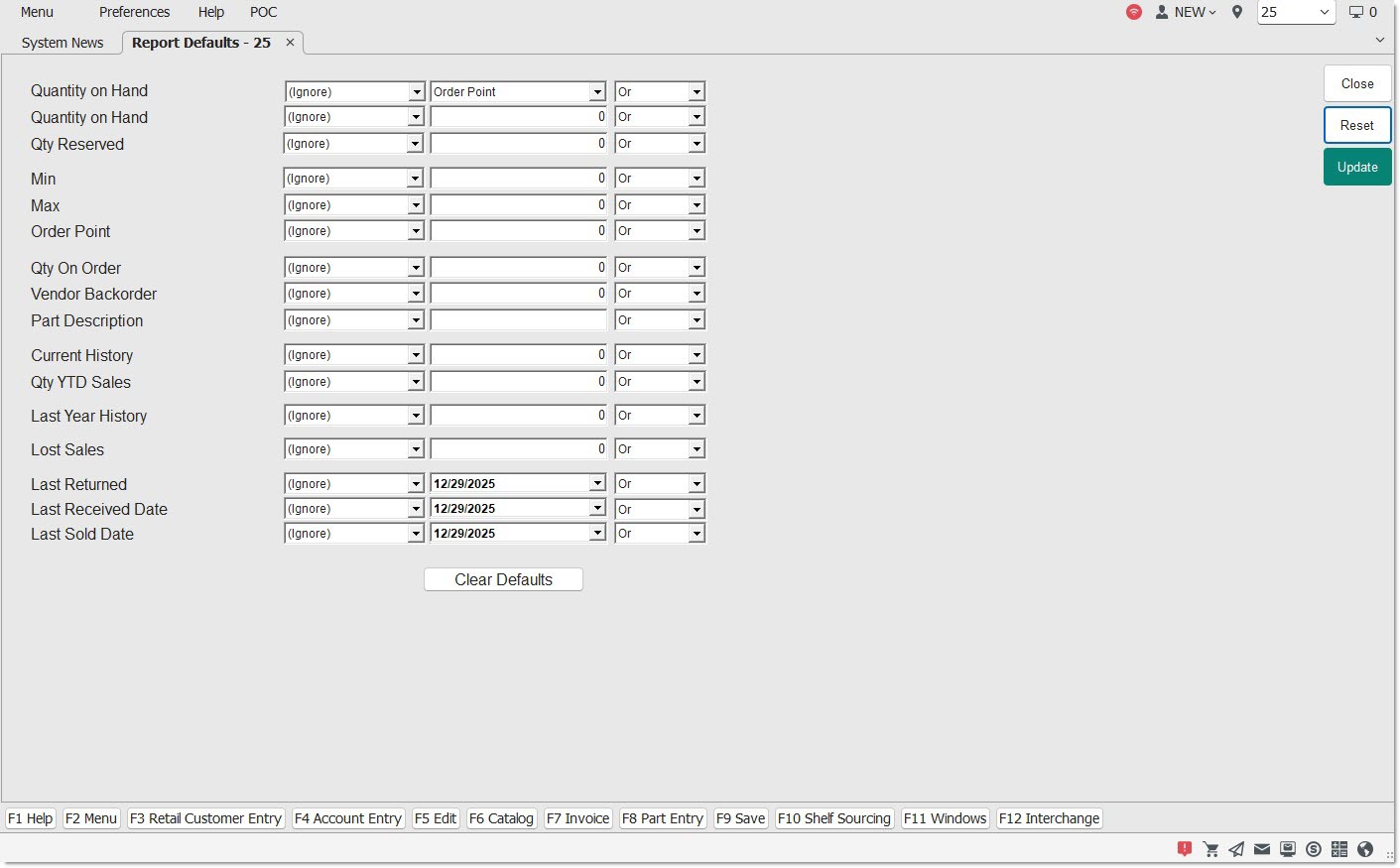
Select the components to form an equation used to narrow the parts reported using the 3 fields per row:
- 1st Field – Select the part table field criteria.
- 2nd Field – Enter the search-match value.
- 3d Field – Select the operative.
The Advanced Criteria is used with the selected 'Report Criteria' on the report screen and does not replace it to narrow the parts reported.
Instead of normal textbox entry for this 'QUANTITY ON HAND', a drop-down display allowing selection of stocking level fields to compare to the QOH.
Options are 'MIN', 'MAX', and 'ORDER POINT'. The defaults is based on the value of the 'STOCKING LEVEL' field in the SYSTEM GENERAL SETUP screen.
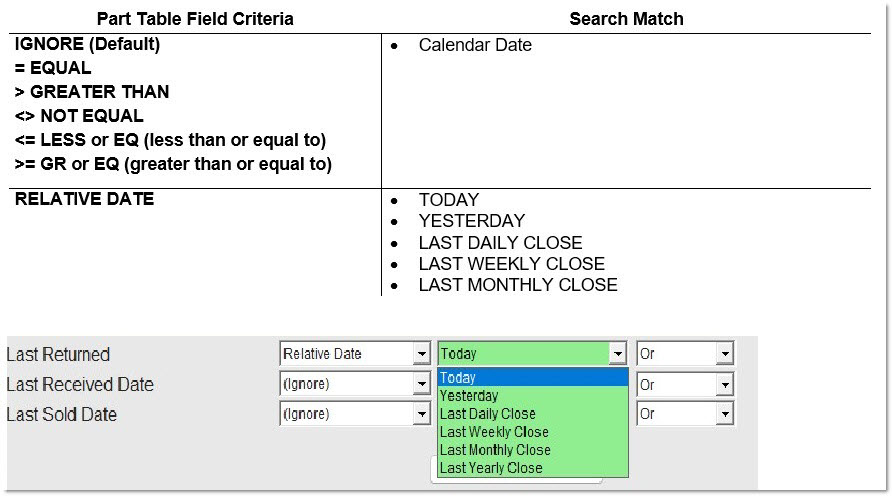
The following part inventory field(s) are grouped by the criteria available for selection:
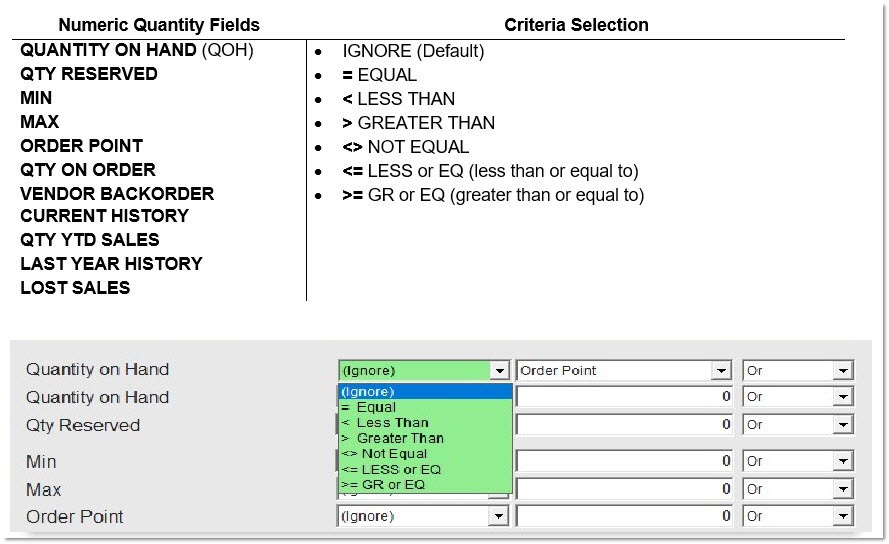
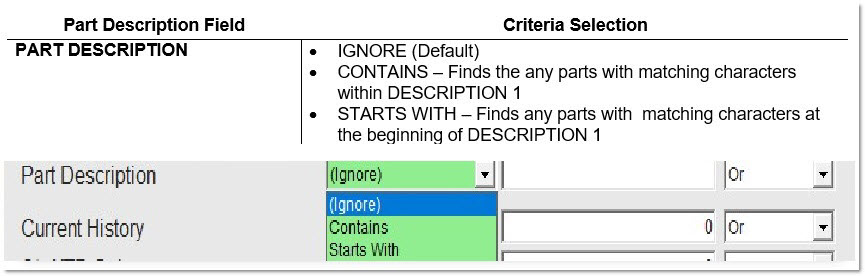
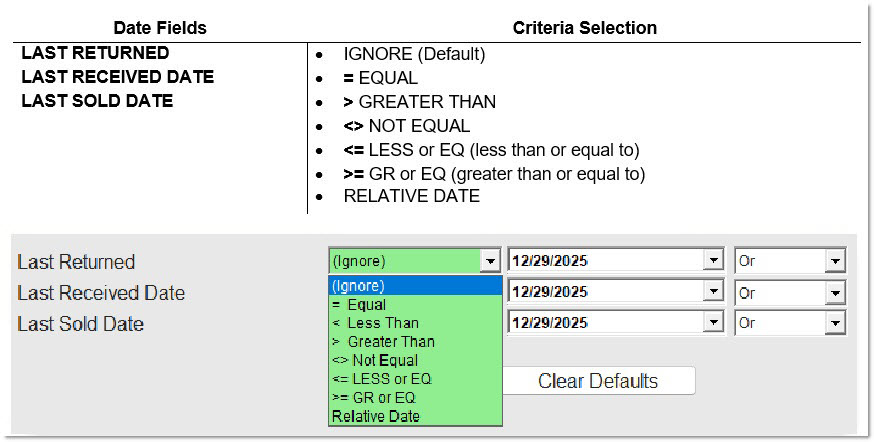
Enter the values to use as the search match:
- Numeric Quantity Fields – Enter a value up to '999999999'. For example, '3' (quantity).
- PART DESCRIPTION – Enter up to 36 alphanumeric and special characters. For example, 'Filters'.
- Date Fields – Edit the current date displayed or click the small drop-down and select a date. For example, if the LAST RETURNED < 2/15/2023 is entered, the system finds records where the last date is earlier than 2/15/2023.
Select the operative values:
- 'OR' - Returns records where at least one of the part inventory values selected is true.
In the following example, the system will look for all parts with a QOH of '3' or a 'MIN' less than '3' when using the 'ADVANCED CRITERIA' on an inventory report.

- 'AND' - Returns records where both of the part inventory values' selected values are true.
In the following example, the system will look for all parts with a QOH of '3' and a 'MIN' less than '3' when using the 'ADVANCED CRITERIA' on an inventory report.

Click the 'UPD' button to save all change as the default. When the 'ADVANCED CRITERIA' feature is used from any applicable reporting screen, the defaults will be used unless the criteria is edited before running the report.
CLEAR DEFAULTS Button
Click the 'CLEAR DEFAULTS' button to return all fields to 'IGNORE' in order to reset all defaults.