On Order / Backorder Reports
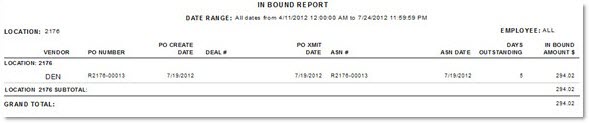
The On Order / Backorder Reports screen is used to produce the 'On Order / Back Order Report' and the 'In Bound Report' for a single location. The 'On Order / Back Order Report' provides vendor purchase order related data on all parts that are on order, back order or inbound, whether sourced for a customer, the shelf or ordered through the purchasing module. The 'In Bound Report' reports the quantities in transit (shipped but not received).
Menu Path: Reports, Inventory, On Order, On Order / Backorder Reports screen
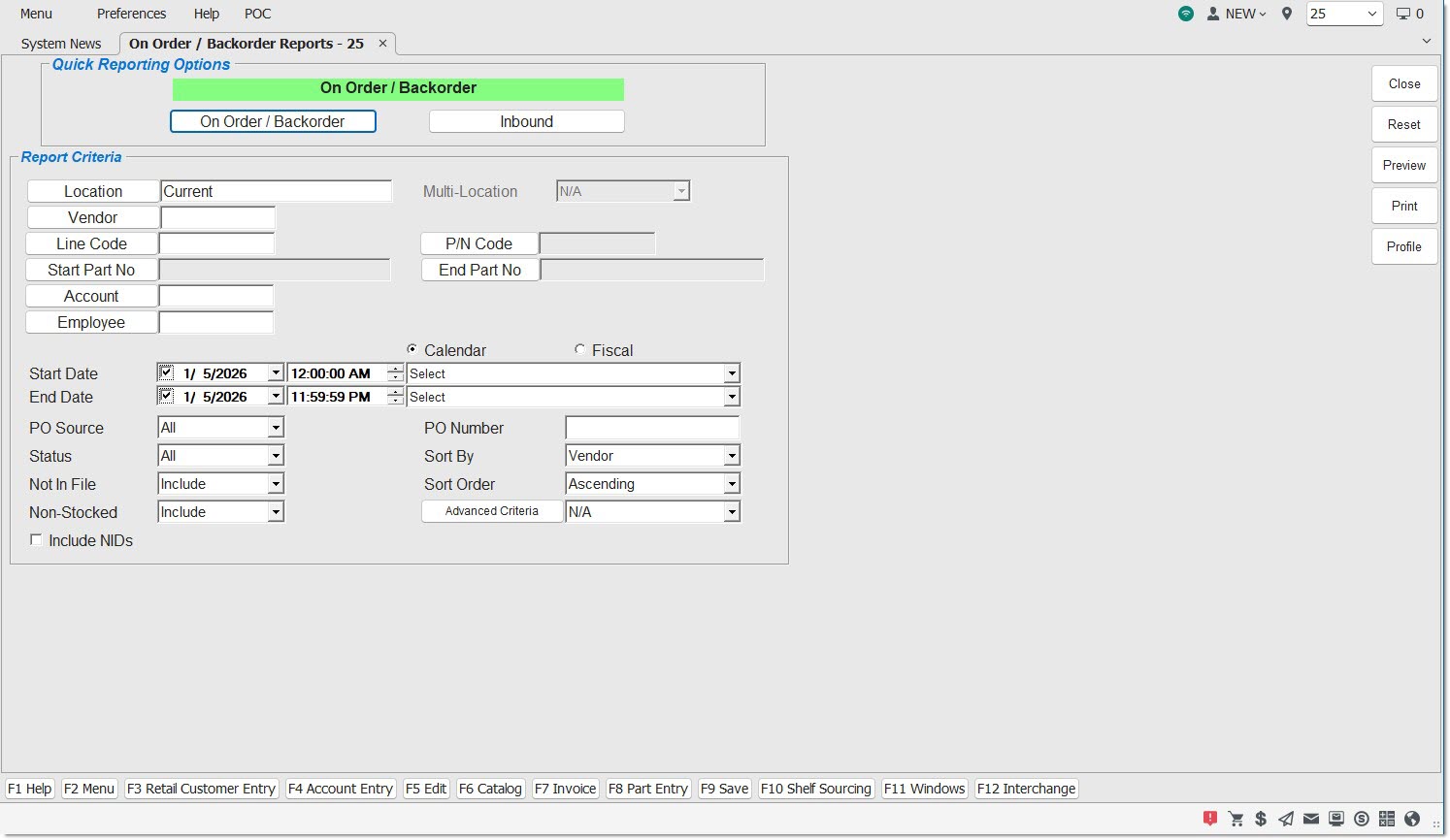
Quick Reporting Options
On Order / Back Order
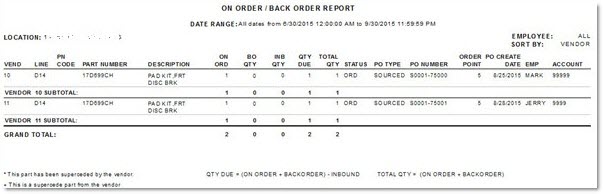
Generates the 'On Order / Back Order Report' that provides vendor purchase order related data on all parts that are on order, back order or inbound, whether sourced for a customer, the shelf or ordered through the purchasing module.
Inbound
Generates the 'In Bound Report' that is a summary per PO that reports the quantities in transit (shipped but not received).
Report Criteria
Location
Filters by a specific location. Click the button to display the 'Browse Locations' window to search available store locations. Defaults to current location. Click the button to display the 'Browse Locations' window to search available locations. Select one or multiple stores. Displays the word 'Multiple' when multiple locations are selected. Accelerator key is 'Alt' + 'O'.
Multi-Location
Indicates the desired type of multi-location report.
Option is:
- 'Consecutive' - Outputs a report for each store individually, in consecutive order by store number. Stores are totaled together. Available when multiple locations are selected.
Line Code
Filters by a line code. Click the button to display 'Browse Line Codes' window. Accelerator key is 'Alt' + 'L'.
P/N Code
Filters by a predefined P/N Code per Line Code. Click the button to search for a specific P/N Code per Line Code. Accelerator key is 'Alt' + 'P'.
Start Part No
Specifies the start part number to report data by a range of part numbers within a specific line. Click the button to display the 'Find Part' window to search for a specific part number. Accelerator key is 'Alt' + 'S'.
End Part No
Specifies the end part number to report data by a range of part numbers within a specific line. Click the button to display the 'Find Part' window to search for a specific part number. Accelerator key is 'Alt' + 'T'.
Account
Filters by an account number. Leave blank to report all accounts. Click the button to display the 'Find Account' window to search for a specific account. Accelerator key is 'Alt' + 'A'.
Vendor
Filters by a vendor or line code. Click the button to display the 'Select Vendor' window to select a vendor or line code. Only line codes that have the 'Use As Vendor' flag checked in the Line Order Setup screen display. The small button to the right of the field displays 'S' for Supplier and 'L' for Line Code. Accelerator key is 'Alt' + 'N'.
Employee
Filters by a specified employee. Click the button to display the 'Browse Employees' window to search for an employee. Accelerator key is 'Alt' + 'M'.
Start Date / End Date
Indicates the start and end dates for reporting purposes. Click the small down arrow to display a calendar. Click the desired date to select. Use the small left and right arrows to display previous / next months. Orders created or submitted within the date range display. Enter a check mark in the field to report sales for a certain period. Displays all transactions, when unchecked.
Calendar
Uses Relative Calendar dates, when selected. Works in conjunction with the 'Start Date' and 'End Date' fields.
Fiscal
Uses Relative Fiscal dates, when selected. Works in conjunction with the 'Start Date' and 'End Date' fields.
Note: Fiscal Periods refer to the most recently completed (closed) instance.
PO Source
Filters by how the purchase order was created.
Options are:
-
'Shelf' - An order that was created manually or through the timed order queue.
-
'StkAdjPO' - A special "Buy" purchase order created from the Stock Adjustment process.
-
'Xfer' - When an invoice is created for a transfer account, the invoice creates another invoice in the supplying store and an 'Xfer' purchase order in the ordering store. When the merchandise arrives at the ordering store, this PO is used to transfer the items into stock maintaining proper purchase histories.
-
'ShelfSrc' - A part for the shelf that is sourced from a sister store.
-
'AutoSrc' - An order that was auto sourced.
-
'Sourced' - An order that was created by using Source It in Invoicing to source items from somewhere other than the user's own stock to fulfill a customer request.
Status
Filters by the status of the order.
Options are:
-
'All'
-
'Fin' - Purchase order is finalized. When a PO is finalized, the on order value in the part file is updated and any items whose order quantity was zero are removed from the order.
-
'Ord' - Order was transmitted.
-
'Obk' - Order was partially received. A number indicates how many times the order was received.
-
'ASN' - Advanced Shipping Notice.
Not In File
Determines whether parts that are not in the store's active part file or nonsku table are reported.
Options are:
-
'Include' - Includes Not In File parts in report.
-
'Exclude' - Excludes Not In File parts in report.
-
'Only' - Reports only Not In File parts.
Non-Stocked
Determines whether non-stocked parts are reported.
Options are:
-
'Include' - Reports sales and inventory values for non-stocked parts and stocked parts.
-
'Exclude' - Does not report sales and inventory values for non-stocked parts.
-
'Only' - Only reports sales and inventory values for non-stocked parts.
Include NIDs
Reports NID (New Item Distribution) POs, if available, when checked. Note: NID POs are not ordered by the store; they are pushed to the store from a supplier warehouse.
Only available for the 'On Order / Back Order Report'.
PO Number
Filters by a specified PO Number.
Sort By
Sorts the report by 'Vendor', 'PO Number', 'Line Code', or 'PO Create Date'.
Sort Order
Sorts the report in 'Ascending' or 'Descending' order.
Advanced Criteria
Displays the 'Inventory Report Overrides' window used to set override defaults for the inventory report, when clicked.
Page Break for Each Location
Provides a page break in the report by location, when checked.
Displays only when more than one location is selected from the 'Browse Locations' window accessed by clicking the 'Location' button.
On Order / Back Order Report
The following is an example of the 'On Order / Back Order Report' - sorted by 'Vendor':

In Bound Report
The following is an example of the 'In Bound Report':