Override Report
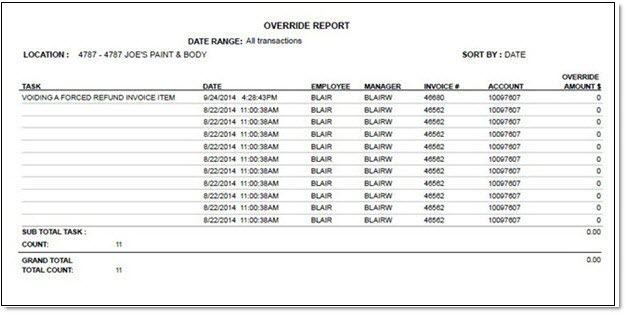
The Override Report screen is used to report users who override the business rules to force returns that do not meet predetermined rules onto a merchandise card and to finalize an invoice that needs to be scan validated. The date and time, invoice #, amount, the employee who was creating the invoice, and the overriding manager are reported.
Menu Path: Reports, Override Report, Override Report screen
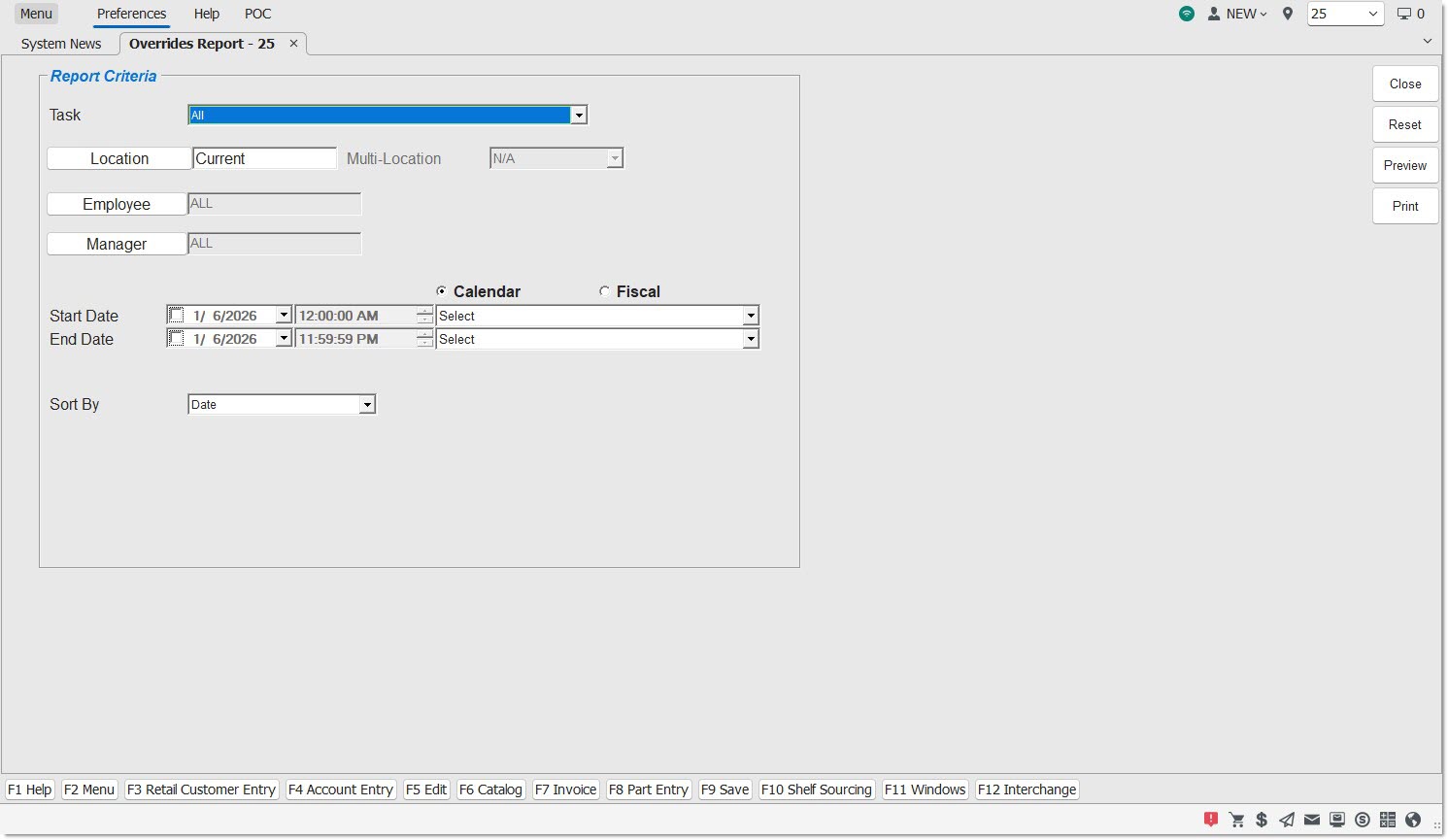
Reporting Criteria
Filters by the selected Override Security 'Task' name. All Override Security tasks are available.
Options are sorted alphabetically.
Location
Filters by the current store location, by default. For multi-store environments, either enter a store number or leave blank to report all stores. Click the button to display the 'Browse Locations' window to search for a specific location.
Multi-Location
Filters by the selected the desired type of multi-location report. The field is unavailable and displays 'N/A' until more than one location is selected from the 'Location' field and then the field is enabled and defaults to 'Consecutive'.
Employee
Filters by the selected employee assigned to the ticket that the Override Security pop-up opened for. Click the button to display the 'Browse Employees' window to search for an employee. All employees available to the selected stores can be selected regardless if the 'Manager' / 'Asst Manager' field is checked or not.
Manager
Filters by the selected employee with the 'Manager' / 'Asst Manager' field checked in the Employee Setup screen, available to the selected location(s). Click the button to display the 'Browse Employees' window to search for an employee.
Start Date
Filters by the selected starting date and time for reporting purposes. Click the small down arrow to display a calendar. Click the desired date to select. Use the small left and right arrows to display previous/next months. The Override Security pop-ups opened within the date range display. Click the checkbox to report Override Security pop-ups opened for a certain period. Displays all Override Security pop-ups opened, when unchecked. Defaults to current date.
End Date
Filters by the selected ending date and time for reporting purposes. Click the small down arrow to display a calendar. Click the desired date to select. Use the small left and right arrows to display previous/next months. The Override Security pop-ups opened within the date range display. Click the checkbox to report Override Security pop-ups opened for a certain period. Displays all Override Security pop-ups opened, when unchecked. Defaults to current date.
Calendar
Uses Relative Calendar dates, when selected. Works in conjunction with the 'Start Date' and 'End Date' fields.
The drop-down provides relative date options for reporting purposes, such as 'Today', 'Last Month', and 'Last Quarter'.
Fiscal
Uses Relative Fiscal dates, when selected. Works in conjunction with the 'Start Date' and 'End Date' fields.
The drop-down provides relative date options for reporting purposes, such as 'Current Week to Last EOD', 'Last Monthly Close', and 'Last Year - Period 1'.
Note: Fiscal Periods refer to the most recently completed (closed) instance.
Sort By
Sorts by the selected sort method.
Options are:
-
'Date' - Sorts the reported data in date and Time order per task. (Default)
-
'Manager' - Sorts the reported data by 'Manager' in alphanumeric order per task.
-
'Employee' - Sorts the reported data by 'Employee' assigned to the ticket that the Override Security pop-up opened for in alphanumeric order per task.
Allows selection of a user-created 'Profile' to be loaded in the screen to automatically choose the desired 'Report Criteria'. When a profile is selected, the profile name displays at the top of the screen. See Report Profiles Help for more details.
Override Report
The 'Override Report' outputs by task and subtotals per task.
The following is an example of the 'Override Report'.