Job Queue Setup
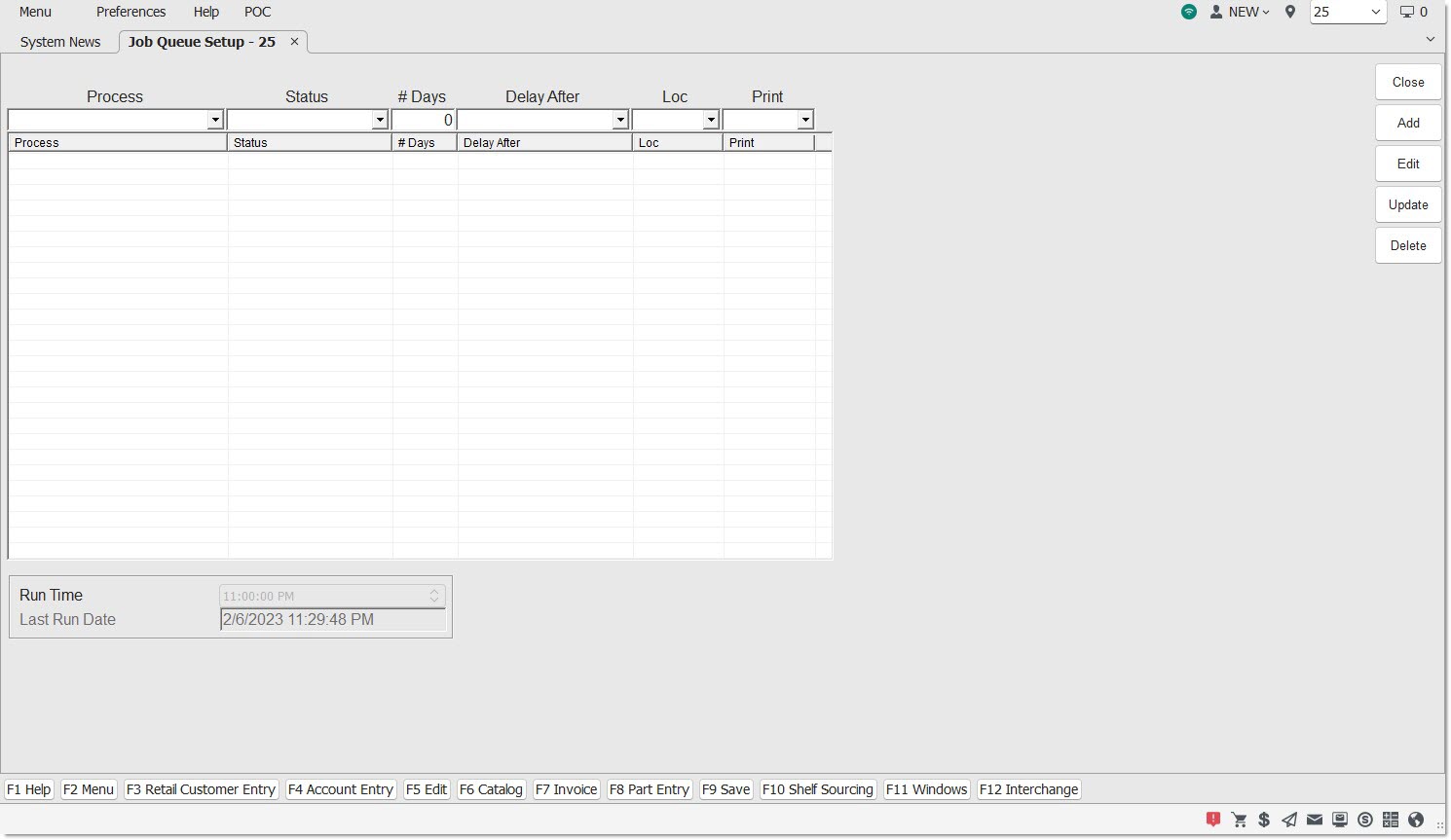
The Job Queue Setup screen is used to determine the type of open invoices and the number of days the open invoice remains open before being automatically voided by the program as part of a nightly process. By voiding sourced open invoices for items that have not been picked up by the customer after a certain length of time, the stock is available to be picked up in the nightly overstock sweep. Also, used to determine the type of cycle count and the number of days a cycle counts remains open before being deleted from the database.
Menu Path: Utility Options, Queue Setup, Job Queue Setup screen
Flow Overview
Understanding the importance of timing the Daily Returns setup in the Timed Order Queue to run after midnight ensures that the process that voids open invoices puts the items back into available inventory before the Daily Returns is "kicked off". If the Invoice Void Process is run after the Daily Returns, then the items updated to inventory will not be available to return to the vendor until the next Daily Returns is run.
Process Flow
-
The program initiates the Invoice Void Process.
-
The available quantity is updated with the void quantity.
-
The nightly return PO is created by the Times Order Queue.
-
The user arrives in the morning and edits the return PO.
-
The parts are sent back to the vendor that day.
Process
Indicates the type of process to be set up.
Options are:
- 'Invoice Void' (Default)
- 'Clear Cycle Counts'
- 'Clear Hole Counts'
Status
Indicates the available invoice type to be voided and/or cycle count to be deleted.
Options are:
-
'Sourced' - Open invoice with at least one sourced item, including any with zero Deposit dollar ($0.00) values and excluding any with Deposit dollar values greater than zero ($0.00)
-
'Pick' - Ticket in the pick status that was created at Point-of-Sale, including any picks created from transfer accounts or Internet sales
-
'Pack' - Ticket in the pack status that was created at Point-of-Sale, including any packs created from transfer accounts or Internet sales
-
'Quote' - Quotes that were created at Point-of-Sale, including any quotes created from transfer accounts or Internet sales
-
'Hold' - Open ticket that is in the 'Hold' status for non-sourced sales
-
'WFC' - Open ticket that is in the 'Waiting for Customer' status after an item is picked for a B2C order
-
'Reserved' - Invoice with reserved item
-
'Sourced' - Open invoice with at least one sourced item, including any with zero Deposit dollar ($0.00) values and excluding any with Deposit dollar values greater than zero ($0.00)
-
'Sourced Received' - Open invoice with at least one sourced item where the sourced PO has been received including zero Deposit dollars ($0.00) values and excluding any with Deposit dollar values greater than zero ($.0.00)
-
'WIP' – Open ticket that is in the 'WIP' status for non-sourced sales
-
'InProg' - Cycle count that is open or actively being worked on
-
'Saved' - Cycle count that is saved
-
'Complt' - Cycle count that is marked complete
-
'Complt-P' - Cycle count that is marked complete and has been previously printed
-
'Final' - Cycle count that is marked final
-
'Final-P' - Cycle count that is marked final and has been previously printed
-
'Confirmed' - Allows invoices that ended with the 'Confirm' button being clicked to be voided.
# Days
Indicates the number of days the program waits from the invoice or PO process date before voiding the selected invoice or deleting a cycle count. Is a field of up to two (2) numbers that designate increments of 1 day each. Zero (0) is an invalid number. Works in conjunction with the 'Delay After' field.
Delay After
Indicates the date of the 'PO Create', 'PO Rcvd', or 'Invoice Create' plus the number of days indicated in the '# Days' field that the program waits before voiding the selected invoice type ('Status').
Options are:
-
'PO Create' (Uses the date the PO was created)
-
'PO Rcvd' (Uses the date the PO was received)
-
'Invoice Create' (Uses the date the invoice was created)
-
'Initial Create' (Uses the date the cycle count was created)
Example:
'Status # Days Delay After'
'Sourced 2 PO Rcvd Date'
This example directs the program to void all 'Sourced' open invoices where the current date is greater than the date the PO was received plus 2 days. If the PO was received on 7/24 and the current date is 7/26, then the invoice will not be voided. If the PO was received on 7/24 and the current date is 7/27, then the invoice is voided.
Loc
Indicates the store associated with the setup or a zero (0) when the setup is for all locations. Defaults to the current store and is unavailable when the user does not have multi-store permission.
Print Void
Prints selected open tickets that were automatically voided by the program at the time of void. The word "Void" displays on the printed voided invoice.
Options are:
-
'Yes'
-
'No'
The word "Void" displays on the printed voided invoice. Not applicable to cycle count.
Invoice Void Process
Run Time
Indicates the time that the Invoice Void Process is initiated in the current store.
Last Run Date
Indicates the date that the process last ran successfully.
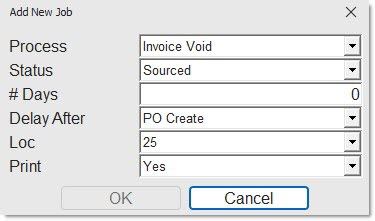
Click to display the 'Add New Job' window used to add a new job to the job queue.
System Messages
When an invoice is voided or the process does not complete due to an error, a message is recorded to System Messages indicating the status of the process.
A sourced open invoice that was automatically voided results in the following System Message: 'Auto Void Open Invoice Completed Successfully'.
When the process does not complete successfully, the following error displays in System Messages: 'Auto Void Open Invoices Error'.
Set Up Invoice Void Background Process
To set up an Invoice Void background process, follow the steps below:
-
From the Menu, select Utility Options, Job Queue Setup. The Job Queue Setup screen displays.
-
Click 'Add'. The 'Add New Job' window displays to set up a new job.
-
Enter the new setup information in the appropriate fields: 'Process', 'Status', '# Days', 'Delay After', 'Loc', and 'Print Void'.
-
Click 'Ok'. The window closes and the setup is added to the grid.
Edit Invoice Void Background Process
To edit an Invoice Void background process, follow the steps below:
-
From the Menu, select Utility Options, Job Queue Setup. The Job Queue Setup screen displays.
-
Double-click on a setup in the grid. The 'Edit' button is enabled and the setup moves into the data entry line.
-
Make edits to the appropriate fields.
-
Press 'Enter' on the last field or click 'Upd'. The data is saved and the setup moves into the grid.
-
Click 'Close'. The screen closes.
Delete an Invoice Void Background Process
To delete an Invoice Void background process, follow the steps below:
-
From the Menu, select Utility Options, Job Queue Setup. The Job Queue Setup screen displays.
-
Highlight the desired setup.
-
Click 'Del'. The setup is deleted.
-
Click 'Close'. The screen closes.