Line Code Rename
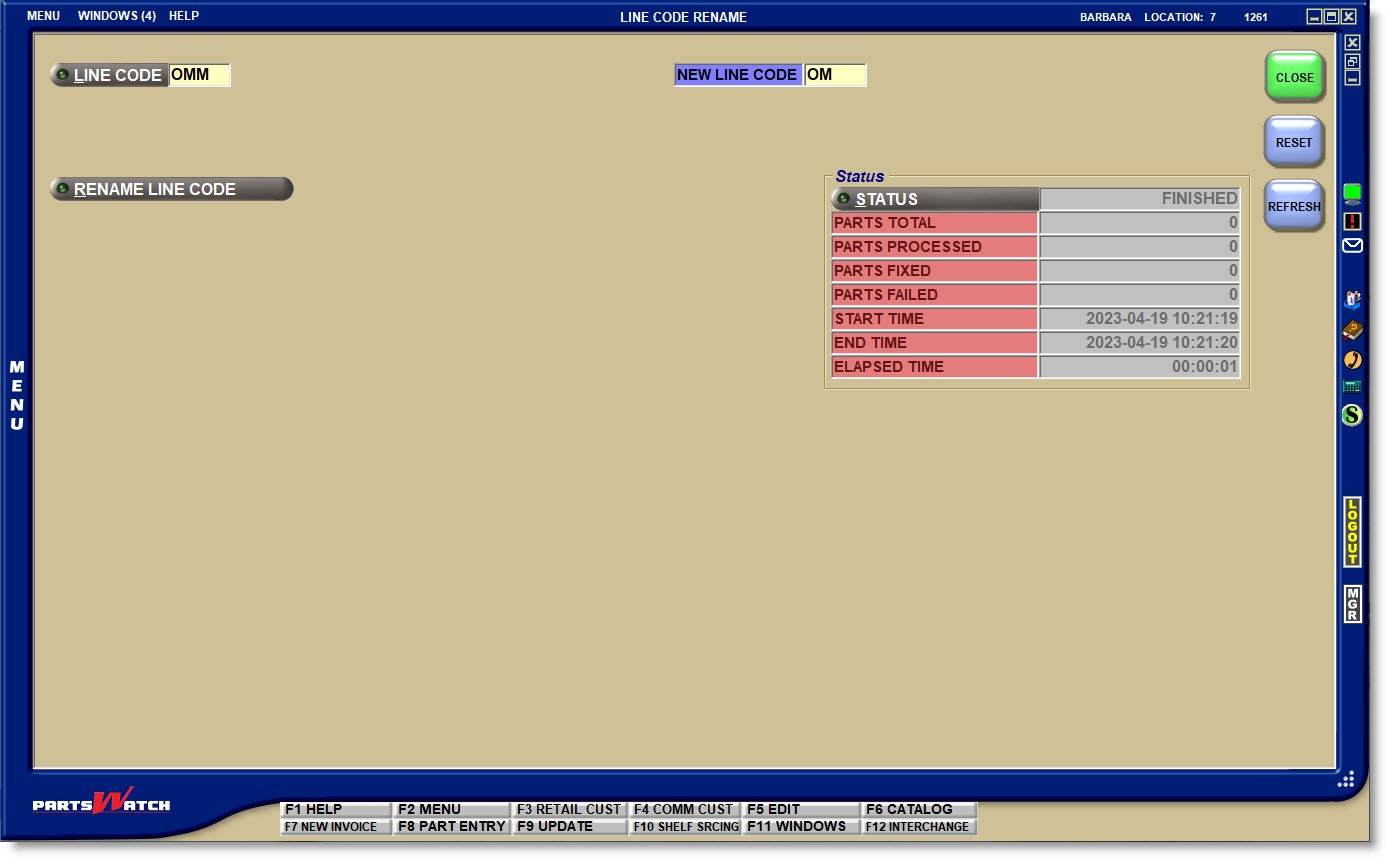
The LINE CODE RENAME screen is used to run a utility that converts an existing Line Code to a new Line Code and is often used to match Line Codes in PartsWatch with the primary supplier’s Line Codes.
Menu Path: Vendor, Line Maintenance, Line Code Rename, LINE CODE RENAME screen
.png) Rename Line Codes - 5 minutesRename Line Codes - 5 minutes
Rename Line Codes - 5 minutesRename Line Codes - 5 minutes
One Line Code can be renamed at a time; however, the utility can be run concurrently in different stores for multi-stores.
Note: The Line Code Rename utility leverages the Part Number Fix utility to move each part from the old line code to the new line code. Therefore, the Part Number Fix utility is unavailable when running the Line Code Rename utility.
To run the utility, the old line code must already exist in the file; however, the new line code must not preexist.
Enter the Line Code to be renamed, or click the LINE CODE button to open the BROWSE LINE CODE window to select a Line Code.
NEW LINE CODE
Enter up to 3 alphanumeric/special characters that will be used as the new Line Code.
RENAME LINE CODE
With the old and new 'LINE CODE' entered, click the button to initiate the change. The system will prompt you to continue.
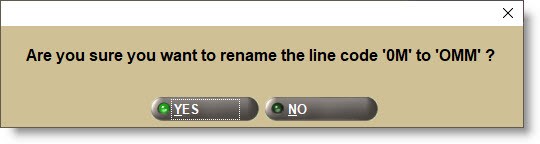
Answer 'YES' and the utility runs, or 'NO' to abort it.
The 'STATUS' field displays the progress while it is running until complete.
- 'NONE': Not running.
- 'INITIALIZING': Preparing to run or running.
- 'FAILED': The process failed and no records were changed. For example, the old 'LINE CODE' was entered incorrectly.
If a number of parts were fixed and any parts show as "failed", the new line code and the old line code will both exist. Re-run the process for the old 'LINE CODE' and the 'NEW LINE CODE' even though it now exists. The process will not continue if a different 'NEW LINE CODE' is entered. - 'RUNNING': Utility is running.
- 'FINISHED': The process is complete.
- 'ABORTED': Process canceled.
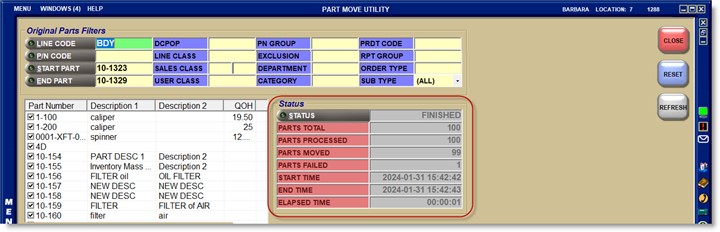
Click the 'STATUS' button to open a window with details of the process.
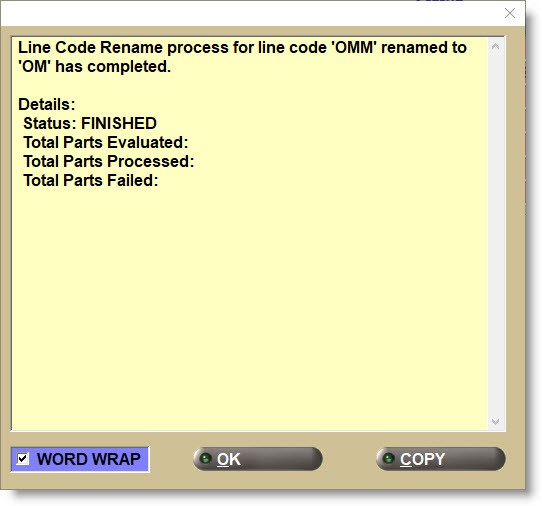
- 'Status': The field displays the progress as 'INITIALIZING' while it is running and 'FINISHED' when it is complete.
- 'Total Parts Evaluated': Total number of parts moved from the old to the new Line Code.
- 'Total Parts Processed': Total number of parts that have been processed so far if the utility is still running or total number renamed if finished.
- 'PARTS FIXED': Total number of parts under the renamed Line Code.
- 'Total Parts Failed': The total number of parts that failed during the process.
- 'START / END TIME': Time the process started/finished.
- 'ELAPSED TIME': Length of time from the start until the finish, or up to the current time if it is still running.
Check/uncheck 'WORD WRAP' to wrap/unwrap the descriptions.
Click 'COPY' to copy the contents of the message to the clip board.
Click 'OK' to close the pop-up.
The screen can remain open while the utility is running and will continue to refresh the 'Status' information every 10 seconds until the process completes. If the screen is closed while the utility is running, it continues to run uninterrupted in the background.
Click 'RESET' to start the next Line Code Rename.
System Messages
Each time the Line Code Rename utility begins, a message is logged to SYSTEM MESSAGES, and records status details throughout the process including the parts affected, skipped, or failed.
The record is logged under 'INVENTORY' with the 'PROCESS' of 'LCR' and a Notification Level of 'INFORMATION'. On a run with errors, the Notification Level is 'ERROR'. If the process fails, only one System Message is recorded with a Notification Level of 'ERROR'. If a "fail" due to a program error occurs, Contact Customer Support for assistance.