Part Number Fix
The Part Number Fix Utility screen is used to:
-
Find possible duplicates of the same part number in the store's part table by looking at the Pricing Server, part file or the nonsku table, depending on which is used, to verify the correct part. Only one line can be run at a time. Part Number Fix is store-specific and executes for all parts within user-defined selection criteria.
-
Rename a Part Number to another part number. Only one part can be renamed at a time. Parts on open sales orders or open purchase orders are not considered for the rename process. To rename a part, the part must be removed from the open sales order or purchase order or open purchase orders or the document must be voided before running part number fix. (Parts on open sales orders or open purchase orders can be viewed on the 'Parts on Open Documents Report', on the Inventory Information Reports screen.
-
Kit and BOM parts are included in this function.
-
The system prevents the deletion of a BOM part if a 'QOH' value exists.
-
The system cannot delete a BOM component part if a 'QOH' value exists for the BOM part at the time of deletion.
-
Note: Since it is possible delete a Kit or BOM part or component part in a single or multi-store system, a Kit or BOM in one store can be "sale ready" and not be "sale ready" in other stores. Even in one store, if Kit or BOM component parts are deleted, the Kit or BOM can change from "sale ready" to not "sale ready".
.png) Use the Part Number Fix Utility - 6 minutesUse the Part Number Fix Utility - 6 minutes
Use the Part Number Fix Utility - 6 minutesUse the Part Number Fix Utility - 6 minutes
Menu Path: Inventory, Part Utility, Part Number Fix, Part Number Fix Utility screen
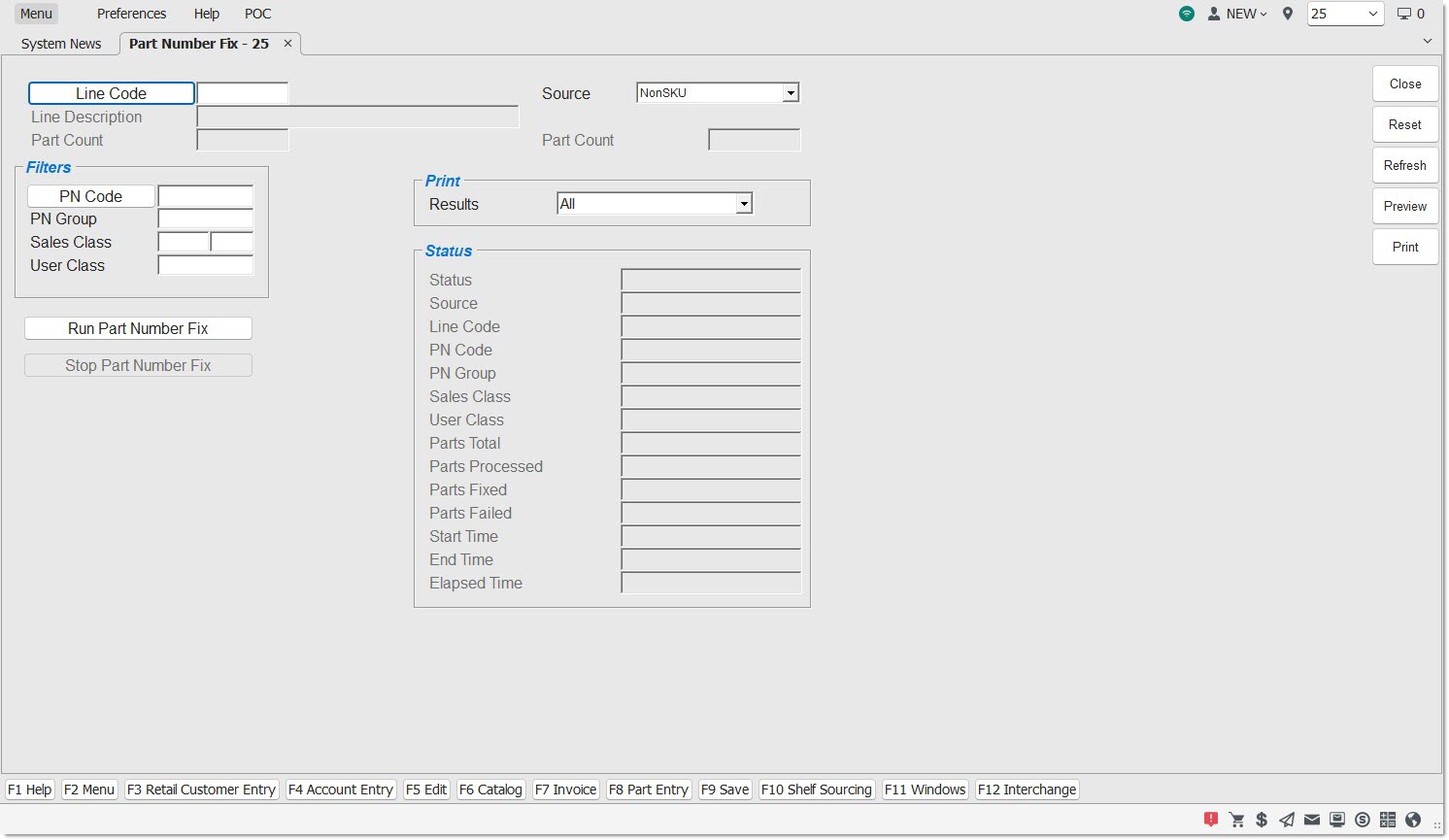
Indicates the store's line code. Click the button to display the 'Browse Line Codes' window to select a line code.
Line Description
Displays the line code description.
Part Count
Displays the number of parts in the part table for the selected line code or number of filtered parts, if filters are applied.
Source
Indicates the source of validation of part numbers.
Options are:
-
'Nonsku' - Uses the nonsku table for valid part number lookup and is only available if the store uses the nonsku table.
-
'Pricing Server' - Uses the pricing server for valid part number lookup and is only available if the store uses the Pricing Server.
-
'Inventory' - Uses the current parts table with the application of business rules to determine valid part numbers. Displays the Filters section, when selected.
-
'User Rename' - Uses the current parts table to determine valid part numbers to rename a part number to another part number. Displays the Rename Part Number section, when selected.
Price Update ID
Displays the Price Update ID from the Price Update file. Available only when the SOURCE is PRICING SERVER. Click the button to display the PRICE UPDATE ID’S window to search for a Price Update ID. A Price Update ID must be entered or selected if the Pricing Server is used.
Part Count
Displays the number of parts in the 'Source' file. Not available if the 'Source' is 'Inventory'.
Filters
Displays when 'Nonsku', 'Pricing Server', or 'Inventory' is selected in the 'Source' field. The filters compare both the part table and nonsku table. To obtain a broader search, do not use filters.
PN Code
Displays the Part Number Code. Click the button to display the 'P/N Code Selection' window to select a single 'PN Code'.
PN Group
Narrows parts accessed by a single 'PN Group'.
Sale Class
Narrows parts accessed by a single (1st and/or 2nd position) 'Sales Class' Code.
User Class
Narrows parts accessed by a single 'User Class' Code.
Rename Part Number
Displays when 'User Rename' is selected from the 'Source' drop-down. Used to change/rename a part number. Part number may be changed to a stripped or unstripped version, or to a completely different number.
After entering a part number in the 'Part Number' field and a new part number in the 'New Part Number' field, click the 'Run Part Number Fix' button to initiate the Part Number Rename process.
As part of a successful rename, the part is also renamed in all historical files. The part can only be looked up and reported by its new name.
Part Number
Indicates the current part number that is to be renamed. When an attempt is made to enter a part number in the field or the button is clicked, the 'Find Part' window displays to select a pre-existing part number.
New Part Number
Indicates the new part number to be used in renaming the current part number. Displays the prompt "You must manually enter a new part number that does not exist in the selected line code", when clicked.
Results
Narrows parts reported by part status. This option is only available when the Part Number Fix process is completed. The last Part Number Fix that was run remains available to filter until the next Part Number Fix process is run. The field is unavailable until the first fix process is complete and during the time it takes to complete a fix process.
Options are:
-
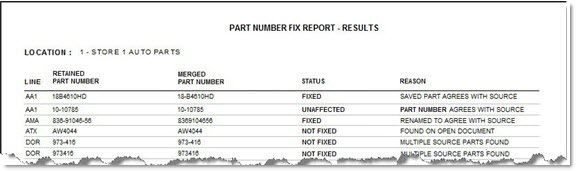
'All' - All parts that were included in the Part Number Fix process
-
'Fixed' - All parts with the status of 'Fixed'
-
'Not Fixed' - All parts with the status of 'Not Fixed'
-
'Unaffected' - All parts with the status of 'Unaffected'
Status
Displays the status of the Part Number Fix process.
Options are:
-
'None' - A Part Number Fix is not running.
-
'Initializing' - The 'Run Part Number FIx' button has been accesses and the process is preparing to run.
-
'Running' - A Part Number Fix is running.
-
'Finished' - The Part Number Fix is complete.
-
'Aborted' - The Part Number Fix is aborted.
Source
Part Number Fix: Displays the selected value from the 'Source' field.
Rename Part Number: Displays blank.
Line Code
Displays the selected 'Line Code' from the currently running or last Part Number Fix.
PN Code
Part Number Fix: Displays the selected 'PN Code' from the running or last Part Number Fix if narrowed by a 'PN Code'.
Rename Part Number: Displays blank.
PN Group
Part Number Fix: Displays the selected 'PN Group' from the running or last Part Number Fix if narrowed by a 'PN Group'.
Rename Part Number: Displays blank.
Sales Class
Part Number Fix: Displays the selected (1st and/or 2nd position) 'Sales Class' Code from the running or last Part Number Fix if narrowed by a 'Sales Class' Code.
Rename Part Number: Displays blank.
User Class
Part Number Fix: Displays the selected 'User Class' code from the running or last Part Number Fix if narrowed by a 'User Class' code.
Rename Part Number: Displays blank.
Parts Total
Part Number Fix: Displays the total number of parts under the selected 'Line Code' or total number narrowed by selected part table filters.
Rename Part Number: Displays '1' as only one part is processed at a time. If the part is on an open sales order or open purchase order and not renamed, displays '1'.
Parts Processed
Part Number Fix: Displays the total number of parts that have been processed so far if the Part Number Fix is still running or total number if the process is finished.
Rename Part Number: Displays '1' as only one part is processed at a time. If the part is on an open sales order or open purchase order and not renamed, displays '1'.
Parts Fixed
Part Number Fix: Displays the total number of parts that were fixed.
Rename Part Number: Displays '1' when a part is successfully renamed as only one part is processed at a time. If a part is on an open sales order or open purchase order and not renamed, displays '0'.
Parts Failed
Part Number Fix: Displays the total number of parts that failed during the Part Number Fix.
Rename Part Number: Displays zero as only one part is processed at a time. If a part is on an open sales order or open purchase order and not renamed, displays '0'.
Start Time
Displays the time the user initiated the Part Number Fix.
End Time
Displays the time the Part Number Fix completed.
Elapsed Time
Displays the time since the Part Number Fix was initiated up until the time it finished or up until the present time if it is not yet finished.
Run Part Number Fix
Initiates the Part Number Fix process.
A prompt displays, "Are you sure you want to run the Part Number Fix now?" Click 'Yes' to initiate the process. Note: Clicking 'Yes' automatically changes all parts with a single match. Click 'No' to abort the process. Accelerator key is 'Alt' + 'R'.
Stop Part Number Fix
Interrupts or cancels the part fix process that is currently running. Accelerator key is 'Alt' + 'S'.
Not applicable for Rename Part Number ('User Rename'). The prompt "You cannot stop a part rename" displays, when clicked.
Part Number Fix Process
Parts on open sales orders or open purchase orders are not considered for the part number fix process. In order to include the part, the part must be removed from the open sales order or open purchase order or the document must be voided before running the part number fix. Parts on open sales orders or open purchase orders can be viewed on the 'Parts on Open Documents Report' on the Inventory Information Reports screen.
The part number fix process does include parts on historical transactions. If a sales order is finalized, or a purchase order is received that contains a part after that part was marked for deletion but before that part was attempted to be deleted, that part is fixed (duplicates are deleted) at the time of finalization or receipt since the part now only exists on a historical transaction. If the part is removed from an active sales order or purchase order after the part was marked for deletion but before the part was attempted to be deleted, then the part is fixed at the time of removal from the sales order or purchase order.
The system looks at part numbers stripped of all characters other than letters and digits (A-Z, a-z and 0-9). For example, if part numbers '1-23', '12-3', and '123' are found in inventory, the process looks at each part number as a strip match string of '123'.
The Part Number Fix looks at the parts in inventory with an exact part number match in the 'Source' file ('Pricing Server' or nonsku table), tested before the strip match, and always considers these as proper part numbers. Using part numbers '1-23', '12-3', and '123' as valid part number examples, no changes are made during the Part Number Fix when:
-
All three parts are found in the inventory file but none are found in the 'Source' file.
-
'12-3' and '123' are found in the inventory file and '1-23', '12-3', and '123' are all found in the 'Source' file.
-
All three are found in the inventory file and in the Source file.
Using part numbers '1-23', '12-3', and '123' as valid part number examples, the Part Number Fix considers whether or not to change parts when:
-
All three parts are in the inventory file and only one is in the 'Source' file. The part, whose part number in the inventory file that exactly matches the part number in the Source file, is retained (called the "keeper"). The other two parts in the inventory file are merged into the "keeper" part.
-
All three parts are in the inventory file, none are in the 'Source' file; however, a 4th part number is in the 'Source' file with the same strip match but a different part number (for example, '1.23'). Then, the process determines the "keeper" based on stocking levels, created date, last sold date and part sort. The other two parts in the inventory file are merged into the "keeper" part.
-
All three parts are in the inventory file, none are in the 'Source' file and a 4th and 5th part number are in the 'Source' file with the same strip match string but different part numbers (for example, '1.23' and '12.3'). Then, all 3 parts in the inventory file are left alone (skipped).
Once the process has selected the part to retain, if the "keeper" part does not have any stocking levels ('Min', 'Max', or 'Order Point') and the part to be merged does have a stocking level, the stocking level values are copied from the merged part to the "keeper" part. If the source is the nonsku table, and a part is merged, the process copies the following nonsku attributes to the retained part record: 'Line', 'Part Number', 'PN Code', 'Description', 'Category', 'Sales Class 1', 'Per Car', 'User Class', 'Store Sell Mgr', 'Sales Taxability', 'Price 1' through 'Price 5', 'Curr Cost', 'Core COst' and 'Core Sell'.
When the 'Source' field is set to 'Inventory', a 'Source' file is not available to validate which part is correct. If two or more parts are found with the same strip match string, the Part Number Fix determines the "keeper" based on stocking levels, created date, last sold date, and part sort.
When the system, merges parts using the Part Number Fix utility, all of the part attributes from the "keeper" parts are retained with the following exceptions:
-
'Qty Available' (added together from all merged parts)
-
'Reserved Qty' (added together from all merged parts)
-
'Last Sold', 'Last Return' and 'Last Rcvd' dates (latest from the merged parts)
-
'Create Date' (earliest from the merged parts)
System Messages
Each time the Part Number Fix utility begins, a message is logged to the System Messages screen. A second message record is recorded when the process completes. This message contains status, details, statistics on parts affected, and a list of parts either skipped or failed, when applicable. The record is logged under 'Inventory' with the 'Process' of 'Part Number Fix' and a 'Notification Level of 'Information'. The system records a "fail" in the event of a program error. If a 'Fail' does occur, contact Customer Support for instructions.
Part Number Fix Report - Results
The following is an example of the 'Part Number Fix Report - Results':

Procedure to Run the Part Number Fix Utility
To run the Part Number FIx Utility, follow the steps below:
-
From the menu, select Inventory, Part, Utility, Part Number Fix. The Part Number Fix Utility screen displays.
-
Select a 'Line Code'.
-
Select a source to validate against in the 'Source' field.
-
Select filter(s), as applicable, in the 'Filters' section.
-
Click 'Run Part Number Fix'. The system prompts, "Are you sure you want to run the Part Number Fix now?" ('No' cancels the process.)
-
Click 'Yes' to initiate the process. A Part Number Fix Web service launches. The screen continually refreshes the status and progress information while the Part Number Fix progresses. The 'Status' displays 'Finished' when the process completes. The controls on the screen are enabled allowing the user to run another Part Number Fix process, if desired. The screen refreshes updated status information automatically every 10 seconds. Click "Refresh' to refresh more frequently. Note: If 'Stop Part Number Fix' is clicked while a Part Number Fix process is running, the prompt "Stop the part number fix process. Are you sure?" displays. Click 'Yes' to terminate the process. The 'Status' changes appropriately.
Procedure to Rename a Part Number
To rename a part number, follow the steps below:
-
From the menu, select Inventory, Part, Utility, Part Number Fix. The Part Number Fix Utility screen displays.
-
Select a 'Line Code'. (Required)
-
Select the 'User Rename' source in the 'Source' field.
-
Enter the "from" part number to be renamed in the 'Part Number' field in the 'Rename Part Number' section.
-
Manually enter the new part number to be used in renaming the current part number.
-
Click 'Run Part Number Fix'. The system prompts, "Are you sure you want to run the Part Number Fix now?" ('No' cancels the process.)
-
Click "Yes' to initiate the process. A Part Number Fix Web service launches. The screen continually refreshes the status information and progress information automatically every 10 seconds while the Part Number Fix progresses. (Click 'Refresh' to refresh more frequently.) The 'Status' displays 'Finished when the process completes. The controls on the screen are enabled allowing the user to run another Part Number Fix process, if desired.