Price %
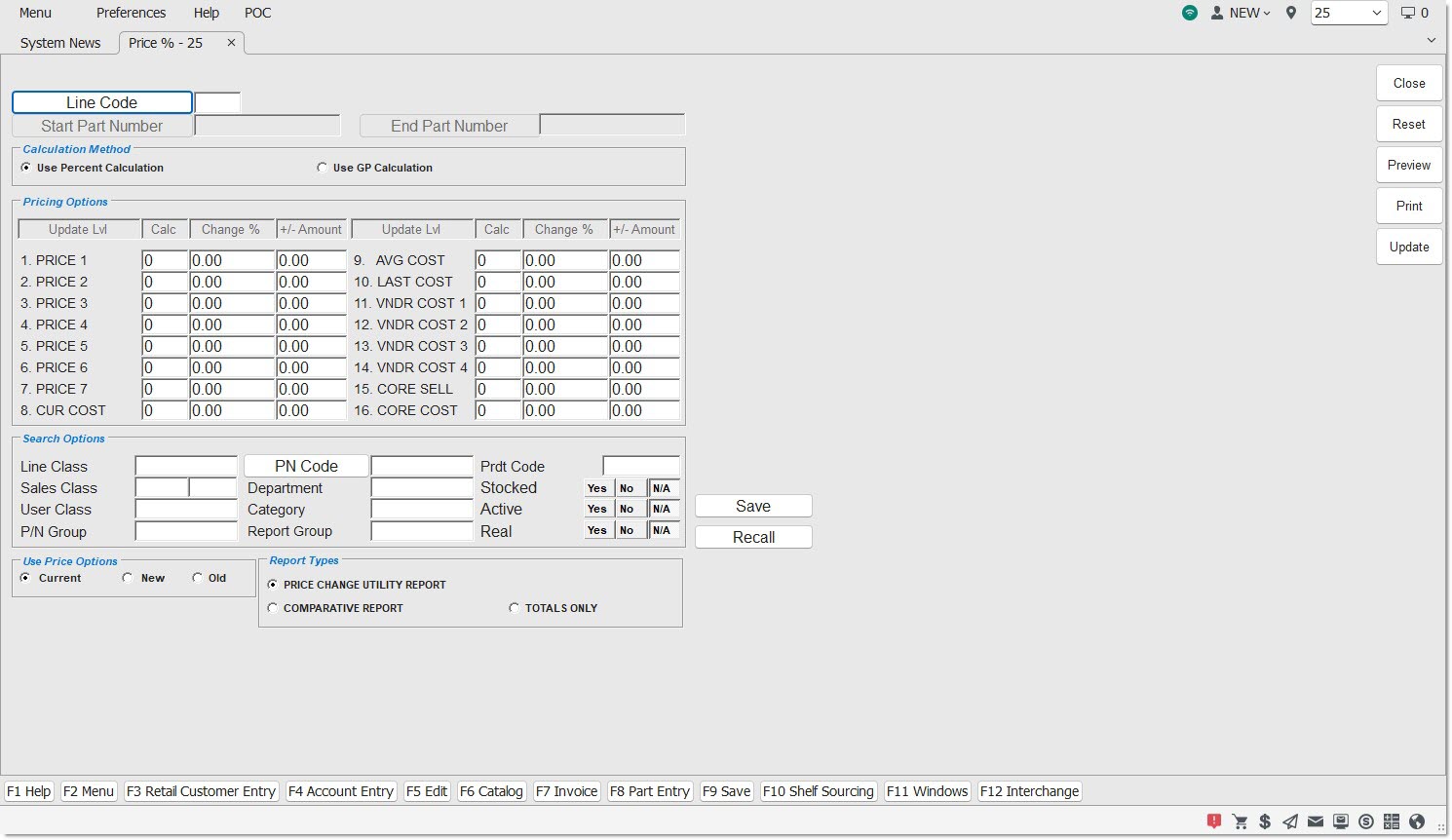
The PRICE % REPORT screen is used to calculate, report, and optionally update changes to part pricing and is mainly used to change pricing imported from another source such as Price Updating or DFIU when the new pricing needs to be changed to reflect the pricing used by the store.
Menu Path: Inventory, Part Utility, Price %, PRICE % REPORT screen
About Inventory Reports
To run the utility, enter:
A Line Code must be entered to run the report. Click the 'LINE CODE' button to select a Line Code.
START PART NUMBER / END PART NUMBER
This field is only available when a Line Code has been selected. Narrows the output to parts within the selected range.
Search Options
Narrow the parts affected by part filters:
- 'LINE CLASS'
- 'SALES CLASS'
- 'USER CLASS'
- 'PN GROUP'
- 'PRDT CODE'
- 'DEPARTMENT'
- 'CATEGORY'
- 'REPORT GROUP'
- 'ACTIVE'
- 'STOCKED'
- 'REAL'
Calculation Method
Check the method used when calculating prices using a 'CHANGE %'. This section is not used when calculating price changes using a '+/- AMOUNT'.
Used to change prices based on a percentage. The program uses the level entered under 'CALC' as the base amount and performs the following calculation:
price X (% / 100 + 1) = new price
For example, to calculate a price level as a percent (7.00) up from the Current Cost ($25.00), enter 8 under 'CALC' and 7.00 under 'CHANGE %' to the right of the chosen 'UPDATE LVL':
25.00 X (7 / 100 + 1) = 26.75
Used to change prices based on gross profit. The program uses the level entered under 'CALC' as the base amount and performs the following calculation:
price / (1 – % / 100) = new price
For example, to calculate a price level as a percent (7.00) up from the Current Cost ($25.00), enter 8 under 'CALC' and 7.00 under 'CHANGE %' to the right of the chosen 'UPDATE LVL'.
25.00 / (1 – 7 / 100) = 26.88
Pricing Options
The section allows all 16 price levels (except 'CORE AVG COST') to be updated using the utility, the first eight on the left side of the section and the last eight on the right side, showing both the price level and the custom price level name.
There are two ways of using the utility:
- Update existing prices up or down by a percent or an amount. For example, an across-the-board cost of living increase.
- Update existing prices up or down based off another price level. For example, an import provides only cost. All other levels are updated up or down from cost.
The price level that will be updated from the calculation. The fields to the right of the 'UPDATE LVL' are used to update that level.
Enter the price level that will be used as the base price for the calculation.
- To update the existing 'UPDATE LVL' price, enter its own level under 'CALC'. The system will use that level price as the base for the update calculation. For example, to increase '2 RETAIL' by 7.00%, enter 2 under 'CALC'.
- To update the 'UPDATE LVL' price up or down from another price level, enter the other price level under 'CALC'. For example, to increase '2 RETAIL' up from '8 CURR COST', enter 8 under 'CALC. CURR COST' will be used as the base price for the calculation.
The percent that will be used to calculate the new price, either up from the 'CALC' level by entering a positive value or down from the 'CALC' level by entering a negative value.
The calculation used is based on the Calculation Method.
+/- AMOUNT
The amount that the price will be changed by. For example, if the current price is 5.00 and the '+/- AMOUNT' is -1.00, then the new price will be 4.00. If the current price is 5.00 and the '+/- AMOUNT' is 1.00, then the new price will be 6.00.
Use Price Options
There are 3 price levels stored with the parts, 'CURRENT', 'NEW', and 'OLD'. The 'CURRENT' level is used for part pricing throughout the application. The 'NEW' level is sometimes used as a temporary file where price changes are stored until moved into 'CURRENT', and the 'OLD' file is a copy of the 'CURRENT' file and is stored in the event the prices need to be moved back into 'CURRENT'. Unless prices were specifically added to the 'NEW' or the 'OLD' files, leave the selection as 'CURRENT'.
Report Type
There are three reports available for output to assist in determining whether or not the pricing is correct.
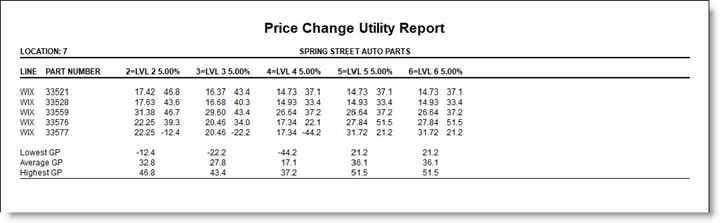
PRICE CHANGE UTILITY REPORT
The report outputs each affected part, the updated levels, and the base price level and percent or amount. It also provides the Lowest, Average, and Highest Gross Profit for the reported price levels.
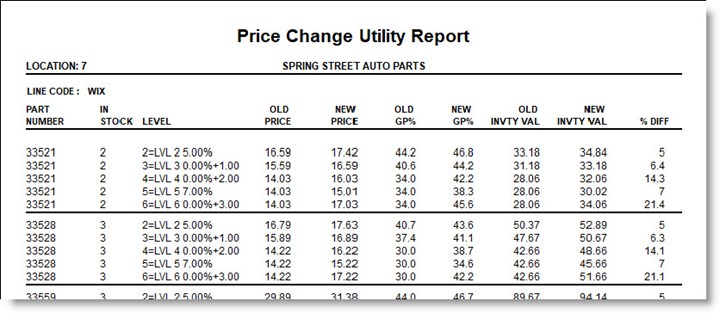
The report outputs each affected part and shows the old/new Price, GP%, Inventory Value, and the % Difference between the old and new values.
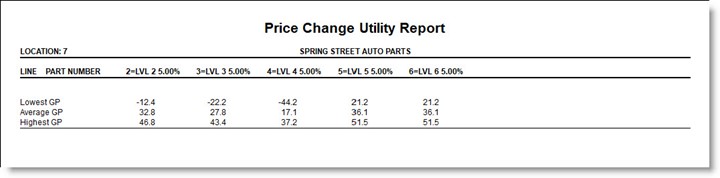
This report outputs the totals only from the Price Change Utility Report.
SAVE / RECALL Buttons
To save all of the setups on the screen for future use, click the 'SAVE' button and a window opens to name and save the profile.
To reuse the saved setups, click the 'RECALL' button and the window opens to find and select a saved profile. All saved setups display on the screen to rerun the utility using the same parameters.
UPD Button
When prices are correct, optionally click the 'UPD' button to update the prices to the part table to replace the existing prices.
A notification pop-up opens stating that the database prices will be updated.
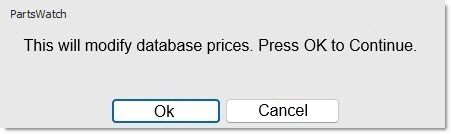
- Answer 'OK' to continue with the update.
- Answer 'CANCEL' to abort the update.