Promotions Setup Reports
The PROMOTIONS SETUP REPORTS screen is used to report promotional setup information when needed in order to assist counter-persons in explaining the sell price of promotional pricing at Point-of-Sale.
Menu Path: Invoicing, Promotions Setup Reports, PROMOTIONS SETUP REPORTS screen
About Inventory Reports
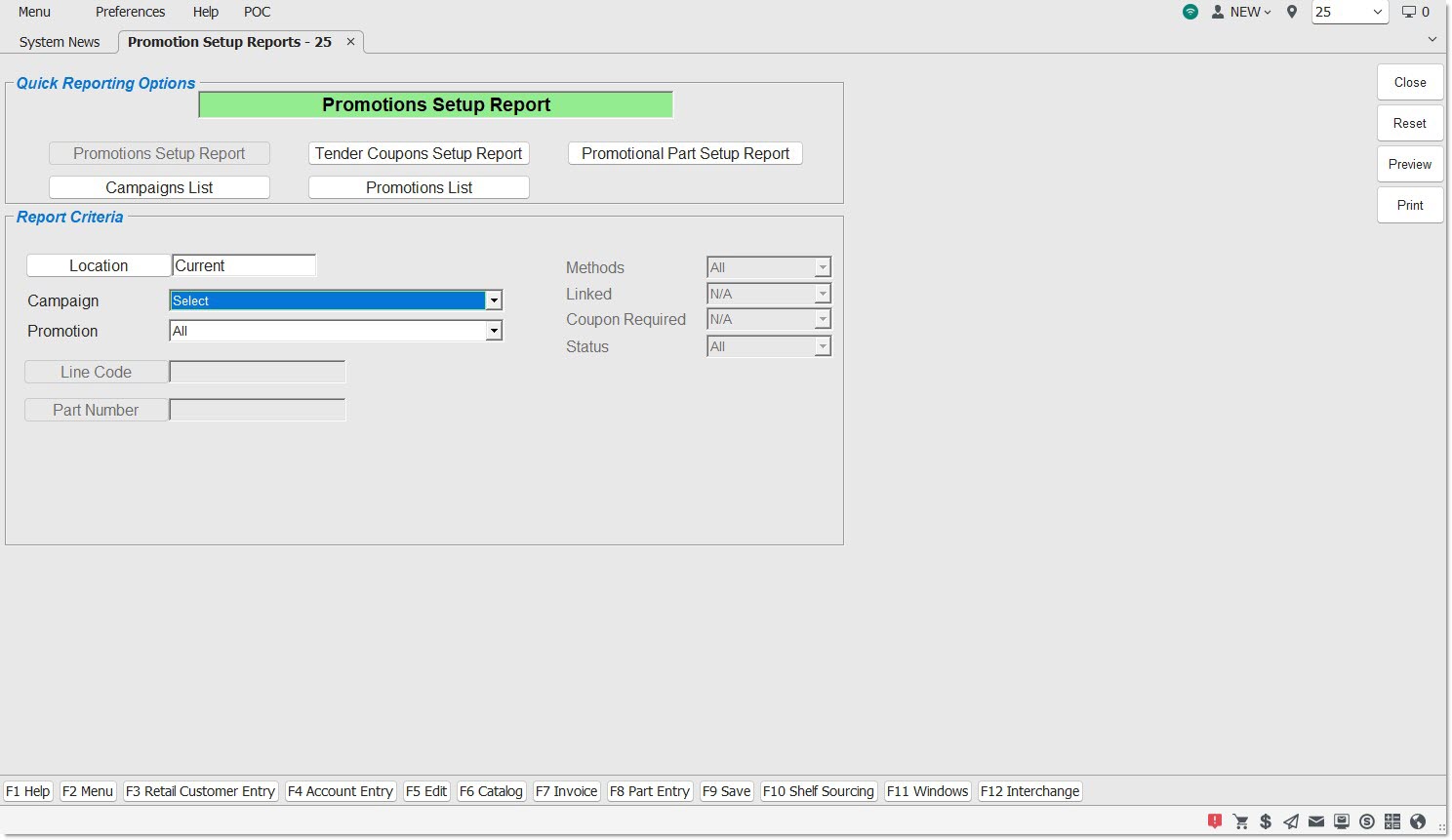
Quick Reporting Options
- PROMOTIONS SETUP REPORT
- CAMPAIGNS LIST
- TENDER COUPONS SETUP REPORT
- PROMOTIONS LIST
- PROMOTIONAL PART SETUP REPORT
Promotions Setup Report
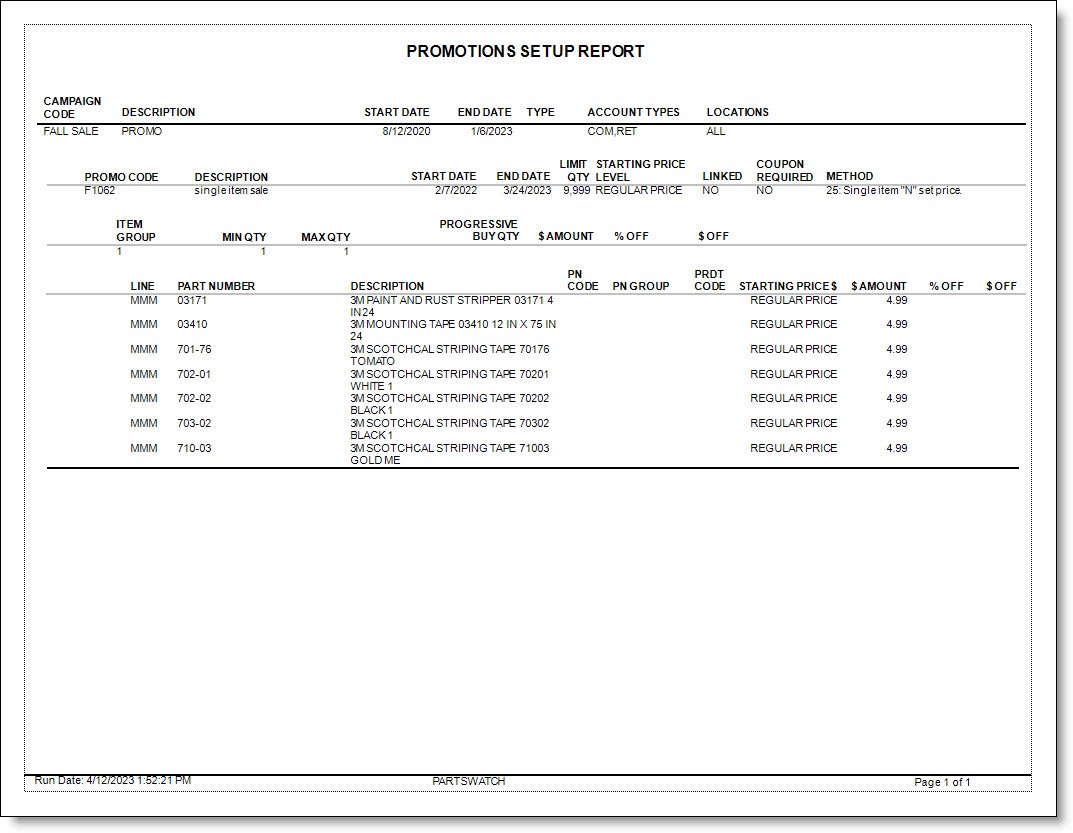
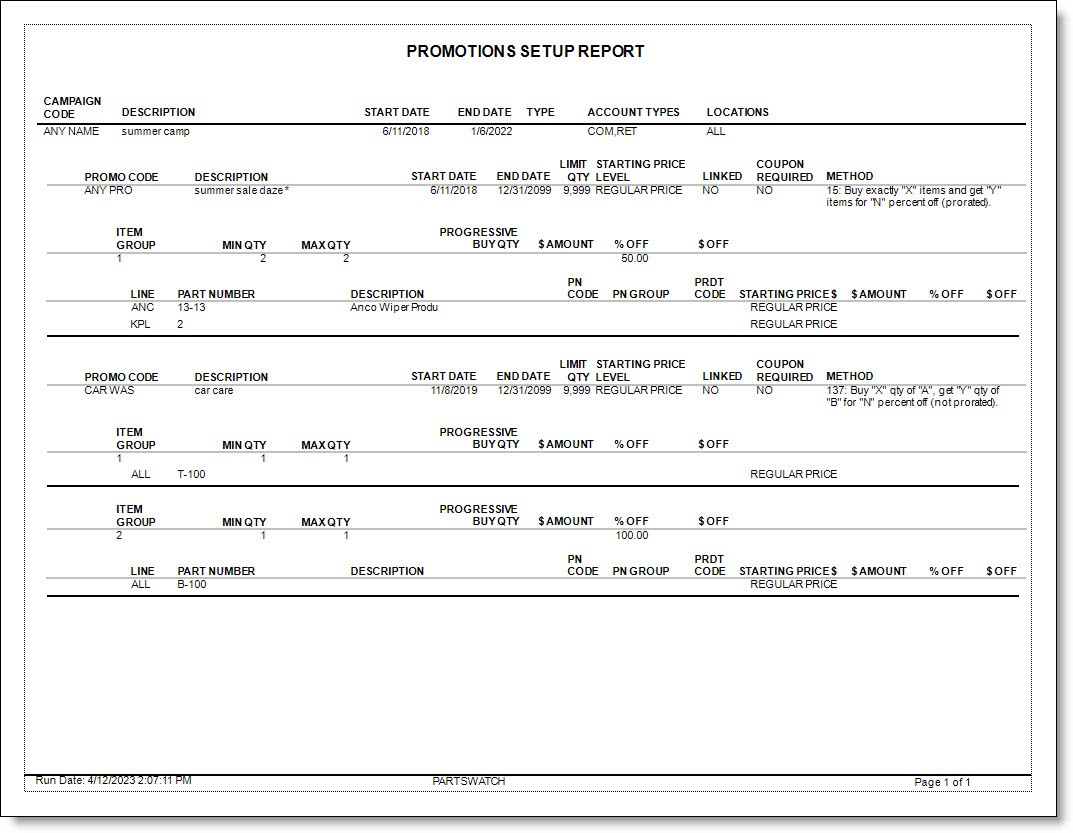
Outputs one or all promotions for a single campaign and lists each line and part number, pricing, and customer types and locations the promotion is available to.
- Contains all information for one existing campaign, except tender coupons.
- Information includes all promotions (including any linked promotions), deal groups, and lines/parts.
- Default report selected when the screen is opened or the 'RESET' button is clicked.
- One existing campaign must be selected to run the report.
Report Criteria
If a field is blank, the parts that are reported are not limited by the criteria.
Narrows the output by either a single location or multiple locations, depending on the report and on Employee Security permissions.
Click the drop-down and select a campaign from the list. If the 'PREVIEW' or 'PRINT' button is clicked without selecting a campaign, the system will prompt to select one, stating "Please select a Campaign".
Click the drop-down and select a 'PROMOTION' for the designated 'CAMPAIGN'. Or leave the field blank for all promotions under the selected 'CAMPAIGN'. If a 'PROMOTION' is selected before selecting a 'CAMPAIGN', the system will display the 'CAMPAIGN' the 'PROMOTION' is under.
Report Output
'PRINT' / 'PREVIEW' - Once the report criteria are defined, click 'PREVIEW' or 'PRINT' to output the report.
Report Example: Single Promotion
Report Example: Two Promotions
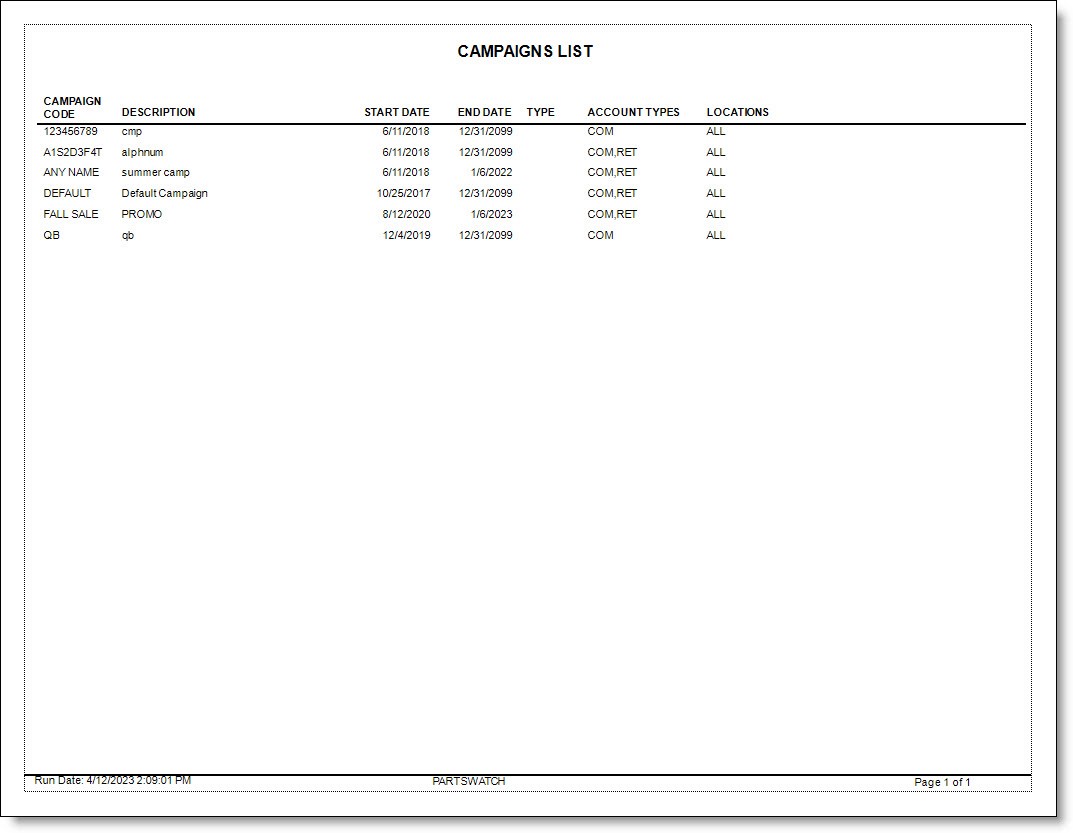
Campaign List
Outputs a list of all campaigns with the start and end dates, customer type, and locations the campaign is available for.
- Includes a list of all existing campaigns: active, expired, and not started.
- 'Report Criteria' is not needed to run the report.
Report Criteria
N/A
Report Output
'PRINT' / 'PREVIEW' - Once the report criteria are defined, click 'PREVIEW' or 'PRINT' to output the report.
Tender Coupon Setup Report
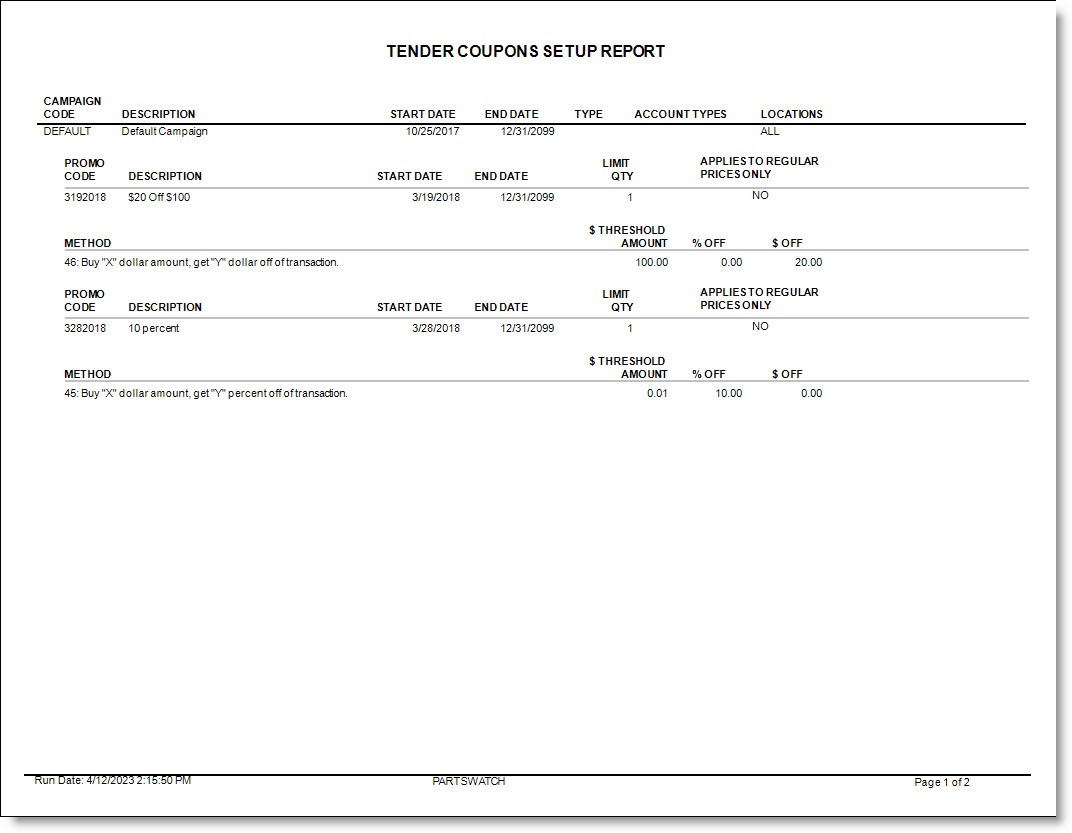
Outputs tender coupon setups for all campaigns or a single campaign with the start and end dates, customer types, and locations the promotion is available for.
- Contains all tender coupons for all existing campaigns.
- 'Report Criteria' is not needed to run the report.
- If the data from all campaigns is not desired, a specific campaign may be selected.
Report Criteria
If a field is blank, the criteria do not limit the parts reported.
Narrows the output by either a single location or multiple locations, depending on the report and depending on Employee Security permissions.
Output all campaigns or click the drop-down and select a campaign from the list.
Report Output
'PRINT' / 'PREVIEW' - Once the report criteria are defined, click 'PREVIEW' or 'PRINT' to output the report.
Promotions List
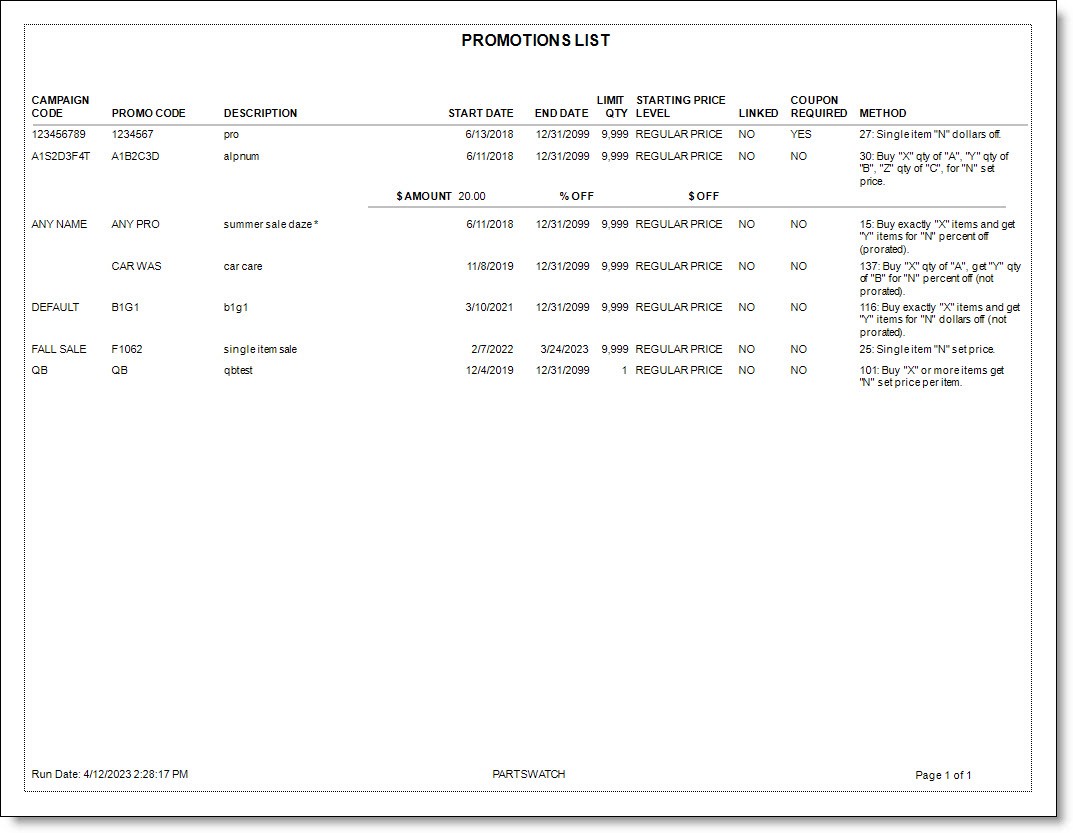
The report outputs a list of all promotions under one or all campaigns with setup information, including the start and end dates, starting price level, and method.
- No report criteria need to be selected to run the report.
Report Criteria
If a field is blank, the criteria do not limit the parts reported.
Narrows the output by either a single location or multiple locations, depending on the report and depending on Employee Security permissions.
Output all campaigns or click the drop-down to select a campaign from the list.
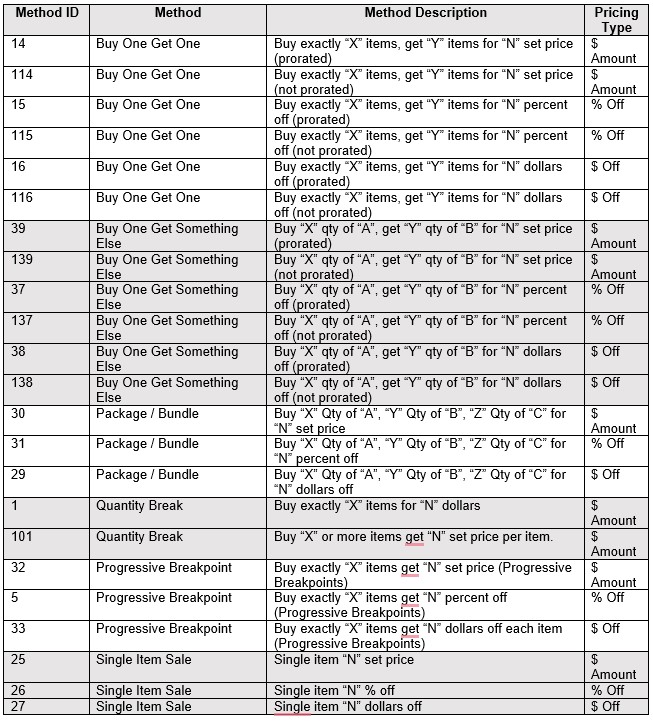
Click the drop-down and select a type of promotion. Select one or all setup pricing methods.
View Methods

One promotion is applied to the invoice before another (linked) promotion is enabled.
- Checked - Only output linked promotions.
- Unchecked - Only output promotions that are not linked.
- Checked - Only output promotions that require a coupon.
- Unchecked - Only output promotions that do not require a coupon.
Click the drop-down and select:
- 'ACTIVE' - Only output promotions that are currently in use at Point-of-Sale.
- 'EXPIRED' - Only output promotions that are no longer available at Point-of-Sale.
- 'NOT STARTED' - Only output promotions that are set up but are not yet in use at Point-of-Sale.
Report Output
'PRINT' / 'PREVIEW' - Once the report criteria are defined, click 'PREVIEW' or 'PRINT' to output the report.
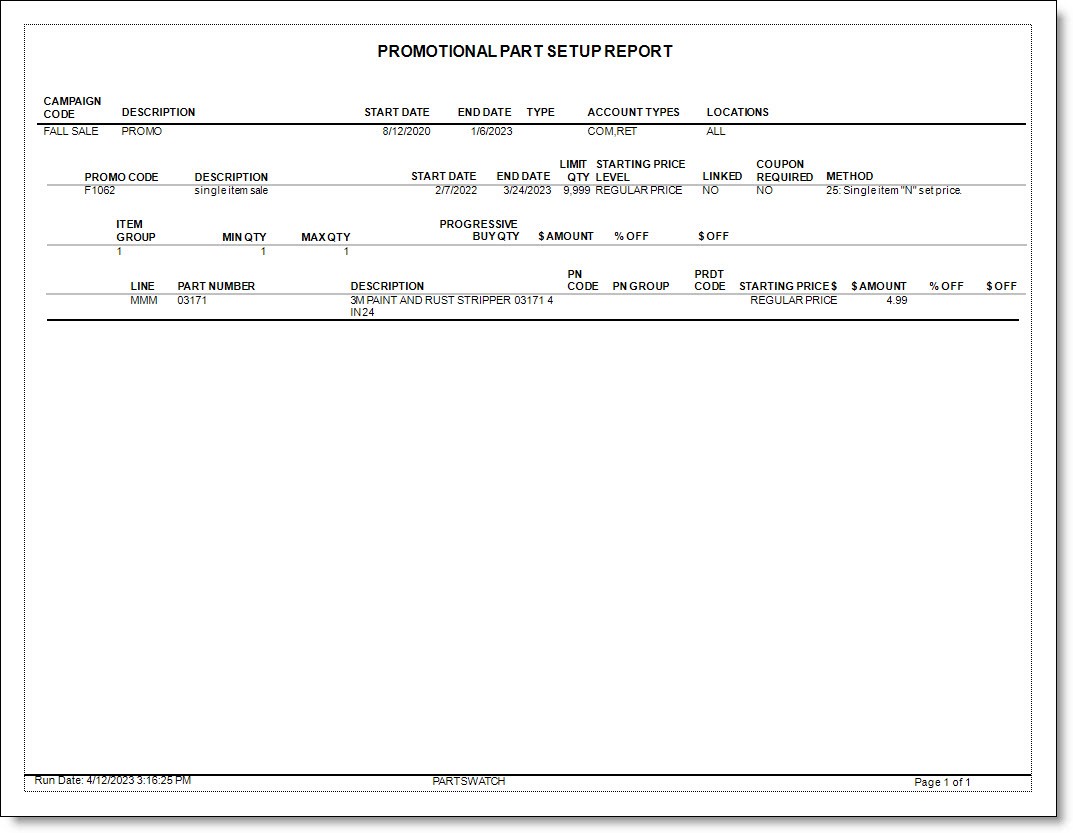
Report Example:
Promotional Part Setup Report
The report outputs setups for a single part number and is particularly helpful to explain a part's sell price when the part exists on multiple campaign promotions.
- Includes every campaign promotion for one specific line/part.
- A line/part number must be selected to run the report.
Report Criteria
If a field is blank, the parts report are not limited by the criteria.
Narrows the output by either a single location or multiple locations, depending on the report and depending on Employee Security permissions.
Enter a line code to report a part for that line Click the 'LINE CODE' button to select a line from the 'BROWSE LINE CODES' window.
Enter a part number for the selected line code. Click the 'PART NUMBER' button to select a part from the 'FIND PART' window. If a part number is not entered, the system will prompt to enter one, stating "Please select a part."
Report Output
'PRINT' / 'PREVIEW' - Once the report criteria are defined, click 'PREVIEW' or 'PRINT' to output the report.
Report Example: