Multi-Store Distributed PO Functionality
Multi-Store PO functionality allows details from other stores to be viewed and edited at Point-of-Sale, and for the ordered quantities to be received into either one store or individual stores.
Multi-Store Distributed Order Overview - 2 pages
.png) Multi-Store Distributed PO - 9 minutesMulti-Store Distributed PO - 9 minutes
Multi-Store Distributed PO - 9 minutesMulti-Store Distributed PO - 9 minutes
Multi-Store PO Setup
Multi-Store PO functionality includes setup and inquiry the following screens/report.
-
Multi-Store PO Report
Store Purchasing Setup
The Store Purchasing Setup screen is used to determine whether ordered stock is automatically received in one store or individual stores and how to handle overstock.
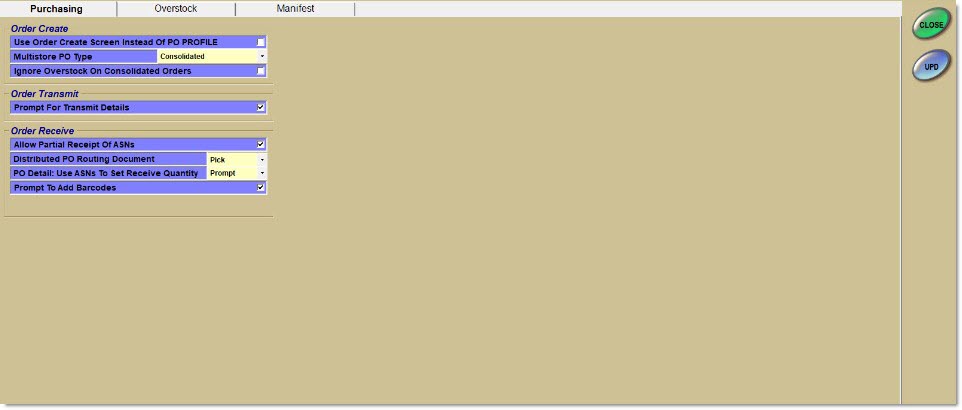
The 'Ignore Overstock on Multistore Orders' checkbox in the Store Purchasing Setup screen, 'Purchasing' tab, determines, by store, whether overstock in that store will reduce the total order quantity of a PO. When checked in a particular store, when calculating quantities for a multi-store order that includes that store, overstock in that store does not reduce the total order quantity of a PO. When unchecked in a particular store, when calculating quantities for a multi-store order that includes that store, overstock in that store does reduce the total order quantity of a PO.
The 'Automatically Distribute Multistore Orders' checkbox determines whether ordered stock is automatically received in one store or individual stores. When unchecked, all multi-store orders created in this store are consolidated orders. The order quantity is combined for all stores, and all stock is received into the store that created the order. When checked, all multi-store orders created in this store are distributed orders, where details for each store may be viewed and edited, and receipt is to individual stores.
When the column layout on the Purchase Order screen includes the option 'Qty Ord MSDPO Stores' the column heading text for each store quantity is "LO" (Location Ordered) followed by the store number.
When the column layout on the Purchase Order screen includes the option 'Qty Avl In All Stores' the column heading text for each store quantity is "LA" (Location Available) followed by the store number.
Edit Purchase Order Window
When creating and editing a multi-store purchase order and the 'Automatically Distribute Multistore Orders' is enabled (checked):
-
The PO in the originating store is like a regular multi-store order ('Source' is set to 'Shelf' and PO # begins with R).
-
When an order quantity is edited an ordering quantity is double-clicked in the Purchase Order screen, the 'Edit Purchase Order' window displays.
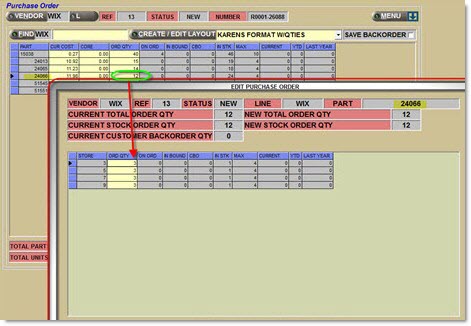

Example of part with Customer Backorders:
-
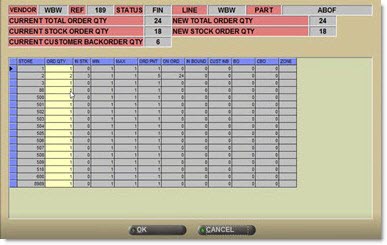
The lower grid in the window displays the store number, the order quantity and all of the columns that were selected in the Create/Edit Layout.

-
The grid lists individual order quantities that made up the order quantity shown for the part in the main Purchase Order screen.
-
Only stores that have an order quantity are listed in the grid. In the above example, store 1 created the order, but since no parts were needed in store 1, it is not listed in the grid.
-
Only individual store order quantities may be edited. The consolidated quantity cannot be edited.
-
Upon editing, clicking 'Ok' and returning to the main Purchase Order screen, the consolidated order quantity is updated to match the sum of the individual store quantities.
Overstocks
When 'Ignore Overstock on Multistore Orders' is unchecked in the Store Purchasing Setup screen, 'Purchasing' tab, then when calculating quantities for a multi-store order for that store, overstocks reduce the total order quantity of a part. On a Combination PO, the overstocks show as negative order quantities in the 'Edit Purchase Order' window:
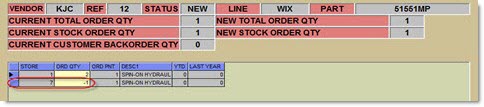
In the above example, store 1 needed 2, but store 7 is overstocked by 1, so store 7 shows as a negative quantity, reducing the total order quantity to 1.
Adding Order Quantity for Another Store
From the 'Edit Purchase Order' window, for any part that is being ordered but not being ordered in all stores, right-click on that part and select 'Write-in a New Part' to add an order quantity for another store:
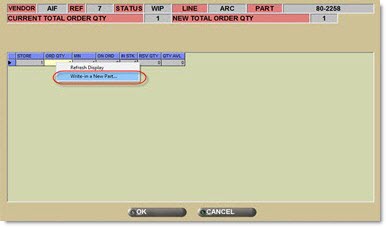
When 'Write-in a New Part' is selected, the 'Write-In PO Form' pop-up displays.

-
Enter the location/store number in 'Location' field or click 'Location' to select a store from the 'Browse Locations' pop-up. Note: If permission to access any other locations is not available, the 'Location' button/field is disabled. It is not possible to enter a quantity for another store. Click 'Cancel' to exit the 'Write-In PO Form' pop-up and return to the 'Edit Purchase Order' window.
-
Enter the 'Ord Qty'.
-
Click 'Ok' to save the entry or 'Cancel' to cancel it. Either returns to the 'Edit Purchase Order' window. Upon entering a 'Location' and 'Ord Qty' and clicking 'Ok', control returns to the 'Edit Purchase Order' window and an additional row displays for the added store quantity:

Receiving Quantities
The two options for receiving items on a Multi-Store PO are:
-
Receiving into Ordering Store Only (Consolidated PO) - The entire quantity being ordered for all stores can be received into the store that created the PO without creating or receiving POs in other stores. It is then the responsibility of the stores to manually create orders or run Inventory Redistribution to distribute the stock to other stores.
-
Receiving into Ordering Store and Automatically Distributing (Combo PO) - The entire quantity being ordered for all stores can be received into the store that created the PO, and the system automatically "pushes" orders to individual stores for those stores to receive their portion of the merchandise.
Receiving into Ordering Store Only (Consolidated PO)
When using this method, individual store quantities would still be edited to come up with a new total order quantity, but the entire combined quantity is received into the store that created the PO.
-
To process POs this way, the 'Automatically Distribute Multistore Orders' flag must be unchecked.
-
Then, create, edit, and finalize the PO.
-
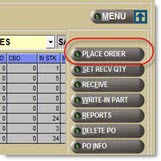
(Optional) Click 'Place Order'. This is an optional step if the 'Automatically Distribute Multistore Orders' flag is unchecked and the PO is going to be received into one store.
-
To receive the PO, click the 'Receive' button. The stock goes into the store that created the PO.
-
The store that placed and received the order is now overstocked, and the other stores are still understocked.
-
The other stores may then place orders with the "hub" store to replenish their stock with the overstock from the hub.
-
Receiving into Ordering Store and Automatically Distributing (Combo PO)
When using this method, quantities for all stores are received into the store that created the PO. Then, the system automatically "pushes" orders to individual stores for those stores to receive their portion of the merchandise.
-
To process POs this way, the 'Automatically Distribute Multistore Orders' flag must be checked.
-
The Line or Supplier record in the ordering store must have a valid XMIT record set up.
-
(Required) Click 'Place Order'. This is required if 'Automatically Distribute Multistore Orders' is checked. When clicked, orders are created in each store that had a part on the original purchase order.
-
The orders show in the Purchasing Dashboard screen in each store as follows:
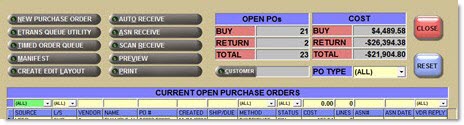
-
The 'Source' column is set to 'Xfer'.
-
The 'Method' column is set to the method type of 'Distribute'.
-
The PO # begins with T for Transfer.
-
The 'Status' column is set to 'Fin'.
-
The 'Cost' and 'Lines' are reflective of this PO only.
-
-
The Purchase Order screen only shows items being ordered for this store with only the quantities for this store.
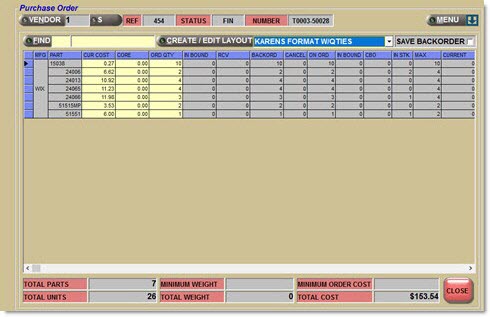
-
The original order remains in the originating store with the full quantity for all stores. When this order is received into stock, stock is received into that store, and transfer invoices are created in the originating store for transferring quantities to the other stores.
-
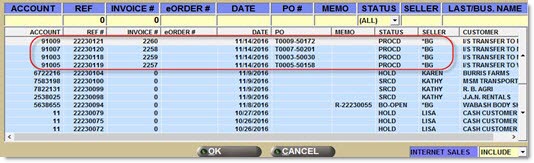
When the PO in the originating store is received, sales documents are automatically generated under each of the transfer accounts for stores that had orders generated out of this PO, following "order to invoice" functionality. These documents are 'Invoices', 'Picks', 'Packs', or 'Quotes' depending on the 'Process Rcvd Order' flag in the transfer account's 'Transfer' tab. Stock is allocated to this document and, therefore, the items do not appear as available in the originating store when the order is received.
-
If the transfer account was set to create 'Picks', 'Packs', or 'Quotes', click the 'Ref' button on the Invoice Point of Sale screen to find these documents. If the transfer account was set to create 'Invoices', the document(s) can only be found momentarily on the above screen, and after that can only be found under Invoice Image.
-
If the transfer account was set to create 'Picks', 'Packs', or 'Quotes', the originating/selling store has the opportunity to edit the sell quantities on the document before finalizing the invoice.
-
-
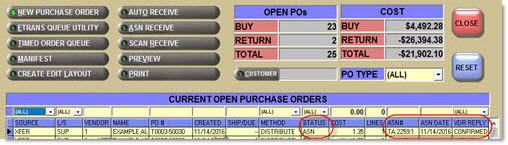
When the invoice is finalized (whether automatically or manually), the POs that were automatically generated in the other stores exhibit the following changes:
-
'Status' changes from 'Fin' to 'ASN'.
-
'ASN#' and 'ASN Date' are populated.
-
'Vdr Reply' is set to 'Confirmed'.
-
-
Each of the POs that were automatically generated may now be received into the individual stores.
Costing of Multi-Store Combination POs
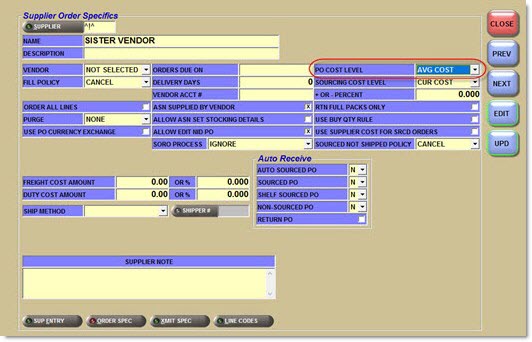
When receiving POs into individual stores, the POs are costed at the cost level set in the ^!^ supplier code. This leverages existing functionality for this supplier code that is needed to create inter-store transfer orders.
Multi-Store PO Report
Purchase Order Reports Window
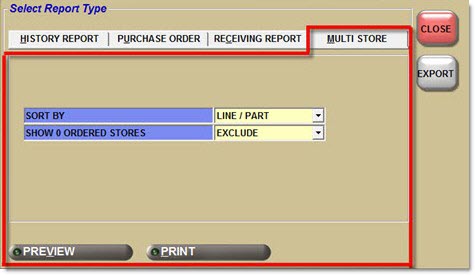
The 'Multi Store' tab in the 'PO Reports' selection window is used to report PO details for multi-store "distributed" POs.
Multi-Store Purchase Order Report
The Multi-Store Purchase Order Report reports PO details for multi-store "distributed" POs. The 'Automatically Distribute Multistore Orders' flag must be checked. Note: The Multi-Store report shows individual store quantities even if 'Automatically Distribute Multistore Orders' option is unchecked, but in that case, when editing, only the total order quantity for all stores are being edited.
The format of the Multi-Store report is the same as the Purchase Order report except:
-
For each part, it provides the total 'Ord Qty' for all stores combined, plus an 'Ord Qty' for each store below that.
-
The heading indicates 'Multi-Store PO Type'.
-
'Combination' indicates 'Automatically Distribute Multistore Orders' option is checked.
-
'Consolidated' indicates that the 'Automatically Distribute Multistore Orders' option is unchecked.
The following is an example of the report, detail page, using 'Sort By' set to 'Line / Part' and 'Show 0 Ordered Stores' set to 'Include':
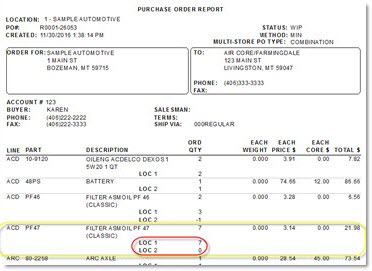
Part # ACD PF47 was zeroed in store 2 but it is still reported.
The following is an example of the report, detail page, using 'Sort By' set to 'Line / Part' and 'Show 0 Ordered Stores' set to 'Exclude':

Part # ACD PF47 was zeroed in store 2 and is now excluded.
The following is an example of the report, detail/total page, using 'Sort By' set to 'Line / Part' and 'Show 0 Ordered Stores' set to 'Only':
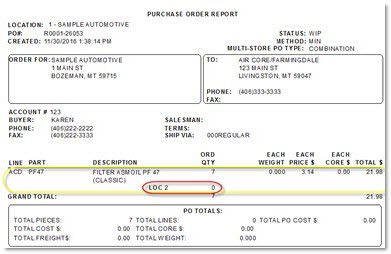
Part # ACD PF47 was zeroed in store 2, which is now the only location shown. The 'Ord Qty' for the part still reflects the quantity for all stores.
The 'Grand Total' includes the 'Ord Qty' for all items, whether reported or not because of filtering.
The $ amounts in the 'PO Totals' section only includes totals for items/stores included on the report. Therefore, in the above example, the 'PO Totals' do not reflect the 7 being ordered for store 1, or the other parts that were not reported.
The following is an example of the report, detail page, using 'Sort By' set to 'Store' and 'Show 0 Ordered Stores' set to 'Include':
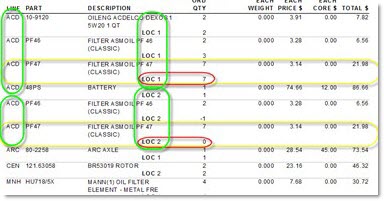
In this example, the report shows all parts for the first line (ACD) in store 1, followed by all parts for ACD in store 2. Then, the report proceeds for the next line.