Purchasing Tab
The STORE PURCHASING SETUP screen is used to store purchasing settings that affect only the selected store in the application.
The screen has three tabs available for setup:
- Store Purchasing Setup Screen - 'Purchasing' Tab
- Store Purchasing Setup Screen - 'Overstock' Tab
- Store Purchasing Setup Screen - 'Manifest' Tab
Menu Path: Controls, Store, Purchasing Setup, PURCHASING SETUP screen, 'PURCHASING' tab
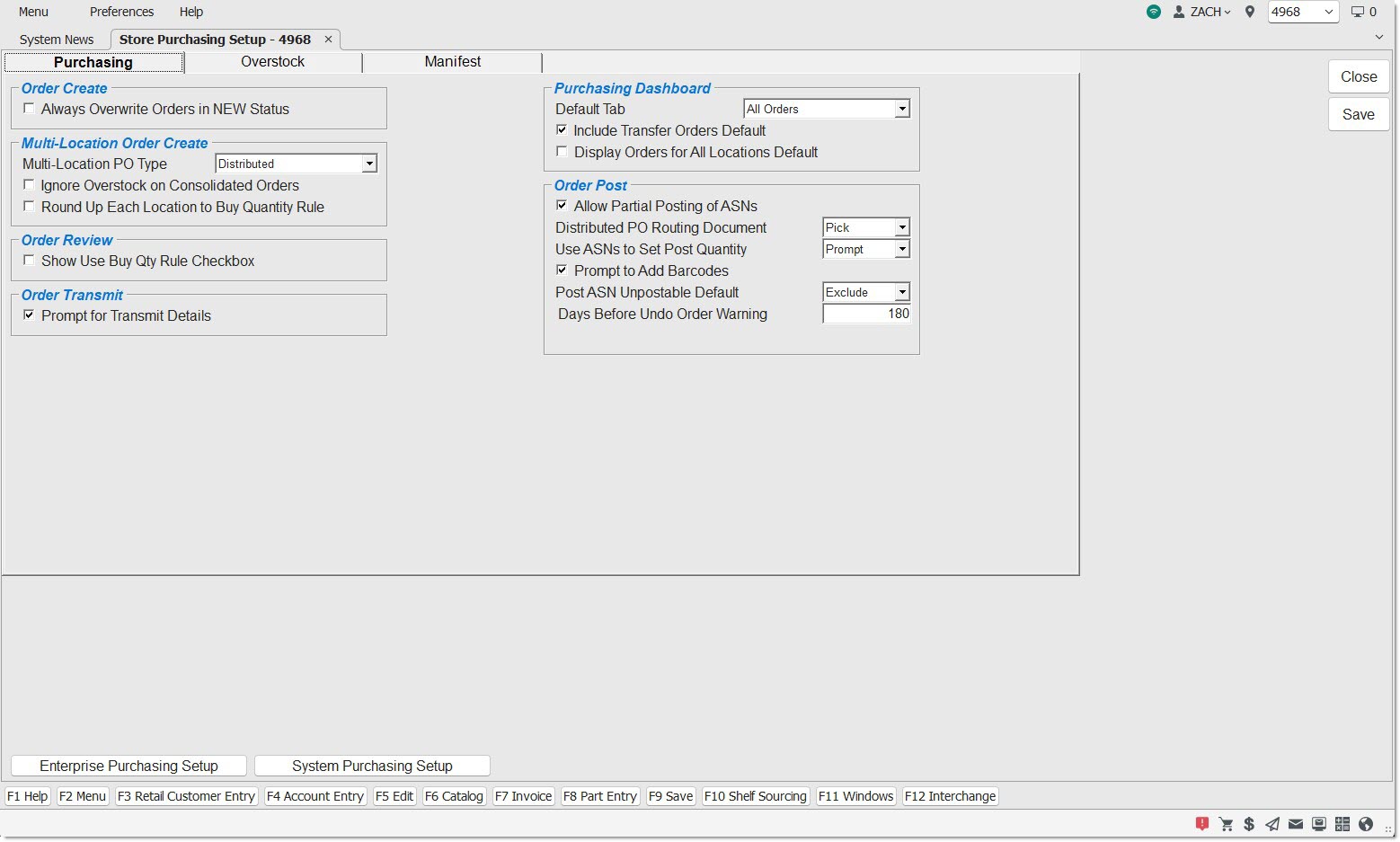
Set Up Store-Level Purchasing
Order Create
Always Overwrite Orders in NEW Status
Determines the order status of an order that is created on the ORDER CREATE screen using the 'Order' button.
- Unchecked - The order is added to the existing list of orders with a status of 'NEW'.
- Checked - The system checks to see if any other orders in 'NEW' status contains the same Supplier and Store(s)/Location(s).
-
If there is an exact match, the new order is created and the existing orders that matched the criteria are deleted. Note: If there is a failure when one or more orders are to be deleted, the system displays a prompt to inform that the order must be manually deleted. Furthermore, the failure is recorded to the System Messages.
-
If there is not an exact match, the order is created normally.
-
Multi-Location Order Create
Determines the type of multi-store orders created. When one of these sales orders is printed as an invoice (whether automatically when transfer account is set to create orders as INVOICE) or manually, an ASN is applied to the corresponding PO in the secondary stores.
Options are:
- 'CONSOLIDATED' - Other stores are considered only at the time of calculating order quantities. Only the ordering store has a PO with a consolidated order quantity. All stock is received into the ordering store that created the order.
- 'DISTRIBUTED' - Other stores are considered at the time of calculating order quantities. When the 'PLACE ORDER' button is clicked, POs are created in each store that had a part on the original PO. When the order in the primary store is received, transfer sales orders are automatically generated in the primary store to transfer stock to other stores (therefore, the stock received for these stores is allocated to the sales orders rather than increasing QOH in the primary store). These sales orders may be edited in the primary store if the transfer account is set to create orders as 'PICK' or 'PACK'.
Ignore Overstock on Consolidated Orders
Determines, by store, whether overstock in that store reduces the total order quantity of a PO.
- Checked - The system ignores overstocks when calculating quantities for a multi-store order, in a particular store. When calculating quantities for a multi-store order that includes that store, overstock in that store does not reduce the total order quantity of a PO.
- Unchecked - The system considers the overstocks in a particular store. When calculating quantities for a multi-store order for that store, overstock in that store does reduce the total order quantity of a part.
Round Up Each Location to Buy Quantity Rule
Checkbox that determines whether or not the buy quantity rule is considered for any multi-location purchase orders created (using a 'Multistore PO Type' of 'Consolidated' or 'Distributed'), after handling any alternate and supersede part options, when the order quantity of each remaining part item on the purchase order is being calculated.
Note: If the order's 'Use Buy Quantity Rule' option is set to 'No', each part's order quantity is calculated normally.
-
Unchecked (default) – Each part's order quantity is calculated normally.
-
Checked – When this checkbox is checked, the application follows the formula below:
-
The application rounds up the need quantity of each location to a multiple of the buying location's 'Buy Quantity Rule', and
-
Then sums together the rounded-up order quantities of all locations participating in the order
-
Order Review
Show Use Buy Quantity Rule Checkbox
Checkbox that determines what settings display on the PURCHASE ORDER (PO DETAIL) screen.
- Checked - Either the ‘USE BUY QTY RULE’ checkbox or ‘RTN FULL PACK ONLY’ checkbox displays on the PO Detail screen.
- Unchecked - Neither of the above settings will display on the PO Detail screen.
Note: What displays as a result of the ‘Show Use Buy Qty Rule’ checkbox is dependent on User Security Procs.
Order Transmit
Determines whether the 'SETUP eTRANS' window displays when one of the following actions is invoked.
- The 'TRANSMIT' button is clicked on a purchase order or overstock return order.
- The 'CLOSE RTN PO' button is clicked on a return order that has not yet been transmitted, and then 'YES' is clicked in response to the prompt “The Return order has not been transmitted. If closed, it will no longer be available for transmission. Do you want to transmit it now?’ and then 'REMOVE FROM STOCK' is clicked.
- Checked (default) - The 'SETUP eTRANS' window displays when either of the actions is invoked.
- Unchecked - The 'SETUP eTRANS' window does not display when either of the actions is invoked. The order is immediately queued for transmission using the default XMIT record.
Purchasing Dashboard
Setting that controls which tab is displayed when the PURCHASING DASHBOARD screen is first opened.
Options are:
- 'All Orders' (Default)
- 'Purchase Orders'
- 'Return Orders'
- 'Suggested Orders'
- 'Flagged Orders'
- 'Transfer Orders' (this option will not be visible to single store installations)
- 'Problem Orders'
Include Transfer Orders Default
Setting that controls whether or not the 'Include Transfer Orders' checkbox is checked on the PURCHASING DASHBOARD screen when it is first opened.
- Checked - The 'Include Transfer Orders' checkbox is checked when the PURCHASING DASHBOARD screen is first opened.
- Unchecked - The 'Include Transfer Orders' checkbox is unchecked when the PURCHASING DASHBOARD screen is first opened.
Display Orders For All Locations Default
Setting that controls whether orders for all locations (in a multi-store environment) are displayed on the PURCHASING DASHBOARD screen. If unchecked, the 'Location' column will be filtered by the store the application is logged into.
Order Post
Provides the ability to post merchandise into stock without having posted the entire ASN, while allowing the user to pick up and continue scan posting against the same ASN later. Methods to post a PO multiple times include:
- PO post without ASN from the MAIN PURCHASE ORDER SELECTION screen and PURCHASE ORDER detail screen.
- PO post with ASN from the MAIN PURCHASE ORDER SELECTION screen and PURCHASE ORDER detail screen and ASN RECEIVE pop-up.
- PO post with or without ASN from the RF PDA and SCAN RECEIVE screen.
- Checked - When items are posted into stock against an ASN, the option to retain that ASN for further future posts, or to mark post against that ASN complete and no longer have access to it for posting, is available.
- Unchecked - When items are posted into stock against an ASN, that ASN is no longer available for posting.
Distributed PO Routing Document
Drop-down with the following options to determine which type of document prints for a routing document:
- 'INVOICE' - Prints a finalized invoice for receive quantities for each secondary store.
- 'PICK' - Prints a pick ticket for received quantities for each secondary store.
At MAIN PURCHASE ORDER SELECTION, when posting an ASN status Purchase Order by selecting the 'AUTO POST' button, or with Purchase Order selected, right-click select of 'Post PO', the setting 'Use ASNs to Set Post Quantity' will be honored.
- 'PROMPT' - On a PO with ASNs applied (ASN status), when selecting to post the Purchase Order via right-click 'Post PO' select or AUTO RECEIVE button select, the application displays the 'SELECT ASNs' pop-up, all ASNs are selected by default, however, this setting allows for the selection of specific ASNs which will be used to set quantities for the 'SET POSTED QUANTITY' function and the 'POST' function. One, multiple, or no ASNs can be selected.
- 'ALWAYS' - On a PO with ASNs applied (ASN status), when selecting to post the Purchase Order via right-click 'Post PO' click or the 'AUTO Post' button click, will auto-select all applied ASNs which will be used to set posted quantities for the 'SET POSTED QUANTITY' function and the 'POST' function, without displaying a pop-up.
- 'NEVER' - ASNs will not be used to set posted quantities. The pop-up does not display and ASNs will not be auto-selected. Instead, the Purchase Order will be posted with the full Order Quantities.
If 'Use ASNs To Set Post Quantity' is set to 'PROMPT' and:
- More than one ASN had been applied,
- And one or more, but not all ASNs from the ‘SELECT ASNs’ pop-up, are selected,
- And the full 'ORDER' quantity was not posted,
- Then upon posting the PO into stock, ship quantities from the selected ASNs are used to set receive quantities, the selected ASNs are no longer available. The PO will still exist and will still be in ASN status, regardless of whether 'SAVE BACKORDERS' was checked because the system knows other ASNs were applied but not yet selected.
If 'Use ASNs to Set Receive Quantity' is set to 'NEVER' or is set to 'PROMPT' but no ASNs are selected from the 'SELECT ASNS' pop-up, then:
- Upon posting the PO into stock, any ASNs that had applied to that PO would remain but would be listed as 'UNPOSTABLE' in the ASN POST screen accessed from the MAIN PURCHASE ORDER SELECTION screen.
If all applied ASNs are selected, whether automatically ('Use ASNs to Set Post Quantity' is set to 'ALWAYS') or manually ('Use ASNs to Set Post Quantity' is set to 'PROMPT'), then upon completing the 'POST' process:
- Regardless of whether the full ASN quantity was posted or a lesser quantity was posted, the ASN(s) are gone.
- If 'SAVE BACKORDERS' was checked on the PO and a quantity less than the 'ORDER' quantity was received, the PO is still available (existing functionality).
- If 'SAVE BACKORDERS' was unchecked, the PO will be gone regardless of the received quantity (existing functionality).
Checkbox that controls whether or not the user is prompted before a barcode is added to the ASN or Purchase Order.
- Checked - The system prompts the user if a barcode is being added. Additionally, users are prompted whether or not to add barcodes to pick forms, and, if unchecked, barcodes will be automatically output on pick forms
- Unchecked - The system does not prompt the user, or if a part is scanned with a missing barcode, a message prompt appears with the text “Part not found” and an 'OK' button to clear the message. Barcodes are automatically output on pick forms.
Sets the default value for the 'Unpostable' drop-down in the 'Post ASN' pop-up. Options are 'Exclude', 'Include', and 'Only'.
Days Before UNDO ORDER Warning
Enter a value between 0 and 999 to determine whether or not a warning is displayed when undoing a posted PO. Since there is no time restriction as to how far back in the past an order post occurrence can be "undone", this setting only determines if a warning pop-up is displayed.
If an UNDO ORDER (or REVERSE ORDER or RE-CREATE ORDER) is attempted for an order post occurrence that was posted on a date older than the number of days entered in the setting (from today), then a pop-up message displays requesting confirmation to move forward: "WARNING: This order was last received on MM/DD/YYYY. Undo this order. Are you sure?"
If an UNDO ORDER (or REVERSE ORDER or RE-CREATE ORDER) is attempted for an order post occurrence that was posted on a date more recent than the number of days entered in the 'Days Before UNDO ORDER Warning' setting (from today), then a pop-up message is displayed requesting confirmation to move forward: "Undo this order. Are you sure?"
Click the 'System Purchasing Setup' button to navigate to the SYSTEM PURCHASING SETUP screen.