Write-In Order/Return
Buy
Select Mode: Shelf Purchase Order / Stock Adjustment Order
Order Method: Write-In Order
Return
Select Mode: Overstock Return / Stock Adjustment Return / Recall Return / PDC Return / Buyout Manifest Return / Core Manifest Return / Warranty Manifest Return
Order Method: Write-In Return
'Write-In Order' and 'Write-In Return' 'Order Methods' are used to manually add parts to an order or to import a list of parts to an order.
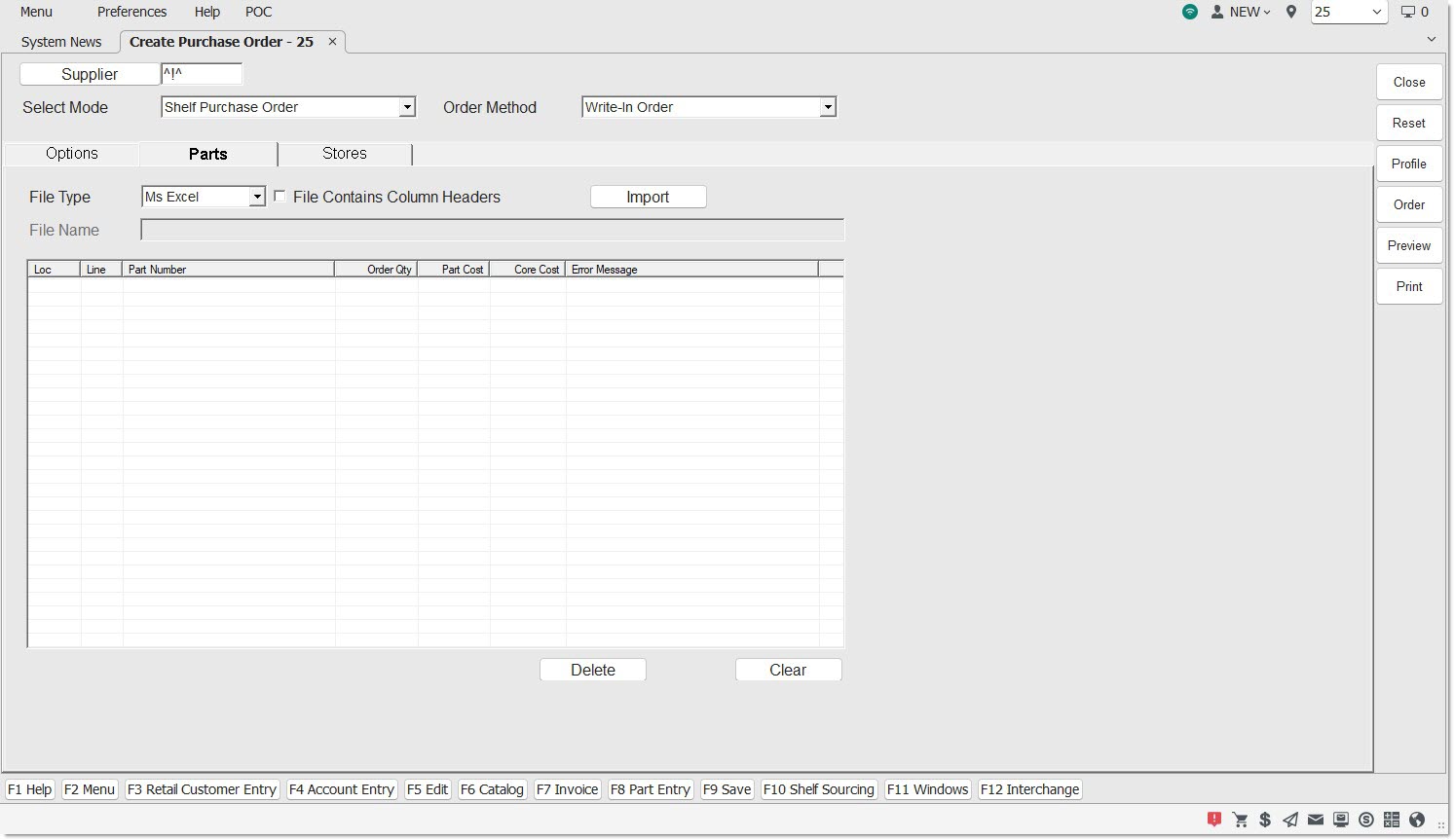
The 'Parts' tab displays when 'Write-In Order' or 'Write-In Return' is selected from the 'Order Method' drop-down.
Optionally click the 'Options' tab to enable/disable the predefined conditions that further refine and filter the parts that will be considered for the order.
Available Default/Override (left-side) filters are:
- 'Fill Policy'
- 'Delivery Days'
- 'PO Part Cost Level'
- 'Use Buy Qty Rule'
- 'Min Cost Threshold'
- 'Min Units Threshold'
- 'Min Packs Threshold'
- 'Min Weight Threshold'
- 'Min Volume Threshold'
- 'Cost Exchange Rate'
- 'Include Core in Min Cost'
- 'Create Order Below Min'
Additional (right-side) filters are:
Buy Orders Only: Optionally click the 'Stores' tab and select the stores for multi-store orders.
Parts Tab
The 'Parts' tab provides the ability to manually add parts to an order or to import single or multi-store Purchase Orders (PO) or Return Orders (RO) from a file (e.g., spreadsheet).
The tab is available only when the 'Select Mode' is 'Shelf Purchase Order' or 'Overstock Return' and the 'Order Method' is 'Write-In Order'.
The 'Parts' tab can be used to import a list of parts to order or to manually add parts to the order.
To manually create a Write-In Order, click the 'Order' button and the Purchase Order detail screen opens with the 'WRITE IN PO FORM' window open.
- Enter a Line in the 'MFG' field and a 'PART NUMBER'. If the part exists in the part table, the 'COST EACH', 'CORE EACH', and 'QTY ORDER' fields will be enabled.
- The 'Enter' key must be pressed at the 'QTY ORDER' field to enable the 'ADD TO PO' button.
- Click the 'ADD TO PO' button and the part is added to the order or click the 'CLEAR ENTRY' button to discard the entered part. If discarded, the system will prompt "Are you sure?".
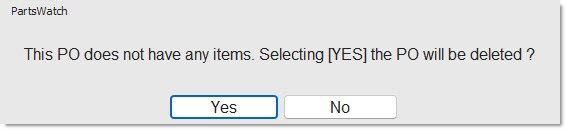
- Click the 'CLOSE' button when done. If no parts have been added, clicking the 'CLOSE' button prompts that the order will be deleted.
To import parts to the order:
Click the drop-down and select the type of file to be imported:
- 'MS EXCEL' (default) Both Excel file format types (e.g., XLSX and XLS) are supported.
- 'CSV'
- 'Text (comma)'
- 'Text (tab)'
- 'Text (pipe)'
- 'Text (Tilde)'
A fixed file layout is supported, therefore, columns do not need to be mapped.
The fixed layout contains the following six columns in the specified order:
- Mandatory columns: LOC (store number), Line Code and Part Number.
- Mandatory column: Order Quantity (for a PO) or Return Quantity (for an RO).
- Optional columns: Part Cost, Core Cost.
Determines whether or not the file has column headers.
- Checked - The first row is skipped when parts are imported, as it is the column header.
- Unchecked (default) - Column headers are not present, and therefore are not the first row, and furthermore not skipped.
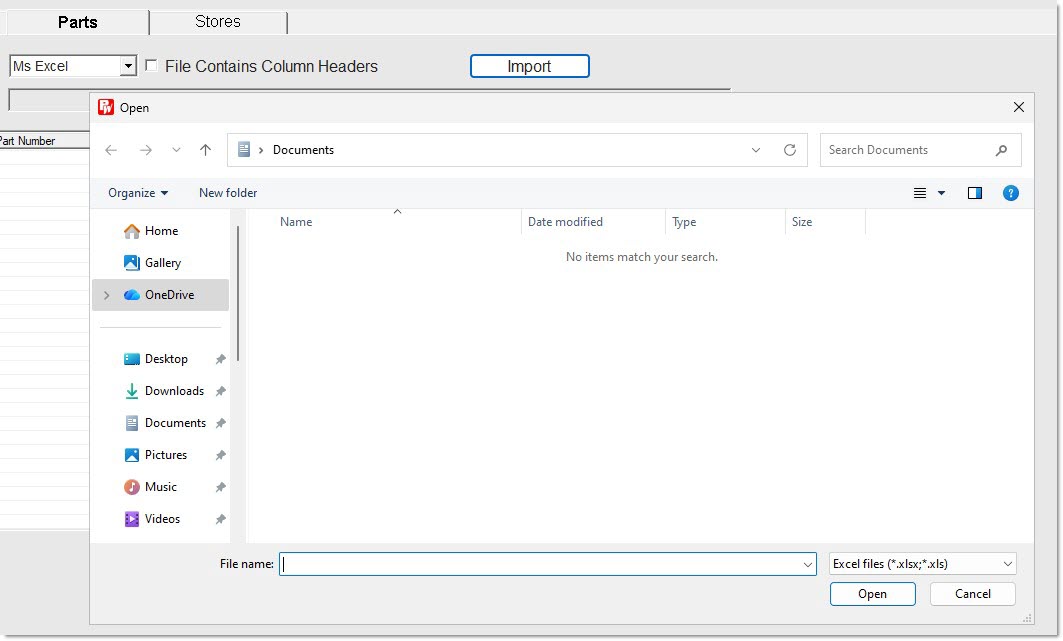
Click the 'Import' button and a pop-up opens to find and select a file located on the PC.
Note: The pop-up is a standard Windows OS dialogue pop-up to find and select a file.
Import Rules

A limited number of rows can be imported. When the limit is exceeded, the import stops and a pop-up opens stating "The file being imported has <FileRowCount> rows. This exceeds the limit for the number of rows allowed; which is currently set at <MaxRowCount>. Please remove rows and try again.".
To delete a row from the grid, highlight the row and click the 'Delete' button at the bottom of the grid.
To clear all rows from the grid, click the 'Clear' button and all rows will be permanently removed from the grid. 'FILE NAME' is also cleared.
To create the order, click the 'Order' button and:
-
If the text at the bottom of the grid is "Error parts: <N>", and <N> is greater than zero, then an error message displays stating "There are <N> parts with errors. The PO will only contain parts with no errors. Do you wish to continue?"
-
If 'NO' is clicked, the focus returns to the 'PARTS' tab.
-
If 'YES' is clicked, the created 'WRITE-IN PO' displays on the PURCHASE ORDER detail screen.
-
-
If the text at the bottom of the grid is "Error parts: 0", then the created 'WRITE-IN PO' displays on the PURCHASE ORDER detail screen.