Stores Tab
The 'Stores' tab defines the stores that will be included in a multi-store order, for 'Order Methods' that support multi-store orders.
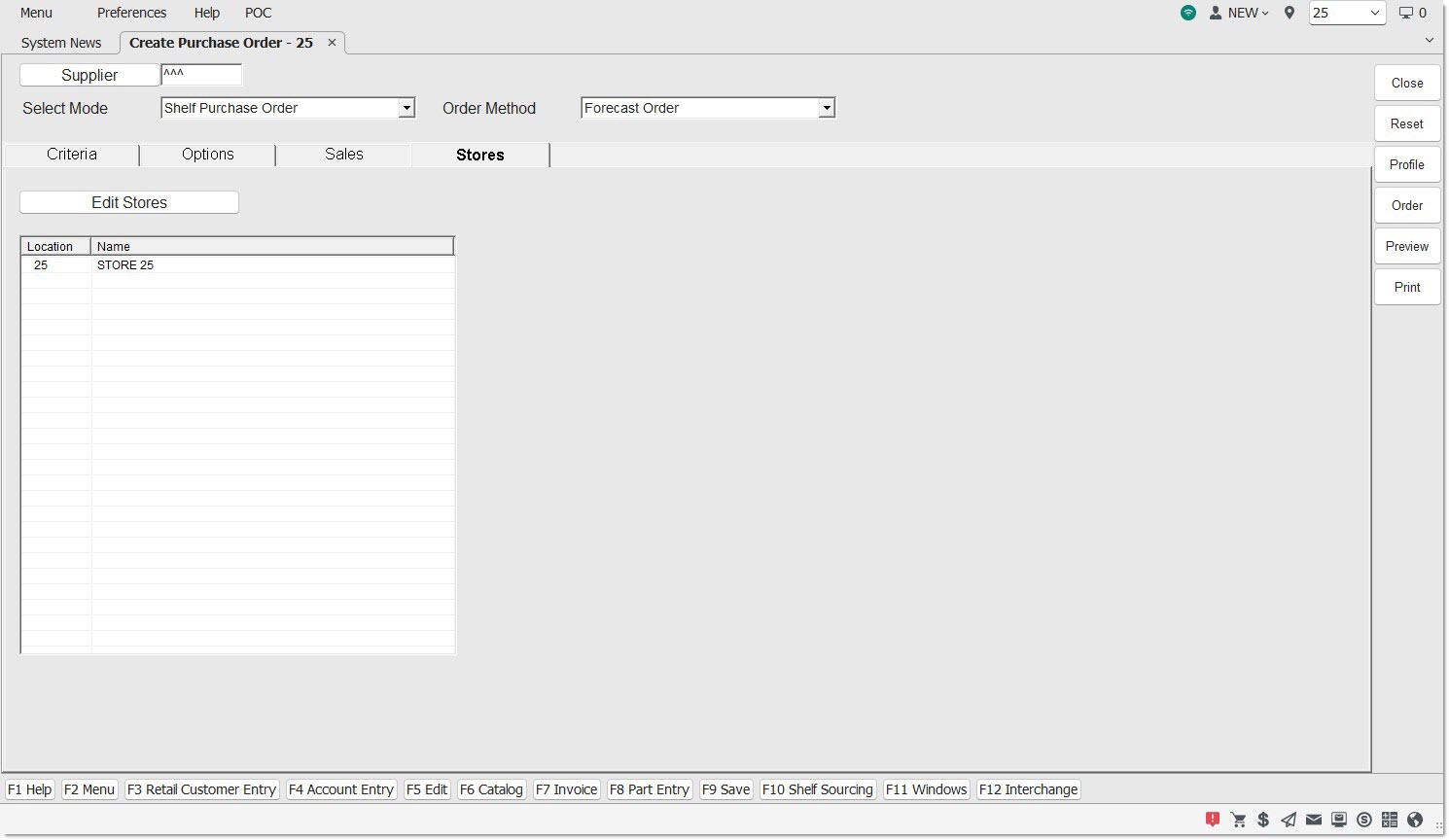
The current store displays in the grid as a default and cannot be removed.
Edit Stores Button
Click the button to open the multi-select 'BROWSE LOCATIONS' window to select one, multiple, or all locations.
The EMPLOYEE SECURITY SETUP screen determines which stores are available for selection.
Once selected, the 'Locations' display in the grid and are included in the order.
The 'Stores' tab is available for the following 'Order Methods':
Shelf Purchase Order:
- 'Order to Max'
- 'Order to Min'
- 'Order Min to Max'
- 'Order Average Min Max'
- 'Order to Order Point'
- 'Forecast Order'
- 'Stock Forecast Mix Order'
- 'ASPM Order'
- 'Stock ASPM Mix Order'
- 'Day Sales Order'
- 'Replenishment Order'
- 'Write-In Order'
- 'Customer Backorders Only'
- 'Negative Stock Only'
Stock Adjustment Purchase Order:
- 'Order to Max'
- 'Order to Min'
- 'Order Min to Max'
- 'Order Average Min Max'
- 'Order to Order Point'
- 'Forecast Order'
- 'Stock Forecast Mix Order'
- 'Day Sales Order'
- 'Replenishment Order'
- 'Write-In Order'
Multi-Store Order Options
-
The 'Multistore PO Type' parameter on the 'Options' tab determines the type of multi-store order that will be created. The option is enabled when more than one location is selected on the 'Stores' tab.
-
If the type of multi-store order is set up in the store-level 'MULTISTORE PO TYPE' control, or the override in the supplier-level 'MULTISTORE PO TYPE' control, the ORDER CREATE screen's 'Options' tab defaults to 'Default' to use the setup value.
-
Click the 'Multistore PO Type' drop-down in the Override field on the 'Options' tab and change the value as needed:
-
'Consolidated'
-
'Distributed'
-
The store-level 'IGNORE OVERSTOCK ON CONSOLIDATED ORDERS' setting determines, by store, whether overstock in that store reduces the total order quantity of a consolidated order.
- Checked - The system ignores overstocks when calculating quantities for multi-store orders. When calculating quantities for a multi-store consolidated order that includes that store, overstock in that store does not reduce the total order quantity of an order.
- Unchecked - The system considers the overstocks when calculating quantities for a multi-store consolidated order for that store. Overstock in that store does reduce the total order quantity.