Kit Sales Report
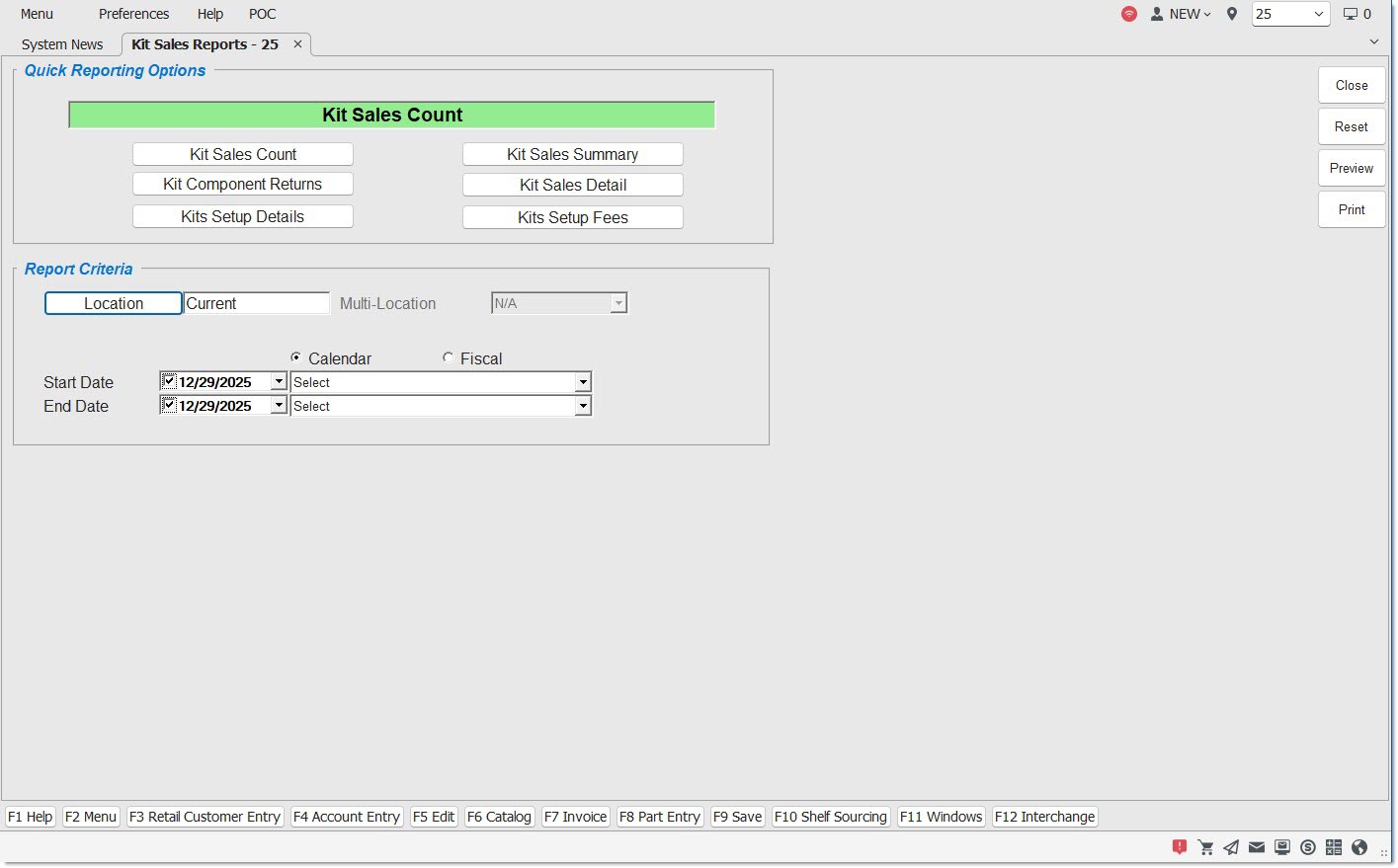
The four sales reports on the Kit Sales Reports screen provide the ability to view a count of kit sales, kit sales totals, kit sales details, and a kit component part return total, for all kits sold within a reporting period within a store location or across all store locations.
Menu Path: Menu, Reports, Financial, Kit Sales Reports, Kit Sales Reports screen
Kits Overview - 4 pages
Kits Training Packet - 2 pages
Quick Reporting Options
Kit Sales Count
Run the 'Kit Sales Count' report, which displays the number kits sold within the specified date range for the location.
Kit Sales Summary
Run the 'Kit Sales Summary' report, which displays the total amount of all extended sell prices for all kits sold within the specified date range for that location.
Kit Sales Detail
Run the 'Kit Sales Detail' report, which displays the total amount of all extended sell prices for all kits sold within the specified date range for that location. Then, breaks down the kits into components and displays further information about the kit breakdown.
Kit Component Returns
Run the 'Kit Component Returns' report, which displays an aggregation of the extended sell price for the component part returned within the specified date range for that location. Reports all component returns in the store that transacted the return regardless of the store that transacted the sale.
Kits Setup Details
Run the 'Kit Setup Details' report, which displays all setup information for all kits.
Report Criteria
Location
Indicates the store location of the reporting. Defaults to the location currently logged into. Click the button to display the 'Browse Locations' window to select location. Allows for multi-location selection based on User Security permission.
Can be run for multiple stores, with a default value of printing the reports consecutively ('Consecutive'). Select 'Summary' instead to get an aggregate report.
Not available for the 'Kit Sales Detail Report'.
Start Date
Specifies the start date and time to report data by a range of accounts. Click the small down arrow to display a calendar. Click the desired date to select. Use the small left and right arrows to display previous/next months. Transactions created or submitted within the date range display. Enter a check mark in the field to report sales for a certain period. Displays all transactions, when unchecked. Defaults to current date.
Automatically populates with the appropriate date when a 'Calendar' or 'Fiscal' option is selected.
When saving as a profile, using the relative date option is recommended rather than selecting dates from the pop-up calendar. If the profile is saved with a fixed date range, then whenever the report is run using the saved profile, the report's output always contains the same information for that fixed date range only. If the profile is saved with a relative date range, the dates are adjusted based on when the report is run.
End Date
Specifies the end date and time to report data by a range of accounts. Click the small down arrow to display a calendar. Click the desired date to select. Use the small left and right arrows to display previous/next months. Transactions created or submitted within the date range display. Enter a check mark in the field to report transactions for a certain period. Displays all transactions, when unchecked. Defaults to current date.
Automatically populates with the appropriate date when a 'Calendar' or 'Fiscal' option is selected.
When saving as a profile, using the relative date option is recommended rather than selecting dates from the pop-up calendar. If the profile is saved with a fixed date range, then whenever the report is run using the saved profile, the report's output always contains the same information for that fixed date range only. If the profile is saved with a relative date range, the dates are adjusted based on when the report is run.
Calendar
Uses Relative Calendar dates, when selected. Works in conjunction with the 'Start Date' and 'End Date' fields.
Fiscal
Uses Relative Fiscal dates, when selected. Works in conjunction with the 'Start Date' and 'End Date' fields.
Note: Fiscal Periods refer to the most recently completed (closed) instance.
Kit Sales Count Report
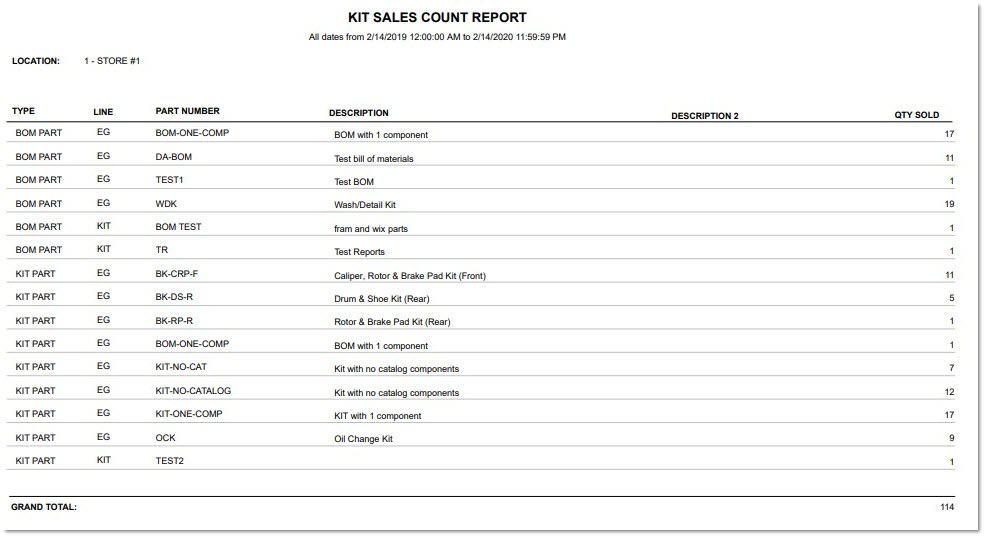
Displays the number kits sold within the specified date range for the location.

Type
Displays the kit type, either 'BOM' or 'Kit'.
Line
Displays the line for the kit.
Part Number
Displays the part number for the kit.
Description
Displays the primary description for the kit.
Description 2
Displays the secondary description for the kit.
Qty Sold
Displays an aggregation of the quantity of kits sold within the specified date range for that location).
Kit Sales Summary Report
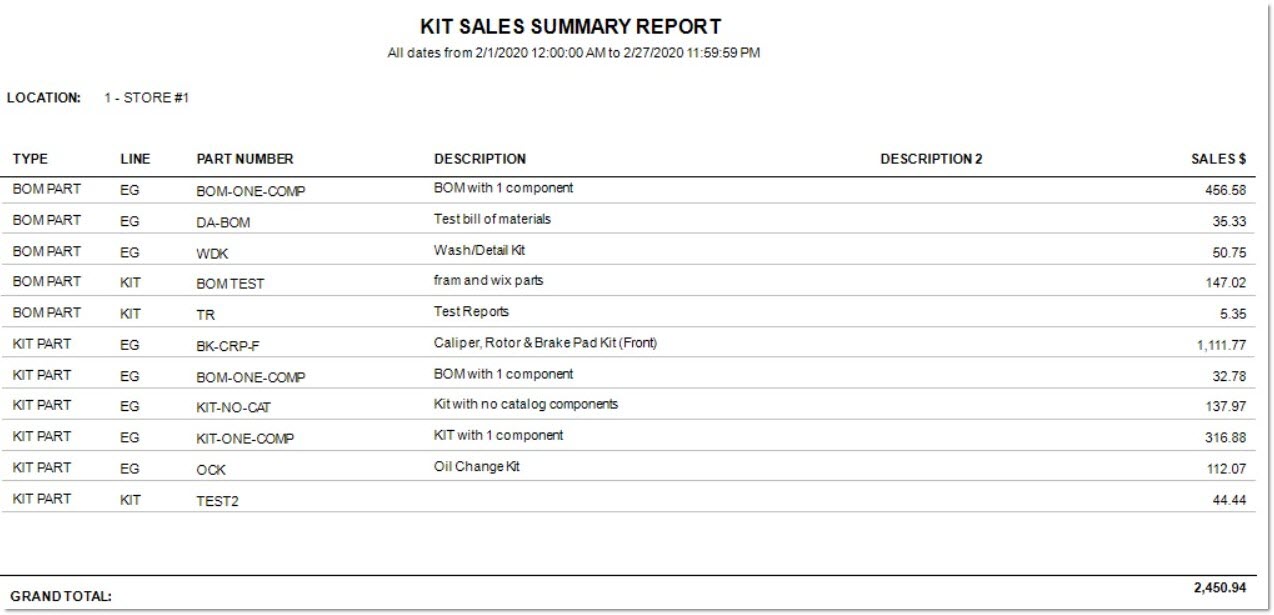
Displays the total amount of all extended sell prices for all kits sold within the specified date range for that location.
Type
Displays the kit type, either 'BOM' or 'Kit'.
Line
Displays the line for the kit.
Part Number
Displays the part number for the kit.
Description
Displays the primary description for the kit.
Description 2
Displays the secondary description for the kit.
Sales $
Displays an aggregation of the total amount of all extended sell prices for all kits sold within the specified date range for that location.
Kit Sales Detail Report
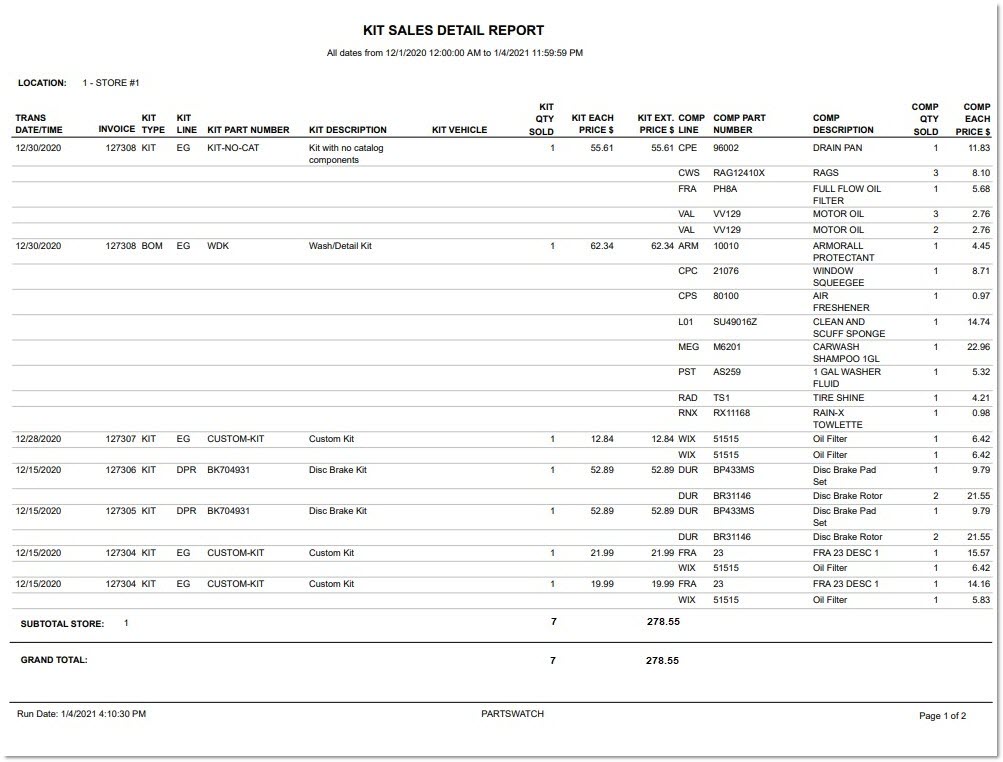
Displays the total amount of all extended sell prices for all kits sold within the specified date range for that location. Then, breaks down the kits into components and displays further information about the kit breakdown.
Trans Date/Time
Displays the date and time the kit was sold.
Invoice
Displays the invoice Ref # that the kit was sold on.
Kit Type
Displays the kit type, either 'BOM' or 'Kit'.
Kit Line
Displays the line for the kit.
Kit Part Number
Displays the part number for the kit.
Kit Description
Displays the primary description for the kit.
Kit Vehicle
Displays the vehicle that is associated with the kit.
The 'Kit Vehicle' may be blank for many kits sold as this value is only populated when the kit is sold from the Catalog screen (using ACES, Epicor, or TecAlliance catalog data).
Kit Qty Sold
The aggregate quantity of all kits with this line and part number combination sold at Point-of-Sale.
Kit Each Price $
The aggregate price of all component parts that make up this kit, at the time sold at Point-of-Sale.
Kit Ext. Price $
Displays the result of the 'Kit Qty Sold $' multiplied by the 'Kit Each Price $'.
Comp Line
Displays the component part's line within the kit.
Comp Part Number
Displays the component part's part number within the kit.
Comp Description
Displays the component part's description 1 value within the kit.
Comp Qty Sold
Displays the aggregate quantity of all component parts with this line and part number combination, in this kit, sold at Point-of-Sale.
Comp Each Price $
Displays the price of each component part with this line and part number combination, in this kit, sold at Point-of-Sale.
Kit Component Returns Report
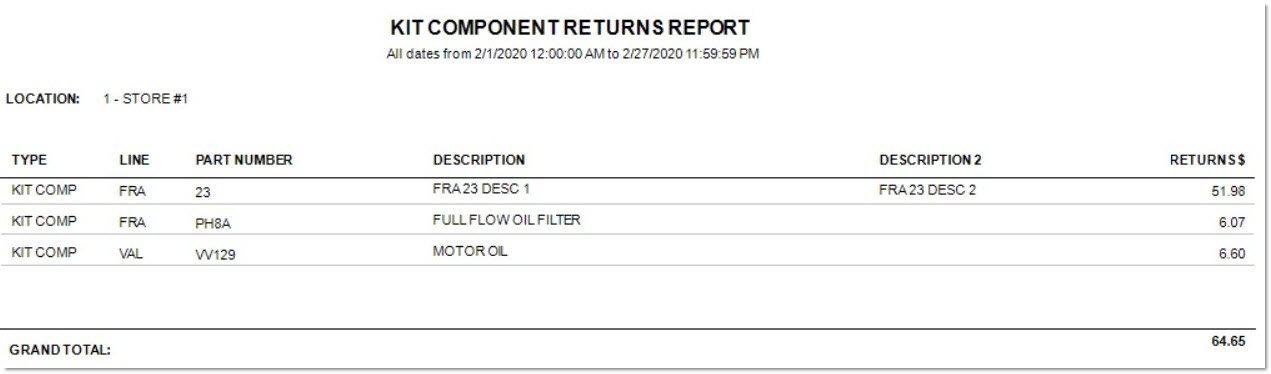
Displays an aggregation of the extended sell price for the component part returned within the specified date range for that location. Reports all component returns in the store that transacted the return regardless of the store that transacted the sale.
Type
Displays the kit type, either 'BOM' or 'Kit'.
Line
Displays the line for the kit.
Part Number
Displays the part number for the kit.
Description
Displays the primary description for the kit.
Description 2
Displays the secondary description for the kit.
Returns $
Displays an aggregation of the extended sell price for the component part returned within the specified date range for that location.
Kit Setup Details Report
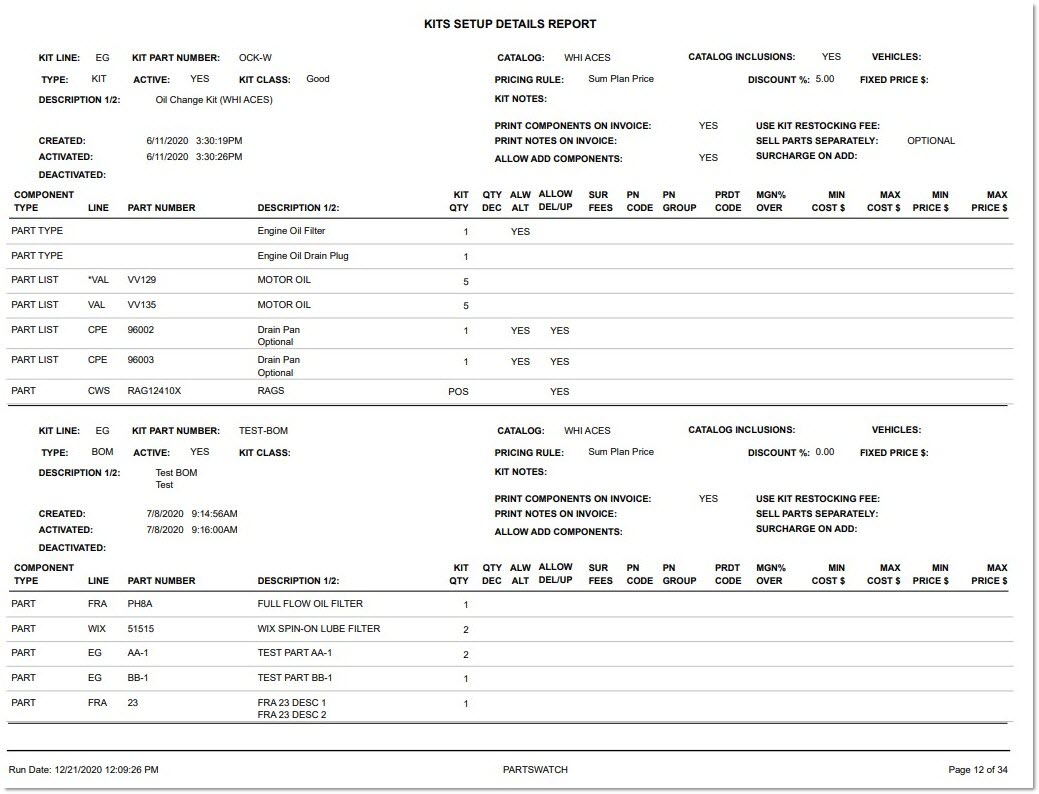
Reports all setup information for kits.
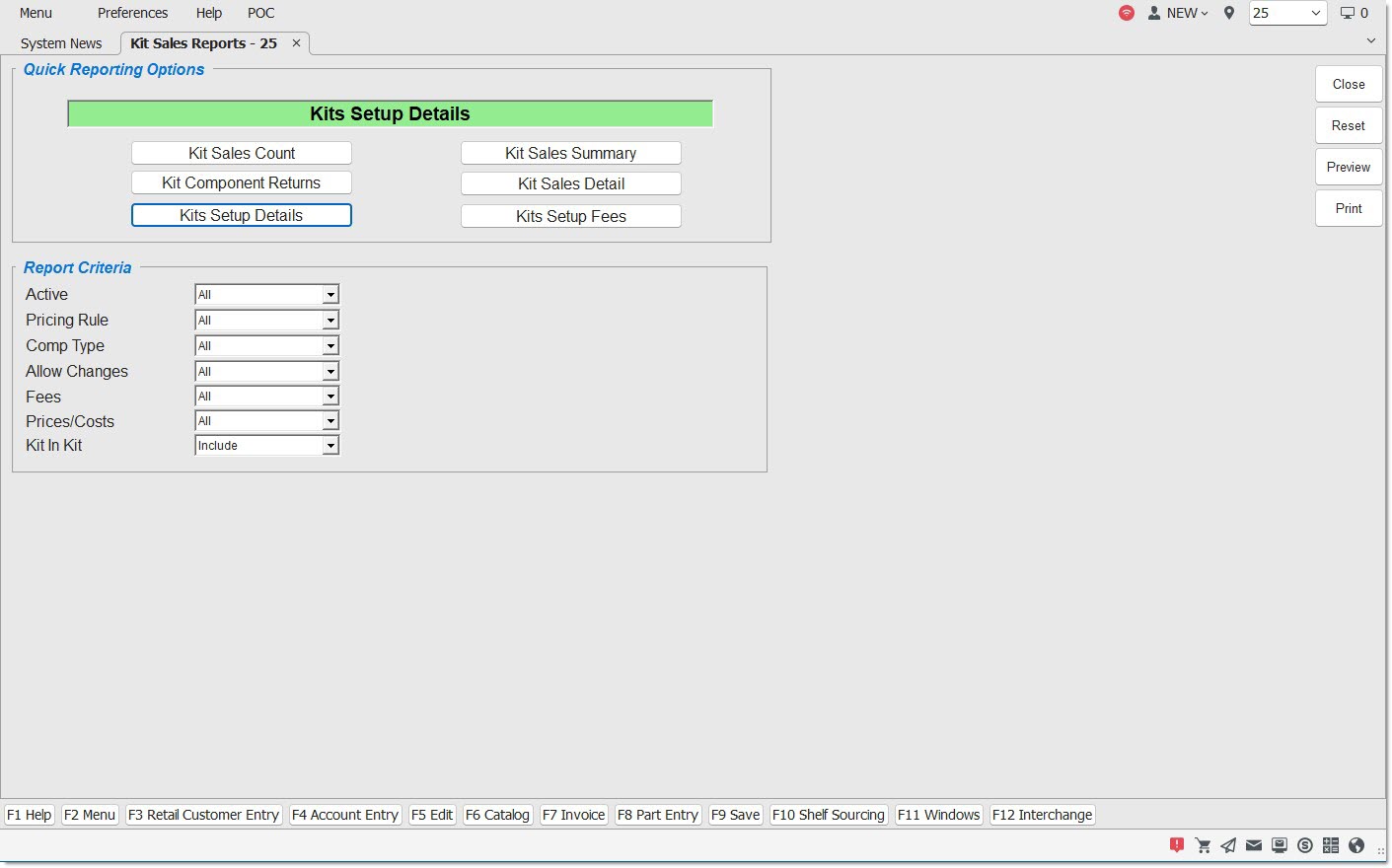
The following 'Report Criteria' section displays when the user selects the 'Kits Setup Details' 'Quick Reporting Option'.
Active
Filter the kits report by the Active status of the kit, 'WIP', 'Test', 'Yes', or 'No'. A selection of 'All' will report all 'Active' status conditions.
Pricing Rule
Filter the kits report by the pricing rule, with values of 'Sum Plan Price', 'Sum Cost', 'Sum Sales Class Margins', 'Kit Fixed Price', and 'Kit Plan Price'. Display only those kits in the output that have a matching 'Pricing Rule' value. A selection of All will report all pricing rules.
Comp Type
Filter the kits report by the component type, with values of 'Part', 'Part List', 'Part Choice', and 'Part Type'. Display only those kit components within only those kits where the kit components in the output have a matching 'Comp Type' value. Do not display the kit components that do not have a matching 'Comp Type' value. A selection of 'All' will report all component types.
Allow Changes
Filter the kits report by the possible changes allowed to be made to the kit, with values of 'Alternates', 'Supersedes', 'VCO', 'Delete', and 'Upgrade'. Display only those kit components within only those kits where the kit components in the output have a matching 'Allows Changes' value. Do not display the kit components that do not have a matching 'Allow Changes' value. A selection of 'All' will report all change types.
Fees
Filter the kits report by possible fees added to the kit, with values of 'Delete', 'Upgrade', 'Restock', and 'Assembly'. When 'Fees' is set to 'Restock', display only those kits in the output that have a matching 'Fees' value (a restocking fee set up on the 'Kit Fees' tab of the Kit Setup screen). When 'Fees' is set to 'Assembly', display only those kits in the output that have a matching 'Fees' value (an assembly fee set up on the 'Kit Fees' tab of the Kit Setup screen). When 'Fees' is set to 'Delete' or 'Upgrade', display only those kit components within only those kits where the kit components in the output that have a matching 'Fees' value. Do not display the kit components that do not have a matching 'Fees' value. A selection of 'All' will report all fee types.
Price/Costs
Filter the kits report by pricing threshold setups, with values of 'Min Cost', 'Max Cost', 'Min Price', and 'Max Price'. Display only those kit components within only those kits where the kit components in the output have a matching 'Prices/Costs' value. Do not display the kit components that do not have matching 'Prices/Costs' value. A selection of 'All' will report all pricing threshold types.
Kit in Kit
Drop-down that allows the ability to display or hide components based on the kit components being within another kit:
- 'Include' (default) - The application displays all kit components.
- 'Exclude' - The application only displays those kit components within only those kits where the kit components in the output do not have a 'Subtype' of 'Kit'.
- 'Only' - The application only displays those kit components within only those kits where the kit components in the output have a 'Subtype' of 'Kit'.