Alternate/Supersede Report
The Alternate/Supersede screen is used to generate the 'Alternate/Supersede Report' that is used to track parts that have alternate parts, substitution parts, associated parts, vendor changeover parts, and/or supersede parts.
Menu Path: Reports, Inventory, Alternate/Supersede Report, Alternate/Supersede Report screen.
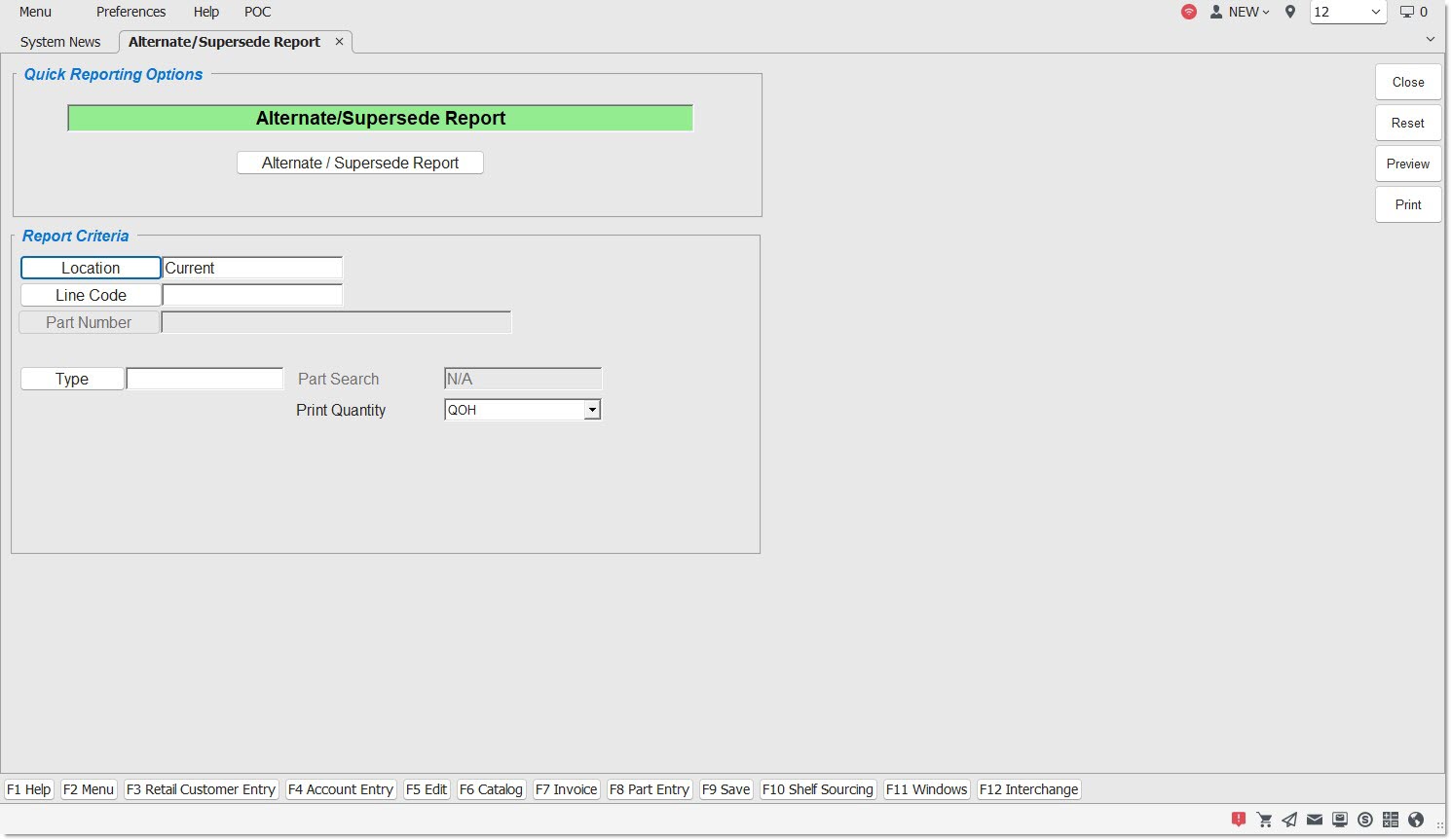
Report Criteria
Location
Filters by the store location. Defaults to the current store. Click the button to display the 'Browse Locations' window to select location.
Line Code
Multi-select field that allows for the selection of Line Codes for reporting purposes.
Start Part No
Specifies the Start Part Number to report data for a range of part numbers within a specific line. Click the button to display the 'Find Part' window to search for a specific part number.
End Part No
Specifies the End Part Number to report data for a range of part numbers within a specific line. Click the button to display the 'Find Part' window to search for a specific part number.
Type
Window to multi-select part association types. Defaults to all.
Click the 'Type' button, and a pop-up will display with the option to choose the following types:
-
'Alternate'
-
'Association'
-
'Substitution'
-
'Supersede'
-
'Vendor Changeover'
Part Search
A drop-down field that allows the user to select from these options:
-
'Original' - Reports by the original part.
-
'Replacement' - Reports by a replacement part.
This field is unavailable until a 'Line Code' is selected.
Print Quantity
A drop-down field that allows the user to select from these options:
-
'QOH' - The report will output the quantity available value from the part table.
-
'Qty Available' - The report will output the reserve quantity value from the part table.
-
'None' - The 'QOH' column will be blank in order to allow a blind inventory count.
The field defaults to 'QOH'.
Alternate / Supersede Report
Click 'Print' or 'Preview' to print the report to the default report printer or view it on the screen.
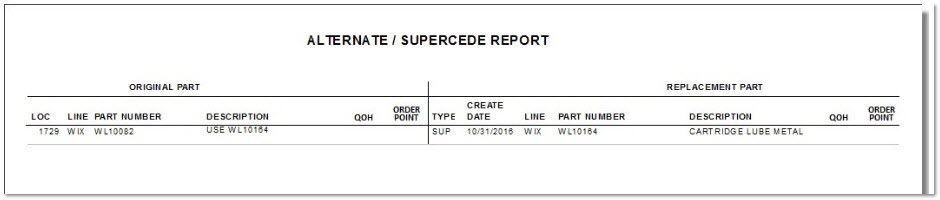
The following is an example of the 'Alternate/Supersede Report':
Note: The last column reported for both the 'Original Part' and the 'Replacement Part' is determined by a setting on the Stocking Level Update screen.