LISA Part Ranking Report
The LISA (Line Item Sales Analysis) Part Ranking Report summarizes sales, not individual transactions, to highlight top-performing and under-performing parts. The report includes part sales only; core sales are not reported. The report displays part ranking by account and by part number and can be run for both single stores and multiple stores.
Menu Path: Reports, LISA Part Ranking, LISA Part Ranking Report screen

Report Criteria
Location
Filters by the selected store location. Defaults to current location. Click the button to display the 'Browse Locations' window to search available store locations. Displays the word 'Multiple' when multiple locations are selected.
Account
Filters by an account number. Leave blank to filter by all accounts. Click the button to display the 'Find Account' window to search for a specific account. Displays the word 'Multiple' when multiple accounts are selected.
Line Code
Filters by a line code. Click the button to display 'Browse Line Codes' window. Displays the word 'Multiple' when multiple line codes are selected.
P/N Code
Filters by a predefined P/N Code per Line Code assigned to parts at report run time. Click the button to display the 'Browse P/N Codes' window to search for a specific P/N Code per Line Code. Displays the word 'Multiple' when multiple P/N Codes are selected.
Start Part No
Specifies the Start Part Number to report data for a range of part numbers within a specific line. When only one match is found for the entered part number, the part number is loaded. When multiple matches are found, the 'Find Part' window displays with all matches. Click the button to display the 'Find Part' window to search for a specific part number. This field is enabled only when one 'Line Code' is selected. When no 'Line Code' or multiple are selected, the 'Start Part No' field is disabled.
When the 'Customer Lookup Stripped Match' flag is checked in the System General Setup screen, only letters and numbers are searched; spaces, special characters and punctuation are "stripped-out" of the search and ignored.
End Part No
Specifies the End Part Number to report data for a range of part numbers within a specific line. When only one match is found for the entered part number, the part number is loaded. When multiple matches are found, the 'Find Part' window displays with all matches. Click the button to display the 'Find Part' window to search for a specific part number. This field is enabled only when one 'Line Code' is selected. When no 'Line Code' or multiple are selected, the 'End Part No' field is disabled.
When the 'Customer Lookup Stripped Match' flag is checked in the System General Setup screen, only letters and numbers are searched; spaces, special characters and punctuation are "stripped-out" of the search and ignored.
Employee
Filters by the parts from invoices created by a specific employee. Click the button to display the 'Browse Employees' window to search for a specific employee.
Start Date
Indicates the start date for the search for reporting purposes. Click the small down arrow to display a calendar. Click the desired date to select. Use the small left and right arrows to display previous/next months. Transactions created or submitted within the date range display. Enter a check mark in the field to report sales for a certain period. Displays all transactions, when unchecked. Defaults to current date.
Automatically populates with the appropriate date when a 'Calendar' or 'Fiscal' option is selected.
When saving as a profile, using the relative date option is recommended rather than selecting dates from the pop-up calendar. If the profile is saved with a fixed date range, then whenever the report is run using the saved profile, the report's output always contains the same information for that fixed date range only. If the profile is saved with a relative date range, the dates are adjusted based on when the report is run.
End Date
Indicates the end date for the search for reporting purposes. Click the small down arrow to display a calendar. Click the desired date to select. Use the small left and right arrows to display previous/next months. Transactions created or submitted within the date range display. Enter a check mark in the field to report transactions for a certain period. Displays all transactions, when unchecked. Defaults to current date.
Automatically populates with the appropriate date when a 'Calendar' or 'Fiscal' option is selected.
When saving as a profile, using the relative date option is recommended rather than selecting dates from the pop-up calendar. If the profile is saved with a fixed date range, then whenever the report is run using the saved profile, the report's output always contains the same information for that fixed date range only. If the profile is saved with a relative date range, the dates are adjusted based on when the report is run.
Calendar
Uses Relative Calendar dates, when selected. Works in conjunction with the 'Start Date' and 'End Date' fields.
Fiscal
Uses Relative Fiscal dates, when selected. Works in conjunction with the 'Start Date' and 'End Date' fields.
Note: Fiscal Periods refer to the most recently completed (closed) instance.
Account Report Group
Filters by an account Report Group code.
Account Type
Filters accounts by a specific Account Type, or a combination of Account Types.
Options are displayed in the window below:
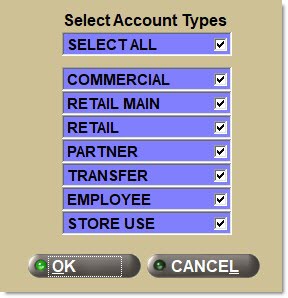
Use the checkboxes on the right of the Account Types to select one, multiple, or all Account Types. The options are:
-
'Select All' (Default)
-
'Commercial'
-
'Retail Main'
-
'Retail Customer'
-
'Partner'
-
'Transfer'
-
'Employee'
-
'Store Use'
Click the 'Cancel' button and the window closes, and the screen is returned without the display text changing.
Click the 'Ok' button and the application either displays the single selected 'Account Type', or the text 'Multiple' or 'All'.
Report Row Limit
Filters by the maximum number of rows that display in the report per each account. For example, a search matches 30 results for an account but the user entered 10 in this field, only the first 10 results for each account display in the report.
Rank By
Filters by the ranking order by the number of sales units or total sales dollars for a part.
Options are:
-
'Quantity' (Default)
-
'Sales $'
Sort Order
Sorts the report in 'Ascending' (lowest to highest) or 'Descending' (highest to lowest) order of Unit Sales based on the totaled and combined sales of a part for the selected parameters.
Source Type
Filters by where parts sold at Point-of-Sale were sourced from.
Options are:
-
'Select' (Default) - Reports all sources including MFG/Line Codes being used as a supplier.
-
'All' - Indicates both 'Company' and 'Supplier'.
-
'Supplier' - Indicates parts sourced from any vendor supplier.
-
'Company' - Indicates parts sourced from any company (sister) store.
Displays in the header of the report, when selected.
Source ID
Filters by the actual source. Click the button to display the 'Select Sources' window to select a unique source identifier. Select one, several or all 'Source IDs' that identify company store(s) and/or vendor supplier(s).
To display parts sourced directly from the MFG/Line, click the 'Line Code' button to select a Line Code from the 'Browse Line Codes' window, leave 'Source Type' as 'Select' and 'Source ID' blank.
Displays in the header of the report, when selected.
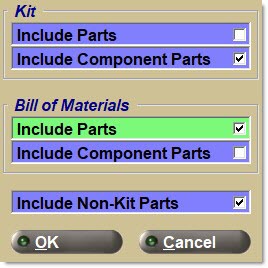
Kit
- 'Include Parts' - Includes KITs set up as a single part in the report.
- 'Include Component Parts' - Includes the individual parts within a KIT to be reported.
Bill of Materials
- 'Include Parts' - Includes BOMs set up as a single part in the report.
- 'Include Component Parts' - Includes the individual parts within a BOM to be reported.
- 'Include Non-Kit Parts' - Includes non-kit parts in with the BOM parts in the report.
Detail
Displays the report with details.
Summary
Displays the report with are totaled and combined totals.
Line Type
Filters by the line type, as set in the 'Type' field in the Line Code Entry screen.
Click the button to display the 'Lines Types' pop-up used to selected specific line type(s).
Options are:
-
'Freight'
-
'Gift Cards'
-
'Labor'
-
'Parts'
Include any 'Line Type' by checking the checkbox(es). Check the checkbox in the header to report all line types. Uncheck the checkbox in the header to deselect all line types.
-
When all are checked, 'All' displays in the 'Line Type' field.
-
When more than one but less than all types are checked, 'Multiple' displays in the 'Line Type' field.
-
When only a single type is checked, that Line Type displays in the 'Line Type' field.
Note: Reports both gift cards and merchandise cards when 'Gift Cards' is selected.
Internet Sales
Determines whether Internet sales are reported.
Options are:
-
'Include' - Reports Internet sales and store sales.
-
'Exclude' - Does not report Internet sales.
-
'Only' - Only reports Internet sales.
Fulfillment
Determines whether fulfillment orders are reported.
Options are:
-
'Include' - Reports fulfillment orders.
-
'Exclude' - Does not report fulfillment orders.
-
'Only' - Only reports fulfillment orders.
Non-Stocked
Determines whether non-stocked parts are reported.
Options are:
-
'Include' - Reports sales and inventory values for non-stocked parts and stocked parts.
-
'Exclude' - Does not report sales and inventory values for non-stocked parts.
-
'Only' - Only reports sales and inventory values for non-stocked parts.
Report Type
Determines whether the Sales Transactions or Inventory Levels are reported.
Options are:
-
'Sales Tran' - Reports the Sales Transactions. When selected, 'Total Trans', 'Days Between', and 'Net Sales $'display in the preview and printed report. (Default)
-
'Inv Levels' - Reports the Inventory Levels. When selected, 'Min', 'Max', and 'Order Point' display in the preview and printed report.
LISA Part Ranking Report
When the report is for a single account, the 'Account' field in the header displays the account number. The field displays all selected account numbers when the report is for multiple accounts. For multi-store reporting, 'All' displays in the field.
The following is an example of the 'LISA Part Ranking Report' with the 'Report Type' field set to 'Sales Trans'.


The following is an example of the 'LISA Part Ranking Report' with the 'Report Type' field set to 'Inv Levels':

Kits
-
As a default, only the quantities sold and extended sell prices for BOM parts and KIT component parts are included and displayed, and exclude BOM components and KIT parts.
-
To view:
-
KIT component part sales mixed with "Non-Kit" regular part sales, the second and fifth checkboxes should be selected (the default).
-
BOM component part sales mixed with regular part sales, the fourth and fifth checkboxes should be selected.
-
KIT and BOM component part sales mixed with regular part sales, the second, fourth, and fifth checkboxes should be selected.
-
KIT and BOM part sales only, the first and third checkboxes should be selected.
-
It is not possible to check the first and second checkboxes, or the third and fourth checkboxes, because it is not possible to view the mixing of Kit part sales and Kit component part sales together on the same screen or report. Note: This avoids the risk of "double counting the sales figures".
-
If all five checkboxes are unchecked and the 'Ok' button is clicked, a prompt displays with an 'Ok' button indicating to choose at least one selection.
-
If the 'Cancel' button is clicked, do not save any of the changes made and return to the report screen.
-
Note: When the 'Preview' or 'Print' output of either report is being viewed if either or both of 'Include Component Part Sales' (second and/or fourth checkboxes) with Non-Kit Part Sales (fifth checkbox) were chosen, it is not possible to differentiate between a part sold as a component in a KIT or BOM and sold separately outside the KIT or BOM. However, it is possible to view the difference when the 'Display' output option is selected.
-
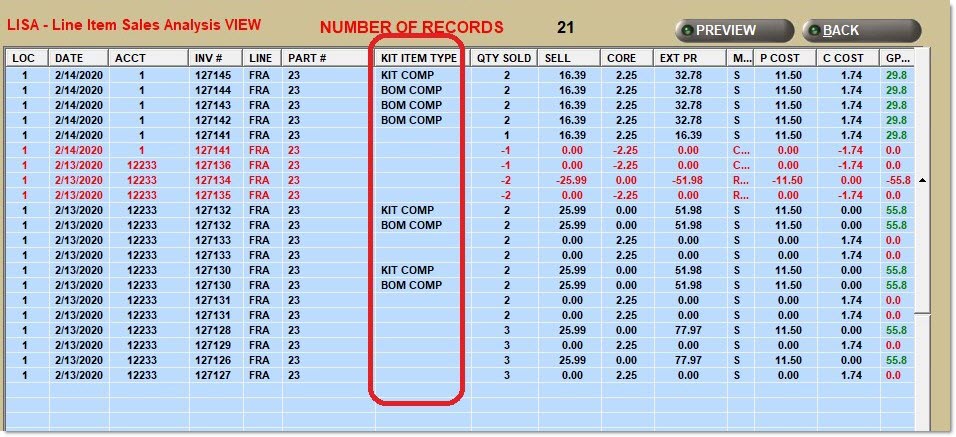
A new column has been added to the 'Columns Displayed' list called 'Kit Item Type'. This column will display four possible values of 'Kit Part', 'Kit Comp', 'BOM Part', and 'BOM Comp' for KIT Part, KIT Component, BOM Part, and BOM Component.
-
When the new column is checked and the 'Display' button is clicked, the application uses sorting rules to display all values of 'Kit Part', 'Kit Comp', 'BOM Part', and 'BOM Comp' mixed with or without other non-kit parts.
-
When the application is displaying Kit Part Sales in the LISA Transaction Report, and the 'Display' button is clicked, if there are multiple parts with cores for a kit sale of one, the application displays a value of one for the 'Total Core Qty' at the bottom of the screen.
-
When KIT parts or components are displayed or exported, the 'Disc Type' value displayed is either "KT" or existing discount values.
-
The following Rules define what value of 'Disc Type' will be displayed:
-
Kit Part
-
The application displays KT for the pricing rules Sum Plan Price, Sum Cost, Sum Sales Class Margins, and Kit Fixed Price.
-
The application displays an existing value of ND, MF, SD, or CP for the pricing rule Kit Plan Price, display one of the existing values; ND, MF, SD, or CP.
-
-
Kit Component
-
For the pricing rules Sum Plan Price, Sum Cost, and Sum Sales Class Margins:
-
The application displays KT if the component Sell Price and Plan Price are different.
-
The application displays an existing value of ND, MF, SD, or CP if the component Sell Price and Plan Price are the same, display one of the existing values.
-
-
For the pricing rules Kit Fixed Price and Kit Plan Price:
-
The application displays KT if the sum of the component Plan Prices is different from the Kit Sell Price.
-
The application displays an existing value of ND, MF, SD, or CP if the sum of the component Plan Prices is the same as the Kit Sell Price.
-
-
-
-