Part Inquiry/Modify Bin
The Part Inquiry/Modify Bin option enables the user the viewing of specific information about a part number via the RF device.
Tap the 'Part Inquiry/Modify Bin' selection on the 'Main Menu' screen to display the 'Part Inquiry' screen.
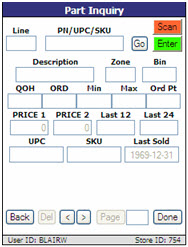
Indicates the line code.
Indicates the part number, universal product code, or stock keeping unit.
Tap 'Go' to search for the indicated 'PN/UPC/SKU'.
Tap to enter 'Scan' mode on the RF device, and scan a part. This will search for the part.
Tap to enter 'Enter' mode on the RF device, to manually search for parts via 'PN/UPC/SKU'.
Upon entry of a valid 'Line' and 'PN/UPC/SKU', the following part information is returned:
Indicates the zone location. This field is editable.
Indicates the bin location within the zone. This field is editable.
Indicates the total quantity on hand including reserved quantity. Available only if viewing on hand quantity is permitted by User Security permissions. If the 'RF PART QOH' User Security proc is set to 'VIEW ONLY', the quantity displays but cannot be edited. If the User Security proc is set to 'ALLOW EDIT', a button displays to allow the quantity to be edited from the RF device.
Indicates the total quantity on the order.
Indicates the minimum order quantity. This field is user-editable when the 'PART MIN/MAX/ORDER POINT' security proc is enabled in the USER SECURITY SETUP screen in the PartsWatch application.
Indicates the maximum order quantity. This field is user-editable when the 'PART MIN/MAX/ORDER POINT' security proc is enabled in the USER SECURITY SETUP screen in the PartsWatch application.
Indicates the order point value. This field is user-editable when the 'PART MIN/MAX/ORDER POINT' security proc is enabled in the USER SECURITY SETUP screen in the PartsWatch application.
Displays the description set up in the 'PRICE 1' field in the FIELD NAME SETUP screen in the PartsWatch application.
Displays the description set up in the 'PRICE 2' field in the FIELD NAME SETUP screen in the PartsWatch application.
Displays the value from 'Rolling 12' in the part file.
Displays the value from 'Rolling 24' in the part file.
Indicates the universal product code, if the part number has one attached.
Indicates the stock keeping unit number, if the part number has one attached.
Product
If the part has an associated product ('Alias' = 'P'), the value displays in this cell.
Displays the date the part was last sold.
Tap to return to the 'Main Menu' screen, if no values were changed. Displays the "Changes have not been saved, saved without saving?" prompt when values were adjusted.
Moves ahead and back sequentially in the part number listing when no values have been adjusted. Displays the "Changes have not been saved, continue without saving?" prompt when values have been adjusted. Tap 'OK' to proceed to the next or previous part number in sequence without saving. Tap 'Cancel' to remain on the current part to select 'Done', if applicable.
Indicates the page number of the current page. Enter a new page number and select the button to jump to that page.
Updates the adjusted values.
Saving Transactions
Save changes immediately upon entry on the RF device. If the connection to the server fails during receiving, only transactions posted to PartsWatch prior to the failure are saved. Data is not saved on the RF device.
Process Interruption
When a connection fails, the last few transactions processed on the RF device may not be saved due to a slight delay in the process of saving to PartsWatch. Check the transactions in PartsWatch to determine whether all transactions were posted and continue on the RF device after the last posted transaction.
When connectivity is interrupted during RF device operation, a message displays stating, "The webpage you requested is not available offline. To view this page, click Connect." Tap 'Connect' to try to reconnect and, if successful, the same screen displays. Tap 'Stay Offline' and the same screen displays without trying to reconnect.
When an RF device is turned off before connectivity is restored, the PO remains in an 'In Progress' status and is in a locked status in PartsWatch. Use the TABLE LOCK UTILITY screen in PartsWatch to clear/unlock the PO. PartsWatch alerts when unlocking a PO in the 'IN PROGRESS' or 'RECEIVING INCOMPLETE' (but not locked) status to ensure no other user within the store location is working on the PO. After unlocking a PO, ensure the last few items entered on the RF device were added to PartsWatch purchase order.