RF Overview
General Radio Frequency Device Overview
Generally, Radio Frequency devices are Personal Digital Assistants (PDA). A PDA is a remote, handheld device that operates through a keyboard or via touch screen using a stylus or finger touches. Generally, data is entered via an alphanumeric keyboard or via a scanner that is optionally integrated to the PDA. The PDA interacts with the PartsWatch Radio Frequency (RF) PDA application which is a Web-based application that runs through a Web browser.
Menu selections or operators are invoked via the screen by selecting or touching icons. Keyboard commands may also be available, in certain cases, as an alternate to using/touching the icons.
Multiple RF devices can receive in a store at the same time. However, multiple RF devices cannot enter/scan quantities on the same PO/ASN at the same time nor can multiple RF devices receive the same PO at the same time.
Multiple POs/ASNs can be selected at one time. The system prompts to chose a PO/ASN when a part is scanned and found on more than one of those POs or ASNs. If no prompt is wanted when parts are found on multiple POs/ASNs, then only one PO/ASN should be selected per PO at one time.
Receiving by entire PO can only be done if no ASNs have been applied to that PO. (This PO appears on the PO/ASN list without an ASN #.) By selecting the PO for receiving, the system is receiving only by PO. ASNs that may be transmitted later for that PO are discarded.
Note: The 'ASN SUPPLIED BY VENDOR' flag in the LINE CODE ORDER SPECIFICS screen or the SUPPLIER ORDER SPECIFICS screen, must be set in order for that vendor to use ASNs. Otherwise, any ASNs that are transmitted to PartsWatch for that vendor are rejected. All suppliers with this flag set are assumed to Save Backorders, therefore, the 'SAVE BACKORDERS' flag is unavailable.
RF Device Login
User login permissions control access to the RF device application and tracks actions performed. The following is an example of the 'Login' screen.
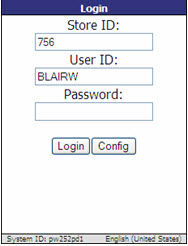
The 'Config' button is used to configure the website or system that the RF Device will to be connected to and configure the language that is to be used. On the 'Config' screen, enter the website or System information in the 'System ID' field and select the desired language in the 'Language' field.
To log in to the RF Device application, follow the steps below:
-
Power on the Rf Device. The desktop screen displays.
-
From the desktop, click the shortcut for the URL to the RF application, if one exists. Or, open a browser and enter the URL that has been provided by PartsWatch. The application is invoked and the RF Device is linked to the Web application and establishes connection. Note: When no connection to the Web site is made, the normal error codes that display in a browser when it cannot display a page or connect to a host displays.
-
Enter a store ID in the 'Store ID' field. Note: The RF Device application defaults to the 'Store ID' previously successfully logged into on the device. The 'Store ID' may be changed to another valid 'Store ID'. Note: The warning message, "Login failed", displays when an invalid 'Store ID', 'User ID', or 'Password' is entered.
-
Enter the user ID in the 'User ID' field. (This is typically the same ID used in PartsWatch.)
-
Enter the password in the 'Password' field. The RF Device links to the website and connection is established. When login is successful, the store number is stored locally on the device for the next login. The RF Device Main Menu displays.
RF Device Main Menu
Once properly logged in, the 'Main Menu' displays on the RF Device. Access to the 'Main Menu' functions is controlled by User Security. The following is an example of the 'Main Menu'.
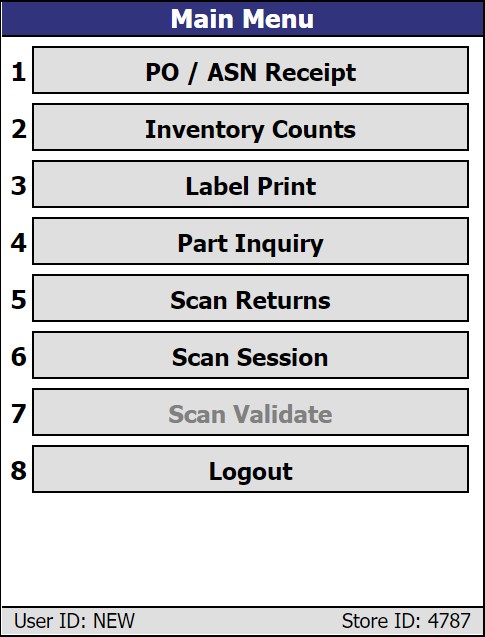
PO/ASN Receipt
Receives inventory on a PO/ASN or multiple POs/ASNs at one time that has been ordered via the PartsWatch purchasing module.
Inventory Counts
Captures and compares the counted inventory against the count that is maintained in the system. Generates an exception report that can be used to determine where there are discrepancies.
Hole Count
Captures those items that need attention based on a review of shelf inventory for later reporting.
Label Print
Indicates parts that need shelf labels printed.
Part Inquiry/Modify Bin
Recalls part information. Provides the capability to view information and make certain basic adjustments, such as Zone/Bin and Order Point.
Scan Session
Opens a 'Scan Session' screen to scan in multiple parts at once.
Scan Validate
Opens the 'Scan Session' screen in order to validate the scan sessions. Note: Only available when the 'SCAN VALIDATION' drop-down on the 'EXTENDED' tab of the STORE INVOICE OPTIONS screen is set to 'SESSION' or 'PERSISTENT'.
Log Out
Tap this to return to the 'Login' screen.
Note: If powered down, the unit returns to where it left off when powered back up.
The 'RF PART QTY' User Security proc, allows/disallows access to the store's stock quantity from all applicable RF Device screens when doing cycle counts or hole counts.
- When set to 'NOT VISIBLE', the stock 'QTY AVAILABLE' does not display and stock quantity cannot be entered.
- When set to 'VIEW ONLY', the 'QTY AVAILABLE' value displays but cannot be edited.
- When set to 'ALLOW EDIT', the 'QTY AVAILABLE' field value displays and can be edited in the Part Information screen only.
The 'PART MIN/MAX/ORDER POINT' User Security proc, allows/disallows access to the store's Min, Max, and Order Point from all applicable screens on the RF Device.
- When set to 'NOT VISIBLE', the 'MIN', 'MAX', and 'ORDER POINT' field values do not display and a 'MIN' and 'MAX' value cannot be entered even if existing values are blank.
- When set to 'VIEW ONLY', the 'MIN', 'MAX', and 'ORDER POINT' field values display but cannot be edited.
- When set to 'ALLOW EDIT', the 'MIN', 'MAX', and 'ORDER POINT' field values display and can be edited.
Radio Frequency Function Overview
.png) RF Gun Overview - 12 minutesRF Gun Overview - 12 minutes
RF Gun Overview - 12 minutesRF Gun Overview - 12 minutes
Advanced RF Gun User Guide - 56 pages
Radio Frequency (RF) functionality integrates remote handheld computing functions via a wireless connection to PartsWatch. This functionality is used to receive an order by scanning or entering received quantities, count inventory, note open spots within shelf stocking areas, and display of inventory values using a handheld device.
An appswitch determines whether or not POs are locked during scanning sessions. When set to TRUE (default store value), POs are not locked while parts are being scanned by one "receiver", which enables all other store users to continue to view and edit the details of the PO while the one "receiver" is scanning for an extended period of time. This enables two or more "receivers" to scan parts on different totes or within different containers for the same PO at the same time (regardless whether or not the parts are on the same or different ASNs). When set to FALSE, a PO is only locked at the time inventory is being received into stock for that PO.
