PO Post by ASN
Advanced Shipping Notice
The Advanced Shipping Notice (ASN) is an electronic communication from the vendor to the system that is used to inform the store of the quantities that are arriving on the truck.
The store can:
- Perform a "one-button" post by PO or by ASN and post the order using the Inbound Quantity
- Or, manually edit the Posted Quantity before transferring the order to stock
Vendor Setup
The 'ASN SUPPLIED BY VENDOR' field in the LINE CODE ORDER SPECIFICS screen and SUPPLIER ORDER SPECIFICS screen is used to specify whether or not the vendor sends an ASN.
When the 'ASN SUPPLIED BY VENDOR' field is checked, the ASN is sent. The 'PUT DIFFERENCE ON BACK ORDER' field in the 'POST PO' window for PO posting is then checked automatically and is non-editable. Unchecked is not an option.
When the 'ASN SUPPLIED BY VENDOR' field is unchecked, an ASN is not sent. The 'PUT DIFFERENCE ON BACK ORDER' field can be checked to put unposted quantities on back order or unchecked to cancel any unposted quantities.
Posting Against an ASN
When an ASN arrives, the PO Status becomes 'ASN' and the 'INBOUND' field is increased with the inbound quantities on the ASN. The 'ON ORDER' field is not decreased by the quantity inbound.
When the ASN brings notification of a supersession, the system adds the supersede part to the PO. The system moves the full order quantity from the original part to the replacement part and zeros out the order quantity from the original part.
When the 'SORO PROCESS' field in the LINE CODE ORDER SPECIFICS and SUPPLIER ORDER SPECIFICS screens is set to 'USE SELL OUT/REORDER', the Order Point (stocking level) is moved when the ASN arrives, not when the PO is posted. The Order Point is moved from the original part to the replacement part at the time the ASN is posted for the parts that are identified as superseded/replacement parts on the ASN. The system sets the 'DNR' field to checked if the Order Point is reduced to zero when moved to the replacement part, even if the stocking level is zero on the superseded part. The PO order quantity or the ASN inbound quantity is used, whichever is greater, to determine the quantity of the Order Point to move from the superseded part to the replacement part up to the value of the Order Point on the original part, at the same time the ASN arrives.
The Order Point for parts where the 'SORO PROCESS' field is set to 'SUPERSEDE INFO ONLY' or 'IGNORE' is not moved from the original part to the replacement part at the time of ASN receipt for parts that are identified as supersede/replacement parts on the ASN.
When the 'ASN SUPPLIED BY VENDOR' field is checked, posting can be against a single PO within the ASN or all POs within an ASN. The 'SAVE BACK ORDER' field in the PURCHASE ORDER screen defaults to checked.
When an ASN is transmitted from a vendor and applied to a sourced, auto-sourced, shelf sourced, or non-sourced PO, the system checks the 'Auto Post' fields in the LINE CODE ORDER SPECIFICS and SUPPLIER ORDER SPECIFICS screens to determine how the ASNs are set up to be posted.
When the applicable field is set to 'F', the system automatically receives the PO quantities into stock immediately when the ASN is applied to the purchase order as long as the full order quantities are satisfied. If the full order quantities are not met, the PO is not automatically posted into stock until subsequent ASNs fulfill the order quantities. The PO is then automatically posted into stock at that time.
When the applicable field is set to 'P', the system automatically posts the PO quantities into stock immediately when the ASN is applied to the purchase order regardless if the full order quantities are satisfied. If the full order quantities are not met, the quantities not posted are automatically put on a back order PO.
When the applicable field is set to 'N', the system does not automatically post the PO quantities into stock. The PO must be manually posted.
Any number of ASNs can be sent against a PO and any number of posts can occur; however, if more than one ASN has arrived for the same PO, then all posted ASNs will be posted at the time of PO receipt.
Posted quantities can be manually edited and posted on a PO without the ASN arriving in the event an ASN is lost.
When a PO is manually posted and edited without an ASN in the table, a warning message displays stating that an arriving ASN will put an error in the System Messages. When a PO is manually posted before the ASN arrives, the system prompts "Warning! Use of this feature will make this and all future ASNs for the PO invalid. Are you sure you wish to continue?" Answer 'YES' and other ASNs arrive for the posted PO or back order PO, the ASN will not be applied. All further posts of the PO must be manual. Answer 'NO', the PO is not posted so any future ASNs will be applied.
When the posted quantities on a PO are manually posted without an ASN arriving, put any unposted items on back order or cancel them. The "always put items not received on the ASN on back order" rule does not apply.
When the quantity ordered on a PO is equal to the quantity posted, whether or not a cancel ASN is sent, the PO is closed and removed from the Open PO list.
Post ASN
The 'POST ASN' window is used to post and print items from an ASN with all or some of its related purchase orders.
Menu Path: Purchasing, Purchasing Dashboard, PURCHASING DASHBOARD screen, 'Post ASN' button
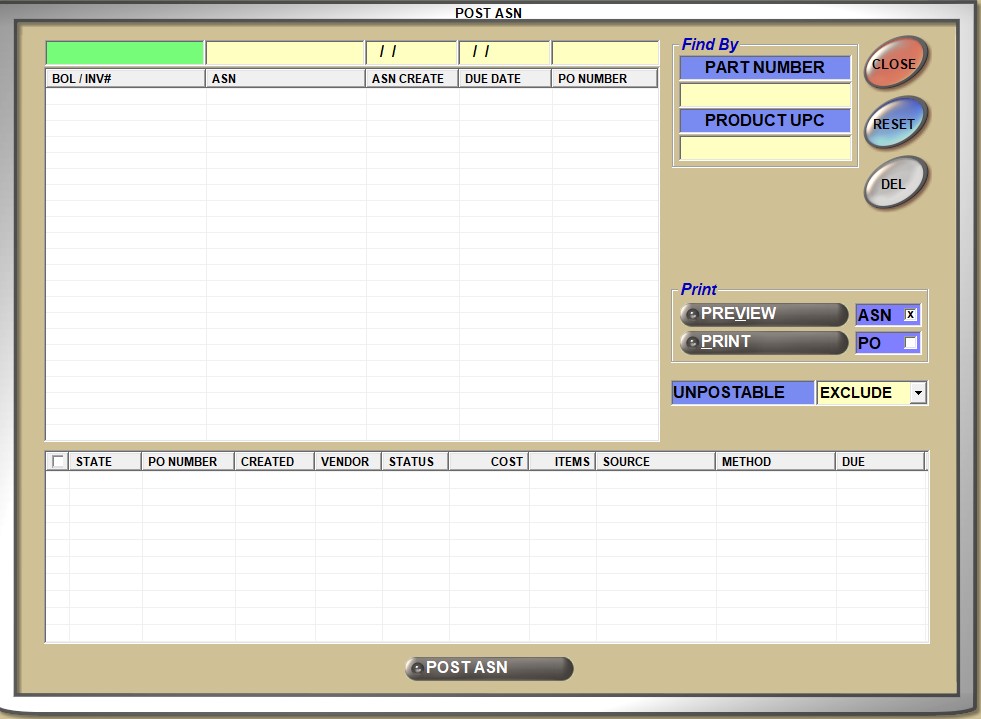
The upper grid is used to display the ASNs waiting to be posted. It is used in conjunction with the 'Find By' fields to search for ASNs containing the applicable filter criteria.
In order to post items on an ASN, first select the ASN in the upper grid in the 'POST ASN' window. Any POs that are associated with that ASN and have a 'STATE' of 'APPLIED' are automatically checked in the lower grid, but any may be unchecked. Only the inbound from the selected ASN for the selected POs are posted regardless of how many additional ASNs have inbound from any of the selected POs. Any additional ASNs that exist for any of the selected POs still display in the 'POST ASN' window and are available to post against, as needed. The inbound from the selected ASN for the selected POs is received when the 'POST' button is clicked and 'YES' is clicked for the "Transfer the selected POs to stock?" prompt. When the parts are posted, the 'IN BOUND' field is reduced and the 'QTY AVAILABLE' field is increased by the parts from the ASN.
Note that as soon as an ASN is applied (not posted), the 'ON ORDER' field in the part table is decreased by the inbound from that ASN.
Click a column header to sort the contents in ascending or descending order.
Displays the Bill of Landing number (from the ASN).
If an OPOS scanner has been configured in the PartsWatch device manager, then the transfer invoice barcode can be scanned while the cursor is positioned anywhere on the pop-up. When the barcode is scanned, this field is updated with the invoice number from the barcode.
If a “keyboard-wedge style” scanner has been configured in the PartsWatch device manager, then the transfer invoice barcode can be scanned only while the cursor is positioned in the 'BOL / INV#' field.
Displays the advanced shipping notice reference number.
Note: For store-to-store transfers, the ASN number is: 'TA : Invoice # : Store #'.
Displays the date that the ASN was transmitted to PartsWatch.
DUE DATE
Displays the ASN due date, not the PO due date. If the ASN file does not provide a date in the ASN feed file, no date displays (--/--/--).
PO NUMBER
Displays the PO number associated with the ASN when only one PO is involved. Displays 'MULTIPLE' when more than one PO is associated with the ASN.
PART NUMBER
Filters the ASN list to only display ASNs having the entered part number to locate the appropriate ASN.
PRODUCT SKU / PRODUCT NUMBER / PRODUCT UPC
Filters the ASN list to only display ASNs having the entered product information to locate the appropriate ASN. The search only returns SKUs added for store '0' (the 'ALL STORES' flag is checked in the UPC Setup screen).
A system control determines whether the 'PRODUCT NUMBER', 'PRODUCT SKU', or 'PRODUCT UPC' displays in the 'POST ASN' window and report.
When the system control is set to:
- 'PRODUCT NUMBER' - Uses the 'TYPE' of 'PRODUCT', as set up in the UPC Setup screen.
- 'PRODUCT SKU' - Uses the 'TYPE' of 'SKU', as set up in the UPC Setup screen.
- 'PRODUCT UPC' - Uses the 'TYPE' of 'UPC', as set up in the UPC Setup screen.
PREVIEW
Generates a preview of the ASN Posting Report if an ASN is selected in the upper grid and the 'ASN' field is checked.
Generates a preview of the PO Posting Report if an ASN is selected in the upper grid and the 'PO' field is checked.
Only available when an ASN is selected in the upper grid. ASNs with a status of 'APPLIED' cannot be previewed.
PRINT
Prints the ASN Posting Report if an ASN is selected in the upper grid and the 'ASN' field is checked.
Prints the PO Posting Report if an ASN is selected in the upper grid and the 'PO' field is checked.
Only available when an ASN is selected in the upper grid. ASNs with a status of 'APPLIED' cannot be printed.
ASN
Generates the ASN Posting Report when selected and 'PREVIEW' or 'PRINT' field is clicked.
PO
Generates the PO Posting Report when selected and 'PREVIEW' or 'PRINT' field is clicked.
UNPOSTABLE
Determines whether ASNs that cannot be posted (PO is locked, PO is closed, or ASN was never applied) display.
Options are:
- 'EXCLUDE'
- 'INCLUDE'
- 'ONLY'
The lower grid displays all the POs associated to the selected ASN that have been partially posted display in the lower grid, including POs with a 'STATE' of 'LOCKED', 'CLOSED', and 'NEW'. POs that have been fully posted do not display.
Rows display in black text if the PO is suitable to be posted. Rows display in red text if the PO is not suitable to be posted, for example, the PO is 'LOCKED'.
Click a column header to sort the contents in ascending or descending order.
The default is based on the value of the 'Post ASN Unpostable Default' on the 'Purchasing' tab of the Store Purchasing Setup screen.
[Checkbox] Header
Selects all or deselects all POs for posting. Deselects all POs for posting, when unchecked. 'LOCKED', 'CLOSED', and 'NEW' POs cannot be posted so their checkboxes are not available for selection.
[Checkbox] Grid
Selects a PO to be posted with the ASN, when checked. All ASNs that are in 'APPLIED' status are checked by default. Deselects a PO that is not to be posted with the ASN, when unchecked.
STATE
Identifies the state of the PO.
Options are:
- 'APPLIED' - ASN was successfully applied to the PO and the 'POST' button will successfully post the ASN quantities against the PO line items.
- 'CLOSED' - PO closed either prior to the ASN being applied to the PO or after the ASN was successfully applied to the PO line items. Hover over the 'STATE' field for a PO in the 'STATE' of 'CLOSED' to display the message "The PO has been completed or closed".
- 'LOCKED' - ASN was successfully applied to the PO but the PO is currently locked. (The ASN Post function cannot post against this PO.) Or, the ASN was not successfully applied to the PO because there is or was a lock on the PO. Hover over the 'STATE' field for a PO in the 'STATE' of 'LOCKED' to identify the user/terminal that is locking the PO so the person can be asked to exit the PO to allow receiving of the PO to proceed. When a locked PO is selected, a message displays stating "Locked by [user] on terminal [#] in store [#]’".
- 'NEW' - The ASN tried to be applied but failed because the PO was locked and has exhausted its retry count. Hover over the 'STATE' field for a PO in the 'STATE' of 'NEW' to display the message "The ASN has not been applied to the PO".
PO NUMBER
Indicates the PO number.
CREATED
Indicates date that the ASN was transmitted to PartsWatch.
VENDOR
Identifies the vendor code.
STATUS
Indicates the PO status with a count of the number of transaction instances. Instances include the number of times a PO is posted and the number of times VOAs (including VCOs) were applied. This count is the same as the 'TRAN INSTANCES' reported on the PATI Report.
For example, ASN – 02, could reflect a back order PO, posted twice, with an ASN in bound waiting to be posted, or could reflect a back order PO, posted once, that also had a VOA applied.
COST
Indicates the extended part cost on the ASN.
ITEMS
Indicates the count of ASN Body rows with the listed PO Number (not the number of open lines on the PO).
Indicates the PO source.
Options are:
- 'FORCE' - A purchase order created by Corporate on behalf of the store. Can be for orders from Corporate or orders from a 3rd party vendor.
- 'AUTOSRC' - An order that was auto-sourced.
- 'DEAL' - An order that was automatically created in the store from a communication sent by the vendor. From information in the communication, the Deal number is used as the 'DEAL #', the vendor code displays in the 'VENDOR' field, the quantity becomes the 'ORD QTY' (On Order Quantity), the date the physical parts are expected to arrive at the store is reported in the 'SHIP/DUE' field and the PO is created with a 'STATUS' of 'WIP', within the application. Parts can be added to the DEAL PO as a WRITE-IN. Cannot be manually created and cannot be created/scheduled for automatic transmission using the Timed Order Queue functionality.
- 'NID' - New Item Distribution: If the distribution center (DC) ships an item that was not ordered, the item is identified as a NID purchase order in order to post the item into stock. Corporate can also push a NID order to the store containing the individual items contained in a pre-pack that was previously ordered by the store.
- 'OVRSTK' - An overstock (return) PO.
- 'SHELF' - An order that was created manually or through the timed order queue.
- 'SHELFSRC' - An order for the shelf that is sourced from a sister store.
- 'SOURCED' - An order that was created by using 'Source It' in the Invoice Point of Sale screen to source items from somewhere other than the store's own stock to fulfill a customer request.
- 'XFER' - When an invoice is created for a transfer account, the invoice creates another invoice in the supplying store and an XFER purchase order in the ordering store. When the merchandise arrives at the ordering store, this PO is used to transfer the items into stock maintaining proper purchase histories.
Indicates the type of method used to generate the original purchase order, such as 'Write-In' or 'Order Point'.
Indicates the date the post of the PO is due.
Function Buttons
Posts the items from the ASN when the ASN is selected in the upper grid, but only posts the items on the associated POs checked in the lower grid.
The button is available only when an ASN is selected in the upper grid.
Closes the window.
Clears the selected ASN and removes its related POs from the lower grid.
Determines whether the selected ASN is deleted. When clicked, a pop-up displays stating, "Delete this ASN. Are you sure?".
When the 'DELETE ALL ASNs WITH SAME STATUS' field is:
- Unchecked and 'YES' is clicked to confirm the delete, only the specific ASN is deleted.
- Checked and 'YES' is clicked to confirm the delete, the specific ASN and all other ASNs that contain the same status are deleted.
- Checked and 'NO' is clicked to reject the delete, no ASNs are deleted.
'YES' deletes the ASN. 'NO' does not delete the ASN. Once deleted, the ASN never displays in the upper grid again.
Note: The ASN is not physically deleted from the database. The 'DEL' button simply removes from view any ASNs that can never be posted into stock.
Available only when an ASN has been selected in the upper grid and no ASN/PO records display in the lower grid that have the potential to be posted (typically, all rows in the lower grid reflecting a 'STATE' of 'CLOSED' or 'NEW').
Note: POs with a status of 'CLOSED' and 'NEW' cannot be posted. Listing 'CLOSED' and 'NEW' POs allows the user to see POs that an ASN is associated with even if that PO has been closed or the retry count has been exceeded. Once the ASN information associated with such POs is reviewed, the user can opt to create a write-in PO with the correct information obtained from the ASN Posting Report, and then remove the ASN from the window using the 'DEL' button so it does not remain on the screen.
An audit event displays on the Audit Report.
Re-queues, rather than deletes, an unapplied ASN.
The button is hidden. To display the button, press 'Ctrl' + 'Shift' while clicking the 'RESET' button. When clicked, and an ASN is selected in the upper grid that has unapplied ASNs displayed in the lower grid, the archived ASN is moved from archive status to open status in order to attempt to apply the ASN again.
An ASN can be received without a previously created PO. A PO is created, without user intervention, when the ASN table posts an ASN that does not have a PO in the system.
Items Added by the Store or by the ASN
Items may be sent via the ASN that are not part of the original PO.
When the item exists in the part table, the item is added to the PO and all tracking is the same as though the item were originally on the ASN.
When a write-in part is manually added to the PO during manual receipt where the ASN has not arrived, a prompt warns that an error will occur when the ASN arrives. The write-in can still be added.
ASN Post on Closed PO
An ASN for a PO that is no longer open is treated as an NID (New Item Distribution). The ASN is applied to a new PO, which is created as a non-sourced PO and processed accordingly. (The new NID PO is created as a non-sourced PO, regardless if the original PO was a sourced PO, auto sourced PO, shelf sourced PO or non-sourced PO.) The new PO cannot be linked to a previous invoice.
NID POs are not automatically received unless the vendor record for the vendor for that purchase order has an auto receive flag checked in the 'Auto Receive' section of the LINE CODE ORDER SPECIFICS or SUPPLIER ORDER SPECIFICS screens.
Back Orders
An ASN communication can also include Back Orders. An 'EXP ARRIV' (Expected Arrival Dates) can also be sent. Back order quantities can be sent regardless if the communication also brings Inbound and/or 'ADJ QTY' quantities.
When a communication brings Back Order Expected Arrival Dates without any Inbound quantities, no quantities are updated to the Backorder field in the PO, the PO is not put on back order, the PO order status remains 'ORD' and the ASN does not display in the 'POST ASN' window.
One back order fill reference is generated per customer. The PO number is tracked from the original sale. When back orders are filled from PO post, a single pick is created for each sister store (or customer) no matter how many POs the back orders came from.
Force Orders
A 'FORCE' order is an order that is "pushed" to the store by Corporate on behalf of the store, and could be for items being ordered from the corporate warehouse or from a 3rd party vendor. These orders contain item costs. These ASNs are different from other ASNs in that they create a PO with no inbound quantity set and with a 'STATUS' of 'WIP'. The order must be manually finalized and transmitted as the PO is not automatically transmitted.
A 'FORCE' order could be:
- A NID (New Item Distribution) order, which is an ASN that can be used for individual items in pre-packs, or for any items corporate is pushing to the store. An NID ASN does not refer to a pre-existing order. Its 'PO #' is typically blank but can have anything other than a 5-digit number (which is reserved for a PO). The NID ASN forcibly pushes merchandise to the store and impacts the inbound quantity. Note: A pre-pack is a set of multiple items bought as one by the store (at a discount) but sold in individual units. It typically includes some kind of display rack, for example, a rack of batteries. The store creates the original order for the single pre-pack part number and Corporate pushes a NID order to the store for the individual items.
- A PO for items being ordered from Corporate
- A PO for items being ordered from a 3rd party
- A Corporate 'DEAL' order
When the system receives a FORCE ASN, a PO is created with the following PO fields:

Multiple ASNs Posted
There may be instances where multiple ASNs arrive and are applied to a purchase order. Merchandise may arrive for one of the ASNs but not all of them.
Perform a PO Post event with any of the following methods:
- 'POST ASN' window ('POST ASN' button from the PURCHASING DASHBOARD screen)
- 'SELECT ASNS' pop-up (right-click a PO and select 'Post PO' from the PURCHASING DASHBOARD screen)
- Posting by ASN from the PO Detail screen (PURCHASE ORDER screen)
- RF Gun PO Post by ASN
- Scan Receive by ASN
Note: The 'Use ASNs To Set Post Quantity' on the STORE PURCHASING SETUP screen must be set to either 'PROMPT' or 'ALWAYS'.
The application checks the order's fill policy:
-
If set to 'BACKORDER', the application uses existing functionality.
-
If set to 'CANCEL', the application follows with the steps below.
-
If there are additional ASNs for the PO that have been applied with 'INBOUND' quantities but were not selected as part of the PO post, the system keeps the PO open with a status of 'ASN'. This applies whether the selected ASN(s) fully fulfill the part quantities on the purchase order or not.
-
The system continues to keep the PO open with a status of 'ASN' until all ASNs that have been applied to the PO have been selected and posted. Then close the PO.
-
Note: This feature applies to ASNs that have already been applied to the PO. If an ASN should arrive and be applied to the purchase order after the PO is closed, based on configuration, the PO may be reopened at the point of posting as per existing functionality.
System Error Message
The program updates the System Message table with a detailed error message when:
- A cancel ASN is posted and another ASN is sent against the same PO.
- An ASN is transmitted and no matching PO is found.
ASN Posting Report
Double-click an ASN, or single-click an ASN and click 'SELECT ASN' to display the ASN in the lower grid. Click 'PREVIEW' to display the 'ASN POSTING REPORT DETAIL'.
The report only includes items that are both on the selected ASN and are on the POs that display in the lower grid of the 'POST ASN' window. Items from POs display regardless if they are checked or unchecked in the lower grid of the 'POST ASN' window and regardless of the 'STATE' of the PO.
Note: POs that have been previously partially posted show in the lower grid, but only report items from these POs that have inbound on the selected ASN.
The report is only accessed from the 'ASN POST' window by checking the 'ASN' checkbox and clicking 'PREVIEW' or 'PRINT'.
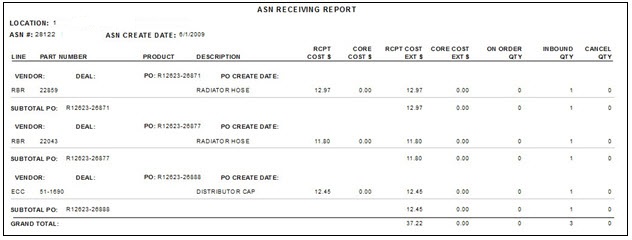
LOCATION
Reports the store location number and description.
ASN #
Reports the Advanced Shipping Notification (ASN) number.
ASN CREATE DATE
Reports the Advanced Shipping Notification date sent to PartsWatch.
VENDOR
Reports the vendor code. This can be the supplier code or the selling store's store number in the case of a transfer.
DEAL
Reports the Deal number from the PO, if applicable, that indicates that the parts were added to a Deal PO from a communication file.
PO
Reports the PO number.
PO CREATE DATE
Reports the PO create date.
LINE
Reports the vendor line code.
PART NUMBER
Reports the part number(s).
PRODUCT
Reports the SKU.
DESCRIPTION
Reports the part description.
POSTED COST $
Reports the part cost of a single item.
CORE COST $
Reports the core cost of a single item.
POSTED COST EXT $
Reports the 'RCPT COST $' multiplied by the 'RCVD QTY' for the item.
CORE COST EXT $
Reports the 'CORE COST $' multiplied by the 'RCVD QTY' for the item.
ON ORDER QTY
Reports the on order value of that part number before the transaction for that occurred.
INBOUND QTY
Reports the ASN ship quantity. Reports only inbound quantity from the currently selected ASN for the particular PO being reported.
CANCEL QTY
Reports the total 'CANCEL QTY' for the PO. Occurs when the ASN ship quantity is less than the order quantity, and the vendor 'FILL POLICY' is 'CANCEL'.
SUBTOTAL
Reports the PO number and subtotals for the 'RCPT COST EXT $', 'CORE COST EXT $', 'ON ORDER QTY', and 'INBOUND QTY' fields.
GRAND TOTAL
Reports the grand total of the 'RCPT COST EXT $', 'CORE COST $', 'ON ORDER QTY', and 'INBOUND QTY' fields.
PO Posting Report
Double-click an ASN, or single-click an ASN and click 'SELECT ASN', to display the ASN in the lower grid. Click 'PREVIEW' and select the PO checkbox to display the 'PO POSTING REPORT DETAIL'.
The PO Receiving Report reports all received POs.
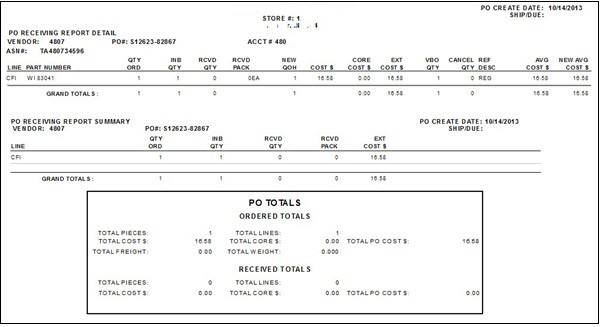
PO RECEIVING REPORT DETAIL
VENDOR
Reports the vendor code.
PO #
Reports the PO number.
ACCT #
Reports the account number.
LINE
Reports the line or supplier code.
PART NUMBER
Reports the part number.
QTY ORD
Reports the quantity ordered.
INB QTY
Reports the inbound quantity.
RCVD QTY
Reports the received quantity.
RCVD PACK
Reports the received pack quantity.
NEW QOH
Reports the new quantity on hand.
COST $
Reports the total cost of the order.
CORE COST $
Reports the Vendor Core Cost from the ASN.
EXT COST $
Reports the Vendor Extended Cost from the PO.
VBO QTY
Reports the vendor back order quantity.
CANCEL QTY
Reports the canceled quantity.
REF DESC
Reports the reference description.
AVG COST $
Reports the average cost from the part record as it was before receipt of the purchase order.
NEW AVG COST $
Reports the new average cost that will be stored in the part record after receipt of the purchase order.
GRAND TOTALS
Reports the grand total for each of the fields, except for 'RCVD PACK', 'COST $', and 'REF DESC'.
PO RECEIVING REPORT SUMMARY
VENDOR
Reports the vendor code.
PO #
Reports the PO number.
PO CREATE DATE
Reports the PO create date.
SHIP/DUE
Reports the ship and due date of the order.
LINE
Reports the line or supplier code.
QTY ORD
Reports the quantity ordered.
INB QTY
Reports the ASN ship quantity.
RCVD QTY
Reports the received quantity.
RCVD PACK
Reports the received pack quantity.
EXT COST $
Reports the Vendor Extended Cost from the PO.
GRAND TOTALS
Reports the grand total for each of the fields.
PO TOTALS
ORDERED TOTALS
TOTAL PIECES
Reports the number of items ordered on the purchase order.
TOTAL COST
Reports the total cost of the purchase order ordered.
TOTAL FREIGHT
Reports the total cost of the freight on the ordered items.
TOTAL LINES
Reports the total line cost received.
TOTAL CORE $
Reports the total core cost ordered.
TOTAL WEIGHT
Reports the total weight of the items ordered.
TOTAL PO COST $
Reports the total cost of the items ordered on the purchase order.
RECEIVED TOTALS
TOTAL PIECES
Reports the number of items received from the purchase order.
TOTAL COST $
Reports the total cost of the purchase order received.
TOTAL LINES
Reports the total line cost received.
TOTAL CORE $
Reports the total core cost received.
TOTAL PO COST $
Reports the total PO cost received.
Procedure to Post an ASN
To post an ASN, follow the steps below:
-
From the Menu, select Purchasing, Purchasing Dashboard. The PURCHASING DASHBOARD screen displays.
-
Click 'POST ASN'. The 'POST ASN' window displays with a list of ASNs that have arrived.
-
Optionally, enter the 'PART NUMBER' and/or 'PRODUCT NUMBER' in the 'Find By' fields to locate an ASN. The ASN that matches the search field(s) entered displays. Or,
-
Select an ASN in the upper grid. The POs associated with the ASN display in the lower grid.
-
Click 'POST ASN' to post the items on the ASN that are also on the selected POs.
-
Click 'PREVIEW' and select the 'ASN' or 'PO' checkbox to display the PO POSTING REPORT DETAIL or the ASN POSTING REPORT.
-
Click 'PRINT' and select the 'ASN' or 'PO' checkbox to print the PO POSTING REPORT DETAIL or the ASN POSTING REPORT.