Import Items
Import Items functionality provides the ability to import parts from a file. Open the Import Items functionality from the right-click 'IMPORT ITEMS' menu selection in the invoicing grid.
If the grid is clicked without any parts in it, 'IMPORT ITEMS' is the only menu item.
The 'IMPORT ITEMS' setup must be enabled and the 'INVOICE IMPORT ITEMS' User Security proc must be set to ALLOW EDIT in order to access the functionality.
The feature is available in sell mode only and is hidden if the 'ALLOW SALES AND RETURNS ON THE SAME INVOICE' setting is enabled and a return has already been added to the sales order.
A limit of 100 parts can be imported using one input file. Multiple files can be used to import more than 100 parts. The import response time increases for each additional 100 parts imported.
Parts can be imported and appended at the end of the list of parts already in the grid, or into an empty grid.
The same list of parts can be added repeatedly to the same sales order.
Click the 'IMPORT ITEMS' right-click menu item, and a pop-up opens asking if the import file contains column headers, with the 'CANCEL' button as the default.
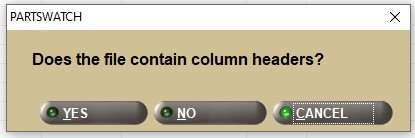
It is important to answer this pop-up correctly in order for the system to determine if the import function includes or excludes processing the very first row in the input file as a part row to be validated and imported. Answer 'Yes' and:
-
If the input file does not contain any column headers, but the file contains column headers, the import function will include the file’s very first row as another row to be processed, and then upon validation, the column headers row will be highlighted as an invalid row. The column headers row will subsequently be ignored when valid rows are imported into the sales order’s grid.
-
If the input file does not contain column headers, the import function will exclude the file’s very first row as another row to be processed. In this instance, the part on the very first row of the file will not be displayed on the 'Import Items' pop-up. Therefore, the part on the very first row of the file will not be included with the rows imported into the sales order’s grid.
Answer:
-
'CANCEL' and the pop-up closes, and focus returns to the Invoice Point of Sale screen.
-
'YES' or 'NO' and the pop-up closes. The standard Windows File Explorer pop-up displays to find any input file in MS Excel or CSV Format to open.
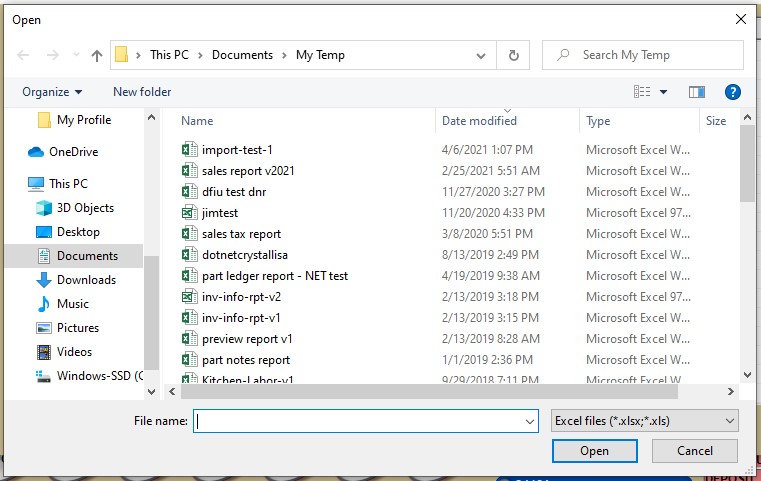
Any file can be chosen (with or without column headers) but the file must contain the following three, and optionally fourth columns:
-
Line Code (mandatory)
-
Must be a value between 1 and 3 alphanumeric characters.
-
Can be a NIF line code.
-
-
Part Number (mandatory)
-
Must be a value between 1 and 28 alphanumeric characters.
-
Can be a NIF part number.
-
-
Sell Quantity (mandatory)
-
Must be a number between 1 and 65,535.
-
Must be a multiple of the part’s 'MIN SELL'.
-
Can be a fractional decimal quantity but cannot exceed the part’s Variable Quantity value of 0, 1, or 2.
-
Note: Cannot be a lost sale or back order quantity.
-
-
Sell Price (optional)
-
Must be a number between 0.01 and 999,999.00.
-
Can be a fractional decimal quantity but the value cannot exceed the part’s Variable Decimal value of 2, 3, or 4.
-
Can be a fractional decimal quantity but the value cannot exceed the maximum value based upon the part’s Variable Decimal value of 2, 3, or 4. The maximums are $9,999,999.99 or $999,999.999, or $99,999.9999 respectively.
-
Must be provided for a NIF part.
-
If provided, will be processed as an 'OVERSTRIKE' edited price.
-
Parts can be imported into any existing sales order in any status (e.g. Quote, Pick, etc.)
After the input file has been found, but before the parts are imported into the sales order’s grid, the Windows File Explorer closes and the system verifies if the file’s contents meet the minimum validations; that the file has one of the two required formats, and that the file contains at least three columns of data.
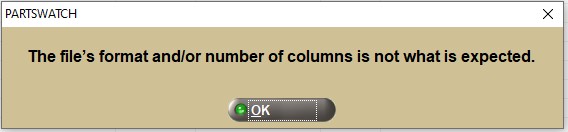
- If the file's format is not MS Excel or CSV, or the file contains data values in only the first one or two columns, a prompt displays. Click 'OK' to close the prompt and return to the Invoice Point of Sale screen.
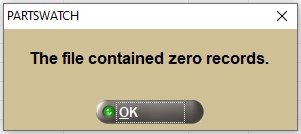
- If the input file has a format of MS Excel or CSV, but there are no rows in the file with any data values, a prompt displays. Click the 'OK' button to close the prompt and return to the Invoice Point of Sale screen.
- If the input file is currently open, a prompt displays. Click 'OK' to close the prompt and return to the Invoice Point of Sale screen.

- If the file's format is MS Excel or CSV, and at least the first three columns contain data values, a pop-up displays with the total number of rows imported and the total number of rows with invalid data, if any.
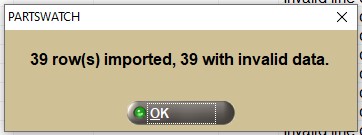
Behind the pop-ups, the 'Import Items' window displays with all of the rows retrieved from the input file.
The 'Error Message' column in the 'Import Items' window contains a comma-separated list of each of the three columns that contain invalid data values.
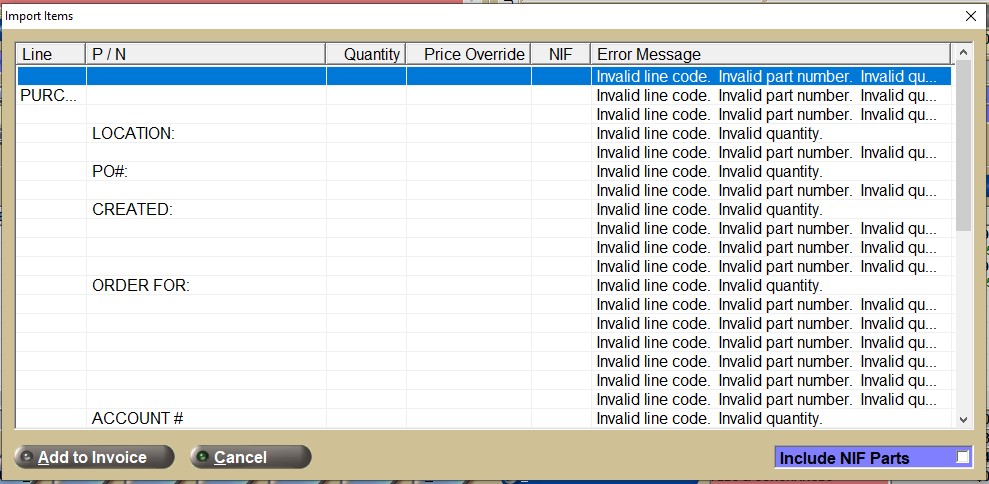
When an attempt is made to import the MS Excel file with invalid data, the 'Import Items' window displays with the retrieved invalid data and the pop-up displays with the invalid rows reported.
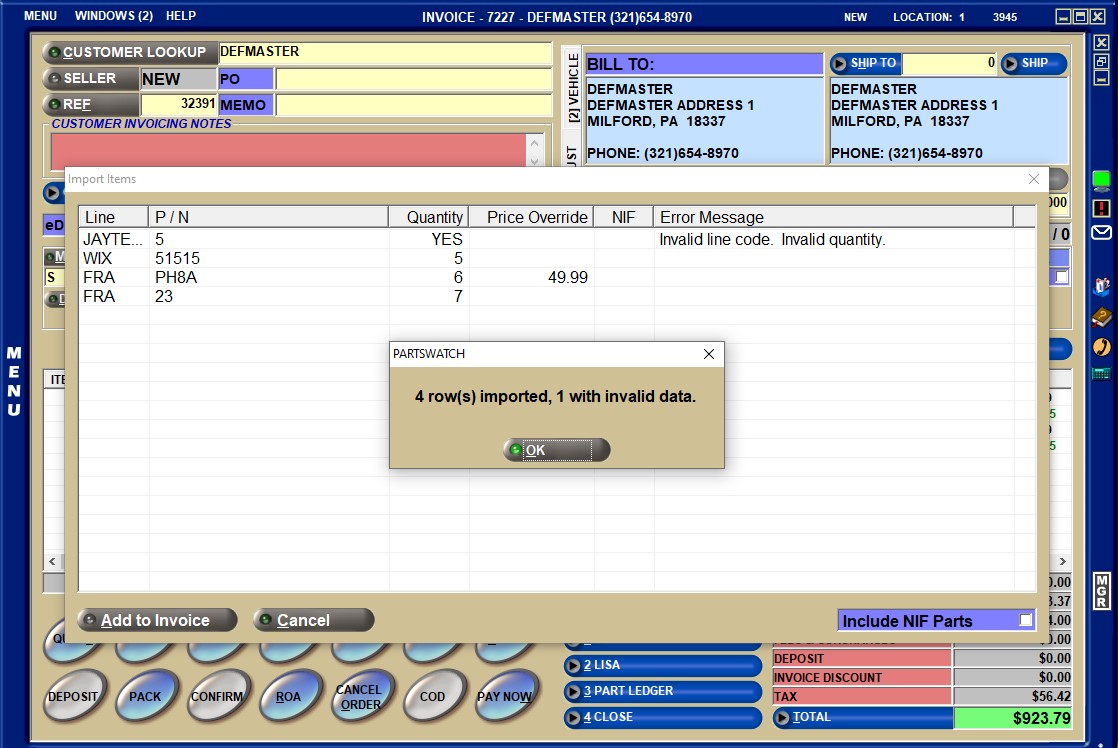
Click the 'OK' button to close the pop-up. The 'Import Items' window remains open to provide the opportunity to review the list of parts in the input file before importing them into the sales order’s grid.
The 'Import Items' window contains a grid with six columns from the input file:
-
Line: The first mandatory column in the input file must be a valid line code.
-
P / N: The second mandatory column must be a valid part number within the line code. Note: The part number can exist in the line code with an “exact-match” of characters or even a “stripped-match” where “slashes and dashes” and other special characters are ignored. For example, part number “PH8A” in the file will match “PH-8A” in the inventory.
-
Quantity: The third mandatory column must be a valid sell quantity.
-
Price Override: The fourth optional column must be a valid sell price.
-
If a valid sell price is provided, it will be used as the sell price on the sales order ignoring all regular customer price plan, promotional pricing, and kit pricing rules.
-
If a valid sell price is not provided, the sell price will be calculated using all regular customer price plan, promotional pricing, and kit pricing rules.
-
-
NIF: A value of Yes or blank.
-
Display a value of “Yes” if the Line Code is not in the store’s inventory (not displayed on the 'BROWSE LINE CODES' pop-up on Invoice Point of Sale screen), or the Line Code is in the store’s inventory, but the Part Number is not within that Line Code (not displayed on the 'FIND PART' pop-up on Invoice Point of Sale screen).
-
Display a value of “blank” if both the Line Code and Part Number are in the store’s inventory.
-
-
Error Message: A value containing a comma-separated list of error messages, for each column that is invalid.
-
Displays “Invalid line code” if the Line is invalid.
-
Displays “Gift card lines are not allowed” if the Line Code is a gift card line.
-
Displays “Invalid part number” if the P/N is invalid.
-
Displays “Ambiguous part number” if multiple “stripped-part matches” are found and none are an “exact-match”.
-
Displays “Kit can’t be imported” if the part number is a KIT or BOM part and the Account on the sales order is set up with the 'ACCOUNT TYPE' of 'TRANSFER'.
-
Displays “Kit can’t be imported” if:
-
The part number is a KIT or BOM part and there are any 'Part Type' components.
-
There is no default part number for any 'Part List' or 'Part Choice' components.
-
There is no ‘Qty in Kit’ value for every part.
-
There is no sell price for a component and the kit’s Pricing Rule is ‘Sum Price Plan’.
-
There is no part cost for a component and the kit’s Pricing Rule is ‘Sum Cost’.
-
There is no calculated kit sell price and the kit’s Pricing Rule is ‘Kit Plan Price’.
-
-
Displays “Invalid quantity” if the Quantity is invalid.
-
Displays “Invalid price” if the price is invalid.
-
Displays “Invalid price override” if the Price Override is invalid.
-
Displays “Price Override is required for NIF Parts” if a NIF part without a sell price was in the input file.
-
The 'Import Items' window has two buttons below the grid:
-
'Add to Invoice': Enabled when there is at least one valid row in the list of parts retrieved. Click the button to:
-
Close the 'Import Items' window.
-
Skip the invalid rows.
-
Import the valid rows into the invoice grid at the bottom of any existing rows in the grid.
-
Update the sales order sub-totals and totals (e.g. part core, fees, etc.)
-
Return focus to the Invoice Point of Sale screen.
If at least one part from the input file causes a price override, a 'Manager Approval Required' pop-up opens to allow/disallow the price change.
-
-
'Cancel': Click the button to close the 'Import Items' window without importing any rows from the input file into the sales order’s grid, and return focus to the Invoice Point of Sale screen.
The parts imported will display in the 'Import Items' window and a pop-up opens with the number of parts imported.
If the input file contains more than the maximum limit allowed to be imported in one file, only the first 100 rows are imported.
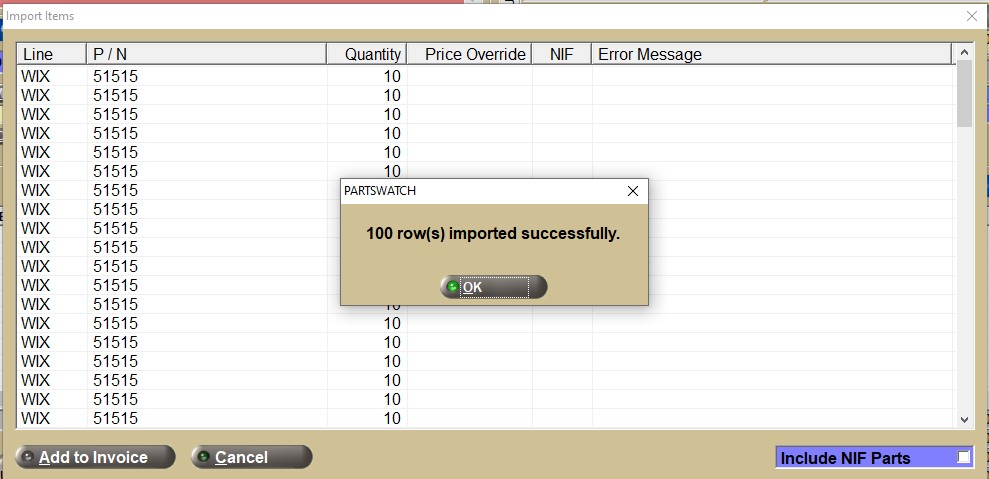
If all rows are imported successfully, closing the window displays the parts in the invoice grid, and the total grid count displays below the grid as a visual indicator that the import was successful.

Import File NIF Parts
The 'Import Items' window contains a checkbox below the grid labeled 'Include NIF Parts'.
If the 'ALLOW NIF PARTS' setting is set to:
-
'ALWAYS', the 'Include NIF Parts' checkbox is checked and any valid NIF parts are imported.
-
'NEVER', the 'Include NIF Parts' checkbox is unchecked and NIF parts are not imported.
-
'PROMPT', the 'Include NIF Parts' checkbox is enabled and can be checked/unchecked to determine whether to skip or import valid NIF parts.
Any NIF parts in the input file must have a sell price provided to be considered a valid NIF part. A price change Manager Override may be required before importing any valid NIF into the sales order’s grid.
Invoice Modifiers
-
The 'MODIFIERS FOR NIF PARTS' setting determines which modifier to use when NIF parts are added to the sales order.
-
For parts in the store's inventory or nonSKU inventory:
-
If a part has a sell quantity value equal to or lass than the part's current quantity available, the 'MODIFIER' setting determines which modifier to use when the part is added to the sales order.
-
If a part has a sell quantity value greater than the part's current quantity.
-
The part is added to the sales order with either the part 'MODIFIER' setting if it contains a "sourcing" modifier, or if it does not, the 'BO' modifier is used.
-
For example, the WIX 51515 part contains 8 units available, and an FRA 23 has zero units available, and the input file contains a sell quantity of 10 units and 1 unit respectively. After the import, both parts display in the grid with BO (buyout) modifier.
-
-