Stock Forecast Mix Order
About Mix Orders

There are two types of mix orders: 'Stock Forecast Mix Order' and 'Stock ASPM Mix Order'. These order types combine a stocking-level order with a sales history order so that the quantities ordered for parts are determined by the higher calculated value between the two methods used. When a mix order is run, the system generates a purchase order using the default stocking level order method and then runs the same order using a sales history method (Forecast or ASPM). Depending on the configuration, the higher quantities will be used.
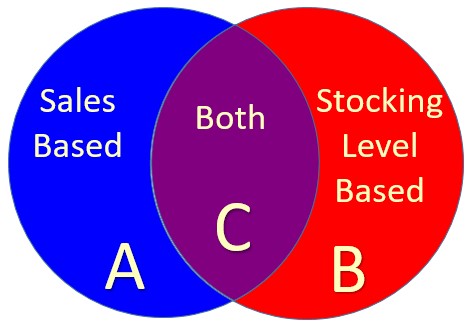
For example: If a part has 0 'QTY AVAILABLE' and an 'ORDER POINT' of 5, when an 'Order to Order Point' method is used, the system will order a quantity of 5 for the part. However, if the part is popular, and sales based on historical data determine that an average of 8 parts were sold within the designated period, 8 parts would be ordered if only a sales-based method is used. With a mix method, both purchase orders are compared and the one with the higher quantity for the part is the one which will be ordered. In this example, 8 parts would be on the mix order.
Select Mode: Shelf Purchase Order/Stock Adjustment Order
Order Method: Stock Forecast Mix Order
A 'Stock Forecast Mix Order' is a way of combining both a "Stock" and a "Sales" method so that part order quantities are determined by the higher calculated value of the two methods used providing the ability to "boost" order quantities above the stocking level based upon high volume sales.
For example: If the 'QTY AVAILABLE' is 1, and the 'ORDER POINT' is 3, then 2 units would be ordered using a stocking level method. However, if a "Mix" of "Stock" and "Sales" methods are used, and the average sales is 4 units, then 3 units would be ordered instead.
The 'Sales' tab displays when 'Stock Forecast Mix Order' is selected from the 'Order Method' drop-down.

Optionally click the 'Criteria' tab to select or edit the Line Codes purchased under the Supplier and/or set up the filters used to narrow the parts that will be considered for the order.
Optionally click the 'Options' tab to enable/disable the predefined conditions that further refine and filter the parts considered for the order.
Note: For any "Mix" order method, some options will only apply to one method and some to both. For example, the option 'Ignore On Order Values' would apply to both a Stock order and a Forecast order, but the option 'Include Lost Sales' only applies to a Forecast order.
Available Default/Override (left-side) filters are:
- 'Fill Policy'
- 'Delivery Days'
- 'PO Part Cost Level'
- 'Use Buy Qty Rule'
- 'Min Cost Threshold'
- 'Min Units Threshold'
- 'Min Packs Threshold'
- 'Min Weight Threshold'
- 'Min Volume Threshold'
- 'Cost Exchange Rate'
- 'Include Core in Min Cost'
- 'Create Order Below Min'
- 'Multistore PO Type'
- 'PO + or – Percent'
- 'Mix Order Stock Level'
Note: The system-level 'STOCK LEVEL' is used as the stocking level default method. Click the 'Mix Order Stock Level' override to change the stocking level used for the order.
Additional (right-side) filters are:
- 'Use Order Protection'
- 'Treat Negative Stock As 0'
- 'Order Only If No Stock'
- 'Ignore On Order Values'
- 'Include Reserve Quantity'
- 'Ignore Vendor Backorder'
- 'Ignore Inbound'
- 'Ignore Do Not Reorder (DNR)'
- 'Exclude Nonstocked Parts'
- 'Exclude Sales Only Parts'
- 'Use Lost Sales Only'
- 'Include Customer Backorders'
- 'Order Supersedes/VCOs Instead'
- 'Adjust Order Quantity if Supersede/VCO'
- 'Adjust Order Quantity if Alternates'
- 'Order Lowest Cost Alternate Instead'
- 'Best Price'
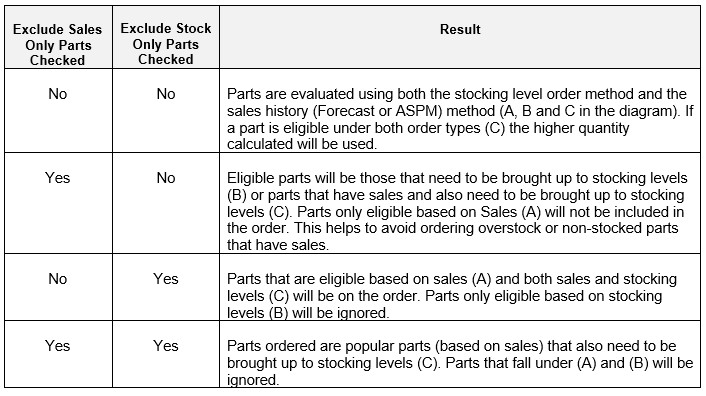
Note: The 'Exclude Sales Only Parts' and 'Exclude Stock Only Parts' options are available for mix orders only and provide additional control to determine which parts appear on the order.
Two settings on the 'Options' tab are available for "mix" order methods only and both default to disabled:
- 'Exclude Sales Only Parts'
- 'Exclude Stock Only Parts'
The purpose of these two options is to provide additional control to determine which parts appear on the order. This is helpful because a "mix" method prepares two "temporary" orders using two different 'Order Methods' and then compares and combines the results into one order.
- If all parts should be included on the order whether there is a "need to order" based upon a stocking level or based upon sales, then leave the default (unchecked) for both options.
- If the "Stocking" method used should be the primary method, check the 'Exclude Sales Only Parts' setting, and leave the 'Exclude Stock Only Parts' setting unchecked. This setting combination will avoid ordering "overstock" or "non-stocked" parts that have sales.
Optionally click the 'Stores' tab and select the stores for multi-store orders.
From the 'Sales' tab, identify the periods to use for the order.
Days PO is to cover
Enter the number of days that the purchase order is to cover. For example, enter "30" to order stock sufficient for 30 days.
Select Periods
Click the 'Select Periods' button to launch the 'SELECT HISTORY PERIODS' pop-up listing time periods based on when month-end closes. Check one or more periods.
- 'USE CURRENT PERIOD' (current period to date)
- 'USE CURRENT YEAR'
- 'USE 1st PRIOR YEAR'
- 'USE 2nd PRIOR YEAR'
Then check each close period to use the histories from those periods as needed.
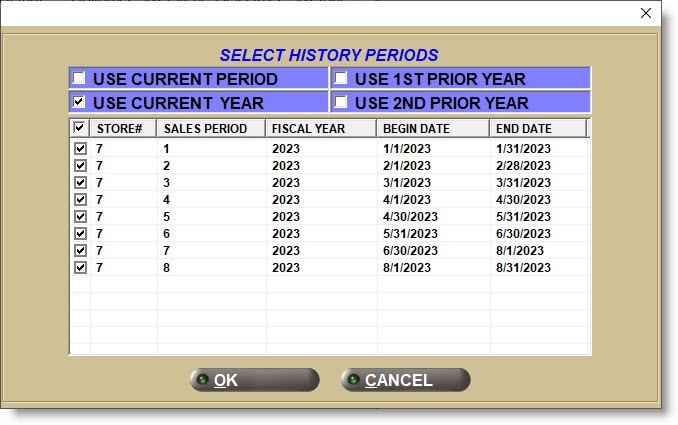
Click 'OK' when done and the 'Sales' tab grid populates based on the time periods selected.

Columns Displayed:
- 'Period' - The number of the period selected.
- 'Year' - Year of the period selected.
- 'Start'/'End' - Start/end dates of the period selected.
- 'Actual' - Number of days in the period.
- 'Holidays' - Number of holidays in the period.
- 'Weekend' - Number of weekend days in the period.
- 'Sell Days' - (Editable) Number of sell days in the period.
- 'Weight' - Importance given to a period. The default is 100%. Increase a period weight for additional emphasis, and decrease for less importance.
Clear All Periods
Click to clear all periods to re-select if needed.
When ready, optionally click the 'Preview' or 'Print' button to output a report with all parts that will be on the order, or click the 'Order' button to generate the order.