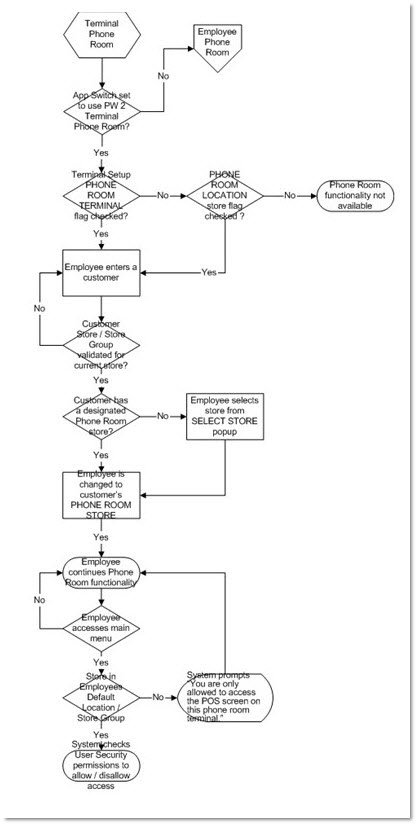
Terminal Phone Room
Overview
Employee Phone Room is an application-supported process that allows an employee to receive incoming calls and create sales for a set of stores related to a specific store group.
Allowing Call Center functionality, Employee Phone Room enables an employee to take customer part orders for supported stores within a given database or store group. Phone Room Reps handle the in-coming calls and create the invoices in the stores that will be selling the product.
Phone Room features are either terminal specific or location, or employee specific depending on the Enterprise control. Refer to the Differences Between Employee and Terminal Phone Room Functionality for details.
All accounts have an optional 'PHONE ROOM STORE' field set up in the 'INTERNET SETUP' window, accessed from the 'INTERNET SETUP' button in the Account Entry screen that indicates the:
-
Default Store
-
Location where the inventory is deducted from
-
Store where Phone Room documents print
When an account that is set up with a 'PHONE ROOM STORE' is entered at Point-of-Sale, the Invoice Point of Sale screen refreshes and places the application instance into the customer's Phone Room store automatically.
The field value is used as the default location only. The 'SELECT PHONE ROOM LOCATION' window opens each time the 'PHONE ROOM' button is clicked at Point-of-Sale. The location can be changed on demand at Point-of-Sale until an item is added to the body of the invoice.
Even though the account has a default phone room store, the Phone Room Rep is still prompted each time to select a store to determine store inventory and document print for that sales event. However, the account's phone room store is highlighted when selecting locations at Point-of-Sale so pressing the 'Enter' key selects that store.
The associated document from the item sales prints in the selected store. The pay/tender function also occurs in the actual associated store.
The TERMINAL SETUP, 'STORE INFORMATION' tab, New Account Defaults, ACCOUNT MASS UPDATE UTILITY, Account Entry screens, and 'INTERNET SETUP' window support the Phone Room functionality.
Terminal Phone Room Setups
The 'PHONE ROOM TERMINAL' flag in the TERMINAL SETUP screen is used in conjunction with the 'PHONE ROOM LOCATION' flag in the 'STORE INFORMATION' tab of the STORE GENERAL SETUP screen to determine Phone Room functionality.
Phone Room setups used as Terminal Phone Room are, as follows:
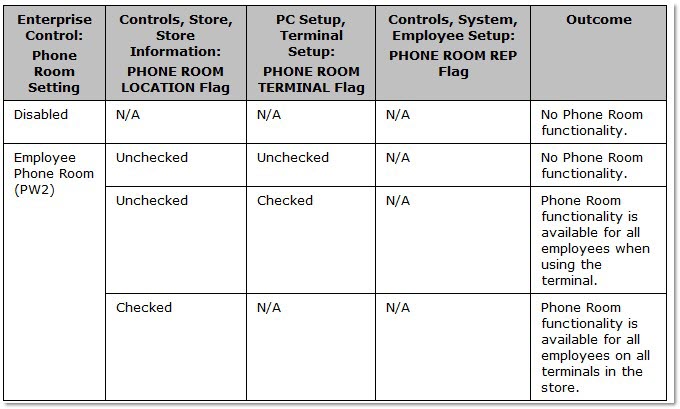
Terminal Phone Room Configuration and Setup
Configuration and setup of the following screens/window support the Terminal Phone Room functionality:
-
'STORE INFORMATION' tab
-
INTERNET SETUP
Phone Room Rep
The role of the Phone Room Rep is not an assigned role. Phone Room Rep capability is controlled by location or by terminal.
Tender functions are disabled for Phone Room functionality; therefore, a Phone Room Rep cannot be a cashier. The employee's assigned security designates any, and all, function control unless overridden by the Phone Room's operations controls.
Point-of-Sale Functionality
The Phone Room Rep follows normal Point-of-Sale functions when selling and editing line items. During a standard sale, the Phone Room Rep sells/scans items onto a ticket. Debits and credits can both be added to the same invoice. The Point-of-Sale return process remains unchanged. Upon completion of the order for both selling/editing line items and doing a return, the Phone Room Rep may make the ticket a WIP, Pick Ticket, Pack Slip, or commercial invoice. However, tender options, including Dating, are not available in Phone Room functionality.
The sales order is owned by the Phone Room Attendant that processed the ticket. Items added to the document are set to the Phone Room Rep or store Counterperson who added the item. The employee who prints the document is set as the "cashier" of the document. Line items are processed within the program as an Internet Order.
The following steps provide a high-level overview of the Terminal Phone Room functionality as it applies to Point-of-Sale:
-
Log in. The program validates the logged-in employee as either in a Phone Room location or at a Phone Room terminal.
-
Access Point-of-Sale (Invoice) via the Menu or the 'F7' key. The application prompts for a 'POS ID' if the Phone Room feature is enabled. Standard Point-of-Sale functionality continues, except as noted.
-
Enter the customer's account number or account code in the 'ACCT NUMBER' or 'ACCT CODE' field. The program reads the account's Phone Store value. When set, the account is loaded and the application instance is in the store set in the parameter. When not set, the 'SELECT STORE' window displays.
-
Continue Point-of-Sale processing, based on the user's security. If the logged-in employee is a Manager, then Manager override prompts and capabilities are available, as usual. If the logged-in employee is a Phone Room Rep, Counterperson capabilities apply and the is assigned ownership of the ticket.
Sourcing
Source Orders
The Phone Room Rep can perform all Source It and special order functions.
Upon completing the sourcing process, the Phone Room Rep clicks the 'FINISH' button, which creates a SOURCE PO and prints a Pick Ticket in the account's Phone Room assigned store.
Note: All accounts have an assigned Phone Room or store that directs the store that is the default, where inventory is deducted from and the store in which the Phone Room documents print.
When printed, the upper portion of the Pick Ticket indicates 'PHONE ROOM ORDER'. When items are sourced by the Phone Room, the upper portion of the Pick Ticket indicates 'PHONE ROOM ORDER - ATTN! BUY OUTS'. These messages only print on the Pick Ticket, not the invoice.
Sourced orders are then completed by store personnel.
Auto Source Orders
Source It orders are processed the same as Source Orders. Store personnel recall the order and are able to print the sales order as an invoice.
Change Store
When a caller belongs to or is owned by a particular store, as set by the 'PHONE ROOM STORE' field, but requests to pick up or receive inventory from another store, the store can be changed by using the 'CHANGE STORE' field. With the account in focus, but prior to adding the first part to the invoice body of the order, the account can be redirected/rerouted to the store where the parts will be deducted from inventory and print. Once a part is added to the invoice body, the 'CHANGE STORE' button is unavailable.
The 'SELECT STORE' window enables the store to be changed.
Change Customer
The Change Customer process has limited functionality in Phone Room mode. Once items are added to the document (WIP, Pick Ticket, Pack Slip or On Account Commercial Charge), the Change Customer function only allows the customer to be changed, not the selling store.
When a selected customer from the Change Customer process has a different Phone Room store than the account/store of the sales order in focus, a warning displays stating, "Account has a phone store of #. Change Account Only? Y/N." 'Yes' changes the account based on the standard change account rules. 'No' returns to Point-of-Sale with the current account still in focus.
Change Printer
The document prints to the assigned store, per Phone Room setup.
Due to network limitations, the Change Printer function is not supported for Phone Room Reps. Use the 'CHANGE STORE' button to redirect the printing.
Procedure to Configure Terminal Phone Room Location
To configure a Terminal Phone Room Location, follow the steps below:
Note: The Data Center must first create a new store key or identify an existing store as a Phone Room Store and the Enterprise Control must be set to PW2 (Terminal Phone Room).
-
From the Menu, select Controls, Store, Store General Setup. The STORE GENERAL SETUP screen, 'Store Information' tab displays.
-
Click 'EDIT'. The Edit mode is enabled.
-
Click the 'PHONE ROOM LOCATION' checkbox.
-
Click 'UPD' and 'CLOSE'. The value is saved and the whole store/location is now a Phone Room Center. The screen closes. All terminals, existing or new, that set or enter into this store are not able to tender cash and function supporting all Phone Room processes.
-
If currently in an existing screen, then log out and log back in. This terminal is now a Phone Room location.
Important: Be sure that the selected store on the TERMINAL SETUP screen is also registered to a Phone Room location. A virtual security user is allowed to navigate from store to store. They can be in Phone Room mode only in that store but not in Phone Room store all the time. While the Phone Room terminal setting in the TERMINAL SETUP screen is not evaluated in this configuration, setting the value ensures Phone Room operations for both virtual and non-virtual security users.
Procedure to Configure Terminal Phone Room in Non-Phone Room Location
To configure a Phone Room terminal in a non-Phone Room location, follow the steps below:
Connect to a new PC or use an existing PC.
From the Menu, select PC Setup, Terminal Setup. The TERMINAL SETUP screen displays.
Click 'EDIT'. The Edit mode is enabled.
Click the 'PHONE ROOM TERMINAL' field.
Click 'UPD' and 'CLOSE'. The information is saved and the screen closes. The PC is set to Phone Room.
If currently in an existing screen, then log out and log back in. This terminal is now a Phone Room terminal.
Note: Do not set the 'PHONE ROOM LOCATION' field in the STORE GENERAL SETUP screen, 'Store Information' tab. Only this terminal functions as a Phone Room terminal supporting all the Phone Room processes. All other terminals have full store functions and are considered "regular" store terminals.
Important: A virtual security user is allowed to navigate from store to store and is in Phone Room mode in all stores under their configuration.
Mode 2
Mode 2 is a process that enables a store to continue limited operation of customer sales offline when the database resources are interrupted. When a connection to the database cannot be established, the store or PC(s) goes into Mode 2, which is considered "offline". Mode 2 enables the creation, validation, and finalization of sales orders so that Point-of-Sale invoicing can continue even when connectivity to the data center is lost. When the connection is restored, the store or PC(s) is then considered "online".
If a store/location loses connectivity, then all terminals in that store go into Mode 2. If, within that location, some terminals are regular store terminals and some terminals are Phone Room terminals, then each terminal continues to function as per the rules of that terminal.
Only Phone Room terminals are able to process Phone Room requests to the store and set to the inventory file, which was downloaded into that terminal's offline database. If the location is a Phone Room location, then all terminals can only process Phone Room orders to the inventory file that is downloaded to that terminal's offline database and for customers assigned to that store. In both instances, if the user calls an account with a Phone Room store that does not have offline store's inventory downloaded, then the new invoice fails with a Mode 2 error message. Since Phone Room locations do not display in the 'BROWSE LOCATIONS' window, if the location is not a Phone Room location, click the 'SELECT STORE' button and choose to fill the order from the location loaded into the offline inventory.
All processing continues following normal Mode 2 rules. Tickets created in Mode 2 are not sent to the intended store until Mode 1 operations resume. Once the store is back online, all the terminals process and release the orders.
If the Phone Room store or terminal is working but the store filling the order is offline, then the order sits in the queue until that store comes back online.
The Phone Room store is either in Mode 1 or Mode 2.
-
When the Phone Room store is in Mode 1, the store can communicate with any store that the Phone Room store is servicing that is in Mode 1 but not with stores that it services that are in Mode 2. Those stores are unable to receive the communication from the Phone Room. Tickets sit in the Mode 2 store's background job until its connectivity is back online and Mode 1 resumes. The store can then process the documents.
-
When the Phone Room store is in Mode 2, all tickets are held in the Phone Room store's background job until the Phone Room store comes back online and Mode 1 resumes. A Phone Room store or terminal in Mode 2 can only create an order for the store whose part file is in its offline database. Regardless of whether or not some of the stores that the Phone Room services are still in Mode 1, the Phone Room store is offline and cannot communicate with any of the receiving stores. The Phone Room store cannot send the order.
Terminal Phone Room Flow Chart