Price Change Reports
The Price Change Reports screen is used to view part price changes that are received and applied by the inventory feed. Summary and detail part price change data is available by line and PN codes. Report summary information is maintained indefinitely. Details of the price changes are maintained for maximum of XX days. The number of days to store the detail is predefined in the table and cannot be changed in the application. Access to the Price Change Reports screen is available only when Price Change Notification functionality is enabled.
When the 'Notify Receipt of Price Changes' flag, located in the Store General Setup screen under the 'Price Change' tab, is checked, a system message is logged and the user is notified via the envelope icon on the screen border as price changes are updated to the application. The 'Manager' flag, located in the Employee Setup screen, must be checked in order to display the price change notifications in the 'User's System Messages' window.
Menu Path: Reports, Inventory, Price Change Reports, Price Change Reports screen
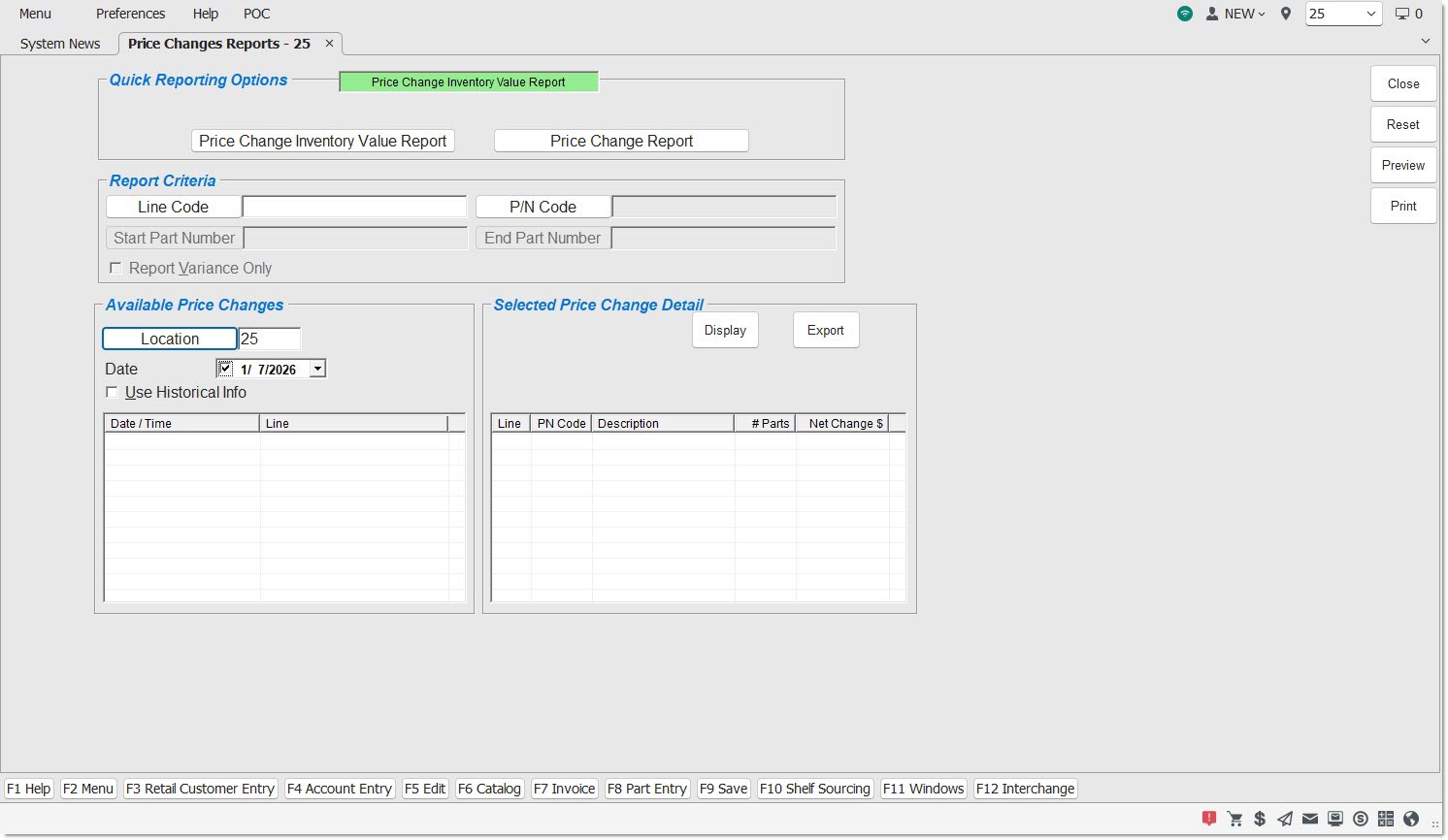
Quick Reporting Options
Price Change Inventory Value Report
Reports a summary of how the inventory value has changed as a result of the application of the price change. The report is calculated at the time of the price application.
Price Change Report
Reports all parts that have a price change or that exceed the price variance parameters as established in the Price Change Setup screen.
Advanced Criteria
Line Code
Filters by a line code. Click the button to display the 'Browse Line Codes' window to search for line codes.
P/N Code
Filters by a predefined P/N Code per line code. Click the button to display the 'Browse P/N Codes' window to search for a specific P/N Code per line code.
Start Part Number
Specifies the starting part number to report data by a range of part numbers within a specific line. Click the button to display the 'Find Part' window to search for a specific part number. Enabled only when a single Line Code is selected.
When the 'Customer Lookup Stripped Match' flag is checked in the System General Setup screen, only letters and numbers are searched; spaces, special characters and punctuation are "stripped out" of the search and ignored.
End Part Number
Specifies the ending part number to report data by a range of part numbers within a specific line. Click the button to display the 'Find Part' window to search for a specific part number. Enabled only when a single Line Code is selected.
When the 'Customer Lookup Stripped Match' flag is checked in the System General Setup screen, only letters and numbers are searched; spaces, special characters and punctuation are "stripped out" of the search and ignored.
Report Variance Only
Reports only the price fields (% + / % -) that have the 'Report' flag checked and a price change outside the variance, when checked. Price fields that have the 'Report' flag checked and do not have price variances display blank.
When unchecked, reports all prices fields with the 'Report' flag checked regardless whether they are fields that have a variance or not and regardless whether a price has changed or not for a price level displayed.
When all the 'Report' flags are unchecked, the report is not generated. The system prompts, "Price Change Setup screen must be setup before running report."
Unavailable for the 'Price Change Inventory Value Report'.
Note: The 'Report' flag setup is located in the Store General Setup screen under the 'Price Change' tab.
Advanced Criteria
Displays the 'Inventory Report Overrides' window used to set override defaults for the inventory report, when clicked.
Available Price Changes
Location
Filters by the selected store location. Click the button to display the 'Browse Locations' window to search available store location. Defaults to current location. When the Location is changed, the screen resets.
Date
Filters by the selected price change date. Defaults to the last date that a price change was received and displays all price changes received that day. When the checkbox is unchecked, all available price changes display from the newest to the oldest. Only price changes that have not yet had the detail purged displays in the grid. If the date is changed to a date prior to the date the data was last purged, the grid displays blank.
Use Historical Info
Reports data from previous closes, when checked, current data, when unchecked. When checked, the 'Available Price Changes' grid refreshes and all price changes before the last detail purge displays from the newest to the oldest. The 'Price Change Report' button is disabled.
Data since the last purge is available, when unchecked.
Available Price Changes Grid
Displays all price changes that are available and not yet purged.
Date/Time
Displays each available price change date and time from newest to oldest.
Line
Displays the line codes included in the price change, in alphanumerical order. The selected lines are reported in the reports for the selected price change highlighted in the 'Available Price Changes' section.
If the number of line codes exceeds the space available to display them, highlight the price change row in the grid and right-click to display a pop-up with all of the line codes included in that price change.
Selected Price Change Detail
Display
Displays the price change detail in the 'Selected Price Change Detail' grid.
Highlight a row and click 'Display', or double-click a row, in the grid in the 'Available Price Changes' section to display the price change detail in the 'Selected Price Change Detail' section.
Export
Exports the pricing date from the feed for the highlighted row in the 'Available Price Changes' grid to Excel. Only parts in the store's part table with price changes from the feed are exported and only. Exports only price changes when the 'Use Historical Info' flag is unchecked.
The export includes 'Date', 'Time', 'Location', 'Line', 'PN Code', 'Part Number', 'Description', 'Price 1 - 16' (custom names) 'Old' (price), 'Price' 1 - 16 (custom names) 'New' (price), 'Price 1 – 16' (custom names), and 'Var %' (variance %).
'Var %' is the difference between the 'Old' and the 'New'.
Note: Does not export the 'Price Change Inventory Value Report' or 'Price Change Report'.
Date and Time
Displays the Date and Time of the selected price change from the 'Available Price Changes' section.
Selected Price Change Detail Grid
Displays all price changes that have been received since the 2nd to last end of month close.
Line
Displays each line code with price changes in alphabetical order.
PN Code
Displays each PN Code from the price change in numeric order.
Description
Displays each PN Code Description from the price change.
# Parts
Displays the total number of distinct parts per Line Code/PN Code with price changes from the feed.
Net Change
Reports the net changes in dollars from the price change (Cost multiplied by Total In Stock).
Calculation:
((New value of parts – Old value of parts) + (New value of cores) – Old value of cores)) = Net Change $
Price Change Inventory Value Report
The 'Price Change Inventory Value Report' reports a summary of how the inventory value has changed as a result of the application of the price change. The report provides the store manager an understanding of how a price change impacted the existing store inventory. The summary data reflected in the report is calculated and stored at the time of the price application. The summary data is available indefinitely, with no set expiration date.
The following is an example of the 'Price Change Inventory Value Report':


Price Change Report
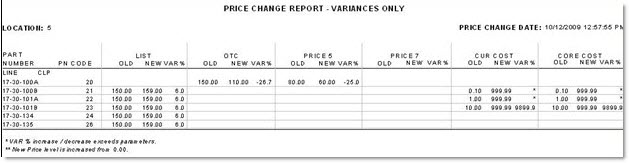
The 'Price Change Report' provides a list of parts with a price change for up to six pre-determined price levels reporting the detail or the values that exceed the variance parameters for prices as established in the Price Change Setup screen for prices that are being updated from part inventory feeds. The report cannot be run after the pre-determined number of days purges the detail.
The following is an example of the 'Price Change Report' with the 'Report Variance Only' flag unchecked.

The following is an example of the 'Price Change Report' with the 'Report Variance Only' flag checked.