eScan
The purpose of eScan functionality is to:
- Communicate sales order information between PartsWatch and eScan for the efficient picking, packing, and shipping of products to customers.
- Communicate purchase order information (POs and ASNs) between PartsWatch and eScan for the purchasing and receipt of products from vendors.
- Communicate inventory adjustments from eScan to PartsWatch resulting from an inventory count or an ad-hoc manual adjustment of a limited number of parts in the warehouse.
- Communicate the following information when edited in PartsWatch to eScan: Customer Accounts (and shipping methods), Vendors, Products (e.g. Line codes, PNCodes, Parts, UPC codes, UOMs).
eScan Glossary

Hidden Switches to Control eScan Functionality
Data Extracts
A scheduler that runs according to the 'Frequency' column below sends extracts to eScan which only contain changes made since the previous extract was run for each of the following data records:
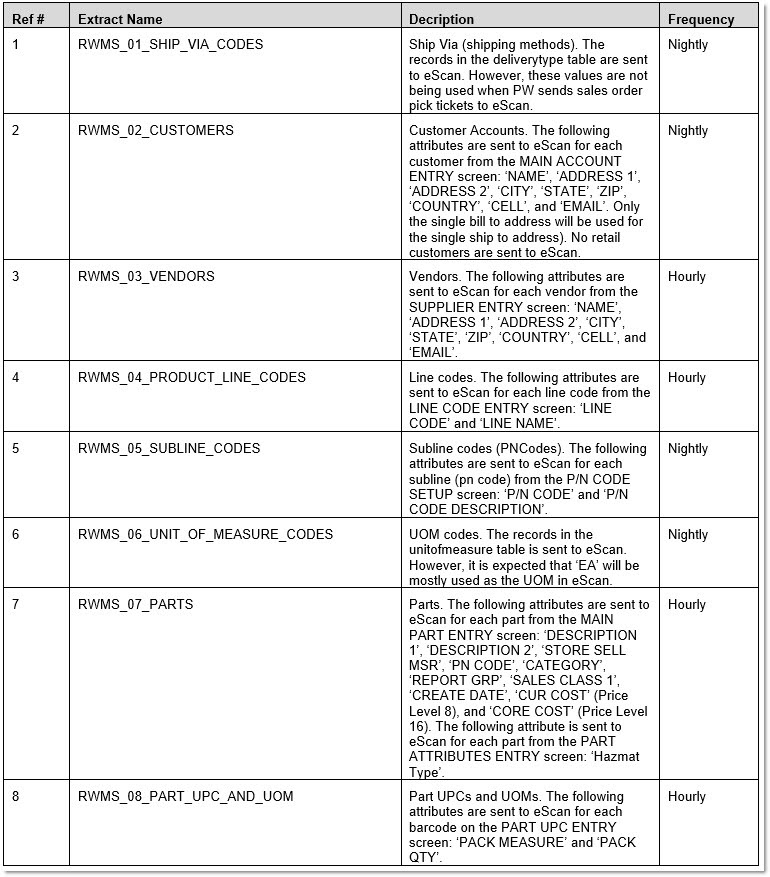
The initial extract run for each data record above contains all records for that data.
If any extracts fail due to a network problem, the application continues to retry until successful.
There are two extracts run only once before an eScan go-live, or "on-demand" after a go-live. They are:
-
Employees - PW user login IDs are sent to eScan. However, user logins in the eScan application do not have to have a matching PW user login.
-
Inventory QOH - The following two attributes are sent to eScan for each part from the Part Entry screen: 'QTY AVAILABLE' and 'QTY RESERVED', which aggregated together are 'QTY ON HAND (QOH)'.
Messaging Services
Outgoing Messaging from PartsWatch to eScan
The following information can be sent from PartsWatch to eScan:
- Sales order pick tickets
- Purchase Orders (POs)
- Advanced Shipping Notices (ASNs)
All messages are queued before sending to guarantee delivery to eScan.
Incoming Messages into PartsWatch from eScan
The following information can be received from eScan to PartsWatch:
-
Shipped part quantities for customer sales orders. The system updates the sales order even if the sales order is open on the Invoice Point of Sale screen and "locked" in the TABLE LOCK UTILITY screen.
-
Received part quantities from vendor purchase orders.
-
Received part quantities from customer sales order credit returns.
-
Inventory Adjustment of part quantity increases or decreases (due to cycle counts or manual adjustments).
eScan can send two different message requests:
When eScan sends a message request (containing location ID, line code, and part number), the application:
-
Determines if the part exists in stock (in parts table) or exists virtually (in nonSKU table).
-
Retrieves the appropriate part information and all UPC codes (from UPC table) associated with that part.
-
Sends eScan back a message response (containing all part information and UPC barcodes).
When eScan sends a message request (containing location ID and part number), the application:
-
Treats part number as a UPC barcode and use barcode (found in UPC table) to retrieve the line code and part number combination.
-
Determines if the part exists in stock (in parts table) or exists virtually (in nonSKU table).
-
Retrieves the appropriate part information and all UPC codes (from UPC table) associated with that part.
-
Sends eScan back a message response (containing all part information and UPC barcodes).
When PartsWatch receives a message from eScan of part quantities picked:
-
The application automatically adjusts the Sell Qty of any part with a discrepancy, allowing the sales order to be auto-finalized.
-
If the eScan picked quantity is more than the PartsWatch 'Sell Qty', the PartsWatch 'Sell Qty' is increased to match the eScan picked quantity.
-
If the eScan picked quantity is less than the PartsWatch 'Sell Qty', the PartsWatch 'Sell Qty' is decreased to match the eScan picked quantity.
-
If a part item on the sales order is not returned in the eScan message, the PartsWatch 'Sell Qty' is reduced to zero.
-
When a PW Sell Qty is reduced, a lost sale is automatically recorded if the setting 'Track Canceled Items as Lost Sales' is set to 'Always' (on the 'Extended' tab on the Store Invoice Options screen).
-
-
Inventory and eScan
When eScan sends PartsWatch an Inventory Adjustment message (as a result of a cycle count or the discovery of a part's incorrect quantity):
-
The application updates the part's quantity available in PartsWatch (increment or decrement).
-
The application updates the Part Ledger 'CHANGE BY' field to 'NEW PARTS' when the eScan payload sends the Inventory Adjustment type of 'Adjustment'.
-
The application updates the Part Ledger 'CHANGE BY' field to 'COUNT' when the eScan payload sends the Inventory Adjustment type of 'Cycle Count' or 'Physical Count'.
Note: Any part number(s) in the eScan payload that do not exist in PartsWatch are not updated and no error message displays.
Invoicing and eScan
Sales Order Pick Tickets
When the 'PICK' button is clicked on a sales order, the application:
-
Follows the 'PRINT PICKS' setting on the 'EXTENDED' tab in STORE INVOICE OPTIONS screen.
-
Important Note: BG Processor for eOrders doesn't currently follow that setting.
-
-
Locks the sales order.
-
Queues a message with a payload described in the Sales Order Payloads section of this Help.
-
Using the sales order service, transmits the payload to eScan.
-
If the transmission fails due to a network problem, the application continues to retry until successful (the retry applies to all subsequent sales order transmissions).
-
If the successfully transmitted payload contains a PW customer account that does not yet exist in eScan, the new customer account is added to eScan.
-
A successfully transmitted payload may still fail to be fully processed in eScan. This can occur if the payload contains a PW line code and/or part number that does not yet exist in eScan. If this occurs, the employee may receive an error message.
-
Note: This only applies to line codes and/or part numbers that are created on the day the sales order is generated. Otherwise, nightly extracts update all new PW line codes, and/or part numbers in eScan. eScan will stop processing the pick ticket when the first part is read in the payload that is not found in eScan. eScan may process the parts preceding the part not found.
-
-
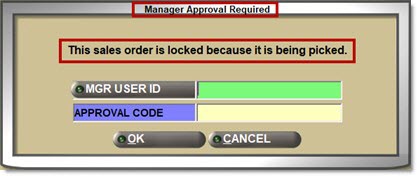
When an attempt is made to bring up a sales order after it has been locked, the application displays the 'Manager Approval Required' pop-up:
-
If an 'MGR USER ID' and 'APPROVAL CODE' are entered and 'OK' is clicked, the sales order displays. If 'CANCEL' is clicked, the sales order does not display, and the Invoice Point of Sale screen will reset.
-
The sales order remains locked, but the manager override allows it to be opened and canceled or edited in the Invoice Point of Sale screen.
-
-
If this override is set to one of the security action IDs that automatically approve the override without showing the 'Manager Approval Required' prompt, the following confirmation prompt displays with the text "The sales order is locked because it is being picked." ('OK' continues loading the ref, 'CANCEL' resets the Invoice Point of Sale screen).
-
If this override is set to one of the security action IDs automatically denying the override without showing the 'Manger Approval Required' prompt, the following confirmation prompt displays with the text "This sales order is locked." ('OK' resets the Invoice Point of Sale screen).
-
Note: To avoid confusing the employee by automatically approving or denying this specific override without any prompt, always force one of the preceding prompts to display.
-
-
If the sales order is edited, the employee must click the 'PICK' button again to retransmit the edited sales order.
-
The application queues a message with a payload described in the Sales Order Payloads section of this help.
-
Using the sales orders service, transmits the payload to eScan.
-
When the 'CANCEL ORDER' button is clicked, queues a message with a payload including the following:
-
Sales Order Deletion (record type = 'O').
-
-
Transmits the payload to eScan using the sales orders service.
Sales Order Payloads
When a sales order contains positive sell quantity item(s), the payload contains the following:
-
Sales Order Header (record type = 'ORD'). Note: The 'Priority' field in the Sales Order Header will always be set to "1".
-
Sales Order Item Details (record type = 'ITM').
-
Sales Order Drop Ship (record type = 'DRP'). Note: The Drop Ship record in the payload will be used by eScan to indicate the address to which parts will be delivered. The Drop Ship record in the payload will not be used in eScan as it is used in PartsWatch to sell a part through sourcing without affecting sales histories or stock. The behavior of the 'DS' (Drop Ship) modifier in PW invoicing will not change.
-
Sales Order Release indicating the end of the sales order (record type = 'ORL').
-
If the sales order also contains returned item(s) they are not included in the payload above. When the sales order is finalized, returned item(s) are sent in a separate payload.
When a sales order contains sourced part(s) and/or NIF part(s), the 'Message' field in the header record of the payload will include the following sourced part(s) and/or NIF part(s) information:
-
Vendor code (if the item is sourced from a vendor) or Store number (if the item is sourced from a store)
-
Sell quantity
-
Line code(s)
-
Part number(s)
-
Part description
-
Sample message: "Special order from vendor ABC: 1 KAR 5156, DIRECT IGNITION COIL UNIT Special order: 1 KAR NIF, TEST NIF PART"
Sales orders that contain only sourced and/or NIF items will be sent to eScan without item details in the Item Details section (record type = 'ITM'.)
When a sales order contains a 'KIT' part, the payload will contain in the 'ITM' record the components of the 'KIT', not the 'KIT' part. Note: A 'KIT' part cannot be picked because it's not an individual physical item, and it never has a quantity available.
When a sales order contains a 'BOM' part, the payload will contain in the 'ITM' record the 'BOM' part, not the 'BOM' components. Note: 'BOM' parts have a quantity available after they are "packaged" on the KIT SETUP screen and the components get shrink-wrapped or put in a box. The end result is a physical item that can be picked.
Sales Order Finish
-
When the 'FINISH' button is clicked, if a vendor is set up to send ASNs, the application doesn't send the sourced PO to eScan.
-
When the 'FINISH' button is clicked, if a vendor is not set up to send ASNs, the application:
-
Queues a message to eScan containing sourced PO information.
-
Using the purchase order service, transmits the following payload to eScan:
-
Purchase Order Header (record type = 'POH' and the 'Type' field is 'P').
-
Purchase Order Item Details (record type = 'POD').
-
-
-
If the transmission fails due to a network problem, the application continues to retry until successful.
Sales Order Finalization
When a sales order is finalized that contains returned item(s), the application queues a message with a payload containing the following:
-
Returns Header information (PO Header record type = 'POH').
-
Returns Detail information (PO Details record type = 'POD').
Note: Only resellable returns that will be added back to stock in the warehouse will be contained in the payload. Resellable, defective, or core returns that will be returned to a vendor will not be included in the payload. Any positive sell quantity item(s) from the original sales order will not be included in this payload.
Using the sales orders service, the application transmits the payload to eScan.
Sales Order Shipments
When a pick ticket shipment message is received from eScan:
- The application unlocks the sales order.
- The application sets the sales order status to 'PACK'.
- If full sell quantities for all items on the sales order have been picked, and the 'AUTO-FINALIZE PICKED SALES ORDERS' checkbox setting is checked, the application queues the sales order for finalization. Note: If the 'AUTO-FINALIZE PICKED SALES ORDERS' checkbox setting is unchecked, an employee must manually finalize the sales order.
If a payload from eScan contains a part number not found in PartsWatch, the employee may receive an error message.
Note: If there is a network issue, and the payload doesn't arrive, PartsWatch may not receive notification of the shipment after a few eScan retries.
Sales Order Resellable Returns to Shelf
After eScan receives resellable returned part(s) back into stock, eScan sends an 'Order Received' message to PW.
The application acknowledges the 'Order Received' message and sends a response to eScan.
The application updates 'QOH' in the part record and Part Ledger per existing functionality.
If a payload from eScan contains a part number not found in PartsWatch, the employee may receive an error message.
Note: If there is a network issue, and the payload doesn't arrive, PartsWatch may not receive notification of the receipt after a few eScan retries.
Purchasing and eScan
PO Finalization and Transmission
When a Purchase Order is finalized, if a vendor is set up to send ASNs, the application doesn't send the PO to eScan.
Note: If the vendor is set up to send ASNs, eScan doesn't require a PO because ASNs will be used instead of the PO to receive parts into inventory.
When a PO is finalized, if a vendor is not set up to send ASNs, the application responds as follows:
-
Queues a message to eScan containing PO information.
-
Using the purchase order service, transmits the following payload to eScan:
-
Purchase Order Header (record type = 'POH' and Type field is 'P').
-
Purchase Order Item Details (record type = 'POD').
-
If the transmission fails due to a network problem, the application continues to retry until successful.
If the PO is edited in PartsWatch after finalization:
-
The application queues a message to eScan with a payload, similar to the payload above.
-
The payload contains the entire PO content including the following in the 'POD' record type from the edited PO:
-
Parts that were added or removed,
-
Part quantities that were changed (including quantities changed to zero),
-
Parts for which no changes were made.
-
-
Using the purchase order service, the application transmits the payload of the edited PO to eScan.
ASN Posting
When PartsWatch receives an ASN from a vendor, the application:
-
Queues a message to eScan containing ASN information.
-
Using the purchase order service, transmits the following payload to eScan:
-
Purchase Order Header (record type = 'POH' and the 'Type' field is 'P').
-
Purchase Order Item Details (record type = 'POD').
-
-
If the transmission fails due to a network problem, continues to retry until successful.
PO Posting
When PartsWatch receives a purchase order receipt message from eScan (which contains parts received from either a PO or an ASN) the application:
-
Locks the PO.
-
Makes a PO View-Only when it's locked.
-
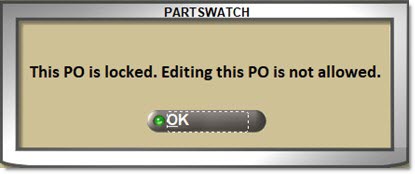
Displays a pop-up message indicating the PO is locked and no changes can be made.
-
Posts the PO using existing PO/ASN Post functionality.
-
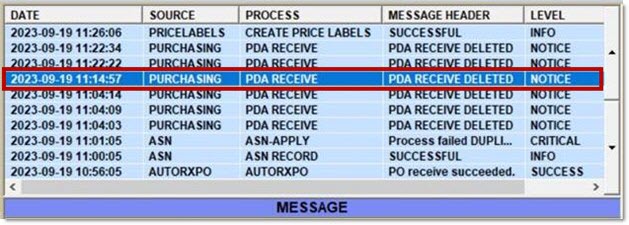
Logs a system message with the 'PROCESS' field as 'PDA RECEIVE'.
-
Unlocks the PO.
When PartsWatch receives a purchase order receipt message from eScan containing scanned part(s) that are not on the ASN and/or PO, the application adds the part(s) to the ASN and/or PO.
PO Auto-Post
The application auto-posts POs that only contain Buyouts (sourced items).
PO Cancellation
If the vendor is not set up to send ASNs, when PartsWatch cancels a PO, the application queues a message to eScan to inform eScan of the PO cancelation.
Using the purchase order service, the application transmits a payload with the following purchase order deletion information to eScan:
Purchase Order Deletion (record type = 'DEL').
Note: If the vendor is set up to send ASNs where the PO was not sent by PartsWatch to eScan, when PartsWatch cancels a PO, the application does not queue a message to eScan.
Return Orders (RO)
When an Overstock RO is finalized (regardless if a vendor is set up to send ASNs), the application responds as follows:
-
Queues a message to eScan containing RO information.
-
Using the sales order service, transmits the following payload to eScan:
-
Sales Order Header (record type = 'SOH').
-
Sales Order Item Details (record type = 'SOD').
-
Sales Order End indicating the end of the sales order (record type = 'SOE').
-
Note: PartsWatch sends a sales order to eScan because any outgoing product leaving the warehouse (to a customer or a vendor) requires a pick ticket for the product to be picked and shipped.
-
-
If the transmission fails due to a network problem, continues to retry until successful.
RO Cancellation
When an Overstock RO is deleted, the application queues a message with a payload including the following:
DELETE (record type = 'D')
Then, the application transmits the payload to eScan using the sales order service.
If the transmission fails due to a network problem, the application continues to retry until successful.
RO Shipment
When eScan sends a shipment payload for a submitted Overstock Return Order:
The application processes the Return Order functionality.
Note: PartsWatch will process the order as a scan session and decrement the parts on the order in the part record and Part Ledger.
PartsWatch prints and/or transmits the Overstock Return order according to the following settings per existing functionality (the default for these two settings is unchecked).